
In a previous post, we built a component that displays an organisation chart using the ADF Hierarachy Viewer. In this post, we look at how to use that component.
The organization chart provides a hierarchy view for members in an organization or company. It retrieves user’s information from WebLogic identity store such as LDAP server.
The component provides two approaches for integration with your customized WebCenter application or Webcenter space:
– Separated ADF Application
Deployed it to your Webcenter server as standalone ADF application and integrate with your customize application or Webcenter space using iframe, hyperlink etc.
– Taskflow
Add it to your page by Composer.
Installation
1. Separated ADF Application
– Open organization application by JDeveloper.
– Open web.xml under ViewController/Web Content/WEB-INF
– Change the value of context-param ‘ldap.org.topUserID’ to the topuser in your organization. Default value is ‘weblogic’
<context-param>
<param-name>ldap.org.topUserID</param-name>
<param-value>weblogic</param-value>
</context-param>
– Deploy the application to your webcenter server. The organization chart can be accessed by following url:
http://%your_server_name:your_server_port% /organization/faces/ organization.jspx
2. ADF Taskflow
a) In customized Webcenter application
– Add following parameter to web.xml of your application
<context-param>
<param-name>ldap.org.topUserID</param-name>
<param-value>weblogic</param-value>
</context-param>
Change the value of context-param ‘ldap.org.topUserID’ to the topuser in your organization. Default value is ‘weblogic’
– Create a new File System Connection to the folder where adflibOrganization.jar is placed.
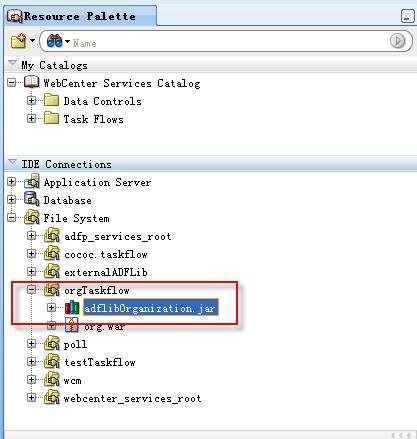
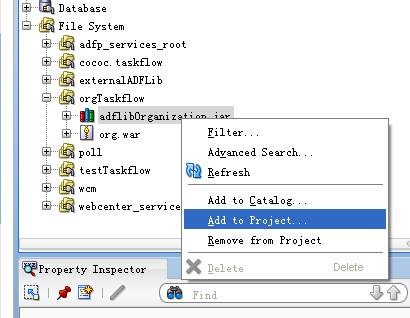
– Add this jar to your project.
– Add the taskflow catalog reference to default-catalog.xml
You can get Taskflow catalog reference by following way:
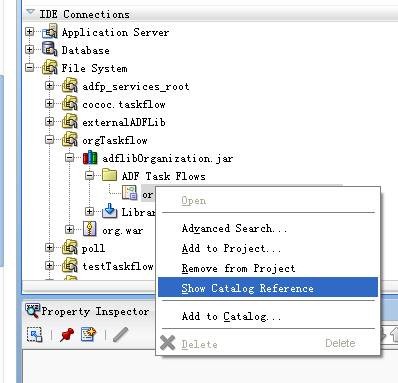
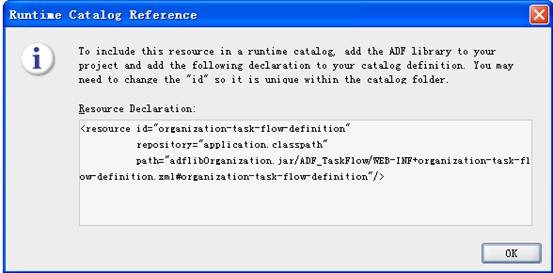
Add the resource declaration to default-catalog.xml. It is under %your_app_root_folder%/ mds/oracle/adf/rc/metadata.
<resource id=”organization-task-flow-definition”
repository=”application.classpath”
name=”organization chart”
description=”organization chart”
path=”adflibOrganization.jar/ADF_TaskFlow/WEB-INF+organization-task-flow-definition.xml#organization-task-flow-definition”/>
</contents>
– Redeploy your application, you can see the organization chart from resource catalog.
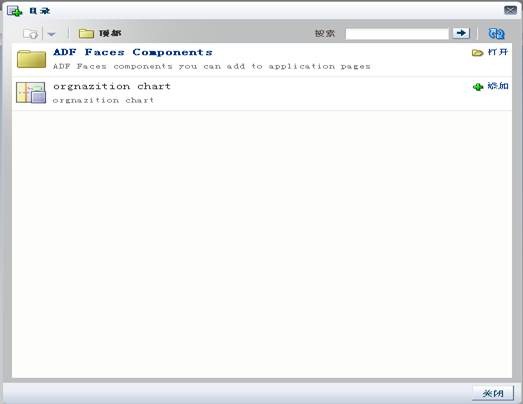
– Switch your page to edit mode; edit organization Taskflow; change the parameter ‘Top User ID’ to top user ID in your organization.

b) In WebCenter Spaces
Refer the Webcenter space extension guide to add organization chart taskflow to Webcenter space catalog.
Update user attributes shown in the chart
Create users from Weblogic admin console and change attributes value from ldap browser. The related ldap attributes shown in the chart include:
givenName
sn: surname
title
homePhone
mail
postalAddress
st: state
c: country
jpegphoto: photo
manager
The “manager ” attribute is the association field of organization

 RedStack