
If you are going to be doing development for Oracle BPM Suite 11g, you may want to install a copy of BPM on your own machine so that you can do some unit testing as you build components and composites.
The full installation of BPM may be a bit too heavy for a lot of developer’s machines, but there is an easy option to install a lightweight developers version of BPM.
You will need to have a database, and run the Repository Creation Utility to create the schemas for BPM. You can use the Oracle Express Edition (XE) database to minimise the footprint. You will find details about how to run RCU in this post.
Then you will need to install a Java Development Kit, WebLogic Server, and the SOA Suite (BPM Suite) 11.1.1.3 as detailed in that post. Note that you will not need to install the Web Tier, WebCenter, UCM or any of the other components listed in that post.
You should take a look at the Oracle JRockit JVM for your development server. In my testing, I found that it improved the performance of my server about 30% during deployments and at runtime. It does however take longer to start than the Oracle HotSpot JVM (i.e. the normal ‘Sun’ JVM). Of course this is not a big deal if you leave it running. There is also some pretty decent tooling available to help you with performance tuning, profiling and analysis (JRockit Mission Control) – more about that in later posts.
In my main development environment I use Oracle JRockit 4.1.0-1.6.0 to run WebLogic 10.3.3 and BPM 11.1.1.3 (all 64-bit). I run JDeveloper 11.1.1.3 on the HotSpot JVM (1.6.0_20, 21 or 22, nothing earlier). This is all on Windows Server 2008 (64-bit). I find that the configuration described in this post is significantly faster and more productive for me, than the standard (default) installation.
After you have installed the binaries, you will need to create your domain. This is where the setup process starts to differ.
There are two developer domain templates provided in the product, under the Oracle Middleware home directory, in:
Oracle_SOA1\common\templates\applications
In this directory, you will see two files called:
oracle.soa_template_developer_11.1.1.zip
oracle.bpm_template_developer_11.1.1.zip
You need to rename (or copy) these two files, so that they have the extension .jar instead of .zip. This will make them appear in the list of options when you create a new domain.
To create a domain, start up the config script in the SOA home:
c:\Oracle\Middleware\Oracle_SOA1\common\bin> config
The Fusion Middleware Configuration Wizard will appear. Select the Create a new WebLogic domain option and click on Next to continue.

From the list of options, first select Oracle Enterprise Manager – 11.1.1.0 [oracle_common], this will also select a couple of other options. Then select Oracle SOA Suite for developers – 11.1.1.0 [Oracle_SOA1] and then finally Oracle BPM Suite for developers – 11.1.1.0 [Oracle_SOA1]. Then click on Next to continue.

Enter a name for your domain, I called mine sml_domain, then click on Next.

Enter a password for your administration user and click on Next.

On the next screen, make sure you choose Development Mode and then pick your JDK. If you are going to use JRockit, like me, you will need to select Other JDK and then click on the Browse button to point to the location where you installed it. Then click on Next.

On the next screen, you will need to configure the database connections. Select all of the components in the bottom part of the screen, as shown below, and then enter your database details in the top half as shown. If you changed the default prefix from DEV when you ran the Repository Creation Utility, then you will need to select each component one by one and update the Schema Owner field. When you are done, click on Next.

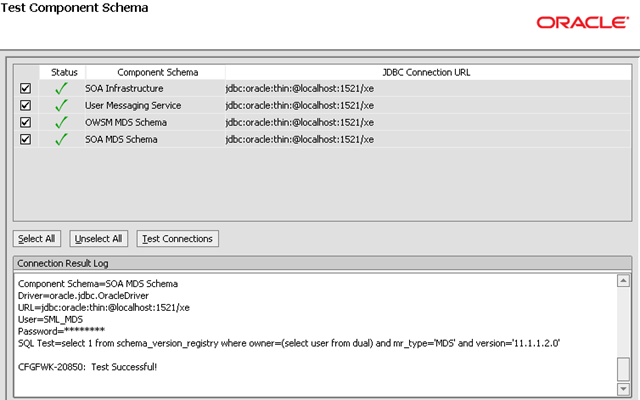
The next page will confirm that the database connections are all right. If you get any errors, go back and correct them on the previous page then retry the tests. When you are ready to proceed, click on Next.
We don’t need to do anything on this next page, just click on Next to continue.

Take a look at the configuration summary if you want to, then click on Next to continue.

You can watch the progress as the domain is created.

After a short time, the wizard will have completed the creation of the domain. Make sure that Start Admin Server is not checked and click on Done to exit the wizard.

The more fervent readers of documentation among you may have come across the following, which tells us we need to run an ant script called ant-soa-util.xml in order to properly configure a single server domain, however this is no longer necessary with 11.1.1.3, so we do not need to do anything.
http://download.oracle.com/docs/cd/E14571_01/doc.1111/e13925/configure.htm#sthref106
Now we are ready to start up our server, using the following command, in the domain directory we just created:
c:\oracle\Middleware\user_projects\domains\sml_domain\bin> startWebLogic.cmd
The server will start up and the console (server output) will be available in your console/terminal. The first time you start the server, it will take a bit longer than usual, as it has a bit of extra work to do unpacking a few files and so on.
After a few minutes, you will get a message letting you know the server is RUNNING.

Now you can log on to the server using the following URLs:
http://yourserver:7001/console        WebLogic console
http://yourserver:7001/em             Enterprise Manager
http://yourserver:7001/bpm/workspace  BPM Work Space
http://yourserver:7001/bpm/composer   BPM Process Composer
You can also create a connection in your JDeveloper and start developing! Enjoy!
Note: JVM Memory Tuning
If you have enough memory on your development machine, you may want to tune the JVM memory arguments. More detail on this topic later on, but for now, you might want to just try increasing the heap size and the permanent generation size. This is done by editing the setDomainEnv.cmd file in the domain directory for example:
user_projects\domains\sml_domain\bin\setDomainEnv.cmd
You will need to add a line like this:
set USER_MEM_ARGS=-Xms2048m -Xmx2048m -XX:PermSize=512m -XX:MaxPermSize=512m
This example will make the heap 2GB and the permanent generation 512MB. Of course, JVM memory tuning is quite a big topic in and of itself and simply throwing these settings in may not make things better on your particular machine, and if you don’t have enough memory, they may even prevent your server from starting!

 RedStack
Pingback: Installing BPM for Developers | RedStack | DNR Tactics
Pingback: Setting up the development environment for the Worklist | RedStack