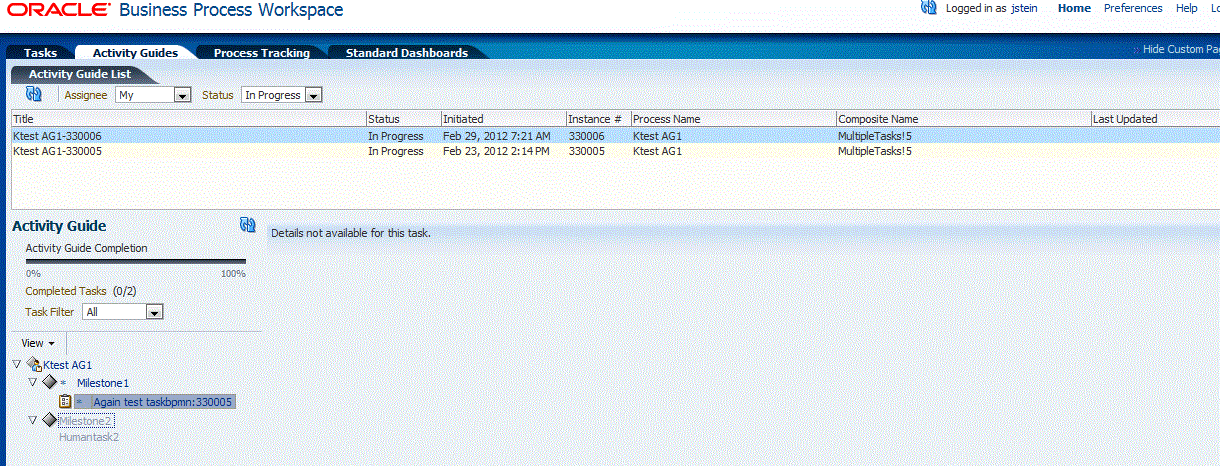
Worklist build for 11.1.1.6 (PatchSet 5) released

Have just uploaded a build of the custom BPM worklist sample which is built against BPM 11.1.1.6.  You can find the download links and JavaDoc on the main worklist page.  The code is available in the subversion trunk (for now) or tag VERSION-1.6.

This is basically the same as the last version of the sample, just recompiled for the new release of BPM.  I am planning to add some significant new functionality to the sample to coincide with BPM 11.1.1.7.

I am also working on a C#/.Net version of the worklist.  See some details here if you are interested.

Posted in Uncategorized | Tagged , , | Leave a comment

Oracle Fusion Middleware on JDK 7

In case you did not notice, you may be interested to know that most of the Oracle Fusion Middleware 11g platform is now supported on Java 7.  This is effective from WebLogic Server 10.3.6 and Oracle Fusion Middleware 11.1.1.6.  You can check the details for your particular product and operating system here.

Posted in Uncategorized | Tagged , , , , , | 2 Comments

Step by step instructions on building a SOA cluster – with video

Just came across this and wanted to share – step by step video instructions on building a two node SOA (and AIA Foundation Pack) cluster!  Cool!

Posted in Uncategorized | Tagged , , | 1 Comment

Unit Testing Asynchronous BPEL Processes Using soapUI

This is a topic I have been interested in for a while.  I have seen it done by some of my colleagues, especially in AIA environments, and I have been waiting to get an opportunity to work on it and document it.

But I recently found a great article from Daniel Amadei here.  I strongly encourage you to take a look at it if you are at all interested in test automation and/or continuous integration.

I am planning to build this kind of testing into my continuous integration project here.

Posted in Uncategorized | Tagged , , , , | Leave a comment

Be aware of JDK 1.6.0_30 with BPM or SOA on Windows Server

Have not done extensive testing of this, but I have noticed on a few BPM 11.1.1.6 installs on Windows Server 2008 R2 and also on Windows 7 – both 64-bit – that BPM is very unstable with JDK 1.6.0_30 (64-bit).  By unstable I mean slow and crashes with an OutOfMemory or similar after 10-15 minutes of use.

I have found on these systems that changing to 1.6.0_26 fixed all problems and dramatically improved performance.  So that is what I did!  As I said, this is not scientific, I did not do extensive testing or work out why it was having problems – at the time I did not have the time to spare, I just needed it fixed.  But I am posting it anyway just in case it helps someone out.

Note that I have not seen this issue on any other operating system.

Posted in Uncategorized | Tagged , , , , , | Leave a comment

PS5 released

In case you missed it – Oracle Fusion Middleware 11.1.1.6 (the long awaited ‘PatchSet 5’) has been released.  You can find some info about new features in BPM here and SOA here.

The documentation is here – note that we have the new docs.oracle.com site which is also being indexed properly by Google now (so I’m told) – addressing a long time complaint about searchability of the Oracle documentation.

And of course you can download it all from OTN.

For BPM 11g customers, this release provides a full and properly supported mechanism to get all the new features that were added in the Feature Pack patch.

Posted in Uncategorized | Tagged , , | Leave a comment

Choosing BPMN or BPEL to model your processes

With Dave Shaffer

Recently, I had a discussion with several colleagues and one of our large customers about when to use BPMN and when to use BPEL to model business processes.  I have discussed this topic before in this post but this conversation opened up an interesting new angle on the topic, which I wanted to share with you all.

First of all, let me be clear about the scenario here.  This is a large customer who is going to make extensive use of both BPMN and BPEL in their BPM/SOA environment.  They are not trying to decide which one to use exclusively – it is given that both BPEL and BPMN will be used extensively.  So the question here is about how to come up with a consistent approach to deciding which to use when – what to do with BPMN and what to do with BPEL.

The new perspective in this conversation was about how to choose the modeling language based on the fault/exception handling requirements of the process.  If you are not familiar with the options available for fault handling in BPMN and in BPEL, you should quickly review these sources:

You will notice that there are some differences in the capabilities of the products today.  If you look back over the last few releases of BPM, you will see that there has been a significant investment in adding more fault management capabilities for BPMN processes, and it would be reasonable to assume that this will continue.

But even while the Oracle platform holds the promise of equally rich fault handling in either BPEL or BPMN, one can make a case that the fault handling capabilities in BPEL are especially suitable for system to system integration, particularly when you need to use a distributed transaction or when compensation is required.  Besides, these kinds of highly technical fault handling capabilities are a task probably best suited for more technical kinds of processes and people.  And finally, the directed graph nature and ‘alter flow’ capability in BPMN can make it more difficult (or potentially impossible) to employ the same techniques.

However, the fault handling in BPMN is rather well suited to ‘business’ faults – not enough stock to fill an order, credit check failed, order line contains a discontinued product, order cancelled, things like that.

So this leads to the following suggested approach for this customer use-case:

  • Write top level (i.e. true ‘business’ processes) in BPMN,
  • Do not perform any kind of system interaction in these processes – don’t use adapters, call web services, etc.,
  • Use activities or embedded sub-processes with boundary events and event sub-processes to handle all business faults that may occur,
  • Make sure to have a ‘catch all’ event sub-process to handle any failures that are not specifically handled,
  • Theoretically there should never be a system fault in these BPMN processes,
  • Whenever there is a need to do some actual work, delegate this to BPEL, i.e. use a service activity with implementation type ‘service call’ to have BPEL go do the work,
  • Make the BPEL processes atomic, so that they can easily be retried, rolled back, etc.,
  • Use the fault management framework to control the handling of faults in the BPEL processes, and
  • Keep BPEL ‘worker’ processes in separate composites from BPMN ‘business’ processes.

This may not be perfect, but we think it offers a new, and very relevant, real-world perspective on how to decide which modeling notation is right for your processes.  We are sure interested to hear your thoughts and comments.

For a start, here are Dave’s thoughts on this idea:

First I would just like to reinforce the constraints around the scenario that this advice applies to because I think customers would come up with different approaches, and Oracle would have different best practices, when the question is asked around a greenfield project as to when to use BPEL and when to use BPMN.  In those scenarios, the advice would not be to wrap each system call in BPEL, since the unique value proposition of the Oracle platform is that the same system integration capabilities are available natively in both BPEL and BPMN.  However, I think the guidelines above make sense for a customer who will be mixing and matching BPEL and BPMN throughout their processes and applications and where it is assumed that most projects will include both.  In this case, it becomes important to strive for consistent guidelines as to where to draw the line for what to do in the BPEL part of a process and what to do in the BPMN part.  In this case, the fault handling capabilities are indeed richer in BPEL today vs what is possible in BPMN and even though they may be equivalent in the future, there are certainly many kinds of fault handling logic, compensation, etc. that will be deeper than the business would want to go.  The division of labor described above by Mark then results in not just using the best tool for the job, but also leverages the heterogeneous BPEL/BPMN architecture at this customer to make the BPMN “business view” of the process as clean as possible.

Posted in Uncategorized | Tagged , , , | 1 Comment

Writing a Human Task UI in .Net (C#/ASP.NET) or in fact anything other than ADF

As you know, you can create the user interfaces for your human tasks using ADF.  JDeveloper allows you to auto-generate a human task user interface (form) and it also includes a wizard that gives you a bit more control over what it produced.  Now ADF is a fine framework, but some people already have a pretty heavy investment in some other framework and a lot of these people would really like to be able to use their framework of choice to build their human task user interfaces.  And the good news it, they can!  And its not that hard to do, once you know how 🙂

In this article, we will look at how you build a human task user interface using C# and ASP.NET.  This human task UI will show up right there in BPM workspace, just like the ADF ones do.  Here’s what it will look like when it is done:

Those red arrows wont be there!  They are just to show you where it is.  That part there where you normally see the ADF task form, that is a .Net application.

Now, as I said, you can use any framework to do this – as long as it is capable of calling Java APIs or web services and reading some data from the HTTP Request object’s Query String.

In this post we will build a UI that is specific to the task in question – like the ADF ones that you generate are.  But it would not be a long way from here to building a generator so that you could auto-generate .Net user interfaces just like you can for ADF.

What you need

To follow along this post you are going to need a couple of things:

  • JDeveloper with the SOA and BPM extensions installed, at least version 11.1.1.5 plus the Feature Pack patch,
  • A BPM server, the same version as JDeveloper,
  • A copy of Visual Studio with the C# and web applications options installed.  I used Visual Studio 2010 Professional, but the free Visual Studio Express editions will also work if you don’t own a copy of Visual Studio.  Just make sure you get one with web applications and C# included, and
  • either a lot of time and patience to type boring bolierplate code, or a copy of AutoMapper from here.  I recommend you take the AutoMapper option…

If you want to get a feel for calling the BPM/HWF APIs/web services from .Net, you might want to review this post.

Creating the composite

First thing we are going to want is a composite to play with.  We can just make a really simple one with just a human task in it.  That will be enough to do what we want to do here.  In fact, something as simple as this will do admirably:

To create this, open up JDeveloper and create a new BPM Application by selecting New from the Application menu.  In the wizard choose BPM Application in the Application Template section and give your application a name.  I called mine DotNetTest.  Then click on Next.  Give your project a name, I used the same name.  Then click on Next.  Choose Composite with BPMN Process and click on Finish.

In the next dialog, give your process a name, I called mine DotNetTest too.  Then take the defaults and continue.

Drag a User Task into your process from the component palette and drop it on the line between the Start and End nodes, as shown in the diagram above.  Notice that the line turns blue when you hover above it in the right spot.  If you don’t see the component palette, you can open it from the View menu.

Apologies that my names of things in this sample are not super imaginative…

Now we need to create some data definitions.  Open the BPM Project Navigator.  If you don’t see it, you can open it from the View menu.  Expand out your project and the Business Catalog.  Right click on the Business Catalog and choose New then Module from the popup menu.  Call the module Data.

Then right click on your new module and select New then Business Object from the popup menu.  Name your new business object.  I called mine BusinessObject1 (told you there were not very imaginative).  Then click on the green plus icon in the Attributes section to add two new attributes.  Make them both of type String.  I called mine attribute1 and attribute2. Go ahead and save your work (select Save All from the File menu.)

Now return to your process.  Click on the background of the process to make sure the structure pane shows the structure of the process.  It should look a bit like this:

Now right click on the Process Data Objects in the structure pane and select New from the popup menu.  Give it a name, I chose dataObject1, and choose <Component> for the Type.  Then click on the little magnifying glass icon and choose the business object you just defined.

Go ahead and create a second variable (process data object) of type String called dataObject2.

Now let’s set up our data in this process.  Right click on the Start node and open its Properties from the popup menu.  Go to the Implementation tab and add an argument by clicking on the little green plus icon in the Arguments Definition section. I called mine argument1.  Set the type to your business object (Data.BusinessObject1 if you used the same names as me.)

Now click on the Data Associations link.  Map your argument1 into your dataObject1 as shown in the image below.  Then right click on dataObject2 and choose Expression from the popup menu.  Enter “hello” (with the quotes) as the expression.  Your data associations should now look a little like this:

That takes care of our inputs.  When you start the process you will type in the two strings that get put into dataObject1 and dataObject2 will get set to “hello.”

Now, let’s set up the human task.  To make it interesting we are going to allow editing of some data but not of others.

Open the human task properties and go the the Implementation tab.  Click on the green plus icon to create a new human task.  Give it a name, I called mine Humantask1.  Click on the little magnifying glass icon next to Outcomes and set the outcomes to just one option – OK.  Then click on the plus icon next to Parameters to open the Browse Data Objects window that you see on the right hand side of the image below.  Drag your two data objects into the Parameters area as indicated by the red arrow.  Tick the box to make only dataObject2 editable.  Then click on OK to complete the human task definition.  We will take the defaults for everything else.

Now click on the Data Associations link.  Set up the input and output mappings as shown:

Right, now we are ready to go ahead and deploy our composite to our server instance.  You can do this back in the Application Navigator using the Deploy option in the popup menu on the project.

Follow through the wizard, I assume that you know how to do this by now if you are a regular reader.  If not, you can go ahead and take the defaults on this one.

When the deployment is finished, go to Enterprise Manager (at http://yourserver:7001/em) and login as an administrative user (like weblogic) and then navigate into the SOA folder and you should see your shiny new composite there.  Something like this:

Click on it to open the composite page, then click on the Test button and go ahead and launch a couple of instances.  We will use them later.

While we are here, let’s tell the runtime that we are planning to use our own user interface for this task.  We have not created it yet, but we have a pretty good idea what the details will be.  Go back to the composites main page.  Down the bottom you should see a list of the components in the composite, including your Humantask1.  Click on that to bring up the settings for that component.  Then open the Administration tab in these settings.

Click on the green plus icon next to Add URI.  Provide the values you see in the image above.  We are just going to use the built in test environment in Visual Studio in this post.  No need to install IIS for this.  Of course in real life you would install it and deploy your web applications to IIS.  Make sure you click on the Apply button when you are done to save your changes.

The .Net Application

Now, let’s get to work on the fun part!

Open Visual Studio and start a new project by choosing New then Project from the File menu.  In the New Project dialog box, open the Visual C# folder and select the Web category.  Make sure you have .Net Framework 4 selected (you will have installed this with Visual Studio most likely – if not, stop and go install it now) and choose the ASP.NET Web Application template.  Give your project a name, I called mine WebApplication2.  Click on OK to create your application.

We need to tell our project about AutoMapper. First of all, go extract the AutoMapper.zip into your project directory, e.g. c:\users\mark\documents\visual studio 2010\Projects\WebApplication2\WebApplication2.  This will give you three files – AutoMapper.dll, AutoMapper.pdb and AutoMapper.xml.  For a discussion of what AutoMapper is and why we want it – see this post.

In the Solution Explorer, right click on the References folder and choose Add Reference… from the popup menu.

In the Add Reference window, go to the Browse tab.  You should see the AutoMapper.dll that you just unzipped right there in your project directory.  Select it and click on OK to add a reference to your project.

Now, we need to add references to the services that we will be using.  We need to get the WSDL addresses for the TaskService and the TaskQueryService.  You can work these out using the following examples:

http://yourserver:8001/integration/services/TaskQueryService/TaskQueryService?wsdl
http://yourserver:8001/integration/services/TaskService/TaskServicePort?wsdl

To add the references, right click on the Service References folder and select Add Service Reference… from the popup menu.

Add the two web services (one at a time).  Enter the WSDL URL in the Address field, then click on the Go button.  You will see a description of the services avilable as shown in the image below.  Enter a name for the service in the Namespace field and then click on the OK button.  I called mine TaskService and TaskQueryService.

Now, because these two services use WS-Security, we need to tell .Net to use WS-Security.  This is done by editing the web.config file.  You should see it right there in the Solution Explorer, go ahead and open it and scroll down to the bottom.  Here is the part we are interested in:

 <bindings>
      <basicHttpBinding>
        <binding name="TaskQueryServiceSOAPBinding" closeTimeout="00:01:00"
          openTimeout="00:01:00" receiveTimeout="00:10:00" sendTimeout="00:01:00"
          allowCookies="false" bypassProxyOnLocal="false" hostNameComparisonMode="StrongWildcard"
          maxBufferSize="65536" maxBufferPoolSize="524288" maxReceivedMessageSize="65536"
          messageEncoding="Text" textEncoding="utf-8" transferMode="Buffered"
          useDefaultWebProxy="true">
          <readerQuotas maxDepth="32" maxStringContentLength="8192" maxArrayLength="16384"
            maxBytesPerRead="4096" maxNameTableCharCount="16384" />
          <security mode="None">
            <transport clientCredentialType="None" proxyCredentialType="None"
              realm="" />
            <message clientCredentialType="UserName" algorithmSuite="Default" />
          </security>
        </binding>
        <binding name="TaskServiceSOAPBinding" closeTimeout="00:01:00"
          openTimeout="00:01:00" receiveTimeout="00:10:00" sendTimeout="00:01:00"
          allowCookies="false" bypassProxyOnLocal="false" hostNameComparisonMode="StrongWildcard"
          maxBufferSize="65536" maxBufferPoolSize="524288" maxReceivedMessageSize="65536"
          messageEncoding="Text" textEncoding="utf-8" transferMode="Buffered"
          useDefaultWebProxy="true">
          <readerQuotas maxDepth="32" maxStringContentLength="8192" maxArrayLength="16384"
            maxBytesPerRead="4096" maxNameTableCharCount="16384" />
          <security mode="None">
            <transport clientCredentialType="None" proxyCredentialType="None"
              realm="" />
            <message clientCredentialType="UserName" algorithmSuite="Default" />
          </security>
        </binding>
      </basicHttpBinding>
    </bindings>
    <client>
      <endpoint address="http://ps5.mark.oracle.com:8001/integration/services/TaskQueryService/TaskQueryService2/*"
        binding="basicHttpBinding" bindingConfiguration="TaskQueryServiceSOAPBinding"
        contract="TaskQueryService.TaskQueryService" name="TaskQueryServicePortSAML" />
      <endpoint address="http://ps5.mark.oracle.com:8001/integration/services/TaskQueryService/TaskQueryService"
        binding="basicHttpBinding" bindingConfiguration="TaskQueryServiceSOAPBinding"
        contract="TaskQueryService.TaskQueryService" name="TaskQueryServicePort" />
      <endpoint address="http://ps5.mark.oracle.com:8001/integration/services/TaskService/TaskServicePort"
        binding="basicHttpBinding" bindingConfiguration="TaskServiceSOAPBinding"
        contract="TaskService.TaskService" name="TaskServicePort" />
      <endpoint address="http://ps5.mark.oracle.com:8001/integration/services/TaskService/TaskServicePortSAML/*"
        binding="basicHttpBinding" bindingConfiguration="TaskServiceSOAPBinding"
        contract="TaskService.TaskService" name="TaskServicePortSAML" />
    </client>

For each of the two bindings you will need to update the security section as shown above to use UserName credentials and the Default algorithm for message security.  Not transport, message – make sure you get the right one!

Also, which we are here, you might want to note a couple of things in the client section.  First, this is where you will go and change the endpoint addresses if you want to use a different server later on.  Second, notice that there are two endpoints for each service.  One is SAML and one is not.  We are going to use the ones that are not SAML in this example.  You can make a note of the value in the name attribute for each attribute.  We will need those later.

Ok, that takes care of our services.  Now let’s do the user interface.  We will start by customising the template (Site.Master) first.  You don’t strictly need to do this, but it is best to get rid of some of that extra stuff that might cuase confusion.  Here is the template I used:

<%@ Master Language="C#" AutoEventWireup="true" CodeBehind="Site.master.cs" Inherits="WebApplication2.SiteMaster" %>

<!DOCTYPE html PUBLIC "-//W3C//DTD XHTML 1.0 Strict//EN" "http://www.w3.org/TR/xhtml1/DTD/xhtml1-strict.dtd">
<html xmlns="http://www.w3.org/1999/xhtml" xml:lang="en">
<head runat="server">
    <title></title>
    <link href="~/Styles/Site.css" rel="stylesheet" type="text/css" />
    <asp:ContentPlaceHolder ID="HeadContent" runat="server">
    </asp:ContentPlaceHolder>
</head>
<body>
    <form runat="server">
    <div class="page">
        <div class="header">
            <div class="title">
                <h1>
                    Sample C#/ASP.NET Task form
                </h1>
            </div>
            <div class="loginDisplay">
                        [ <a href="#" id="HeadLoginView_HeadLoginStatus">Sample</a> ]
            </div>
        </div>
        <div class="main">
            <asp:ContentPlaceHolder ID="MainContent" runat="server"/>
        </div>
        <div class="clear">
        </div>
    </div>
    <div class="footer">
    </div>
    </form>
</body>
</html>

Note that we are running this at the server, not the client, for those who know enough about .Net to care about the difference 🙂

Great, now le’s set up our main page.  Open up the Default.aspx page.  Here is how we want it to look:

If you want to, you can go and drag and drop everything into place and edit the properties.  But in the interest of making this easier for you, and to make sure the names of the UI components match the sample code below, it would be better to copy the code below into the source view.

<%@ Page Title="Home Page" Language="C#" MasterPageFile="~/Site.master" AutoEventWireup="true"
    CodeBehind="Default.aspx.cs" Inherits="WebApplication2.QueryStringRecipient" %>

<asp:Content ID="HeaderContent" runat="server" ContentPlaceHolderID="HeadContent">
</asp:Content>
<asp:Content ID="BodyContent" runat="server" ContentPlaceHolderID="MainContent">
    <h2>
        Task Details
    </h2>
<table>
  <tr><td>Task Title:</td><td><asp:TextBox ID="TextBox1" runat="server"
          Enabled="False"></asp:TextBox></td></tr>
  <tr><td>Task State:</td><td><asp:TextBox ID="TextBox2" runat="server"
          Enabled="False"></asp:TextBox></td></tr>
  <tr><td>Task Number:</td><td><asp:TextBox ID="TextBox3" runat="server"
          Enabled="False"></asp:TextBox></td></tr>
</table>
    <h2>
        Payload
    </h2>
<table>
  <tr><td>Updatable Payload Data:</td><td>
      <asp:TextBox ID="TextBox4" runat="server" AutoPostBack="True"></asp:TextBox></td></tr>
  <tr><td>Read Only Payload Data:d Only Payload Data:</td><td><asp:TextBox ID="TextBox5" runat="server"
          Enabled="False"></asp:TextBox></td></tr>
</table>
    <h2>
        Actions
    </h2>
    <asp:Button ID="Button1" runat="server" Text="OK" onclick="Button1_Click"  />
</asp:Content>

Great, that’s the UI taken care of.  Now let’s put in the code behind it.  This is where the really interesting stuff happens 🙂

Go ahead and open up your Default.aspx.cs file and put this code into it:

using System;
using System.Collections;
using System.Collections.Generic;
using System.ComponentModel;
using System.Data;
using System.Drawing;
using System.Linq;
using System.Web;
using System.Web.SessionState;
using System.Web.UI;
using System.Web.UI.HtmlControls;
using System.Web.UI.WebControls;

namespace WebApplication2
{

    public partial class QueryStringRecipient : System.Web.UI.Page
    {
        protected System.Web.UI.WebControls.Label lblInfo;

        private string taskId;
        private string ctxId;
        private TaskQueryService.workflowContextType ctx;
        private TaskQueryService.TaskQueryServiceClient tqs;
        private TaskQueryService.task task;

        private void Page_Load(object sender, System.EventArgs e)
        {

                // setup the automapper
                setupAutoMapper();

                // BPM will pass us the taskID and the ctx token
                // need to read these out of the http request's query string
                taskId = Request.QueryString["bpmWorklistTaskId"];
                ctxId = Request.QueryString["bpmWorklistContext"];
                //System.Diagnostics.Debug.WriteLine("Task ID:\n" + taskId);
                //System.Diagnostics.Debug.WriteLine("Context:\n" + ctxId);

                // if this is running outside of the worklist, just exit
                if (taskId == null)
                {
                    // looks like we dont have a task
                    return;
                }

                // set up the BPM context
                ctx = new TaskQueryService.workflowContextType();
                ctx.token = ctxId;

                // get the TQS
                tqs = new TaskQueryService.TaskQueryServiceClient("TaskQueryServicePort");

                // set up the request to get the task
                TaskQueryService.taskDetailsByIdRequestType getTaskRequest = new TaskQueryService.taskDetailsByIdRequestType();
                getTaskRequest.workflowContext = ctx;
                getTaskRequest.taskId = taskId;

                // get the task
                task = tqs.getTaskDetailsById(getTaskRequest);
                //System.Diagnostics.Debug.WriteLine("task title:\n" + task.title);

                // populate the UI with task details
                TextBox1.Text = task.title;
                TextBox2.Text = task.systemAttributes.state.ToString();
                TextBox3.Text = task.systemAttributes.taskNumber;

                if (!Page.IsPostBack)
                {
                    // populate the UI with current payload data
                    System.Xml.XmlNode[] payload = (System.Xml.XmlNode[])task.payload;
                    TextBox4.Text = payload.ElementAt(0).ChildNodes.Item(1).InnerText;
                    TextBox5.Text = payload.ElementAt(1).ChildNodes.Item(0).InnerText;
                }

        }

        #region Web Form Designer generated code
        override protected void OnInit(EventArgs e)
        {
            //
            // CODEGEN: This call is required by the ASP.NET Web Form Designer.
            //
            InitializeComponent();
            base.OnInit(e);
        }

        /// <summary>
        /// Required method for Designer support - do not modify
        /// the contents of this method with the code editor.
        /// </summary>
        private void InitializeComponent()
        {
            this.Load += new System.EventHandler(this.Page_Load);

        }
        #endregion

        protected void Button1_Click(object sender, EventArgs e)
        {
            System.Diagnostics.Debug.WriteLine("PRESSED OK");

            // update the task payload from the UI
            System.Xml.XmlNode[] payload = (System.Xml.XmlNode[])task.payload;
            payload.ElementAt(0).ChildNodes.Item(1).InnerText = TextBox4.Text;
            task.payload = payload;

            // get the TS
            TaskService.TaskServiceClient ts = new TaskService.TaskServiceClient("TaskServicePort");

            // update task
            TaskService.taskServiceContextTaskBaseType updateTaskRequest = new TaskService.taskServiceContextTaskBaseType();
            updateTaskRequest.workflowContext = AutoMapper.Mapper.Map<TaskQueryService.workflowContextType, TaskService.workflowContextType>(ctx);
            updateTaskRequest.task = AutoMapper.Mapper.Map<TaskQueryService.task, TaskService.task>(task);
            TaskService.task updatedTask = ts.updateTask(updateTaskRequest);

            // complete task
            TaskService.updateTaskOutcomeType updateTaskOutcomeRequest = new TaskService.updateTaskOutcomeType();
            updateTaskOutcomeRequest.workflowContext = AutoMapper.Mapper.Map<TaskQueryService.workflowContextType, TaskService.workflowContextType>(ctx);
            updateTaskOutcomeRequest.outcome = "OK";
            updateTaskOutcomeRequest.Item = updatedTask;
            ts.updateTaskOutcome(updateTaskOutcomeRequest);

            // redirect to empty page
            Response.Redirect("/Empty.htm");
        }

        private void setupAutoMapper()
        {
            // set up the automapper
            AutoMapper.Mapper.CreateMap<TaskQueryService.workflowContextType, TaskService.workflowContextType>();
            AutoMapper.Mapper.CreateMap<TaskQueryService.credentialType, TaskService.credentialType>();

            AutoMapper.Mapper.CreateMap<TaskQueryService.task, TaskService.task>();
            AutoMapper.Mapper.CreateMap<TaskQueryService.attachmentType, TaskService.attachmentType>();
            AutoMapper.Mapper.CreateMap<TaskQueryService.callbackType, TaskService.callbackType>();
            AutoMapper.Mapper.CreateMap<TaskQueryService.customAttributesType, TaskService.customAttributesType>();
            AutoMapper.Mapper.CreateMap<TaskQueryService.documentType, TaskService.documentType>();
            AutoMapper.Mapper.CreateMap<TaskQueryService.EvidenceType, TaskService.EvidenceType>();
            AutoMapper.Mapper.CreateMap<TaskQueryService.processType, TaskService.processType>();
            AutoMapper.Mapper.CreateMap<TaskQueryService.commentType, TaskService.commentType>();
            AutoMapper.Mapper.CreateMap<TaskQueryService.identityType, TaskService.identityType>();
            AutoMapper.Mapper.CreateMap<TaskQueryService.ucmMetadataItemType, TaskService.ucmMetadataItemType>();
            AutoMapper.Mapper.CreateMap<TaskQueryService.systemAttributesType, TaskService.systemAttributesType>();
            AutoMapper.Mapper.CreateMap<TaskQueryService.actionType, TaskService.actionType>();
            AutoMapper.Mapper.CreateMap<TaskQueryService.displayInfoType, TaskService.displayInfoType>();
            AutoMapper.Mapper.CreateMap<TaskQueryService.shortHistoryTaskType, TaskService.shortHistoryTaskType>();
            AutoMapper.Mapper.CreateMap<TaskQueryService.assignmentContextType, TaskService.assignmentContextType>();
            AutoMapper.Mapper.CreateMap<TaskQueryService.assignmentContextTypeValueType, TaskService.assignmentContextTypeValueType>();
            AutoMapper.Mapper.CreateMap<TaskQueryService.collectionTargetType, TaskService.collectionTargetType>();
            AutoMapper.Mapper.CreateMap<TaskQueryService.collectionTargetActionType, TaskService.collectionTargetActionType>();
            AutoMapper.Mapper.CreateMap<TaskQueryService.preActionUserStepType, TaskService.preActionUserStepType>();
            AutoMapper.Mapper.CreateMap<TaskQueryService.systemMessageAttributesType, TaskService.systemMessageAttributesType>();
            AutoMapper.Mapper.CreateMap<TaskQueryService.flexfieldMappingType, TaskService.flexfieldMappingType>();
            AutoMapper.Mapper.CreateMap<TaskQueryService.scaType, TaskService.scaType>();
            AutoMapper.Mapper.CreateMap<TaskQueryService.UpdatableEvidenceAttributesType, TaskService.UpdatableEvidenceAttributesType>();

            // check automapper config is valid
            AutoMapper.Mapper.AssertConfigurationIsValid();
        }

    }
}

Now let’s walk through and understand what is happening here. First we declare some variables that we will use.  Notice that some of these are from the namespaces we just created with our web service references.  We are going to be using the TaskQueryServiceClient and the workflowContextType (the credentials that we use to authenticate to the BPM server).  We also will be using the task object.  We define these at the class level as we want them to be avialable for the whole lifecycle of the page.

        private string taskId;
        private string ctxId;
        private TaskQueryService.workflowContextType ctx;
        private TaskQueryService.TaskQueryServiceClient tqs;
        private TaskQueryService.task task;

As for the class, we are extending the class QueryStringRecipient and extending System.Web.UI.Page.  We say partial class because this class is already defined elsewhere (in the .Net libraries) and we are just adding some extra logic to it.  We use this class so that we can get access to the Query String from the HTTP Request.

    public partial class QueryStringRecipient : System.Web.UI.Page

Now let’s take a look at the Page_Load method.  This gets run (as you might guess) when the page is loaded.  Every time the page is loaded – even post backs.  So you have to be careful not to overwrite data from the user in here.  This method is probably doing more work than it needs to on each page load the way I have it implemented – I guess you can optimise it some more 🙂  The first thing we need to do is set up the AutoMapper.  This is done by calling a convenience method setupAutoMapper() which is down the bottom of the source file to hide all that ugliness.  As I mentioned earlier, why and how we are using AutoMapper is discussed over here.

       private void Page_Load(object sender, System.EventArgs e)
        {

                // setup the automapper
                setupAutoMapper();

Next, we need to read the data that BPM sends us in the Query String.  When we configure a URI for a human task, like we did earlier in this post, BPM will append some data into the Query String for us.  This is the data we want to read now:

  • bpmWorklistTaskId is the taskId for the particular task instance we are interested in, and
  • bpmWorklistConext is the BPM workflow context (security token) for the currently logged on user (logged on to BPM Workspace that is).

With these two pieces of information, we are able to do everything we need to do to that task – get its details, payload, take an action on it (system or custom actions), update it, etc.  Here is the code to grab these from the Query String:

                // BPM will pass us the taskID and the ctx token
                // need to read these out of the http request's query string
                taskId = Request.QueryString["bpmWorklistTaskId"];
                ctxId = Request.QueryString["bpmWorklistContext"];

Now we are ready to start talking to BPM.  We should first check that we actually got a task ID in the previous step, otherwise, we probably got called from outside of BPM Workspace, so we should just stop.

Then we can create our workflowContextType.  To use the details that BPM sent us, all we need to do is put them into the token property of this type, as you see below.  Then we are ready to create our TaskQueryServiceClient, note that we pass in to the constructor the name of the port we want – you wrote that down earlier, didn’t you? 🙂

                // if this is running outside of the worklist, just exit
                if (taskId == null)
                {
                    // looks like we dont have a task
                    return;
                }

                // set up the BPM context
                ctx = new TaskQueryService.workflowContextType();
                ctx.token = ctxId;

                // get the TQS
                tqs = new TaskQueryService.TaskQueryServiceClient("TaskQueryServicePort");

Next, we want to retrieve the task.  We do this by calling the getTaskDetailsById() method on the TaskQueryServiceClient.  First, we need to set up our inputs.  This is done by creating a TaskQueryService.taskDetailsByIdRequestType and setting its workflowContext and taskId properties using the values we retrieved from the Query String earlier.  Then we can call the method.  We get back a task object.

                // set up the request to get the task
                TaskQueryService.taskDetailsByIdRequestType getTaskRequest = new TaskQueryService.taskDetailsByIdRequestType();
                getTaskRequest.workflowContext = ctx;
                getTaskRequest.taskId = taskId;

                // get the task
                task = tqs.getTaskDetailsById(getTaskRequest);

Now, let’s read the data out of the task and populate our UI components.  Here we set the various text boxes to the task metadata we have chosen to show – title, status and task number.

Then we set the other group of text boxes (the ones for the payload) to those parts of the payload that we are interested in.  Of course, we don’t need to display everything, just the fields we are interested in.  In this example, we are going to take one of the two String fields from our dataObject1 and the String dataObject2.  You can see that we access the payload through a System.ml.XmlNode[] – we can just cast the payload property of the task to this type and then we can easily read the payload data.  You can see from the code here that this is specific to the payload type – so in this case we do need to know the structure of the payload.  We could of course be a bit smarter and introspect the payload to find the data we want, but for now, hardcoding it will serve our purpose here.

Notice that we only want to populate the payload UI fields from the task payload the first time we load the page.  That is why we check if (!Page.IsPostBack) – otherwise any changes that the user had made would be overwritten when they post back those very changes.

                // populate the UI with task details
                TextBox1.Text = task.title;
                TextBox2.Text = task.systemAttributes.state.ToString();
                TextBox3.Text = task.systemAttributes.taskNumber;

                if (!Page.IsPostBack)
                {
                    // populate the UI with current payload data
                    System.Xml.XmlNode[] payload = (System.Xml.XmlNode[])task.payload;
                    TextBox4.Text = payload.ElementAt(0).ChildNodes.Item(1).InnerText;
                    TextBox5.Text = payload.ElementAt(1).ChildNodes.Item(0).InnerText;
                }

That completes the Page_Load method.  Now, let’s take a look at what happens when the user clicks on the OK button on our page.  That button represents the OK (custom) action (or outcome) for that task.

The first thing we want to do is update the payload with the data that the user has entered in the form (if any).  Note that only one of the two payload fields that we are displaying is editable – you may remember when we created our task that we set only one of the two parameters to be editable.  That is why we are only taking the value from one of the TextBox components and updating the payload.  If you tried to update the non-updatable field, you would get an exception (as you might expect.)  Updating the payload is pretty mush the reverse of reading the payload:

        protected void Button1_Click(object sender, EventArgs e)
        {
            System.Diagnostics.Debug.WriteLine("PRESSED OK");

            // update the task payload from the UI
            System.Xml.XmlNode[] payload = (System.Xml.XmlNode[])task.payload;
            payload.ElementAt(0).ChildNodes.Item(1).InnerText = TextBox4.Text;
            task.payload = payload;

Now we have actually just updated the payload in our local copy of the task, we need to actually tell BPM to update the ‘real’ task on the server.  We do this by calling the updateTask() method on the TaskService.  Just like we did earlier for the TaskQueryService, we create an instance of the TaskService and pass in the name of the port we want to use.

Then we create the input for the updateTask() method, which is the oddly named TaskService.taskServiceContextBaseType.  We can then populate it with the workflowContext we got from the Query String, and our newly updated task object.

Notice how we use the AutoMapper to convert between types in the two different namespaces created for our services.

The updateTask() method returns to us a new task object, which is represents the newly updated task object on the server.  We will need to use this new object to take any further actions on this task, our old task object is now no longer of any use to us.

            // get the TS
            TaskService.TaskServiceClient ts = new TaskService.TaskServiceClient("TaskServicePort");

            // update task
            TaskService.taskServiceContextTaskBaseType updateTaskRequest = new TaskService.taskServiceContextTaskBaseType();
            updateTaskRequest.workflowContext = AutoMapper.Mapper.Map<TaskQueryService.workflowContextType, TaskService.workflowContextType>(ctx);
            updateTaskRequest.task = AutoMapper.Mapper.Map<TaskQueryService.task, TaskService.task>(task);
            TaskService.task updatedTask = ts.updateTask(updateTaskRequest);

Finally, we can complete the task by setting the outcome to “OK” using the updateTaskOutcome() method on the TaskService.  I won’t go through all the details, but you can see we create the input, populate it and the call the method.

Once this is done, we can redirect the browser to an empty page – just like the auto-generated ADF task forms do – so we maintain the normal user exerpience in the BPM Workspace.  This is done with the Response.Redirect(“/Empty.htm”) call on the last line.

            // complete task
            TaskService.updateTaskOutcomeType updateTaskOutcomeRequest = new TaskService.updateTaskOutcomeType();
            updateTaskOutcomeRequest.workflowContext = AutoMapper.Mapper.Map<TaskQueryService.workflowContextType, TaskService.workflowContextType>(ctx);
            updateTaskOutcomeRequest.outcome = "OK";
            updateTaskOutcomeRequest.Item = updatedTask;
            ts.updateTaskOutcome(updateTaskOutcomeRequest);

            // redirect to empty page
            Response.Redirect("/Empty.htm");

Now obviously we need to have such a page, so go ahead and create a new HTML page called Empty.htm and put the following code into it:

<!DOCTYPE html PUBLIC "-//W3C//DTD XHTML 1.0 Transitional//EN" "http://www.w3.org/TR/xhtml1/DTD/xhtml1-transitional.dtd">
<html xmlns="http://www.w3.org/1999/xhtml">
<head>
    <title></title>
</head>
<body>

</body>
</html>

Ok, so that completes our .Net project.  Go ahead and run itusing the ‘big green arrow’ icon.  This will start up the embedded .Net server and run the project.  It will probably open a browser window and show you the page.  Just close this, we don’t need it.

Now, go and log in to BPM Workspace as an administrative user (like weblogic) and click on the Administration link in the top right corner.  Select the role this task is assigned to, mine is DotNetTest.Role1 and then click on the little ‘new’ icon (highlighted in the image below) to assign some users to this role.

In the popup box, serach for weblogic and then move it across from Available to Selected.  Then click on OK and then on Apply to save this new mapping.  Now these tasks can be routed to the weblogic user.

Log out of the BPM Workspace and back in again so that it will refresh the mappings.  You should now see the DotNetTest tasks that you created earlier in Enterprise Manager sitting in weblogic‘s queue.  Click on one of them and your shiny new .Net task form will load.  It should look a little like this:

Try it out!  You can update the payload data, and then click on the OK button to action the task.  After you do that, go take a look at the instance flow trace in Enterprise Manager and you can verify that the payload data was in fact changed.

So there you have it, a .Net task form fully integrated into the BPM Workspace application.  Enjoy!

Thanks go to Carlos Casares for giving me the incentive to write this in the first place and to my reader in Saint Petersburg for giving me the incentive to publish it.

Posted in Uncategorized | Tagged , , , , , | 26 Comments

SOA/BPM 11g purging whitepaper

The long awaited whitepaper on purging SOA/BPM 11g databases by Michael Bousamra with Deepak Arora and Sai Sudarsan Pogaru has been released and is available here.

I recommend you take a look!


Posted in Uncategorized | Tagged , , , , , | Leave a comment

Installing OSB and its IDE on 64-bit Linux

We often hear people ask how to install Oracle Service Bus, and also its integrated development environment (which is based on Eclipse) on 64-bit systems.  The confusion comes from the apparent unavailability of the 64-bit installer for the WebLogic and Oracle Enterprise Pack for Eclipse installer – leading to the perception that the IDE can only be run in 32-bit mode.

In this post, we will attempt to quell the confusion by showing you how to easily install both OSB 11.1.1.5 and the IDE in 64-bit mode on 64-bit Oracle Linux.

Getting ready

First, you will need to download the necessary files.  You will need the following:

  • A 64-bit version of the JDK, we recommend 1.6.0_26
    jdk-6u26-linux-x64.bin
  • The 64-bit version of OEPE – note that this must be this exact version
    oepe-helios-all-in-one-11.1.1.7.2.201103302044-linux-gtk-x86_64.zip
  • The ‘generic’ version of the Oracle Service Bus 11.1.1.5 installer
    ofm_osb_generic_11.1.1.5.0_disk1_1of1.zip
  • The ‘generic’ version of WebLogic Server 10.3.5
    wls1035_generic.jar
  • And the Linux version of the Repository Creation Utility
    ofm_rcu_linux_11.1.1.5.0_disk1_1of1.zip

The key thing here is to make sure you get the correct version of the Oracle Enterprise Pack for Eclipse (OEPE) installer.  You need to get the exact version mentioned here, not an older version like 11.1.1.5, not a newer version like 11.1.1.8, but the exact version we have listed.  You can find the OEPE download page on Oracle Technology Network here.  Yes, we can understand your confusion 🙂

Update:  For OSB 11.1.1.7, you need OEPE 11.1.1.8.  You can get it from here:

oepe-download

Prepare your system and install a database

We have covered this before in other posts, so we wont repeat all the details here, but you will need to prepare your system by making sure it is up to date, install the oracle-validated package (using yum install oracle-validated) and then install a suitable database.  On our system, we are using Oracle Database 11gR2 (11.2.0.1) for 64-bit Linux.  You will also want to make sure your database is configured with adequate sessions and processes.

If you need more information, this is covered in this older post.

Install Java

Our first step is to install the Java Development Kit.  We recommend that you use 1.6.0_26.  We have seen some issues with later releases of the JDK and this version of OSB.  Install the JDK using the following command:

sh ./path_to_download/jdk-6u26-linux-x64.bin

When this is complete, you need to edit your .profile to add this JDK to your PATH variable.  You will need to add a line like this:

PATH="$HOME/jdk1.6.0_26/bin:$PATH"

You should then source the .profile in your current shell, or just close it and open a new shell.  The use the following commands to confirm you are finding the correct version of the JDK:

which java
java –version

The output should show you that you are using the 64-bit version of JDK 1.6.0_26 that you just installed.  If not, go back and check that you set your path correctly.

Prepare your database

Next we need to prepare our datbase by running the Repository Creation Utility (RCU).  Unzip the rcu file you downloaded into a temporary directory, then change into this directory, then the rcuHome/bin directory and run rcu:

cd /path_to_unzipped_rcu
cd rcuHome/bin
./rcu

Again, we have been through the whole RCU process in earlier posts, like the one mentioned above, so we will just present highlights here.  When you get to the Select Components screen, as shown below, you just need to select the category called SOA and BPM infrastructure.  This will select all of the necessary options for Service Bus.

Install WebLogic Server

Now we need to install WebLogic Server.  OSB 11.1.1.5 works with WebLogic Server 10.3.5, and we want to use the ‘generic’ version so that we will get a 64-bit install.  The generic version will produce a 64-bit runtime if you install it with a 64-bit JDK or a 32-bit runtime if you install it with a 32-bit JDK.  So be careful you have the right JDK on your path!  You can start the installation using this command:

java –jar wls1035_generic.jar

Update: You should also use the -d64 argument to make ‘extra sure’ that you get a 64-bit WebLogic Server.  Personally I have only seen this needed on Solaris, however Jian tells me that you can run into problems trying to deploy web services developed in eclipse to WebLogic Server if you don’t use this switch.

Again, we have covered this a number of times before, so we will just review the highlights.  Click on Next on the first screen, then select you middleware home, then click on Next, bypass the email notification screens (or fill it in if you want to) and click on Next, choose a typical install and clicck on Next, choose your 64-bit JDK and click on Next, check the directories and click on Next, review the summary and click on Next.  WebLogic Server will now be installed.  When it is done, deselect the box to run quickstart and then click on Done.

Install Oracle Enterprise Pack for Eclipse

Next we want to install the OEPE using the full bundled installer that we downloaded earlier.  Check once more that you have the exact right version, then we will go ahead and install it.

Create a directory inside your newly created middleware home to hold OEPE, for example using the command:

mkdir ~/fmwhome/oepe

No change into that directory and unzip the OEPE bundle, for example:

unzip ~/path_to/oepe-helios-all-in-one-11.1.1.7.2.201103302044-linux-gtk-x86_64.zip

Install Oracle Service Bus

Now we have all the prerequisites in place and we are ready to install the OSB itself.  Make a temporary directory to hold the OSB installer and unzip the OSB installer that you downloaded into this new directory.  Now change into this directory and run the installer, for example using the following commands:

mkdir osb
cd osb
unzip ../ofm_osb_generic_11.1.1.5.0_disk1_1of1.zip
cd Disk1
./runInstaller

When you are prompted, enter your JDK location, then the installer will start.  If you are prompted to create the Oracle Inventory directory and/or to run some scripts as root, go ahead and do this now.

Proceed through the installer as follows:  On the first page, click on Next, skip the software updates section and click on Next, choose your Oracle middleware home and click on Next, choose a custom installation and click on Next, deselect the samples, we do not want to install them, then click on Next, now you will see that it has found your WebLogic Server and OEPE install locations – if you installed the wrong version of OEPE then you would see and empty box here and you would need to go back and get the right version of OEPE isntalled and try again – otherwise, click on Next and then Install to continue.

Now OSB will be installed.  When it is done, click on Next then Finish.

Setting up an OSB domain

Now you are ready to create your OSB domain.  This is done using the domain creation wizard.  Again we have covered this before, so just the highlights.  Start the domain creation wizard with the following command:

/path_to_middleware_home/oracle_common/common/bin/config.sh

Follow through the steps, which should be fairly self explanatory.  Select an OSB for Developers installation and add in the Enterprise Manager.  You can just take the defaults for everything else for the purposes of this post.  This will create a new single server OSB domain for you in /path_to_middleware_home/user_projects/domains/base_domain.

Start up your OSB server

Now we can start the OSB server using the following command:

/path_to_middleware_home/user_projects/domains/base_domain/startWebLogic.sh

When the server is up and running, you can access its WebLogic Server console at http://yourserver:7001/console and the OSB console at http://yourserver:7001/sbconsole.  Try these to make sure they work.

Setup the IDE

Now we are ready to set up OEPE.  Start it up using the following command:

/path_to_middleware_home/oepe/eclipse &

Once it starts up, open the Oracle Service Bus perspective by choosingWindow then Open Perspective then Other from the main menu bar.  In the dialog box, choose Oracle Service Bus and click on OK.

In the Servers window, in the bottom pane, right click and select New then Server from the pop up menu.

In the dialog box (shown above) select Oracle WebLogic Server 11gR1 PatchSet 4 as the server type, and then enter the hostname, a name for your server (this is just the name it will be known by in eclipse) and then find the correct runtime environment.  Then click on Next.

On this page (above) you need to enter the domain directory.  Note that yours will probably be different to the one shown in the example.  We recommend that you leave the Disable automatic publishing to server option selected, otherwise you will have to wait for eclipse to go republish every time you touch anything, which can get very tiring.

You should now see your shiny new 64-bit OSB server in eclipse:

Yours obviously wont have any projects deployed on it yet, but you are now all ready to go and define some and deploy them.

So, there you have a 64-bit version of Oracle Service Bus and a 64-bit version of its IDE running on eclipse on 64-bit Linux.  A special thanks to Jian Liang for his assistance with this process.

http://www.oracle.com/technetwork/developer-tools/eclipse/downloads/oepe-archive-1716547.html

Posted in Uncategorized | Tagged | 2 Comments