New pre-built WebCenter VM available

Oracle has just released a new pre-built WebCenter VM.  You can find details and download links here.

This VM includes WebCenter 11.1.1.4 (also known as ‘patchset 3’) with UCM and two full demonstration sites – an employee portal and a public facing internet site.  Check it out!

Posted in Uncategorized | Tagged , | Leave a comment

Viewing Task Attachments

This post relates to the custom BPM worklist sample presented in this blog.

In this post, we will look at how to add support for viewing a list of the attachments for a Human Task.

You may recall from the post on creating the domain layer that we created a wrapper to simplify access to the Human Task object.  In that wrapper class, com.oracle.ateam.domain.MTask, we had a property called attachments which is a java.util.List of the attachments.

Attachments are represented by the BPM API class oracle.bpel.services.workflow.task.model.Attachment (see Javadoc here.)

We can add the following code into our view, src/main/webapp/WEB-INF/jsp/taskdetails.jsp, to display information about each attachment.  Here we are displaying three pieces of information about each attachment:

  • ${attachment.updatedBy} is the user who last updated (or created) the attachment,
  • ${attachment.updatedDate.time} is the time the attachment was last updated (or created), and
  • ${attachment.name} is the name of the attachment, most likely this would be the filename, although attachments can also be URLs rather than files.

We also want to display a link to allow the user to download the attachment.  We are making the name into the link.  The link is constructed as follows:


downloadattachment.do?x_tasknumber=${model.task.number}&x_file=${attachment.name}&x_version=${attachment.version}

We are passing the task number, the attachment name and version to a new  downloadattachment controller.  We will see this controller in the next post.

Here is the code we added to the view:


  <h2>Attachments</h2>
  <table width="50%">
    <tr>
      <th class="tl-head" width="150">User</th>
      <th class="tl-head" width="200">Date</th>
      <th class="th-head">Name</th>
    </tr>
  </table>
  <table width="50%">
    <c:forEach items="${model.task.attachments}" var="attachment">
      <tr>
        <td class="tl-row" width="150">${attachment.updatedBy}</td>
        <td class="tl-row" width="200">${attachment.updatedDate.time}</td>
        <td class="tl-row">
          <a href="downloadattachment.do?x_tasknumber=${model.task.number}&x_file=${attachment.name}&x_version=${attachment.version}"
             target="_blank">${attachment.name}</a>
        </td>
      </tr>
    </c:forEach>
  </table>

That’s all we need to view a list of the attachments!  In the next post we will look at how to allow the user to download (open/save) an attachment.


Posted in Uncategorized | Tagged , , | Leave a comment

Worklist update

I have released the first small update to the worklist that adds some new functionality:

  • The ability to view and download attachments from Task Detail page,
  • Proper handling for over 200 tasks in the Task List page – previously only the first 200 tasks would be retrieved, it will now get all tasks,
  • A little bit of CSS tidy up.

The new version is available in Subversion, or as a JAR from the main worklist page.

Posted in Uncategorized | Tagged , , , | Leave a comment

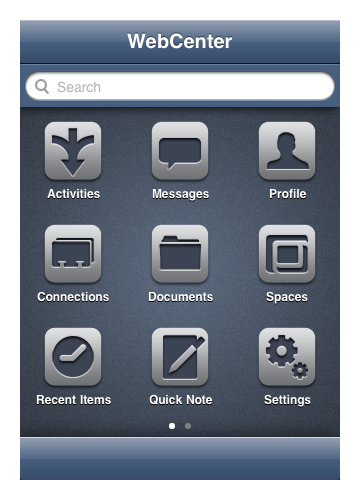
New updated iPhone app for Oracle WebCenter Spaces

The newly updated iPhone app for Oracle WebCenter Spaces 11g Release 1 is now available, with support for PS3 as well as PS2 servers.

This new version represents a major change, not merely an incremental update of the previous version.

A list summarizing the new features is below.

Important information:

  • To get the app from iTunes, use this link
  • iOS 4.2 or higher is required
  • More information on the app, including a link to documentation is available here.
Useful tips (also covered in the docs):

  • Most screens can be refreshed with the latest data from the server by shaking your iPhone
  • Most items that you can browse can also be bookmarked with their own icon on the main Launcher screen. Just tap the titlebar of an item you’re viewing to reveal the shortcut settings.
  • The launcher screen (the one with all the icons) has multiple pages. Swipe left and right to navigate them.
  • The launcher icons can be re-arranged. Press and hold an item until the icons wiggle, then drag them around, including to other pages on the left or right. Click “Done” in the upper right corner when finished.
  • “Quick Note” allows you to create text or audio notes and upload them to your personal documents area on the server (sometimes called “MyFiles”, or “Documents” under “My Profile”). You can access these notes, and all of your personal documents, in the app by navigating from the launcher to Documents -> Personal WebCenter Docs
  • You can export documents to other iOS apps with the “Open in…” option from the document meta-data view (not preview), if you have capable apps installed. You can also send documents back to the WebCenter app by choosing “Open in…” and then “WebCenter” from within other apps. This enables you to do round-trip editing if you have, for example, “Documents to Go” or “Quickoffice” installed.
Summary of new features:

  • Support for PS3 (Patch Set 3 11.1.1.4.0) as well as PS2 (Patch Set 2 11.1.1.3.0) versions of Oracle WebCenter Spaces
  • Revamped user interface including a new springboard launcher interface
  • Search has been added for People Connections, files on your iOS device and (PS3 only) WebCenter resources on the server
  • Recent Items are tracked for People, Documents, Document Folders, Group Spaces, Discussions, Topics, Lists, and visited web links
  • Links in Activity Streams are now clickable
  • Easily post to your activity stream, including attachments and camera support
  • Improved status update interface in your user profile
  • Improved support for adding/updating your Connections with the native iOS Contacts app
  • Links to each person’s Manager and Reports, if available
  • People Connection Lists to view your Connections more efficiently
  • Recommended People Connections via Activity Graph (PS3 only)
  • Local file system support and “Open In…” (can save documents to your iOS device, open them in other apps, and have this app open docs from other apps)
  • Personal Documents support, both public and private, including the ability to upload, download, and delete
  • Printing of documents and web sites via AirPrint
  • Documents can be emailed as an attachment, or you can email a link instead
  • Playback of video and audio files
  • Easily post to a Group Space’s activity stream
  • Message Board support in each Space
  • Discussions has an improved user interface, including forward and back buttons for navigating messages
  • Bookmark your favorite items as icons on the main launcher screens and re-position them (for Group Spaces, People, Documents, Document Folders, Discussion Forums, Discussion Topics, and Lists)
  • “Quick Note” feature allows you to write text notes or record audio notes and save them in your Personal Documents on the server
  • Support for multiple servers through the new Accounts feature switch quickly between different servers or user credentials
  • Support for higher resolution “Retina” screen graphics and other iOS4.2+ features like printing and backgrounding
Posted in Uncategorized | Tagged , | Leave a comment

Getting started with Continuous Integration for SOA projects

This post is part of a series on Continuous Integration.

I am exploring how to use Maven and Hudson to create a continuous integration capability for SOA and BPM projects.  This will be the first post of several on this topic, and today we will look at setting up some simple continuous integration for a single SOA project.  In future posts I will expand on this and look at BPM, Human Task user interface projects, ADF, etc., but you have to start somewhere!

Before we start, let’s take a look at an overview of what we are trying to achieve and how we plan to do it.

Our goal is to be able to check a SOA project (that’s project, not application) from JDeveloper into our source code control system (Subversion) and have it automatically compiled, packaged and deployed to our test SOA server.  If anything goes wrong, we want an email to let us know what happened.

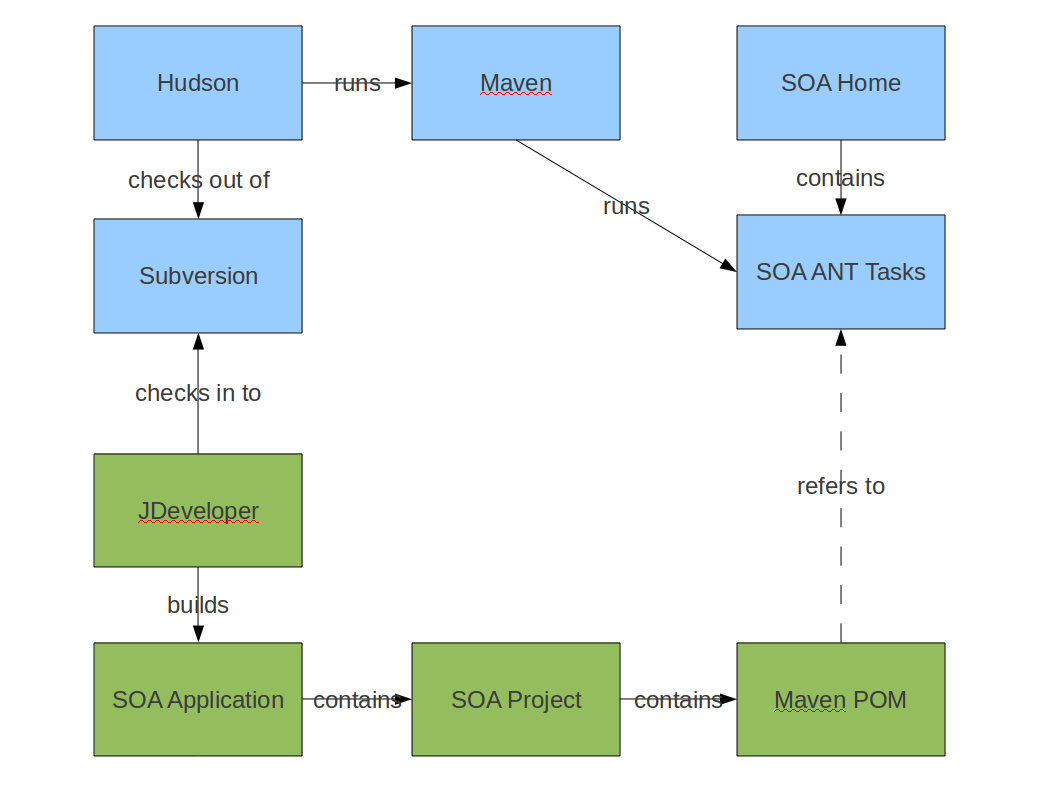
Here are the components we will be using.  Blue boxes are on the test/development server, green on the developer’s machine.

We will be using Hudson as our continuous integration server.  I used Hudson 1.396 running on WebLogic Server 10.3.4, as described in this post.

We will have Hudson run a Maven job.  Strictly speaking this is probably a little bit of overkill for this example, but as I am planning to build up this environment to handle other types of projects (BPM, WebCenter, ADF, Java EE, etc.) and to handle applications with multiple projects in them, having Maven in the picture is a good idea – it will make things easier for me later on.  Plus, I like it.  I used Maven 2.2.1.

We will have Maven run the ANT jobs that are included with Oracle SOA Suite 11g.  I used SOA Suite 11.1.1.4.

We also need version control.  I used Subversion 1.6.11.  Hudson will monitor the Subversion repository and when it sees a change, it will perform a build (compile, package and deploy the composite).

I have all of the server components running on Oracle Linux 5.5, everything is 64-bit.

My client is Windows 7 (also 64-bit) and I am running JDeveloper 11.1.1.4 with the SOA Composite Editor plugin installed.  JDeveloper includes support for Subversion ‘out of the box.’

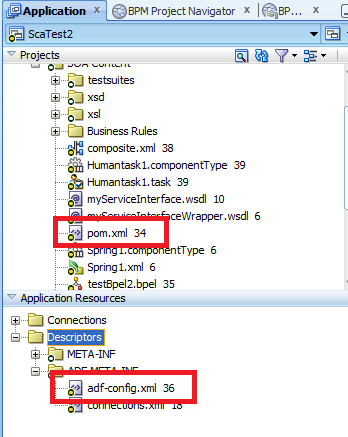
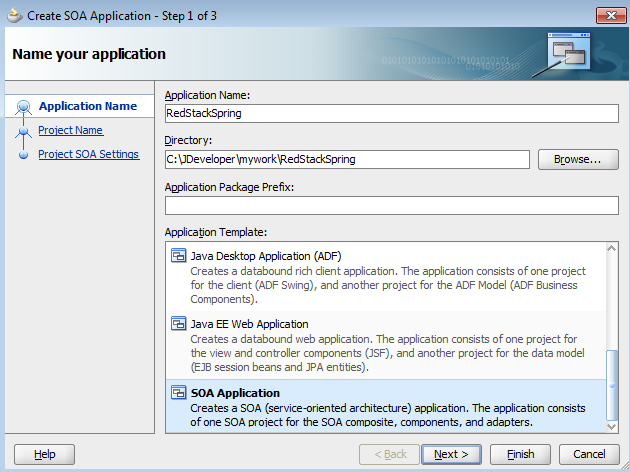
In JDeveloper, we create an Application to hold our Project(s).  There can be one or more projects in an application.  There can also be none, but that would not be very useful.  Within the project, we are going to create a Maven POM so that Maven (and therefore Hudson) knows how to build our composite project.

First, let’s take a look at the ANT jobs we will use.  These are found in the SOA Suite installation under the Oracle_SOA1/bin directory:

ant-sca-compile.xml       Compiles a composite project
ant-sca-package.xml       Packages a composite project (into a SAR)
ant-sca-deploy.xml        Deploys a composite project (a SAR)

We can use these scripts to compile, package and deploy our project.  Each script needs some variables/properties/arguments to tell it what to do:

ant-sca-compile.xml, target: scac
  scac.input:             The location of the composite.xml

ant-sca-package.xml, target: package
  compositeName:          The name of the composite (will show up in EM)
  compositeDir:           The directory containing the composite
  revision:               The version number for the composite

ant-sca-deploy.xml, target: deploy
  serverURL:              The URL of the SOA instance
  user:                   The user to do the deployment
  password:               The deploying user's password
  sarLocation:            The location of the SAR file
  overwrite:              Overwrite existing deployments with same revision?
  forceDefault:           Make this version the default version?
  partition:              Which SOA partition to deploy into

Here is the POM file that we can add into our project, you can just go ahead and create it in JDeveloper, in the root directory of your project, the same place where the composite.xml is located.  It should be called pom.xml.  Here is the complete file.  Following the file, we will walk through the various sections:

<project xmlns="http://maven.apache.org/POM/4.0.0"
  xmlns:xsi="http://www.w3.org/2001/XMLSchema-instance"
  xsi:schemaLocation="http://maven.apache.org/POM/4.0.0 http://maven.apache.org/maven-v4_0_0.xsd">
  <modelVersion>4.0.0</modelVersion>

  <groupId>soaProject2</groupId>
  <artifactId>soaProject2</artifactId>
  <version>1.0-SNAPSHOT</version>

  <scm>
    <connection>scm:svn:svn+ssh://mark@ofm1.au.oracle.com/home/mark/svnrepos/soaProject2/trunk</connection>
    <developerConnection>scm:svn:svn+ssh://mark@ofm1.au.oracle.com/home/mark/svnrepos/soaProject2/trunk</developerConnection>
  </scm>

  <dependencies>
  </dependencies>

  <build>
    <plugins>
      <plugin>
        <artifactId>maven-antrun-plugin</artifactId>
        <version>1.6</version>
        <executions>
          <execution>
            <id>sca-compile</id>
            <phase>compile</phase>
            <configuration>
              <target>
                <property name="scac.input" value="${basedir}/composite.xml" />
                <ant antfile="/home/mark/Oracle/Middleware/Oracle_SOA1/bin/ant-sca-compile.xml"
                     dir="/home/mark/Oracle/Middleware/Oracle_SOA1/bin"
                     target="scac" />
              </target>
            </configuration>
            <goals>
              <goal>run</goal>
            </goals>
          </execution>
          <execution>
            <id>sca-package</id>
            <phase>package</phase>
            <configuration>
              <target>
                <property name="build.compiler" value="extJavac"/>
                <property name="compositeName" value="${project.artifactId}" />
                <property name="compositeDir" value="${basedir}" />
                <property name="revision" value="${project.version}" />
                <ant antfile="/home/mark/Oracle/Middleware/Oracle_SOA1/bin/ant-sca-package.xml"
                     dir="/home/mark/Oracle/Middleware/Oracle_SOA1/bin"
                     target="package" />
              </target>
            </configuration>
            <goals>
              <goal>run</goal>
            </goals>
          </execution>
          <execution>
            <id>sca-deploy</id>
            <phase>deploy</phase>
            <configuration>
              <target>
                <property name="serverURL" value="http://ofm1.au.oracle.com:8001" />
                <property name="user" value="weblogic" />
                <property name="password" value="Fusion11g" />
                <property name="sarLocation" value="${basedir}/deploy/sca_${project.artifactId}_rev${project.version}.jar" />
                <property name="overwrite" value="true" />
                <property name="forceDefault" value="true" />
                <property name="partition" value="default" />
                <ant antfile="/home/mark/Oracle/Middleware/Oracle_SOA1/bin/ant-sca-deploy.xml"
                     dir="/home/mark/Oracle/Middleware/Oracle_SOA1/bin"
                     target="deploy" />
              </target>
            </configuration>
            <goals>
              <goal>run</goal>
            </goals>
          </execution>
        </executions>
      </plugin>
    </plugins>
  </build>

  <distributionManagement>
    <!-- use the following if you're not using a snapshot version. -->
    <repository>
      <id>local</id>
      <name>local repository</name>
      <url>file:///home/mark/.m2/repository</url>
    </repository>
    <!-- use the following if you ARE using a snapshot version. -->
    <snapshotRepository>
      <id>localSnapshot</id>
      <name>local snapshot repository</name>
      <url>file:///home/mark/.m2/repository</url>
    </snapshotRepository>
  </distributionManagement>

</project>

First, we have the Maven coordinates that will identify this project.  You might want to make the groupId the name of your application and the artifactId the name of your project.  Or you might want to come up with a better groupId 🙂  Later, we will use these to produce the name of the composite and the SAR deployment archive.

  <groupId>soaProject2</groupId>
  <artifactId>soaProject2</artifactId>
  <version>1.0-SNAPSHOT</version>

Next we have the details for our Subversion server.  JDeveloper will also need to be told these details independently of this.  Maven will use the details here in the POM if we want to do a ‘release’ in Maven.  The distributionManagement section (see above) is also provided for this purpose and so that Maven can archive our builds during deployment.

  <scm>
    <connection>scm:svn:svn+ssh://mark@ofm1.au.oracle.com/home/mark/svnrepos/soaProject2/trunk</connection>
    <developerConnection>scm:svn:svn+ssh://mark@ofm1.au.oracle.com/home/mark/svnrepos/soaProject2/trunk</developerConnection>
  </scm>

We are going to use the maven-antrun-plugin to execute the ANT tasks.  You can see the configuration in the complete POM above.  We will include the three separate ANT jobs (compile, package and deploy) in three phases of our Maven build.  Basically, we create an execution, give it an id, assign it to a phase, and then we add inside the target section our property‘s and then run the ant task giving it the antfile, a directory to run in, and a target to run.  Here is the relevant section for the compile:

          <execution>
            <id>sca-compile</id>
            <phase>compile</phase>
            <configuration>
              <target>
                <property name="scac.input" value="${basedir}/composite.xml" />
                <ant antfile="/home/mark/Oracle/Middleware/Oracle_SOA1/bin/ant-sca-compile.xml"
                     dir="/home/mark/Oracle/Middleware/Oracle_SOA1/bin"
                     target="scac" />
              </target>

You can see the full POM above.  One little trick to be aware of is that we need to add an extra property to the package phase to make sure it uses the external JDK.  If you don’t include this property, you will most likely get an error telling you ANT cannot find javac because it is pointing to a JRE, not a JDK.

                <property name="build.compiler" value="extJavac"/>

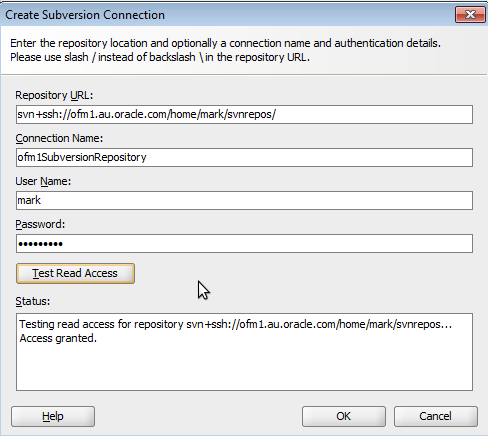
Having adding this file to your project, you now need to check the project into Subversion. First we need to create a repository connection (if you don’t already have one.)  To do this, go to the View menu, then the Team submenu, and select Versioning Navigator.  Right click on the Subversion icon and select New Repository Connection…

Add the details as per the example below, and click on the Test Read Access button to make sure you can connect to the repository.

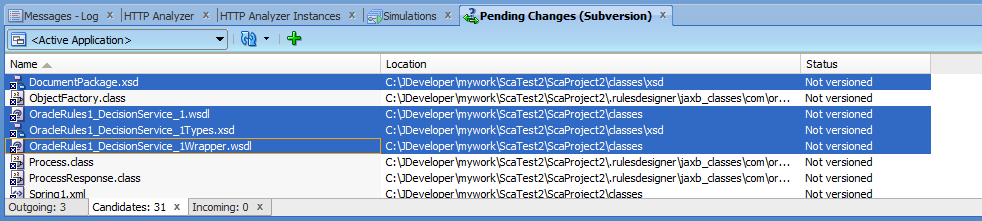
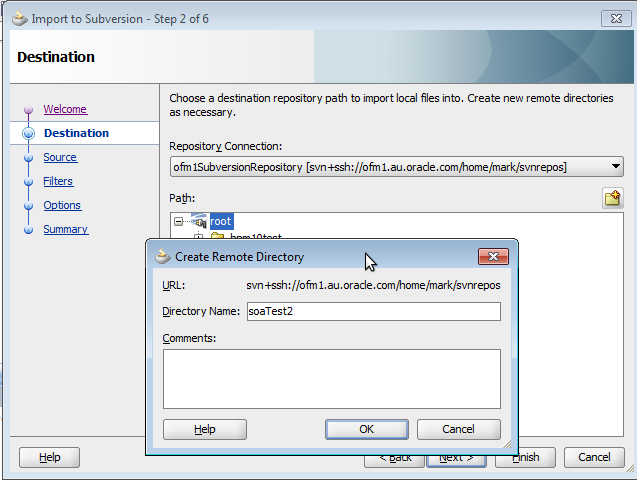
Now we can add (import) our project into Subversion.  This is done by selecting Version Application… from the Versioning menu.  This will open the Import to Subversion wizard.

Click Next to move to the Destination page.  Select the repository connection you just created, then highlight the root node, and click on the little folder icon on the top right of the path hierarchy tree display to create a new directory on the Subversion repository.  I created one called soaTest2.  You should probably get some guidance from the repository administrator if this is a shared repository.  I then highlighted that new directory and made another directory inside that called trunk, to follow the Subversion convention.

Now we select the correct directory to put our project in, i.e. the one we just created, root/soatest2/trunk in my case, and click on Next.
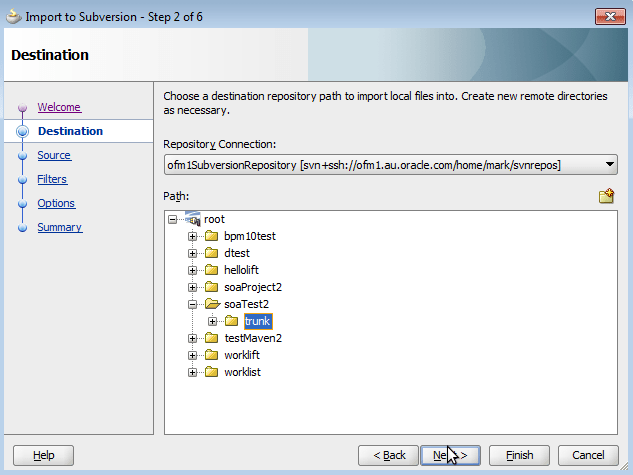
Here we check the Source Directory is correct (it should be fine) and then add your comments for the check in.  Then keep on clicking on Next until you get to the end of the wizard and then click on Finish.

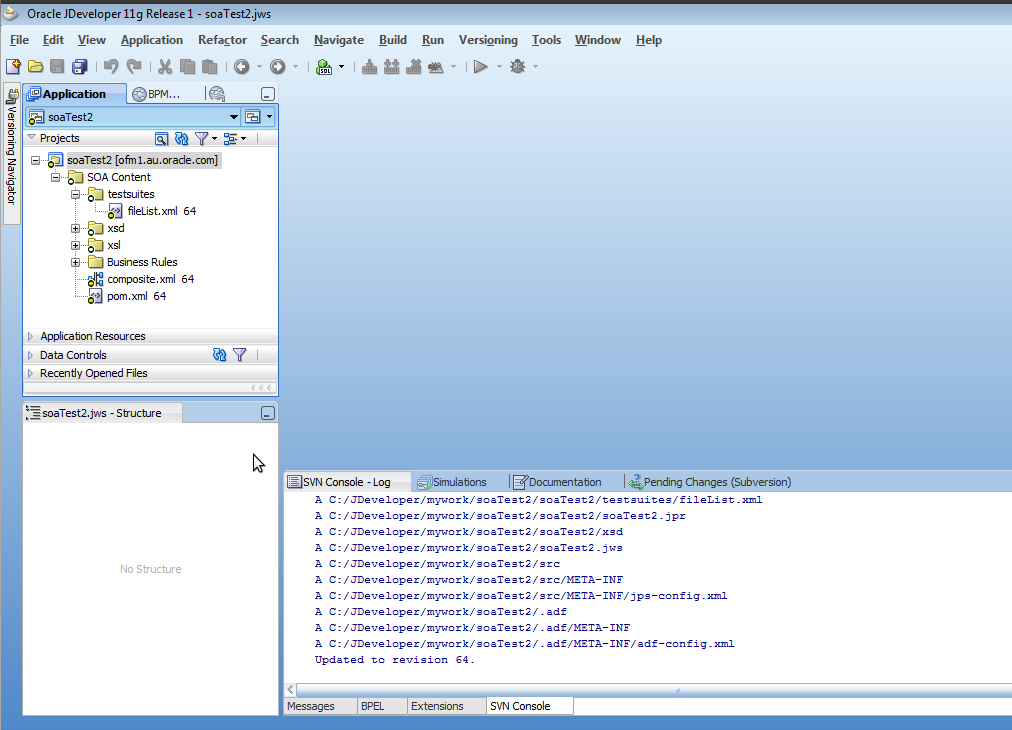
This will add (import) your project into Subversion and then check it out into JDeveloper.  You can see the Subversion output in the SVN Console – Log pane at the bottom.  You will also notice that now you see the revision numbers after the names of the files in the Application Navigator pane.

Configuring Hudson

Now you need to create a job in Hudson (this is a one off activity, we will use this same job over and over again, each time we want to build and deploy this project.)

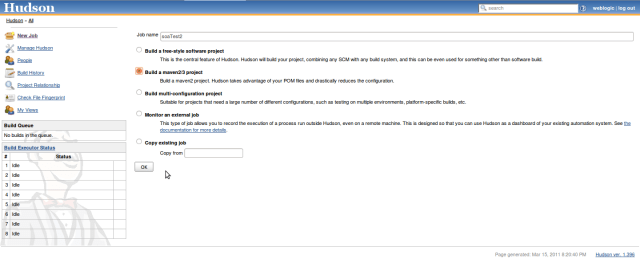
In the Hudson console, click on New Job.  Enter a name for the job, I called mine soaTest2.  Select the option to Build a Maven 2/3 project and click on OK.
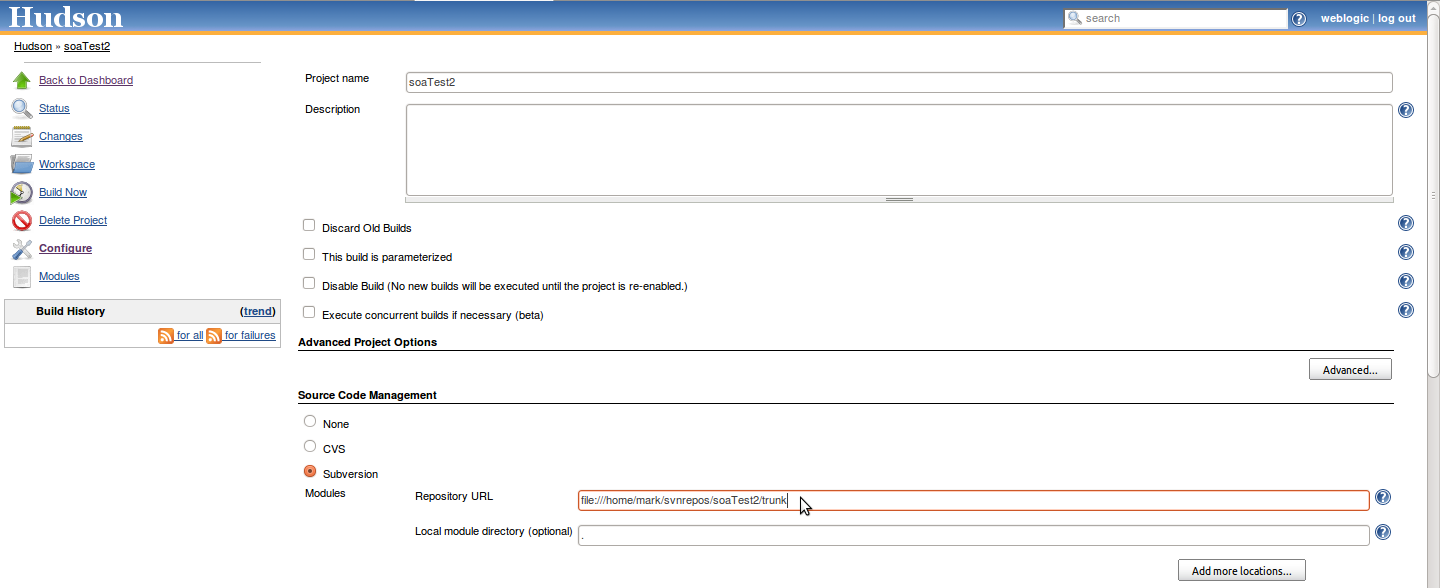
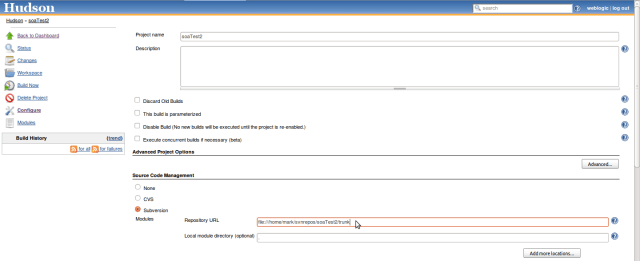
On the next screen, we need to enter details for the job.  Select Subversion as the Source Code Management option, and then enter the Subversion repository URL.  Note that it will most likely be different now as Hudson is running on the same development server as Subversion (at least in my case it is).  So for me, I used the file:/// URL, not the svn+ssh:// one.  Because of the way JDeveloper does its checkin, you will want to put the project name on the end of the URL too.  In my case, the URL is:

file:///home/mark/svnrepos/soaTest2/trunk/soaTest2
Scroll down and select the Poll SCM option, and enter * * * * * (that’s asterisk space asterisk space asterisk space asterisk space asterisk) in the Schedule field.  This tells Hudson to check every minute if Subversion has been updated.  Once you have done playing and see everything works, you might want to change this to something a bit less frequent.  It uses the same format as cron.

You can also set up email notifications as shown below.
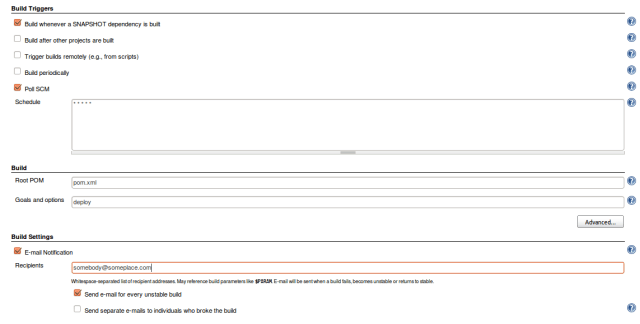
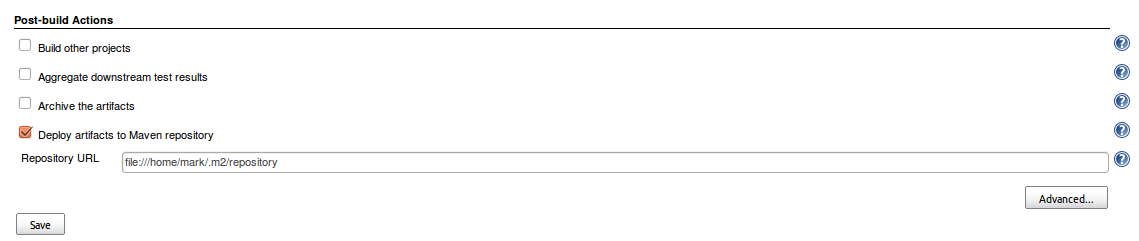
A little further down, you can select the option to Deploy artifacts to the Maven repository (if you want to) and provide the URL for your Maven repository (again, from the server’s point of view.)

Now you can click on Save and then wait for a minute or so until Hudson checks for updates in Subversion.  When it does, it will notice your check in from JDeveloper and start a build.  If you click on the ENABLE AUTO REFRESH option in the top right corner you will see the build running on the Hudson dashboard.  Once it is done (or while it is still running if you like) you can click on the build number (it should be #1) and then click on the Console Output link to see the build output.

Here is my complete output, so you can compare:

tarted by user weblogic
Checking out a fresh workspace because the workspace is not file:///home/mark/svnrepos/soaTest2/trunk/soaTest2
Checking out file:///home/mark/svnrepos/soaTest2/trunk/soaTest2
A         composite.xml
A         xsl
A         SCA-INF
A         SCA-INF/src
A         SCA-INF/lib
A         pom.xml
A         soaTest2.jpr
A         xsd
A         testsuites
A         testsuites/fileList.xml
At revision 64
no revision recorded for file:///home/mark/svnrepos/soaTest2/trunk/soaTest2 in the previous build
Found mavenVersion 2.2.1 from file jar:file:/home/mark/apache-maven-2.2.1/lib/maven-2.2.1-uber.jar!/META-INF/maven/org.apache.maven/maven-core/pom.properties
Parsing POMs
Discovered a new module soaProject2:soaProject2 soaProject2
[workspace] $ /usr/java/jdk1.6.0_21/bin/java -Xmx2048m -cp /home/mark/.hudson/plugins/maven-plugin/WEB-INF/lib/maven-agent-1.396.jar:/home/mark/apache-maven-2.2.1/boot/classworlds-1.1.jar hudson.maven.agent.Main /home/mark/apache-maven-2.2.1 /home/mark/Oracle/Middleware/user_projects/domains/base_domain/servers/soa_server1/tmp/_WL_user/hudson/c97g3y/war/WEB-INF/lib/hudson-remoting-1.396.jar /home/mark/.hudson/plugins/maven-plugin/WEB-INF/lib/maven-interceptor-1.396.jar 9430 /home/mark/.hudson/plugins/maven-plugin/WEB-INF/lib/maven2.1-interceptor-1.2.jar
<===[HUDSON REMOTING CAPACITY]===>���channel started
Executing Maven:  -B -f /home/mark/.hudson/jobs/soaTest2/workspace/pom.xml deploy
[INFO] Scanning for projects...
[INFO] ------------------------------------------------------------------------
[INFO] Building Unnamed - soaProject2:soaProject2:jar:1.0-SNAPSHOT
[INFO]    task-segment: [deploy]
[INFO] ------------------------------------------------------------------------
[INFO] [resources:resources {execution: default-resources}] [WARNING] Using platform encoding (UTF-8 actually) to copy filtered resources, i.e. build is platform dependent!
[INFO] skip non existing resourceDirectory /home/mark/.hudson/jobs/soaTest2/workspace/src/main/resources
[INFO] [compiler:compile {execution: default-compile}] [INFO] No sources to compile
[INFO] [antrun:run {execution: sca-compile}] [INFO] Executing tasks

main:

scac:
Validating composite "/home/mark/.hudson/jobs/soaTest2/workspace/composite.xml"
[INFO] Executed tasks
[INFO] [resources:testResources {execution: default-testResources}] [WARNING] Using platform encoding (UTF-8 actually) to copy filtered resources, i.e. build is platform dependent!
[INFO] skip non existing resourceDirectory /home/mark/.hudson/jobs/soaTest2/workspace/src/test/resources
[INFO] [compiler:testCompile {execution: default-testCompile}] [INFO] No sources to compile
[INFO] [surefire:test {execution: default-test}] [INFO] No tests to run.
[HUDSON] Recording test results
[INFO] [jar:jar {execution: default-jar}] [WARNING] JAR will be empty - no content was marked for inclusion!
[INFO] Building jar: /home/mark/.hudson/jobs/soaTest2/workspace/target/soaProject2-1.0-SNAPSHOT.jar
[INFO] [antrun:run {execution: sca-package}] [INFO] Executing tasks

main:
     [echo] oracle.home = /home/mark/Oracle/Middleware/Oracle_SOA1/bin/..
    [input] skipping input as property compositeDir has already been set.
    [input] skipping input as property compositeName has already been set.
    [input] skipping input as property revision has already been set.

clean:
     [echo] deleting /home/mark/.hudson/jobs/soaTest2/workspace/deploy/sca_soaProject2_rev1.0-SNAPSHOT.jar

init:
    [mkdir] Created dir: /home/mark/.hudson/jobs/soaTest2/workspace/deploy

scac-validate:
     [echo] Running scac-validate in /home/mark/.hudson/jobs/soaTest2/workspace/composite.xml
     [echo] oracle.home = /home/mark/Oracle/Middleware/Oracle_SOA1/bin/..
    [input] skipping input as property compositeDir has already been set.
    [input] skipping input as property compositeName has already been set.
    [input] skipping input as property revision has already been set.

scac:
Validating composite "/home/mark/.hudson/jobs/soaTest2/workspace/composite.xml"

package:
     [echo] oracle.home = /home/mark/Oracle/Middleware/Oracle_SOA1/bin/..
    [input] skipping input as property compositeDir has already been set.
    [input] skipping input as property compositeName has already been set.
    [input] skipping input as property revision has already been set.

compile-source:
    [mkdir] Created dir: /home/mark/.hudson/jobs/soaTest2/workspace/dist
     [copy] Copying 6 files to /home/mark/.hudson/jobs/soaTest2/workspace/dist
     [copy] Warning: /home/mark/.hudson/jobs/soaTest2/.adf does not exist.
     [copy] Warning: /home/mark/.hudson/jobs/soaTest2/src does not exist.
     [copy] Warning: /home/mark/.hudson/jobs/soaTest2/workspace/src does not exist.
      [jar] Building jar: /home/mark/.hudson/jobs/soaTest2/workspace/deploy/sca_soaProject2_rev1.0-SNAPSHOT.jar
   [delete] Deleting directory /home/mark/.hudson/jobs/soaTest2/workspace/dist
[INFO] Executed tasks
[INFO] [install:install {execution: default-install}] [INFO] Installing /home/mark/.hudson/jobs/soaTest2/workspace/target/soaProject2-1.0-SNAPSHOT.jar to /home/mark/.m2/repository/soaProject2/soaProject2/1.0-SNAPSHOT/soaProject2-1.0-SNAPSHOT.jar
[INFO] [deploy:deploy {execution: default-deploy}] [INFO] Retrieving previous build number from localSnapshot
Uploading: file:///home/mark/.m2/repository/soaProject2/soaProject2/1.0-SNAPSHOT/soaProject2-1.0-20110315.093639-9.jar
2K uploaded  (soaProject2-1.0-20110315.093639-9.jar)
[INFO] Retrieving previous metadata from localSnapshot
[INFO] Uploading repository metadata for: 'snapshot soaProject2:soaProject2:1.0-SNAPSHOT'
[INFO] Retrieving previous metadata from localSnapshot
[INFO] Uploading repository metadata for: 'artifact soaProject2:soaProject2'
[INFO] Uploading project information for soaProject2 1.0-20110315.093639-9
[INFO] [antrun:run {execution: sca-deploy}] [INFO] Executing tasks

main:
     [echo] oracle.home = /home/mark/Oracle/Middleware/Oracle_SOA1/bin/..

deploy:
    [input] skipping input as property serverURL has already been set.
    [input] skipping input as property sarLocation has already been set.
setting user/password..., user=weblogic
Processing sar=/home/mark/.hudson/jobs/soaTest2/workspace/deploy/sca_soaProject2_rev1.0-SNAPSHOT.jar
Adding sar file - /home/mark/.hudson/jobs/soaTest2/workspace/deploy/sca_soaProject2_rev1.0-SNAPSHOT.jar
INFO: Creating HTTP connection to host:ofm1.au.oracle.com, port:8001
INFO: Received HTTP response from the server, response code=200
---->Deploying composite success.
[INFO] Executed tasks
[HUDSON] Archiving /home/mark/.hudson/jobs/soaTest2/workspace/pom.xml to /home/mark/.hudson/jobs/soaTest2/modules/soaProject2$soaProject2/builds/2011-03-15_20-36-22/archive/soaProject2/soaProject2/1.0-SNAPSHOT/pom.xml
[HUDSON] Archiving /home/mark/.hudson/jobs/soaTest2/workspace/target/soaProject2-1.0-SNAPSHOT.jar to /home/mark/.hudson/jobs/soaTest2/modules/soaProject2$soaProject2/builds/2011-03-15_20-36-22/archive/soaProject2/soaProject2/1.0-20110315.093639-9/soaProject2-1.0-SNAPSHOT.jar
[INFO] ------------------------------------------------------------------------
[INFO] BUILD SUCCESSFUL
[INFO] ------------------------------------------------------------------------
[INFO] Total time: 14 seconds
[INFO] Finished at: Tue Mar 15 20:36:42 EST 2011
[INFO] Final Memory: 34M/438M
[INFO] ------------------------------------------------------------------------
channel stopped
Deploying artifacts to file:///home/mark/.m2/repository
Deploying the main artifact soaProject2-1.0-SNAPSHOT.jar
Sending e-mails to: somebody@someplace.com
Finished: SUCCESS

You can see that each of the ANT jobs was run in turn, the compile, package and then deploy.  You can now go and logon to Enterprise Manager on your SOA server and you will see your composite is deployed.

Well that completes our basic setup for getting started with continuous integration in a SOA environment.  We will be writing more soon.  For now, enjoy!

Posted in Uncategorized | Tagged , , , , , , | 13 Comments

Running the worklist!

This post is part of series on building a custom worklist for BPM/SOA 11g.

First of all, congratulations on making it all the way through the walkthrough!  Whether you built the code yourself or downloaded it from Subversion, by now you must be ready to deploy it to your test environment and try it out!

The Maven POM that we created included all of the necessary information for the WebLogic Maven Plugin that we installed to build, package and deploy our worklist to our BPM server instance.

The worklist sample has been built to run on the soa_server1 managed server in your BPM domain, i.e. the one that BPM is running on.  If you used a developer install, this will be the AdminServer instead.

If you have not done so already, go back to your POM and make sure you have the correct details in there for your server environment, then type:

# mvn deploy

This will cause Maven to build the worklist, package it up into a WAR file (which it will place in the target directory), deploy it to your server and publish it into your local Maven repository.

If you are not using Maven, then you can always deploy the WAR file using the WebLogic Server console.

Once that is done (it should take about a minute or so) you should be able to access your worklist at http://yourserver:8001/worklist (substitute in your own server and port).

Go ahead and log in using a user defined in WebLogic.  If that user has some tasks assigned to them, you should see them show up in your Task List View.  Go ahead and look at the Initiate Tasks View and try initiating a task.

If you don’t already have some tasks to play with, you will want to go into JDeveloper and create yourself a composite with a BPEL or BPMN process in it and some Human Tasks, and assign them to your user.

For a task to show up in the Initiate Tasks View, it will need to contain a Human Task of the type ‘Initiation,’ probably as the first task in the process, and you will need to create a Task Form.  The easiest way to do this is to use the Auto-Generate Task Form option in JDeveloper.  As we discussed earlier, make sure you create the Empty1 page in the adfc-config unbounded task flow in your Human Task projects too.

Well, there you go, a working custom worklist application.  Have fun extending it, or using what you have learnt to build your own custom worklist.

Remember to come back from time to time (or use the link on the right to subscribe) to get updates as we make enhancements to the sample.

Posted in Uncategorized | Tagged , , , | 1 Comment

Implementing Task Initiation

This post is part of a series on building a custom worklist for BPM/SOA 11g.

In the post we will implement two Controllers and a View that will allow the use to view a list of tasks that they are able to initiate, and to actually initiate a task.  These Controllers will be a little different the the ones we have been looking at so far.  Firstly, they use some APIs from a different package, of course this is hidden in the MTaskList class, so we wont see that, but we have the added complication of needing to open the Task Form for the user.

When the user initiates a task, our MTaskList.initiateTask() method will create an instance of the relevant process and obtain a special URL that allows us to access the Task Form.  We need to pass this URL back through the Controller and put it into the Model so that we can popup a new window with the Task Form in it.  In order to make this work, we will see one or two additional techniques being used in these Controllers that we have not seen before.

Getting a list of tasks that can be initiated

Here is the code for com.oracle.ateam.InitiateListController, which is responsible for getting a list of the tasks that can be initiated by the logged in user:

package com.oracle.ateam;

import org.springframework.web.servlet.mvc.Controller;
import org.springframework.web.servlet.ModelAndView;
import javax.servlet.http.HttpServletRequest;
import javax.servlet.http.HttpServletResponse;
import oracle.bpm.services.processmetadata.ProcessMetadataSummary;
import java.util.HashMap;
import java.util.Map;import java.util.List;
import com.oracle.ateam.domain.MTaskList;
import com.oracle.ateam.util.MLog;

public class InitiateListController extends SimpleSuccessFailureController {
  private String xTaskformUrl = null;

  @Override  public ModelAndView handleRequest(HttpServletRequest request, HttpServletResponse response)
      throws Exception {
    MLog.log("InitiateListController", "Entering handleRequest()");
    Map<String, Object> model = new HashMap<String, Object>();
    List<ProcessMetadataSummary> itasks = MTaskList.getInitiateLinks(request.getRemoteUser());
    model.put("itasks", itasks);

    // check if we need to pop a task form
    if (xTaskformUrl != null) {
      // we need to pop a form
      MLog.log("InitiateListController", "Need to pop a form");
      model.put("x_taskform_url", xTaskformUrl);
    }
    return new ModelAndView("/WEB-INF/jsp/initiatelist.jsp", "model", model);
  }

  public ModelAndView handleRequest(HttpServletRequest request, HttpServletResponse response, String url)
      throws Exception {
    xTaskformUrl = url;
    return handleRequest(request, response);
  }
}

If we look at the ModelAndView handleRequest(HttpServletRequest, HttpServletReponse) method, i.e. the ‘normal’ one that we are used to seeing, the first on in the listing above, we can see that it does more or less follow the same pattern we are used to.  It does not need to get any data from the caller, because all we need for this API is to know which user is logged in, and we can get that from the HttpServletRequest.  It calls the getInitiateLinks() method on MTaskList and puts the resulting List<ProcessMetadataSummary> into the model as “itasks”.

Now we do something slightly different.  In order to let the view know about the Task Form URL, we need to introduce some local state, xTaskformUrl.  We will see shortly how this is populated when the user initiates a task.  In this Controller, we check to see if it has a URL in it, and if it does, we also put that into the model as “x_taskform_url”.

There is also a second handleRequest() method here with a slightly different signature which includes a String url.  We will see shortly how this is used.  But for now, just note that it sets the xTaskformUrl to the url value passed in, and then calls the other (normal) handleRequest method that we just looked at.

Let’s take a look at the View to display the list of initiatable tasks to the user.  Here is the code from src/main/webapp/WEB-INF/jsp/initiatelist.jsp:

<%@ page import="com.oracle.ateam.util.MLog" %>
<%@ page import="oracle.bpm.services.processmetadata.ProcessMetadataSummary" %>
<%@ page import="java.util.List" %>
<%@ include file="/WEB-INF/jsp/common/head.jspf" %>
<%
 MLog.log("initiatelist.jsp", "Entered initiatelist.jsp");
 // check if we need to pop a form
%>
  <c:choose>
    <c:when test="${model.x_taskform_url eq null}">
    </c:when>
    <c:otherwise>
      <script language="JavaScript">
        <!--
        window.open ("${model.x_taskform_url}", "TaskForm", "menubar=0,resizable=1,width=640,height=640");
        -->
      </script>
    </c:otherwise>
  </c:choose>
  <p>Select a task to initiate:</p>
  <ul>
    <c:forEach var="itask" items="${model.itasks}">
      <li>
        <a href="initiatetask.do?x_composite_dn=${itask.compositeDN}/${itask.processName}">
        [${itask.compositeName}] ${itask.processName} v${itask.revision}
        </a>
      </li>
    </c:forEach>
  </ul>
<%@ include file="/WEB-INF/jsp/common/tail.jspf" %>
<%  MLog.log("initiatelist.jsp", "Done");%>

This is a relatively simple page, however we do see a new technique here that we have not used yet.  The first part of the page checks whether we need to pop up a Task Form.  This will only happen after the page has been displayed and the user has clicked on one of the links to start a new task, which as we will see in a moment, would invoke the InitiateTaskController which in turn would invoke InitiateListController and then forward back to this same View.

In the first part of the page we see a JSTL choose/when/otherwise construct that checks if a Task Form URL has been provided using the following Expression Language expression:

${model.x_taskform_url eq null}

If there is one present, we inject some JavaScript into the page to open a popup window using the URL:

window.open ("${model.x_taskform_url}", "TaskForm", "menubar=0,resizable=1,width=640,height=640");

In the second part of the page, we return to our familiar pattern of iterating over the list of tasks in the model and displaying some information about them.  Note that we make each line a link to pass control to the InitiateTaskController and pass in the compositeDN, which is used to identify which task to initiate.

    <c:forEach var="itask" items="${model.itasks}">
      <li>
        <a href="initiatetask.do?x_composite_dn=${itask.compositeDN}/${itask.processName}">
        [${itask.compositeName}] ${itask.processName} v${itask.revision}
        </a>
      </li>
    </c:forEach>

We are displaying the tasks in the format [Composite Name] Process Name vRevision, the same as the ‘out of the box’ workspace application does.  Of course, you could display your tasks in any way you like.  A future enhancement might be to provide a mechanism to provide a mapping from these names to more user-friendly names for the tasks.

Let’s now move on and take a look at what happens when the user clicks on a task, and see how all these pieces fit together 🙂

Initiating a task

Here is the com.oracle.ateam.InitiateTaskController which will actually initiate a task that the user has selected from the list.

package com.oracle.ateam;

import org.springframework.web.servlet.mvc.Controller;
import org.springframework.web.servlet.ModelAndView;
import javax.servlet.http.HttpServletRequest;
import javax.servlet.http.HttpServletResponse;
import oracle.bpm.services.processmetadata.ProcessMetadataSummary;
import java.util.HashMap;
import java.util.Map;import java.util.List;
import com.oracle.ateam.domain.MTaskList;
import com.oracle.ateam.util.MLog;

public class InitiateTaskController extends SimpleSuccessFailureController {

  @Override
  public ModelAndView handleRequest(HttpServletRequest request, HttpServletResponse response)
      throws Exception {
    MLog.log("InitiateTaskController", "Entering handleRequest()");
    String compositeDN = request.getParameter("x_composite_dn");
    String url = MTaskList.initiateTask(request.getRemoteUser(), compositeDN);
    MLog.log("InitiateTaskController", "Got url: " + url);
    return new InitiateListController().handleRequest(request, response, url);
  }
}

This Controller is very similar to the others we have seen, it retrieves x_composite_dn from the HttpServletRequest and invokes the initiateTask() method on our MTaskList object.  Note though that this method returns a String url which we need to pass to the next chained Controller, the InitiateListController that we just looked at, so that it can pass it on to the View which will display the Task Form for the user.

Note that we use the second/alternate handleRequest() method to invoke the chained InitiateListController.

When the InitiateListController runs this time, it will find the URL is present and will pass it through to the View, which will find it and launch the Task Form in a popup window.

Important Note

In order for this to work ‘properly,’ you need to make sure you generate the Empty1 page in the adfc-config unbounded task flow in your Human Task applications.  JDeveloper does not do this by default, so you will need to open the Task Flow and double click on that view to create a jspx page.  If you do not take this extra step, you will get a ‘404’ error in your pop up Task Form window after you hit the Submit button on the task.

Summary

Wow!  We have completed our ‘Version 1.0’ custom worklist, now let’s move on to the next post where we will deploy it and test it out!

Posted in Uncategorized | Tagged , , , | Leave a comment

Implementing Process Task

This post is part of a series on building a custom worklist for BPM/SOA 11g.

In this post we will implement a Controller to take an action on a task, or to ‘process’ the task.  Like the Add Comment Controller in the previous post, this controller is also fairly straightforward and does not have an associated View of its own, we will send the user back to the Task Details View for the task in question.

Here is the code for com.oracle.ateam.ProcessTaskController (with some comments removed – they are available in Subversion):

package com.oracle.ateam;

import org.springframework.web.servlet.ModelAndView;
import javax.servlet.http.HttpServletRequest;
import javax.servlet.http.HttpServletResponse;
import com.oracle.ateam.util.MLog;
import com.oracle.ateam.domain.MTaskList;
import com.oracle.xmlns.bpmn.bpmnprocess.createtesttasks.CreateTestTasksPortType;
import com.oracle.xmlns.bpmn.bpmnprocess.createtesttasks.CreateTestTasksService;

public class ProcessTaskController extends SimpleSuccessFailureController {

  @Override
  protected ModelAndView handleRequestInternal(HttpServletRequest request, HttpServletResponse response)
      throws Exception {
    MLog.log("ProcessTaskController", "Entering handleInternalRequest()");
    String taskNumber = request.getParameter("x_tasknumber");
    String action = request.getParameter("x_action");
    if ((taskNumber == null) || (action == null))
       return (new TaskListController()).handleRequest(request, response);
    MLog.log("ProcessTaskController", "Got request to " + action + " task " + taskNumber);
    MTaskList.processTask(request.getUserPrincipal().getName(), taskNumber, action);
    return (new TaskListController()).handleRequest(request, response);
  }
}

This again follows the same pattern.  We retrieve x_tasknumber and x_action from the request – they were put there by the HTML FORM we created in the Task Display View, then we check we have valid data and call the processTask() method on our MTaskList domain object and forward the user to the Task Details Controller/View.

In the next post, we will implement Controllers and a View to initiate a task (and a process).

Posted in Uncategorized | Tagged , , , | Leave a comment

Implementing Add Comments

This post is part of a series on building a custom worklist for BPM/SOA 11g.

We just have a Controller to add comments to a task, no View.  After adding comments to a task, we will return the user to the Task Details View for that task.  This controller will be called (invoked) from an HTML FORM on the Task Details View, as we saw in the last post.

Here is the code for the Add Comments Controller, com.oracle.ateam.AddCommentsController, I left some of the comments in here, but there are more in the file in Subversion.

package com.oracle.ateam;

import org.springframework.web.servlet.ModelAndView;
import javax.servlet.http.HttpServletRequest;
import javax.servlet.http.HttpServletResponse;
import com.oracle.ateam.util.MLog;
import com.oracle.ateam.domain.MTaskList;
import com.oracle.xmlns.bpmn.bpmnprocess.createtesttasks.CreateTestTasksPortType;
import com.oracle.xmlns.bpmn.bpmnprocess.createtesttasks.CreateTestTasksService;

public class AddCommentController extends SimpleSuccessFailureController {

  @Override  protected ModelAndView handleRequestInternal(HttpServletRequest request, HttpServletResponse response)
      throws Exception {
    MLog.log("AddCommentController", "Entering handleInternalRequest()");

    // retrieve details from the request to identify the task and comment
    String taskNumber = request.getParameter("x_tasknumber");
    String comment = request.getParameter("x_comment");

    // check that data was provided
    if ((taskNumber == null) || (comment == null))
       return (new TaskDetailController()).handleRequest(request, response);

    // add the comment to the task
    MTaskList.addComment(request.getRemoteUser(), taskNumber, comment);

    // send the user back to the task detail page (where they came from)
    return (new TaskDetailController()).handleRequest(request, response);
  }
}

This Controller follows the same pattern as the others we have seen already: retrieve information that the caller placed in the request, in this case the x_tasknumber to identify the task and x_comment with the text of the new comment, check we have valid data, then call a method on our MTaskList object, in this case addComment(), to carry out the ‘business logic’, and then forward the user to the next view, in this case to the TaskDetailController.

Spring provides us with the ability to chain Controllers together like this, so that a user request can in fact pass through several Controllers to be handled.

That’s all for the Add Comment Controller!

In the next post, we will the Controller to process actions on a task.

Posted in Uncategorized | Tagged , , , | 1 Comment

Implementing Task Details

This post is part of a series on building a custom worklist for BPM/SOA 11g.

Most of our controllers are fairly similar and not too complicated, so let’s jump right in and take a look at the com.oracle.ateam.TaskDetailController.  Here is the code (more comments in Subversion):

package com.oracle.ateam;

import org.springframework.web.servlet.mvc.Controller;
import org.springframework.web.servlet.ModelAndView;
import javax.servlet.http.HttpServletRequest;
import javax.servlet.http.HttpServletResponse;
import com.oracle.ateam.domain.*;
import com.oracle.ateam.util.MLog;
import java.util.List;
import java.util.Map;
import java.util.HashMap;

public class TaskDetailController extends SimpleSuccessFailureController {

  @Override
  public ModelAndView handleRequest(HttpServletRequest request, HttpServletResponse response)
      throws Exception {
    MLog.log("TaskDetailController", "Entering handleRequest()");
    String taskNumber = request.getParameter("x_tasknumber");
    MLog.log("TaskDetailController", "Task Number: " + taskNumber);
    Map<String, Object> model = new HashMap<String, Object>();
    model.put("task", MTaskList.getTaskDetails(request.getUserPrincipal().getName(), taskNumber));
    return new ModelAndView("/WEB-INF/jsp/taskdetail.jsp", "model", model);
  }
}

Like we did for the TaskListController, we extend the SimpleSuccessFailureController and we perform some logging using our MLog utility class.

We retrieve the x_tasknumber parameter from the caller, it is passed in as an URL parameter.  Then we create the ModelAndView and call the MTaskList.getTaskDetails() method in our domain package to obtain the fully populated MTask wrapper object for the nominated task.  This is then added into the model under the key “task” and we send the user on to the view.

Here is the code for the view:

<%@ page import="com.oracle.ateam.util.MLog" %>
<%@ page import="com.oracle.ateam.domain.MTask" %>
<%@ page import="java.util.List" %>
<%@ include file="/WEB-INF/jsp/common/head.jspf" %>
<%
  MLog.log("taskdetail.jsp", "Entered taskdetail.jsp");
%>
  <h1>Task Detail for ${model.task.title}</h1>
  <table>
    <tr>
      <th class="td-head">Task Number</th><td class="td-row">${model.task.number}</td><td>&nbsp;&nbsp;</td>
      <th class="td-head">Created</th><td class="td-row">${model.task.createDate}</td><td>&nbsp;&nbsp;</td>
      <th class="td-head">Creator</th><td class="td-row">${model.task.creator}</td><td>&nbsp;&nbsp;</td>
    </tr>
    <tr>
      <th class="td-head">Priorty</th><td class="td-row">${model.task.priority}</td><td>&nbsp;&nbsp;</td>
      <th class="td-head">Updated</th><td class="td-row">${model.task.updateDate}</td><td>&nbsp;&nbsp;</td>
      <th class="td-head">Acquired by</th><td class="td-row">${model.task.acquirer}</th><td>&nbsp;&nbsp;</td>
    </tr>
    <tr>
      <th class="td-head">State</th><td class="td-row">${model.task.state}</td><td>&nbsp;&nbsp;</td>
      <th class="td-head">Expiry</th><td class="td-row">${model.task.expiryDate}</td><td>&nbsp;&nbsp;</td>
      <th class="td-head">Outcome</th><td class="td-row">${model.task.outcome}</td><td>&nbsp;&nbsp;</td>
    </tr>
  </table>
  <form action="processtask.do" method="POST"><p>Take action on this task:
  <select name="x_action">
    <c:forEach items="${model.task.customActions}" var="customAction">
      <option value="${customAction.action}">${customAction.displayName}</option>
    </c:forEach>
    <option value="SYS_ESCALATE">Escalate</option>
    <option value="SYS_WITHDRAW">Withdraw</option>
    <c:choose>
      <c:when test="${model.task.state == 'SUSPENDED'}">
        <option value="SYS_RESUME">Resume</option>
      </c:when>
      <c:otherwise>
        <option value="SYS_SUSPEND">Suspend</option>
      </c:otherwise>
    </c:choose><option value="SYS_PURGE">Purge</option>
    <option value="SYS_ERROR">Error</option>
    <option value="SYS_ACQUIRE">Acquire</option>
  </select>
  <input type="hidden" name="x_tasknumber" value="${model.task.number}"/>
  <input type="submit" value="Process Now"/>
  <p></form>
  <table>
    <tr>
      <td colspan="2">
        <h2 class="td-h2">Payload</h2>
        <c:forEach items="${model.task.payloadAsHtml}" var="parm">
          <pre>${parm}</pre><br/>
        </c:forEach>
      </td>
    </tr>
    <tr>
      <td>
        <h2 class="td-h2">Comments</h2>
        <table width="50%" class="tl-table">
          <tr>
            <th width="150">User</th>
            <th width="200">Date</th>
            <th>Comment</th>
          </tr>
        </table>
        <table width="50%">
          <c:forEach items="${model.task.comments}" var="comment">
            <tr>
              <td width="150">${comment.updatedBy.id}</td>
              <td width="200">${comment.updatedDate.time}</td>
              <td>${comment.comment}</td>
            </tr>
          </c:forEach>
          <tr><td>Add a new comment:</td></tr>
          <tr>
            <td colspan="3"><form action="addcomment.do" method="POST">
              <textarea name="x_comment" rows="6" cols="40"></textarea>
              <input type="hidden" name="x_tasknumber" value="${model.task.number}"/>
              <input type="submit" value="Add Comment"/>
            </form></td>
          </tr>
        </table>
      </td>
    </tr>
  </table>

<%@ include file="/WEB-INF/jsp/common/tail.jspf" %>
<%
  MLog.log("taskdetail.jsp", "Done");
%>

The table at the top of the page displays details for the task.  As the task was added to the model with the name “task” (as we saw earlier), we can access properties of the MTask using Expression Language as follows:

${model.task.number}

Following this, we have an HTML SELECT that allows the user to choose an action to take on the task.  Recall that there are two kinds of actions – custom actions and system actions.  Custom actions those that are defined in the task definition.  These are displayed using the following piece of code:

    <c:forEach items="${model.task.customActions}" var="customAction">
      <option value="${customAction.action}">${customAction.displayName}</option>
    </c:forEach>

The system actions are the same for any task (more or less) so we can just go ahead and add the ones that we want to support as follows:

    <option value="SYS_ESCALATE">Escalate</option>
    <option value="SYS_WITHDRAW">Withdraw</option>
    <c:choose>
      <c:when test="${model.task.state == 'SUSPENDED'}">
        <option value="SYS_RESUME">Resume</option>
      </c:when>
      <c:otherwise>
        <option value="SYS_SUSPEND">Suspend</option>
      </c:otherwise>
    </c:choose><option value="SYS_PURGE">Purge</option>
    <option value="SYS_ERROR">Error</option>
    <option value="SYS_ACQUIRE">Acquire</option>

Notice that we check if the task is in the SUSPENDED state when deciding whether to show the Suspend or Resume action.  Only one of these will make sense at any given time, depending on the state of the task.

Next we display the payload(s) of the task.  A task can have zero or more payloads, and each can be simple or complex.  You may recall that the payload(s) are stored in org.w3c.dom.Element objects, so we wrote a getPayloadAsHtml() method in our MTask wrapper object to convert them to an HTML String representation that we could display on a page conveniently.  In the code below, you can see how we access the payload(s) using this method:

        <h2 class="td-h2">Payload</h2>
        <c:forEach items="${model.task.payloadAsHtml}" var="parm">
          <pre>${parm}</pre><br/>
        </c:forEach>

Following after the payload, we want to display any existing comments on the task.  This is done with the code below.  Again, you can notice that our MTask wrapper class makes our view code very simple and clean, we can just refer to the objects and iterate over them using simple Expression Language statements like model.task.comments.

          <c:forEach items="${model.task.comments}" var="comment">
            <tr>
              <td width="150">${comment.updatedBy.id}</td>
              <td width="200">${comment.updatedDate.time}</td>
              <td>${comment.comment}</td>
            </tr>
          </c:forEach>

We also want to allows users to add a new comment to the task.  This will be handled by our com.oracle.ateam.AddCommentController, which we will see in a later post.  For now, we need to create an HTML FORM that will pass in the necessary parameters for that Controller, the task number and the comment.  Here is the code that handles this:

            <form action="addcomment.do" method="POST">
              <textarea name="x_comment" rows="6" cols="40"></textarea>
              <input type="hidden" name="x_tasknumber" value="${model.task.number}"/>
              <input type="submit" value="Add Comment"/>
            </form>

Summary

So that completes our Task Details page.  By now you should be noticing some patterns in the Controllers and Views that we are developing:

  • The Controllers are fairly simple, and basically gather parameters from the caller, call a method in our ‘busines logic’ in the com.oracle.ateam.domain package, populate the model and forward to a View,
  • The Views use JSTL and Expression Language to access the objects in the model and iterate over them,
  • We use HTML FORMs in the View to pass parameters to the next Controller.

In the next post, we will create the controller to add a comment to a task.

Posted in Uncategorized | Leave a comment