WebLogic Server includes a feature called the ‘JMS Wrapper’ that you can take advantage of to dramatically improve the performance of JMS applications running on WebLogic Server. Note that this is not for remote JMS clients, this is for JMS programs running on WebLogic Server, like Servlets or EJBs.
In this post, I will demonstrate how to use the JMS Wrapper to improve the performance of a Servlet based JMS application. On my Mac Book Pro, I was able to process 1,000 messages in about 7 seconds on average without JMS Wrapper, and in about 1 second on average with JMS Wrapper. That is about seven times faster.
To get this improvement, all that is required is to change the way we lookup the QueueConnectionFactory and Queue. This means changing two lines of code, and adding some extra information to the deployment descriptors. Not difficult at all.
So let’s walk through an example. We will build two separate web applications, which are the same except that one will use the JMS Wrapper and the other will not. The examples in this post were built using Maven 2, Java 1.6.0_20 and WebLogic 10.3.4 (64-bit) on Mac OS X 10.6.
You can download the completed projects from http://www.samplecode.oracle.com using the following Subversion command:
svn checkout https://www.samplecode.oracle.com/svn/jmswrapper
This will give you a new directory called jmswrapper which contains a directory called trunk which contains the two projects. Each project has a Maven POM in its root directory so that you can build and test it. You will need to update the POM to include your WebLogic Server details. This will be covered below.
If you prefer to create the projects from scratch, you can follow through the instructions here. In this example, we are using Maven to build, deploy and test the project. If you don’t want to use Maven, you will need to run the appropriate commands to compile and package your applications and test code and deploy and execute them manually.
First, let’s create a project that does not use the WebLogic JMS Wrapper functionality. We will use this as our base line, to compare performance against.
Create a new web application using Maven:
mvn archetype:generate
Select the webapp-javaee6 archetype and provide the coordinates to create your project. I used the following:
groupId:    com.redstack
artifactId: jmsNoWrapper
version:    1.0_SNAPSHOT
package:    com.redstack
Next, we need to set up the Maven POM with the necessary dependencies for JMS and with information so we can deploy to WebLogic. We will also configure Maven to execute our performance tests automatically for us. Here is my POM:
<project xmlns="http://maven.apache.org/POM/4.0.0" xmlns:xsi="http://www.w3.org/2001/XMLSchema-instance"
         xsi:schemaLocation="http://maven.apache.org/POM/4.0.0 http://maven.apache.org/xsd/maven-4.0.0.xsd">
    <modelVersion>4.0.0</modelVersion>

    <groupId>com.redstack</groupId>
    <artifactId>jmsNoWrapper</artifactId>
    <version>1.0-SNAPSHOT</version>
    <packaging>war</packaging>

    <name>jmsNoWrapper Web App</name>

    <properties>
        <endorsed.dir>${project.build.directory}/endorsed</endorsed.dir>
        <project.build.sourceEncoding>UTF-8</project.build.sourceEncoding>
    </properties>

    <dependencies>
        <dependency>
            <groupId>javax</groupId>
            <artifactId>javaee-web-api</artifactId>
            <version>6.0</version>
            <scope>provided</scope>
        </dependency>

        <dependency>
            <groupId>junit</groupId>
            <artifactId>junit</artifactId>
            <version>4.8.1</version>
            <scope>test</scope>
        </dependency>

        <dependency>
          <groupId>com.oracle.soa</groupId>
          <artifactId>wlthinclient</artifactId>
          <version>11.1.1.4</version>
          <type>jar</type>
          <scope>compile</scope>
        </dependency>

    </dependencies>

    <build>
        <plugins>
            <plugin>
                <groupId>org.apache.maven.plugins</groupId>
                <artifactId>maven-compiler-plugin</artifactId>
                <version>2.3.2</version>
                <configuration>
                    <source>1.6</source>
                    <target>1.6</target>
                    <compilerArguments>
                        <endorseddirs>${endorsed.dir}</endorseddirs>
                    </compilerArguments>
                </configuration>
            </plugin>
            <plugin>
                <groupId>org.apache.maven.plugins</groupId>
                <artifactId>maven-war-plugin</artifactId>
                <version>2.1</version>
                <configuration>
                    <failOnMissingWebXml>false</failOnMissingWebXml>
                </configuration>
            </plugin>
            <plugin>
                <groupId>org.apache.maven.plugins</groupId>
                <artifactId>maven-dependency-plugin</artifactId>
                <version>2.1</version>
                <executions>
                    <execution>
                        <phase>validate</phase>
                        <goals>
                            <goal>copy</goal>
                        </goals>
                        <configuration>
                            <outputDirectory>${endorsed.dir}</outputDirectory>
                            <silent>true</silent>
                            <artifactItems>
                                <artifactItem>
                                    <groupId>javax</groupId>
                                    <artifactId>javaee-endorsed-api</artifactId>
                                    <version>6.0</version>
                                    <type>jar</type>
                                </artifactItem>
                            </artifactItems>
                        </configuration>
                    </execution>
                </executions>
            </plugin>
            <plugin>
              <groupId>org.apache.maven.plugins</groupId>
              <artifactId>maven-surefire-plugin</artifactId>
              <configuration>
                <skip>true</skip>
                <!-- skip the default run so we dont run test twice -->
              </configuration>
              <executions>
                <execution>
                  <id>unit-tests</id>
                  <phase>test</phase>
                  <goals>
                    <goal>test</goal>
                  </goals>
                  <configuration>
                    <skip>false</skip>
                    <includes>
                      <include>**/*Test.java</include>
                    </includes>
                    <excludes>
                      <exclude>**/*IntegrationTest.java</exclude>
                    </excludes>
                  </configuration>
                </execution>
                <execution>
                  <id>integration-tests</id>
                  <phase>integration-test</phase>
                  <goals>
                    <goal>test</goal>
                  </goals>
                  <configuration>
                    <skip>false</skip>
                    <includes>
                      <include>**/*IntegrationTest.java</include>
                    </includes>
                  </configuration>
                </execution>
              </executions>
            </plugin>
            <plugin>
              <groupId>com.oracle.weblogic</groupId>
              <artifactId>weblogic-maven-plugin</artifactId>
              <version>10.3.4</version>
              <configuration>
                <adminurl>t3://localhost:7001</adminurl>
                <user>weblogic</user>
                <password>welcome1</password>
                <name>jmsNoWrapper</name>
                <remote>true</remote>
                <upload>true</upload>
                <targets>myserver</targets>
              </configuration>
              <executions>
                <execution>
                  <id>deploy</id>
                  <phase>pre-integration-test</phase>
                  <goals>
                    <goal>deploy</goal>
                  </goals>
                  <configuration>
                    <source>target/jmsNoWrapper.war</source>
                  </configuration>
                </execution>
              </executions>
          </plugin>
        </plugins>
        <finalName>jmsNoWrapper</finalName>
    </build>

    <distributionManagement>
      <!-- use the following if you're not using a snapshot version. -->
      <repository>
        <id>local</id>
        <name>local repository</name>
        <url>file:///Users/mark/.m2/repository</url>
      </repository>
      <!-- use the following if you ARE using a snapshot version. -->
      <snapshotRepository>
        <id>localSnapshot</id>
        <name>local snapshot repository</name>
        <url>file:///Users/mark/.m2/repository</url>
      </snapshotRepository>
    </distributionManagement>

</project>
The first thing we need to do is add the WebLogic ‘thin client’ as a dependency. I put it into my local Maven repository so that I can add it to the POM as follows:
        <dependency>
          <groupId>com.oracle.soa</groupId>
          <artifactId>wlthinclient</artifactId>
          <version>11.1.1.4</version>
          <type>jar</type>
          <scope>compile</scope>
        </dependency>
Before this will work, we need to put the JAR file into our local Maven repository using the following commands:
# cd <WL_HOME>/server/lib
# mvn install:install-file
  -Dfile=wlthinclient.jar
  -DgroupId=com.oracle.soa
  -DartifactId=wlthinclient
  -Dversion=11.1.1.4
  -Dpackaging=jar
  -DgeneratePom=true
You may want to choose different coordinates. I put this in the same group as many of the other JAR files that I commonly use when writing code against SOA Suite or BPM Suite, so I used the same version and groupId I use for those libraries.
Next, we want to configure Maven to run our performance test for us after it has deployed the web application to WebLogic Server. This is done using the following plugin section in the POM.
Here we are telling Maven that Java source files in our test directory that end with ‘Test’ are unit tests that should be run in the test phase, before packaging and deployment, and that Java source files that end with ‘IntegrationTest’ are integration tests that should be run in the integration-test phase, after deployment.
            <plugin>
              <groupId>org.apache.maven.plugins</groupId>
              <artifactId>maven-surefire-plugin</artifactId>
              <configuration>
                <skip>true</skip>
                <!-- skip the default run so we dont run test twice -->
              </configuration>
              <executions>
                <execution>
                  <id>unit-tests</id>
                  <phase>test</phase>
                  <goals>
                    <goal>test</goal>
                  </goals>
                  <configuration>
                    <skip>false</skip>
                    <includes>
                      <include>**/*Test.java</include>
                    </includes>
                    <excludes>
                      <exclude>**/*IntegrationTest.java</exclude>
                    </excludes>
                  </configuration>
                </execution>
                <execution>
                  <id>integration-tests</id>
                  <phase>integration-test</phase>
                  <goals>
                    <goal>test</goal>
                  </goals>
                  <configuration>
                    <skip>false</skip>
                    <includes>
                      <include>**/*IntegrationTest.java</include>
                    </includes>
                  </configuration>
                </execution>
              </executions>
            </plugin>
Finally, we have the following plugin section that configures deployment to WebLogic. You will need to have the WebLogic Maven plugin installed to use this. See this post for details. The configuration should be reasonably self explanatory. The name element is the name of the web application on WebLogic server and targets is the name of the server/cluster to deploy the application to. Note that the name of the target WAR file is listed in the source element.
            <plugin>
              <groupId>com.oracle.weblogic</groupId>
              <artifactId>weblogic-maven-plugin</artifactId>
              <version>10.3.4</version>
              <configuration>
                <adminurl>t3://localhost:7001</adminurl>
                <user>weblogic</user>
                <password>welcome1</password>
                <name>jmsNoWrapper</name>
                <remote>true</remote>
                <upload>true</upload>
                <targets>myserver</targets>
              </configuration>
              <executions>
                <execution>
                  <id>deploy</id>
                  <phase>pre-integration-test</phase>
                  <goals>
                    <goal>deploy</goal>
                  </goals>
                  <configuration>
                    <source>target/jmsNoWrapper.war</source>
                  </configuration>
                </execution>
              </executions>
          </plugin>
You should also add a distributionManagement section as shown in the example above.
To check you have everything set up right, you can run a deploy:
# mvn deploy
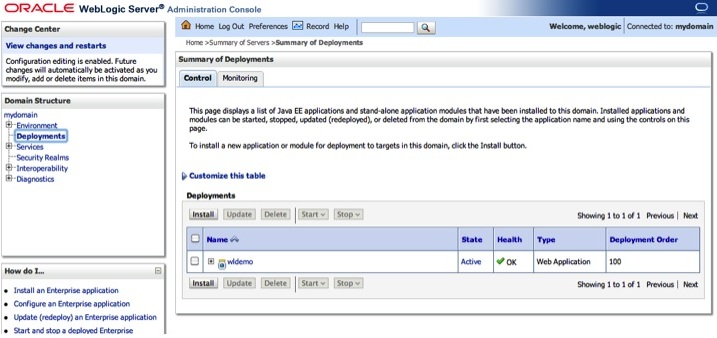
This will compile everything, run the tests (if we had any), package up a WAR file, deploy it to WebLogic and then run the integration tests (if we had any – we will write one soon). You should then be able to see the application deployed on WebLogic. You can check by looking at the Deployments in the WebLogic Server console. You should be able to access that on your machine at http://yourmachine:7001/console – you will need to substitute the correct name and port for your machine. You should also be able to run the web application by going to http://yourmachine:7001/jmsNoWrapper – again substitute in the correct name and port for your environment. You should see a blank page with the message ‘Hello World!’ on it. This is the default page created by Maven.
So now we have everything set up, let’s write a Java Servlet that will send a JMS message. Later we will write an integration test that will run this Servlet 1,000 times and measure the performance.
Here is the code for the Servlet. This goes in src/main/java/com/redstack/JMSServlet.java:
package com.redstack;

import java.io.IOException;
import java.io.PrintWriter;

import javax.servlet.ServletConfig;
import javax.servlet.ServletException;
import javax.servlet.http.HttpServlet;
import javax.servlet.http.HttpServletRequest;
import javax.servlet.http.HttpServletResponse;

import javax.naming.InitialContext;
import javax.naming.NamingException;

import javax.jms.QueueConnectionFactory;
import javax.jms.Queue;
import javax.jms.QueueConnection;
import javax.jms.QueueSession;
import javax.jms.QueueSender;
import javax.jms.TextMessage;
import javax.jms.JMSException;

public class JMSServlet extends HttpServlet {

  @Override
  public void init(ServletConfig config) throws ServletException {
    super.init(config);
  }

  public void doGet(HttpServletRequest request, HttpServletResponse response)
  throws ServletException, IOException {
    response.setContentType("text/html");
    PrintWriter out = response.getWriter();
    out.println("<html><head><title>JMSServlet</title></head><body><h1>JMS Wrapper Demo</h1>");

    QueueConnection conn = null;

    try {
      InitialContext ctx = new InitialContext();
      QueueConnectionFactory qcf = (QueueConnectionFactory) ctx.lookup("jms/QCF");
      Queue queue = (Queue) ctx.lookup("jms/myQueue");
      ctx.close();
      conn = qcf.createQueueConnection();
      QueueSession session = conn.createQueueSession(false, 0);
      QueueSender sender = session.createSender(queue);
      TextMessage msg = session.createTextMessage("this is a test message");
      sender.send(msg);
    } catch (Exception ignore) {}
    try {
      conn.close();
    } catch (Exception ignore) {}

    out.println("</body></html>");
    out.close();
  }

  public void destroy() {}

}
This is a simple, standard Java Servlet that implements the doGet() method, which will be executed when WebLogic receives a request the Servlet’s URL – we will set that up shortly.
The Servlet just prints out some HTML and sends a JMS message. You can see in there the bare essential code to send a JMS message. This code is based on the JMS client found in this post. In order to run this, we will need to set up some JMS resources on WebLogic Server – we will come to that shortly.
Notice that we create the QueueConnectionFactory, Queue, QueueSender, etc. every time and then close the QueueConnection when we are finished. This is standard JMS practice, nothing specific to WebLogic.
We need to register our Servlet in the application’s standard Java deployment descriptor, web.xml. This file is located in src/main/webapp/WEB-INF/web.xml. Here is mine:
<?xml version="1.0" encoding="UTF-8"?>
<web-app
  xmlns:web="http://java.sun.com/xml/ns/javaee/web-app_2_5.xsd"
  xmlns:xsi="http://www.w3.org/2001/XMLSchema-instance"
  xsi:schemaLocation="http://java.sun.com/xml/ns/javaee http://java.sun.com/xml/ns/javaee/web-app_2_5.xsd"
  id="worklist" version="2.5">
  <display-name>JMS Wrapper Example</display-name>

  <servlet>
    <servlet-name>JMSServlet</servlet-name>
    <servlet-class>com.redstack.JMSServlet</servlet-class>
    <load-on-startup>1</load-on-startup>
  </servlet>

  <servlet-mapping>
    <servlet-name>JMSServlet</servlet-name>
    <url-pattern>/JMSServlet</url-pattern>
  </servlet-mapping>

  <welcome-file-list>
    <welcome-file>/index.jsp</welcome-file>
  </welcome-file-list>

</web-app>
Here we map the Servlet to the URL /JMSServlet inside the web application, i.e. http://yourmachine:7001/jmsNoWrapper/JMSServlet.
If you like, you can put a link on the web application’s home page, stored in src/main/webapp/index.jsp, so that you can manually run the Servlet from a browser. I added the following to the HTML BODY:
<h1>JMS Wrapper Demo</h1>
<a href="JMSServlet">Send some messages</a>
Finally, we need to write our Integration Test to measure the performance of the Servlet. Create a new file src/test/java/com/redstack/PerformanceIntegrationTest.java. Here is the code for this class:
package com.redstack;

import junit.framework.TestCase;
import java.net.URL;
import java.net.URLConnection;
import java.io.BufferedReader;
import java.io.InputStreamReader;

public class PerformanceIntegrationTest extends TestCase {

  public void testHandleRequestView() throws Exception {

    System.out.println("+++ This is the performance test +++");

    long start = System.nanoTime();
    // hit the page 1000 times
    for (int i = 0; i < 1000; i++) {
      URL thePage = new URL("http://localhost:7001/jmsNoWrapper/JMSServlet");
      URLConnection conn = thePage.openConnection();
      BufferedReader in = new BufferedReader(new InputStreamReader(conn.getInputStream()));
      String inputLine;
      while ((inputLine = in.readLine()) != null) {
        // read the whole page
      }
      in.close();
    }
    long end = System.nanoTime();

    System.out.println("Hit the page 1000 times, sending 1000 messages with full open/close\n"
      +"of JMS objects, taking " + (end - start) / 1000000 + " milliseconds.");
    assertEquals("hello", "hello");

  }

}
This class will be run in the integration-test phase of the build, after the deployment of the application to WebLogic. It will run the Servlet 1,000 times and print out the time taken in milliseconds to process the 1,000 messages. We will see this in the output from Maven when we do a deployment.
Now let’s set up the JMS resources we need on WebLogic Server. I used the ZIP distribution (discussed in this post). Depending how you installed WebLogic, you may already have some of these resources. If they are already there, go ahead and use the ones you have, otherwise create new ones.
Log in to the WebLogic Server console using your administrative user (probably weblogic) and go to the JMS Servers page by clicking on the link under Services or using the navigation tree on the left hand side.

Click on the New button to create a JMS Server.
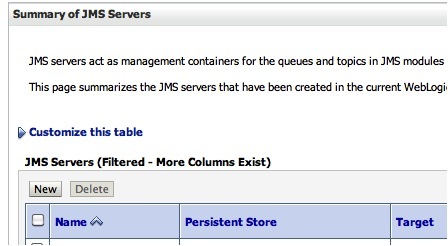
Enter a name for your JMS Server. I called mine JMSServer1. Then click on Next.

Choose the server that you want this JMS Server deployed on. If you are using the ZIP distribution like me, you will only have one to choose from. Then click on Finish.

Now we need to create a JMS Module. Go back to the Home page and click on the link for JMS Modules under Services or use the navigation tree on the left hand side.
Click on the New button to create a new JMS Module. Enter a name for your JMS Module and then click on Next. I called mine JMSModule1.
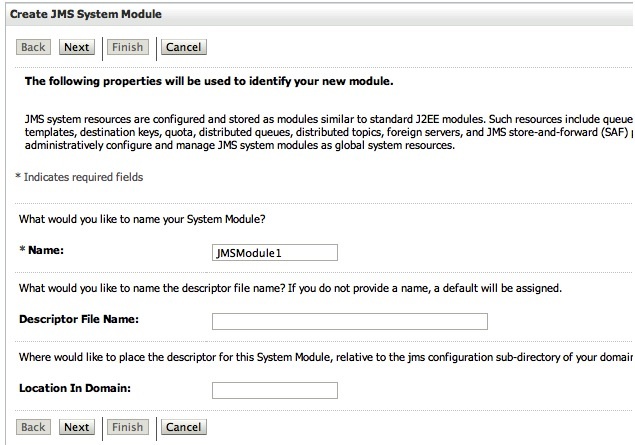
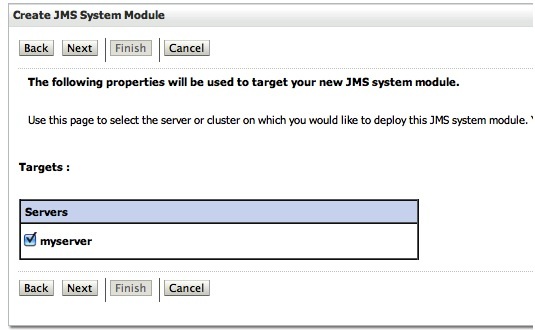
Select the server you want to target this JMS Module to then click on Next.

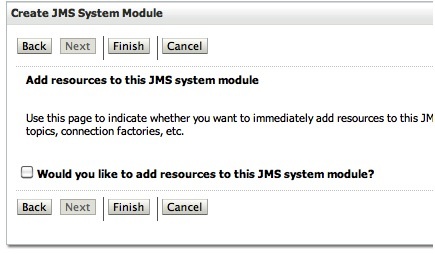
Now click on Finish.

Navigate to your new JMS Module – which will now be listed on the JMS Modules page – and click on the link to view the settings, as shown below. Then click on the New button to create a new resource.
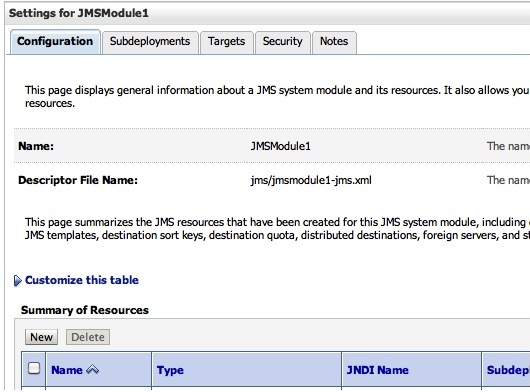
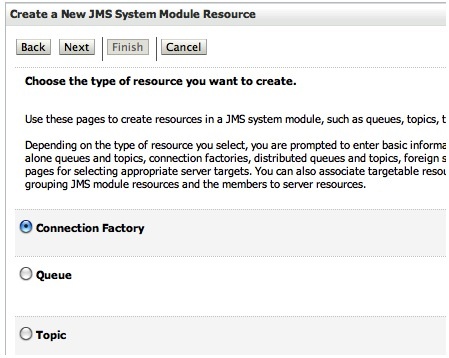
We need to create a Connection Factory first. Select Connection Factory from the list and click on Next.
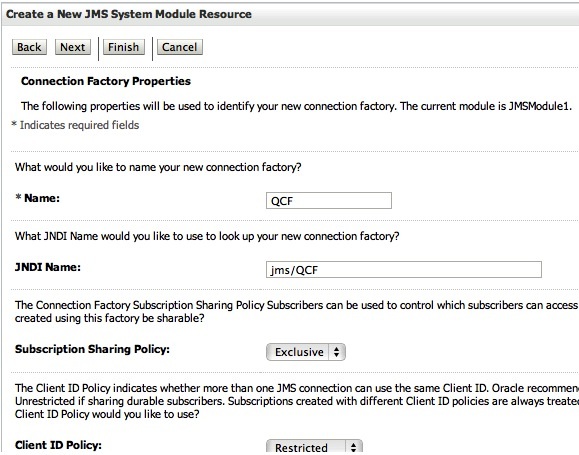
Enter a name and JNDI name for the Connection Factory. These need to match the code. You should use the same names as shown here, or update your Servlet code if you use different names. I called mine QCF and jms/QCF as shown below. Click on Next.

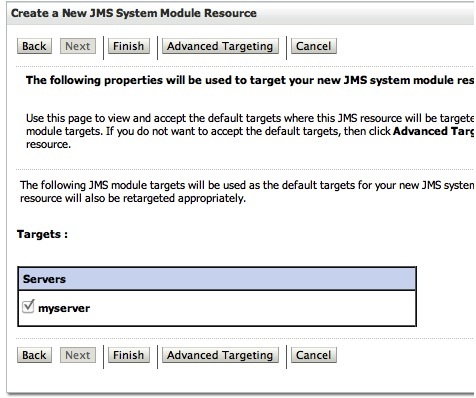
Select the target and click on Finish. You should only have the one target listed.
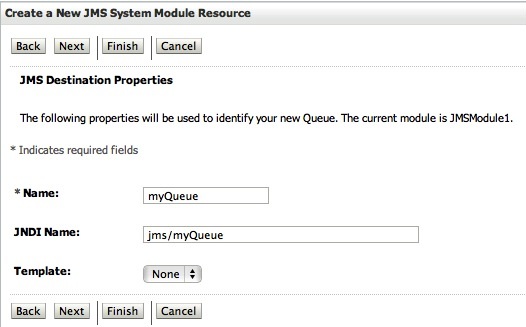
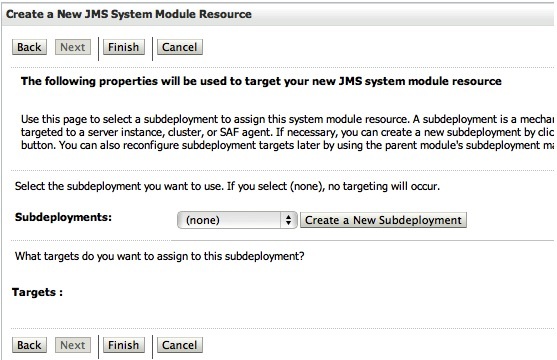
We also need to create the Queue. Return to the setting pages for your JMS Module again and click on New. Choose Queue from the list and click on Next. Enter a name and JNDI name for your queue as shown. These also need to match the Servlet code. I used myQueue and jms/myQueue. Click on Next.
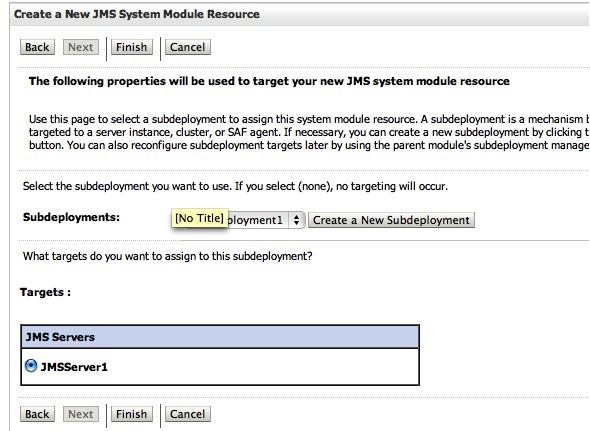
Click on the Create a New Subdeployment button (you only need to do this the first time – if you create additional queues later on you will not need to repeat this step).

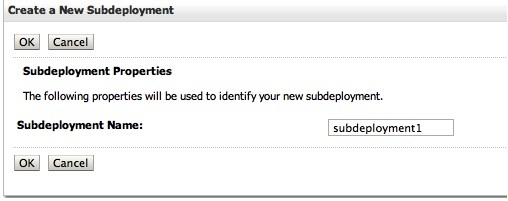
Enter a name for your new subdeployment and click on OK. I called mine subdeployment1.

Now choose the subdeployment and target for the queue and click on Finish.
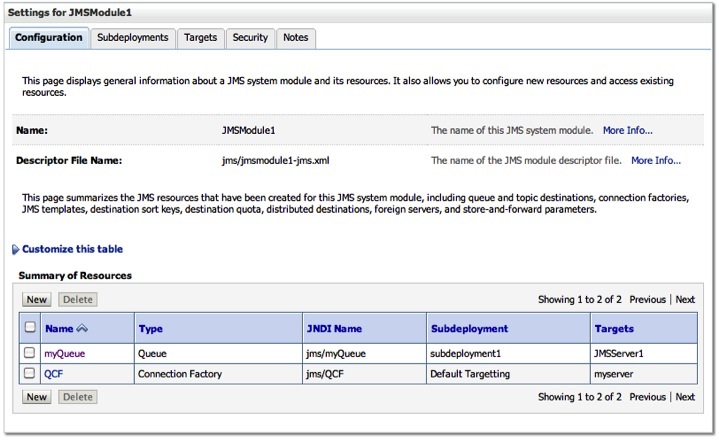
If you return to the settings page for your JMS Module, you will now see the new resources listed as shown below.

That’s all the JMS configuration we need to do for this example. Now we are ready to deploy our application. From the jmsNoWrapper directory, issue the following command:
# mvn deploy
This will build and deploy our application, and run the performance test. You will see the results of the performance test in the Maven output. Here is an example of the relevant part of the output:
[INFO] [surefire:test {execution: integration-tests}]
[INFO] Surefire report directory: /Users/mark/src/jmsNoWrapper/target/surefire-reports

-------------------------------------------------------
 T E S T S
-------------------------------------------------------
Running com.redstack.PerformanceIntegrationTest
+++ This is the performance test +++
Hit the page 1000 times, sending 1000 messages with full open/close
of JMS objects, taking 7148 milliseconds.
Tests run: 1, Failures: 0, Errors: 0, Skipped: 0, Time elapsed: 7.213 sec

Results :

Tests run: 1, Failures: 0, Errors: 0, Skipped: 0
You can run this a few times to repeat the test. On my machine I got the following results from four consecutive runs: 7148ms, 8773ms, 5140ms, 6274ms, giving an average of 6834ms.
So now we have a base line to compare against. Let’s create a project that does use the JMS Wrapper and compare the performance.
If you grabbed the code from our Subversion repository (see above) then just take a look in the trunk/jmsWrapper directory. If you are building your own from scratch, they could can just copy your whole jmsNoWrapper directory and name the copy jmsWrapper. There are only a few changes we need to make.
In the POM, we need to update the name of the application. Here is the new POM:
<project xmlns="http://maven.apache.org/POM/4.0.0" xmlns:xsi="http://www.w3.org/2001/XMLSchema-instance"
         xsi:schemaLocation="http://maven.apache.org/POM/4.0.0 http://maven.apache.org/xsd/maven-4.0.0.xsd">
    <modelVersion>4.0.0</modelVersion>
    <groupId>com.redstack</groupId>
    <artifactId>jmsWrapper</artifactId>
    <version>1.0-SNAPSHOT</version>
    <packaging>war</packaging>

    <name>jmsWrapper Web App</name>

    <properties>
        <endorsed.dir>${project.build.directory}/endorsed</endorsed.dir>
        <project.build.sourceEncoding>UTF-8</project.build.sourceEncoding>
    </properties>

    <dependencies>
        <dependency>
            <groupId>javax</groupId>
            <artifactId>javaee-web-api</artifactId>
            <version>6.0</version>
            <scope>provided</scope>
        </dependency>

        <dependency>
            <groupId>junit</groupId>
            <artifactId>junit</artifactId>
            <version>4.8.1</version>
            <scope>test</scope>
        </dependency>

        <dependency>
          <groupId>com.oracle.soa</groupId>
          <artifactId>wlthinclient</artifactId>
          <version>11.1.1.4</version>
          <type>jar</type>
          <scope>compile</scope>
        </dependency>

    </dependencies>

    <build>
        <plugins>
            <plugin>
                <groupId>org.apache.maven.plugins</groupId>
                <artifactId>maven-compiler-plugin</artifactId>
                <version>2.3.2</version>
                <configuration>
                    <source>1.6</source>
                    <target>1.6</target>
                    <compilerArguments>
                        <endorseddirs>${endorsed.dir}</endorseddirs>
                    </compilerArguments>
                </configuration>
            </plugin>
            <plugin>
                <groupId>org.apache.maven.plugins</groupId>
                <artifactId>maven-war-plugin</artifactId>
                <version>2.1</version>
                <configuration>
                    <failOnMissingWebXml>false</failOnMissingWebXml>
                </configuration>
            </plugin>
            <plugin>
                <groupId>org.apache.maven.plugins</groupId>
                <artifactId>maven-dependency-plugin</artifactId>
                <version>2.1</version>
                <executions>
                    <execution>
                        <phase>validate</phase>
                        <goals>
                            <goal>copy</goal>
                        </goals>
                        <configuration>
                            <outputDirectory>${endorsed.dir}</outputDirectory>
                            <silent>true</silent>
                            <artifactItems>
                                <artifactItem>
                                    <groupId>javax</groupId>
                                    <artifactId>javaee-endorsed-api</artifactId>
                                    <version>6.0</version>
                                    <type>jar</type>
                                </artifactItem>
                            </artifactItems>
                        </configuration>
                    </execution>
                </executions>
            </plugin>
            <plugin>
              <groupId>org.apache.maven.plugins</groupId>
              <artifactId>maven-surefire-plugin</artifactId>
              <configuration>
                <skip>true</skip>
                <!-- skip the default run so we dont run test twice -->
              </configuration>
              <executions>
                <execution>
                  <id>unit-tests</id>
                  <phase>test</phase>
                  <goals>
                    <goal>test</goal>
                  </goals>
                  <configuration>
                    <skip>false</skip>
                    <includes>
                      <include>**/*Test.java</include>
                    </includes>
                    <excludes>
                      <exclude>**/*IntegrationTest.java</exclude>
                    </excludes>
                  </configuration>
                </execution>
                <execution>
                  <id>integration-tests</id>
                  <phase>integration-test</phase>
                  <goals>
                    <goal>test</goal>
                  </goals>
                  <configuration>
                    <skip>false</skip>
                    <includes>
                      <include>**/*IntegrationTest.java</include>
                    </includes>
                  </configuration>
                </execution>
              </executions>
            </plugin>
            <plugin>
              <groupId>com.oracle.weblogic</groupId>
              <artifactId>weblogic-maven-plugin</artifactId>
              <version>10.3.4</version>
              <configuration>
                <adminurl>t3://localhost:7001</adminurl>
                <user>weblogic</user>
                <password>welcome1</password>
                <name>jmsWrapper</name>
                <remote>true</remote>
                <upload>true</upload>
                <targets>myserver</targets>
              </configuration>
              <executions>
                <execution>
                  <id>deploy</id>
                  <phase>pre-integration-test</phase>
                  <goals>
                    <goal>deploy</goal>
                  </goals>
                  <configuration>
                    <source>target/jmsWrapper.war</source>
                  </configuration>
                </execution>
              </executions>
          </plugin>
        </plugins>
        <finalName>jmsWrapper</finalName>
    </build>

    <distributionManagement>
      <!-- use the following if you're not using a snapshot version. -->
      <repository>
        <id>local</id>
        <name>local repository</name>
        <url>file:///Users/mark/.m2/repository</url>
      </repository>
      <!-- use the following if you ARE using a snapshot version. -->
      <snapshotRepository>
        <id>localSnapshot</id>
        <name>local snapshot repository</name>
        <url>file:///Users/mark/.m2/repository</url>
      </snapshotRepository>
    </distributionManagement>

</project>
We also need to update the src/main/webapp/WEB-INF/web.xml to include a resource-ref to point to the JMS resources we want to use. Here is the web.xml:
<?xml version="1.0" encoding="UTF-8"?>
<web-app
  xmlns:web="http://java.sun.com/xml/ns/javaee/web-app_2_5.xsd"
  xmlns:xsi="http://www.w3.org/2001/XMLSchema-instance"
  xsi:schemaLocation="http://java.sun.com/xml/ns/javaee http://java.sun.com/xml/ns/javaee/web-app_2_5.xsd"
  id="worklist" version="2.5">
  <display-name>JMS Wrapper Example</display-name>

  <servlet>
    <servlet-name>JMSServlet</servlet-name>
    <servlet-class>com.redstack.JMSServlet</servlet-class>
    <load-on-startup>1</load-on-startup>
  </servlet>

  <servlet-mapping>
    <servlet-name>JMSServlet</servlet-name>
    <url-pattern>/JMSServlet</url-pattern>
  </servlet-mapping>

  <welcome-file-list>
    <welcome-file>/index.jsp</welcome-file>
  </welcome-file-list>

  <resource-ref>
    <res-ref-name>jms/wrappedQCF</res-ref-name>
    <res-type>javax.jms.QueueConnectionFactory</res-type>
    <res-auth>Container</res-auth>
    <res-sharing-scope>Shareable</res-sharing-scope>
  </resource-ref>

  <resource-env-ref>
    <resource-env-ref-name>jms/wrappedQueue</resource-env-ref-name>
    <resource-env-ref-type>javax.jms.Queue</resource-env-ref-type>
  </resource-env-ref>

</web-app>
Notice that we define a resource called jms/wrappedQCF which is a javax.jms.QueueConnectionFactory, and a resource called jms/wrappedQueue which is a javax.jms.Queue.
We also need to create a WebLogic deployment descriptor that maps these to the real resources. Create a file called src/main/webapp/WEB-INF/weblogic.xml. Here are the contents for this file:
<!DOCTYPE weblogic-web-app PUBLIC "-//BEA Systems, Inc.//DTD Web Application 9.1//EN"
 "http://www.bea.com/servers/wls810/dtd/weblogic 810-web-jar.dtd">
<weblogic-web-app>
  <context-root>/jmsWrapper</context-root>
  <jsp-descriptor>
    <page-check-seconds>1</page-check-seconds>
  </jsp-descriptor>
  <resource-description>
    <res-ref-name>jms/wrappedQCF</res-ref-name>
    <jndi-name>jms/QCF</jndi-name>
  </resource-description>
  <resource-env-description>
    <res-env-ref-name>jms/wrappedQueue</res-env-ref-name>
    <jndi-name>jms/myQueue</jndi-name>
  </resource-env-description>
</weblogic-web-app>
In this file we define the mappings from the names we just defined in the web.xml to the real resource names. You can see here we define that jms/wrappedQCF is really jms/QCF and jms/wrappedQueue is really jms/myQueue.
The presence of these settings is what tells WebLogic Server to enable the JMS Wrapper functionality. So having these settings here in the deployment descriptor, and using the names defined in the web.xml to look up the resources will give you the performance improvements.
You need to change the Servlet code to use the indirect names. The two lines that need to be changed are the lookups:
      QueueConnectionFactory qcf = (QueueConnectionFactory) ctx.lookup("jms/wrappedQCF");
      Queue queue = (Queue) ctx.lookup("jms/wrappedQueue");
Finally, we need to change the URL in our Integration Test to point to the new application. The line we need to change is as follows:
URL thePage = new URL("http://localhost:7001/jmsWrapper/JMSServlet");
You can now deploy the new version of the application that uses the JMS Wrapper by executing the following command from the jmsWrapper directory:
# mvn deploy
Again, you will see the results of the performance test in the Maven output. On my machine I got the following results from four consecutive tests: 1048ms, 1047ms, 1017ms, 1045ms, giving and average of 1039ms.
So by making a couple of simple changes, we improved the performance of our JMS Servlet by around seven times, from 6834ms for 1,000 messages to only 1039ms (on average).
Notice that we need to close the connection in our Servlet. This is important. If we don’t do that, WebLogic will not know that that connection is available to be returned to the pool for reuse.
If you want to learn more about JMS on WebLogic, you might like to start with the documentation here or take a look at Chapter 10 of Professional Oracle WebLogic Server by Robert Patrick et al. Enjoy!




















 RedStack
You must be logged in to post a comment.