Installing BPM for Developers

If you are going to be doing development for Oracle BPM Suite 11g, you may want to install a copy of BPM on your own machine so that you can do some unit testing as you build components and composites.

The full installation of BPM may be a bit too heavy for a lot of developer’s machines, but there is an easy option to install a lightweight developers version of BPM.

You will need to have a database, and run the Repository Creation Utility to create the schemas for BPM.  You can use the Oracle Express Edition (XE) database to minimise the footprint.  You will find details about how to run RCU in this post.

Then you will need to install a Java Development Kit, WebLogic Server, and the SOA Suite (BPM Suite) 11.1.1.3 as detailed in that post.  Note that you will not need to install the Web Tier, WebCenter, UCM or any of the other components listed in that post.

You should take a look at the Oracle JRockit JVM for your development server.  In my testing, I found that it improved the performance of my server about 30% during deployments and at runtime.  It does however take longer to start than the Oracle HotSpot JVM (i.e. the normal ‘Sun’ JVM).  Of course this is not a big deal if you leave it running.  There is also some pretty decent tooling available to help you with performance tuning, profiling and analysis (JRockit Mission Control) – more about that in later posts.

In my main development environment I use Oracle JRockit 4.1.0-1.6.0 to run WebLogic 10.3.3 and BPM 11.1.1.3 (all 64-bit).  I run JDeveloper 11.1.1.3 on the HotSpot JVM (1.6.0_20, 21 or 22, nothing earlier).  This is all on Windows Server 2008 (64-bit).  I find that the configuration described in this post is significantly faster and more productive for me, than the standard (default) installation.

After you have installed the binaries, you will need to create your domain.  This is where the setup process starts to differ.

There are two developer domain templates provided in the product, under the Oracle Middleware home directory, in:

Oracle_SOA1\common\templates\applications

In this directory, you will see two files called:

oracle.soa_template_developer_11.1.1.zip
oracle.bpm_template_developer_11.1.1.zip

You need to rename (or copy) these two files, so that they have the extension .jar instead of .zip.  This will make them appear in the list of options when you create a new domain.

To create a domain, start up the config script in the SOA home:

c:\Oracle\Middleware\Oracle_SOA1\common\bin>  config

The Fusion Middleware Configuration Wizard will appear.  Select the Create a new WebLogic domain option and click on Next to continue.

image

From the list of options, first select Oracle Enterprise Manager – 11.1.1.0 [oracle_common], this will also select a couple of other options.  Then select Oracle SOA Suite for developers – 11.1.1.0 [Oracle_SOA1] and then finally Oracle BPM Suite for developers – 11.1.1.0 [Oracle_SOA1]. Then click on Next to continue.

image

Enter a name for your domain, I called mine sml_domain, then click on Next.

image

Enter a password for your administration user and click on Next.

image

On the next screen, make sure you choose Development Mode and then pick your JDK.  If you are going to use JRockit, like me, you will need to select Other JDK and then click on the Browse button to point to the location where you installed it.  Then click on Next.

image

On the next screen, you will need to configure the database connections.  Select all of the components in the bottom part of the screen, as shown below, and then enter your database details in the top half as shown.  If you changed the default prefix from DEV when you ran the Repository Creation Utility, then you will need to select each component one by one and update the Schema Owner field.  When you are done, click on Next.

image

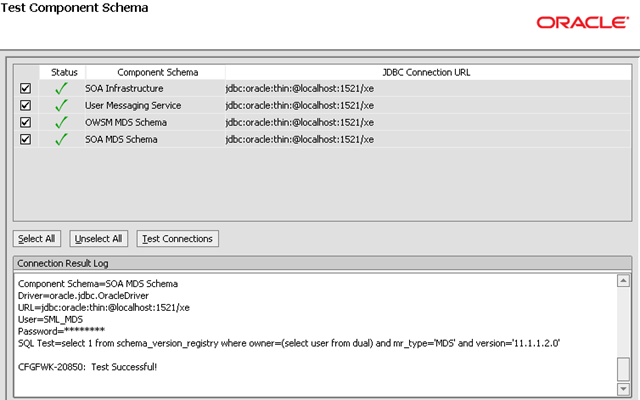
The next page will confirm that the database connections are all right.  If you get any errors, go back and correct them on the previous page then retry the tests.  When you are ready to proceed, click on Next.

image

We don’t need to do anything on this next page, just click on Next to continue.

image

Take a look at the configuration summary if you want to, then click on Next to continue.

image

You can watch the progress as the domain is created.

image

After a short time, the wizard will have completed the creation of the domain.  Make sure that Start Admin Server is not checked and click on Done to exit the wizard.

image

The more fervent readers of documentation among you may have come across the following, which tells us we need to run an ant script called ant-soa-util.xml in order to properly configure a single server domain, however this is no longer necessary with 11.1.1.3, so we do not need to do anything.

http://download.oracle.com/docs/cd/E14571_01/doc.1111/e13925/configure.htm#sthref106

Now we are ready to start up our server, using the following command, in the domain directory we just created:

c:\oracle\Middleware\user_projects\domains\sml_domain\bin> startWebLogic.cmd

The server will start up and the console (server output) will be available in your console/terminal.  The first time you start the server, it will take a bit longer than usual, as it has a bit of extra work to do unpacking a few files and so on.

After a few minutes, you will get a message letting you know the server is RUNNING.

image

Now you can log on to the server using the following URLs:

http://yourserver:7001/console        WebLogic console
http://yourserver:7001/em             Enterprise Manager
http://yourserver:7001/bpm/workspace  BPM Work Space
http://yourserver:7001/bpm/composer   BPM Process Composer

You can also create a connection in your JDeveloper and start developing!  Enjoy!

Note: JVM Memory Tuning

If you have enough memory on your development machine, you may want to tune the JVM memory arguments.  More detail on this topic later on, but for now, you might want to just try increasing the heap size and the permanent generation size.  This is done by editing the setDomainEnv.cmd file in the domain directory for example:

user_projects\domains\sml_domain\bin\setDomainEnv.cmd

You will need to add a line like this:

set USER_MEM_ARGS=-Xms2048m -Xmx2048m -XX:PermSize=512m -XX:MaxPermSize=512m

This example will make the heap 2GB and the permanent generation 512MB.  Of course, JVM memory tuning is quite a big topic in and of itself and simply throwing these settings in may not make things better on your particular machine, and if you don’t have enough memory, they may even prevent your server from starting!

Posted in Uncategorized | Tagged , , , , , | 2 Comments

Using the Organisation Chart component

In a previous post, we built a component that displays an organisation chart using the ADF Hierarachy Viewer.  In this post, we look at how to use that component.

The organization chart provides a hierarchy view for members in an organization or company. It retrieves user’s information from WebLogic identity store such as LDAP server.

The component provides two approaches for integration with your customized WebCenter application or Webcenter space:

– Separated ADF Application

Deployed it to your Webcenter server as standalone ADF application and integrate with your customize application or Webcenter space using iframe, hyperlink etc.

– Taskflow

Add it to your page by Composer.

Installation

1. Separated ADF Application

– Open organization application by JDeveloper.

– Open web.xml under ViewController/Web Content/WEB-INF

– Change the value of context-param ‘ldap.org.topUserID’ to the topuser in your organization. Default value is ‘weblogic’

<context-param>

<param-name>ldap.org.topUserID</param-name>

<param-value>weblogic</param-value>

</context-param>

– Deploy the application to your webcenter server. The organization chart can be accessed by following url:

http://%your_server_name:your_server_port% /organization/faces/ organization.jspx

2. ADF Taskflow

a) In customized Webcenter application

– Add following parameter to web.xml of your application

<context-param>

<param-name>ldap.org.topUserID</param-name>

<param-value>weblogic</param-value>

</context-param>

Change the value of context-param ‘ldap.org.topUserID’ to the topuser in your organization. Default value is ‘weblogic’

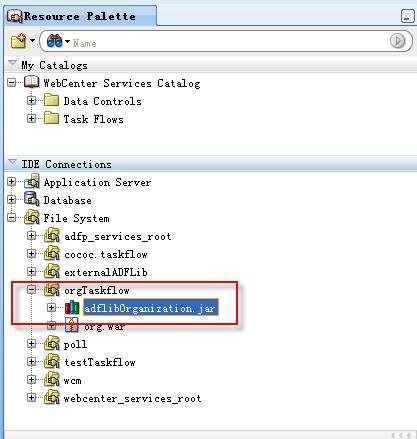
– Create a new File System Connection to the folder where adflibOrganization.jar is placed.

clip_image002

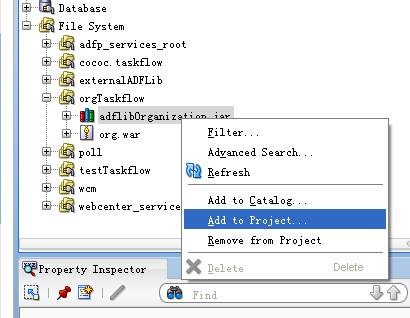
– Add this jar to your project.

clip_image004

– Add the taskflow catalog reference to default-catalog.xml

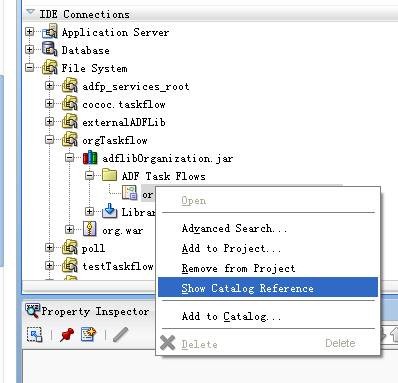
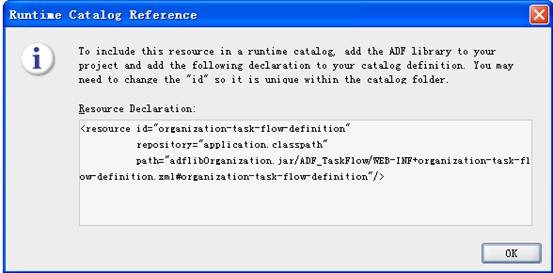
You can get Taskflow catalog reference by following way:

clip_image006

clip_image008

Add the resource declaration to default-catalog.xml. It is under %your_app_root_folder%/ mds/oracle/adf/rc/metadata.

<resource id=”organization-task-flow-definition”

repository=”application.classpath”

name=”organization chart”

description=”organization chart”

path=”adflibOrganization.jar/ADF_TaskFlow/WEB-INF+organization-task-flow-definition.xml#organization-task-flow-definition”/>

</contents>

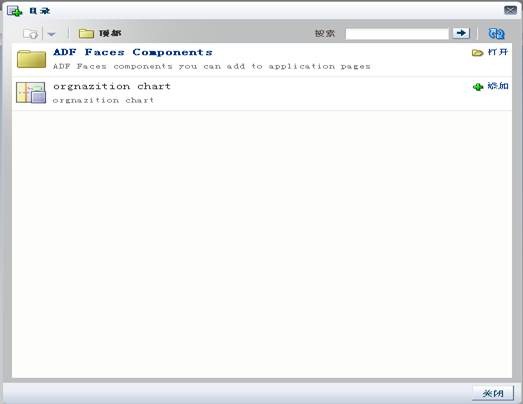
– Redeploy your application, you can see the organization chart from resource catalog.

clip_image010

– Switch your page to edit mode; edit organization Taskflow; change the parameter ‘Top User ID’ to top user ID in your organization.

clip_image012

b) In WebCenter Spaces

Refer the Webcenter space extension guide to add organization chart taskflow to Webcenter space catalog.

Update user attributes shown in the chart

Create users from Weblogic admin console and change attributes value from ldap browser. The related ldap attributes shown in the chart include:
givenName
sn:  surname
title
homePhone
mail
postalAddress
st:  state
c:  country
jpegphoto: photo
manager

The “manager ”  attribute is the association field of organization

Posted in Uncategorized | Tagged , , | Leave a comment

Building an interactive Organisation Chart using the ADF Hierarchy Viewer component

Introduction

The ADF Hierarchy Viewer component provides a highly interactive way to visualise and interact with a set of data which contains relationships.  In this post, we will use it to build an organisation chart which allows users to navigate around the structure, expand and close nodes, zoom, get more information.  The component also provide several different layouts, like the basic hierarchy shown below, as well as various other hierarchical layouts, and star charts.

The organization chart (see image below) provides a hierarchy view for members in an organization or company.   It retrieves user’s information from WebLogic identity store such as LDAP server.

image

The component provides two approaches for integration with your customized WebCenter application or WebCenter Spaces:

– Separated ADF Application

Deployed it to your WebCenter server as standalone ADF application and integrate with your customize application or WebCenter Spaces using iframe, hyperlink etc.

– Taskflow

Add it to your page by Composer.

Architecture

clip_image002

ADF Hierarchy Viewer: The ADF hierarchy viewer component displays hierarchical data as a set of linked nodes in a diagram. The nodes and links correspond to the elements and relationships to the data. The component supports pan and zoom operations, expanding and collapsing of the nodes, and rendering of simple ADF components within the nodes. A common use of the hierarchy viewer is to display an organization chart.

Java Bean: The property and behavior of the ADF Hierarchy view component or containing components can be bound to java bean property or method.

User and Role API for OPSS (Oracle Platform Security Service): User and role API provide access to a user’s attribute stored in an identity store (LDAP, RDBMS, custom). This API frees application developer from knowing the details of the identity store.

OPSS: OPSS provide a abstract layer in the form of standard based API that insulate developer from security and identity management implementation details.

Identity Store: it can be ldap directory, database or custom identity repository. Using OPSS, developer no need know the background identity store.

Implementation Detail

1. Create ADF Taskflow

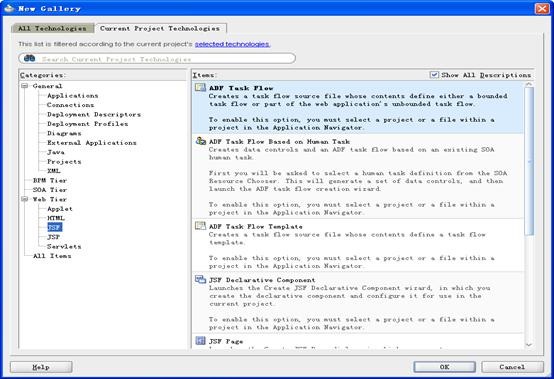
Create a new Taskflow

clip_image004

clip_image006

Drag and drop a view from component palette, name it. Double click it, system will generate a jsf page fragment

clip_image008

clip_image010

Define managed bean and input parameter as following picture shown

clip_image012

The Taskflow input parameter can be set in runtime on page edit mode. So user can dynamically change the top user of the whole organization.

2. Page Design

Page layout

Open the organization.jsff page and view the structure window as following picture shown

clip_image014

Dvt:hierarchyViewer

The ADF hierarchy viewer component displays hierarchical data as a set of linked nodes in a diagram. Detail information can be checked from following link:

http://download.oracle.com/docs/cd/E16764_01/apirefs.1111/e12418/tagdoc/dvt_hierarchyViewer.html

Dvt:node

The node component is used to stamp out nodes in the hierarchy.

The “zoom100”, “zoom75”, “zoom50”, and “zoom25” facets are used to specify the stamps for different zoom levels of the hierarchy. The “zoom100” facet is typically the most detailed, showing the most information, because the nodes are larger at 100% size. The “zoom25” facet is typically the least detailed, showing the least information, because the nodes are smaller at 25% size. Detail information can be checked from following link:

http://download.oracle.com/docs/cd/E12839_01/apirefs.1111/e12418/tagdoc/dvt_node.html

Node detail

Expand the zoom100 node facet

clip_image016

The panel card component is a container that shows one of multiple showDetailItems at a time, and provides navigation between its showDetailItems with an optional transition effect. Detail information can be referred from following link:

http://download.oracle.com/docs/cd/E14571_01/apirefs.1111/e12418/tagdoc/dvt_panelCard.html

Data binding

Hierarchy View binding

value’ property is bound with ‘employees’ property of organization bean. It is a TreeModel which contains employees list getting from background identity store. Each hierarchy node is bound to employee instance in this list.

Navigation up’ listener is bound to ‘doNavigateUp’ method of organization bean. This listener is triggered when navigating the tree.

clip_image018

Node binding

Each hierarchy node is bound to employee instance in the employee list which is bound to hierarchy view component.

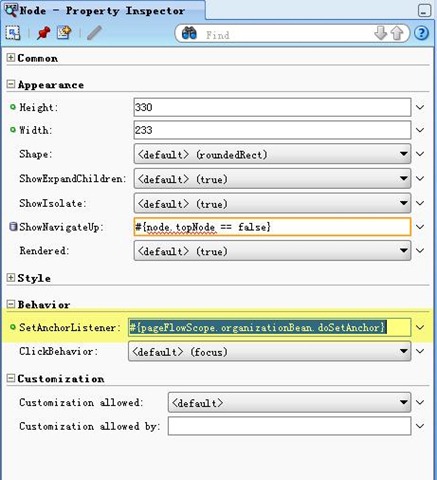
clip_image020

‘SetAnchorListener’ is bound to ‘doSetAnchor’ method of organization bean. This method make the selected node as the new anchor.

3. Java Bean implementation introduction

– Organization.java: ADF Managed bean class

It contains following accessor method ‘getEmployees()’ which returns a TreeModel instance which is bound with ADF Hierarchy view component’ ‘value’ property.

– Employee.java: Employee wrapper class to fetch the employee information getting from identity store.

This class contains an accessor method ‘getChildEmployees()’ which return child employees list of current employee based on ‘manager’ property of the user entry in background identity store such as LDAP directory.

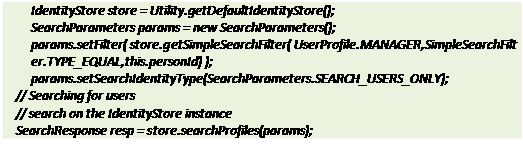
Inside this method, user and role API for OPSS is used to retrieve the employee list of current manager. The benefit of using this API is free developer knowing the detail background identity store and increasing the portability of the application. See following code as following:

clip_image021

The next post provides details about how to use the component.

Posted in Uncategorized | Tagged , , | 2 Comments

Consuming E-Business Suite web services using Oracle Service Bus, or Using Oracle Service Bus with OWSM Policies to call WS-Security protected services

This post demonstrates how to expose an E-Business Suite interface as a web service, in this case the PL/SQL API for getting a price for a product.

Once you have exposed a service, you are probably going to want to consume it!  An excellent way to do that is to use the Oracle Service Bus, providing service virtualisation and loose coupling, as well as the ability to cache service results and provide a simpler interface to downstream service consumers, like user interfaces for example.

In this post, we will explore consuming the E-Business Suite pricing service using Oracle Service Bus.  In a subsequent post, we will look at using Oracle Service Bus to provide a simpler interface and service result caching.

Thanks to Dave Reid and Devon Winkworth for helpful ideas and suggestions.

To complete the steps in this post, you will need to have exposed your service from E-Business Suite and granted access to a user, as described here, and you will need an installation of Oracle Service Bus 11.1.1.3 with the Oracle Web Services Manager Extension installed.  I used a WebLogic domain which contained both Oracle Service Bus 11.1.1.3 and Oracle SOA Suite 11.1.1.3.

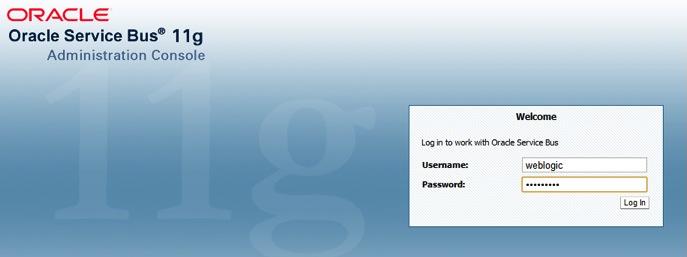
To begin, we log on the the Oracle Service Bus console at http://yourserver:7001/sbconsole using an administrative user, like weblogic.

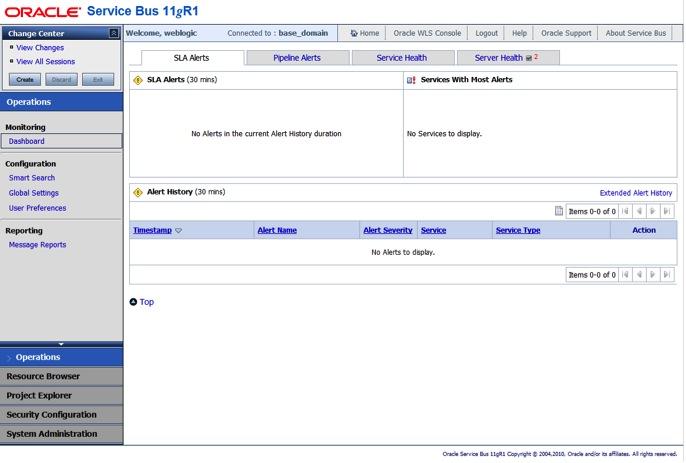
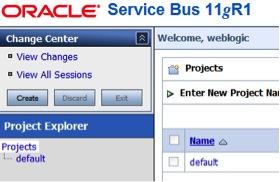
If you have just installed Oracle Service Bus, your console should look like the image below.  If you have been using your installation for a while, there will probably be some more data in there.  Let’s click on the Project Explorer view in the main navigation down the left hand side of the console window, to move from the dashboard to the project view.

In order to make some changes, we need to start a Session in the Change Center by clicking on the Create button in the top left of the console.

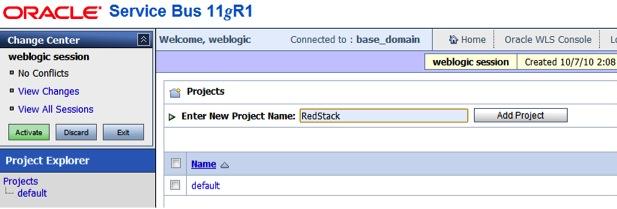
When you click on it, you will notice the Change Center window changes to look like the image below.  Now, we will create a new project to hold our work.  Enter a name in the Enter New Project Name field and then click on the Add Project button.  I called mine RedStack.

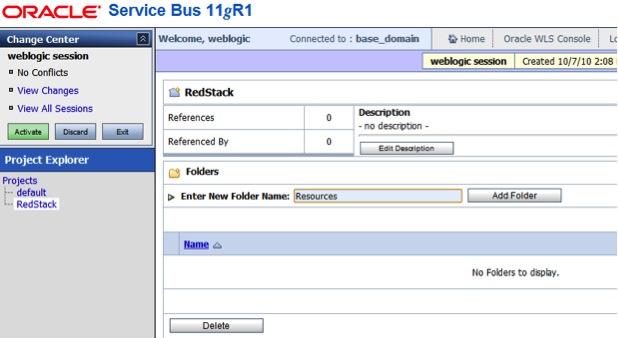
Now, click on your newly created project in the tree under Project Explorer on the left hand side navigation to open the project.  We will create a folder to hold our WSDL and related resources.  Enter a name for the folder in the Enter New Folder Name field and click on the Add Folder button.  I called mine Resources.

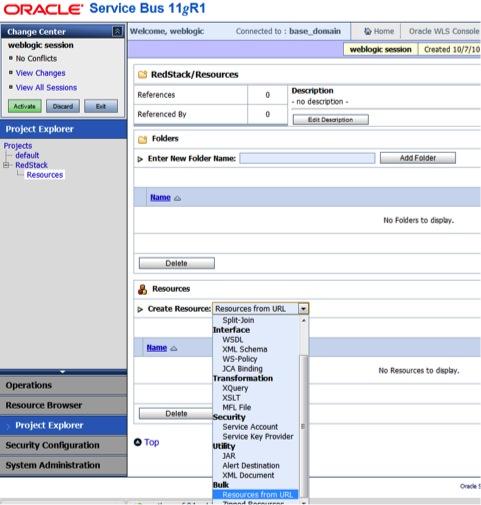
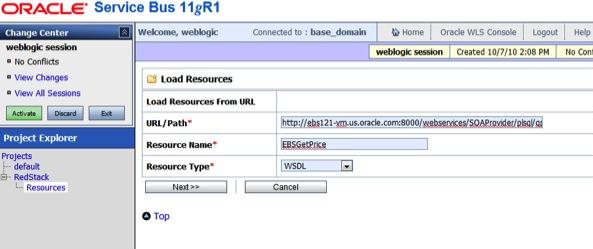
Click on the new folder in the Project Explorer to open it.  Now we will add the details of our service.  In the Create Resource pull down menu, select Resources from URL.  This option allows us to point to a running service and automatically import the necessary information into the service bus.

Enter the URL for the WSDL (which we got at the end of the previous post) into the URL/Path field, choose a name, I called mine EBSGetPrice, and make sure the Resource Type is WSDL.  Then click on the Next button to continue.

Your WSDL address should be something like this:

http://yourEBSserver:8000/webservices/SOAProvider/plsql/qp_preq_pub/?wsdl

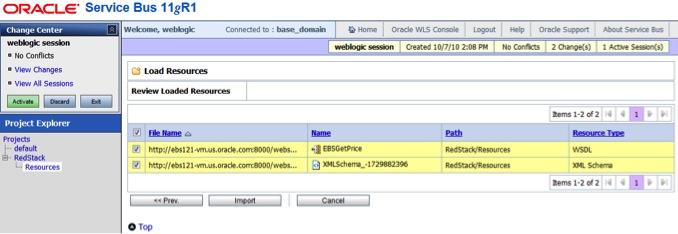
Oracle Service Bus will connect to E-Business Suite and read the WSDL and associated XSD, you will see these displayed, as in the image below.  Click on Import to add them into the service bus.

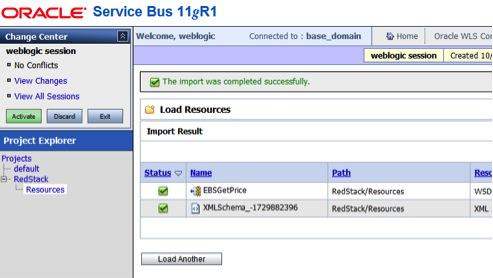
You will now see the WSDL and XSD listed under the Resources folder in your project, as shown below.

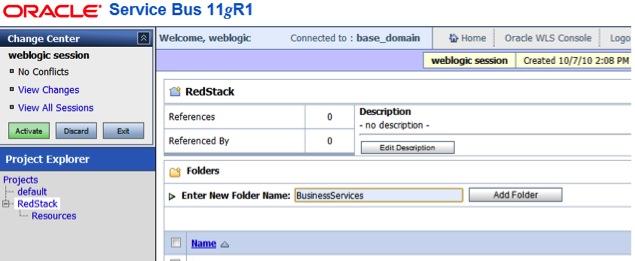
Navigate back to the root of your project, and add another folder called BusinessServices to hold our business service definitions.  Simply speaking, a “business service” in the Oracle Service Bus is a a service that is invoked by the service bus.  The opposite is a “proxy service” which is a service that is exposed by the service bus.

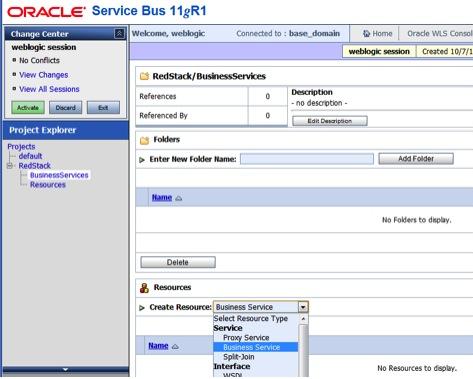
Navigate into your new BusinessServices folder, and select Business Service from the Create Resource menu, as shown.

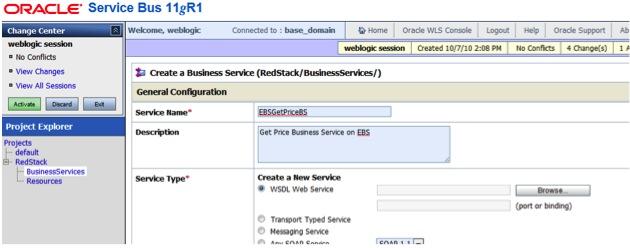
Enter a name for your business service, I called mine EBSGetPriceBS, and make sure the Service Type is WSDL Web Service.  This tells the service bus that we are defining this new service based on a WSDL that already exists in the service bus.  Click on the Browse button to locate the WSDL we just imported from E-Business Suite.

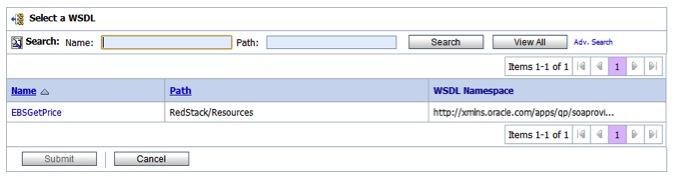
A list of WSDL resources will be displayed.  Click on your EBSGetPrice WSDL.

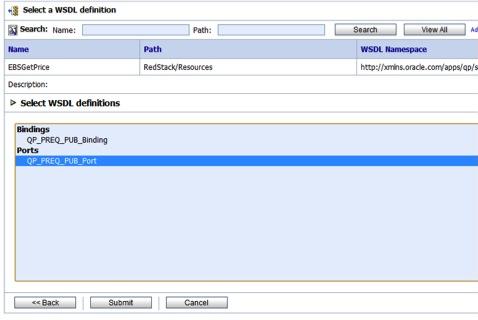
Then highligt the port you want to use (in this case there is only one, but more complex services may provide multiple ports) and click on Sumbit.

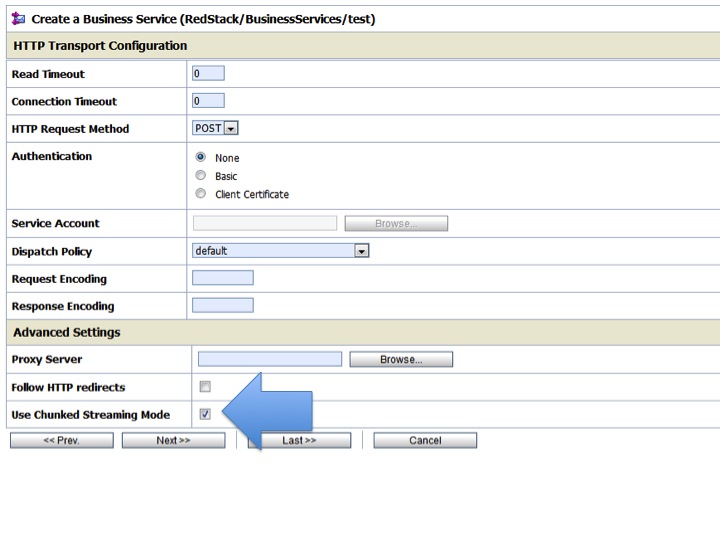
You will return to the Create a Business Service wizard.  Click on Next until you arrive at the HTTP Transport Configuration page.  Open up the Advanced Settings and ensure the the checkbox next to Use Chunked Streaming Mode is not selected.

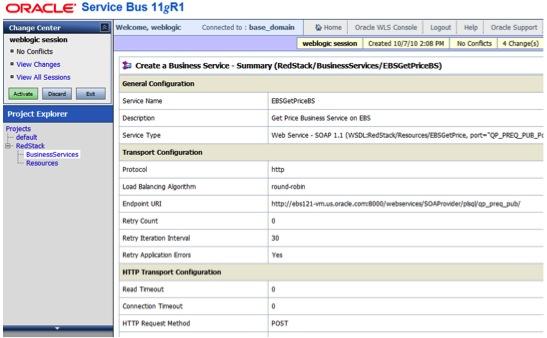
Click on Next until you arrive at the final (summary) page, as shown below.  You can accept all the defaults for this simple example.  Then click on Sumbit to save your new business service definition.

Ok, so now we have defined a business service that will call the pricing web service that we exposed in E-Business Suite.  Let’s save all our changes by activating the session – when you work in the Oracle Service Bus console, the changes you make are not “deployed” into the running service bus until you “activate” them.

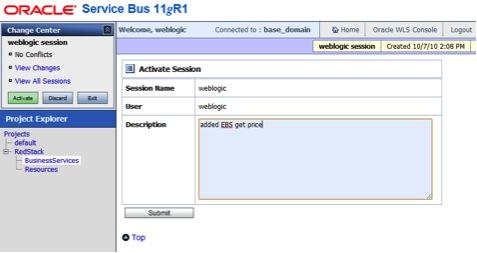
Click on the Activate button in the Change Center.  Enter a description if you want to (it makes it easier to find where you made changes later on) and click on Sumbit.

Now, since the E-Business Suite service uses WS-Security for authentication, we are going to need to set up a policy to add WS-Security credentials to our business service.  There are several ways to acheive this, but the “best” way – well the way that is most in line with how Oracle recommends you do this, and how it is done in Oracle products – is to use the Oracle Web Services Manager.   This approach also provides very neat separation of concerns, keeping the security as declarative and policy based, and applying it to the service defintions at runtime.

If you have not used Oracle Web Services Manager before in this domain, you will need to set up a keystore to hold the credentials.  If you already have a keystore, you can skip the next few steps.

Create a directory to hold our keystore:

mkdir /u02/keystores

In this directory, create a new keystore and a RSA key pair.  Note that this whole command is entered on one line.  It is shown here on multiple lines for ease of reading only.  You may need to put the path to your JDK’s bin directory before the keytool command if that directory is not in your PATH.  You need to add in the appropriate Common Name (CN) as shown in bold.  Here we have used the fully qualified hostname of the WebCenter server, with the hostname as a cn and each domain name component as a dc.  You also need to provide a password for the key (keypass) and for the keystore (storepass), as shown.

keytool
-genkeypair
-keyalg RSA
-dname "cn=yourserver,dc=au,dc=oracle,dc=com"
-alias orakey
-keypass welcome1
-keystore default.jks
-storepass welcome1
-validity 1064

Copy your keystore into your domain configuration directory, using a command like this: (again, this command should be entered on one line)

cp default.jks
/u02/user_projects/domains/boot_domain/config/fmwconfig/

Next, we will configure our domain to use this keystore.  In Enterprise Manager, navigate to “Farm_boot_domain” -> “Weblogic Domain” -> “boot_domain”

From the context menu, select “Security” -> “Security Provider Configuration”

Scroll down to Keystore, expand it, and click Configure.  Deselect (uncheck) the box Configure Keystore Management and click Ok.  This will make sure that we reset the configuration and remove any old values.  It is a good practice to follow this two step process of unconfiguring and then configuring.

Now go back to Keystore, and click Configure again, this time check the box Configure Keystore Management and enter the following information:

Keystore Path = ./default.jks
Password = welcome1 
Confirm Pwd = welcome1
Signature Key Alias = orakey
Signature Password = welcome1 
Confirm Pwd = welcome1
Encryption Key Crypt Alias = orakey
Crypt Password = welcome1
Confirm Pwd = welcome1

Save your changes and then stop all managed servers, and then the admin server, then restart the admin server and then the managed servers.

That completes the steps needed to setup the keystore.

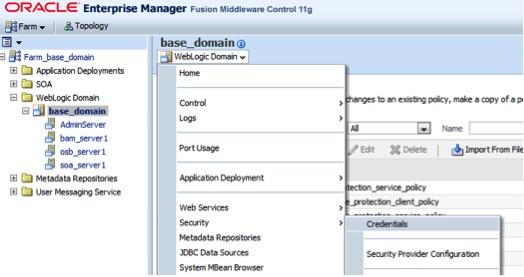
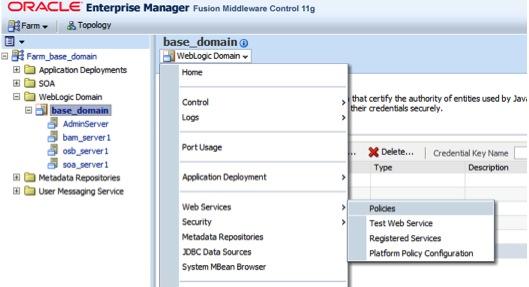
Now, we will create some credentials for E-Business Suite.  In the Enterprise Manager, navigate to your WebLogic domain and then open the domain menu and select Security and then Credentials as shown below.

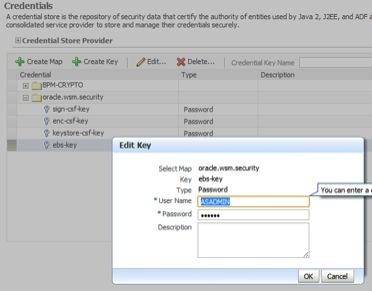
You should already have a map called oracle.wsm.security.  If not, click on Create Map and add it.  Note that is must have this exact name.  Then highlight this map and click on Create Key.  Name the key ebs-key and enter ASADMIN as the User Name (assuming this is the E-Business Suite user you selected in the previous post) and enter the password for this user.  Then click on OK to save these credentials.

Now we will create a policy which uses these credentials.  E-Business Suite requires us to use WS-Security Username Token policy.  In Enterprise Manager, open the domain menu and select Web Services and then Policies as shown.

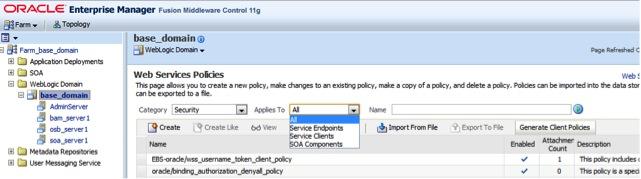
Change the Applies To filter to All and then click on the little green arrow in a blue circle icon next to the Name field to search for policies.

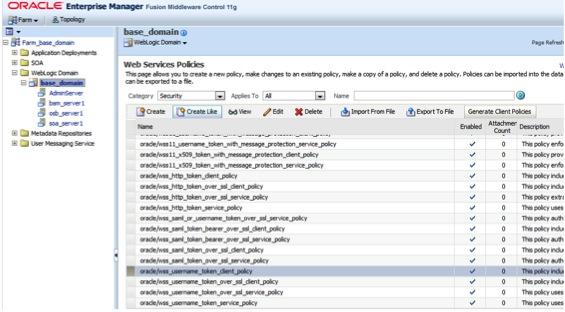
Scroll down to find the policy called oracle/wss_username_token_client_policy.  Make sure you get the right one, there are a number of them with fairly similar names.  This policy is almost exactly what we need, so we will just make a copy of it and add in our changes.

With this policy highlighted, click on the Create Like button.

Enter a name for your new policy.  I just added EBS- to the beginning of the existing name, to get EBS-oracle/wss_username_token_client_policy.

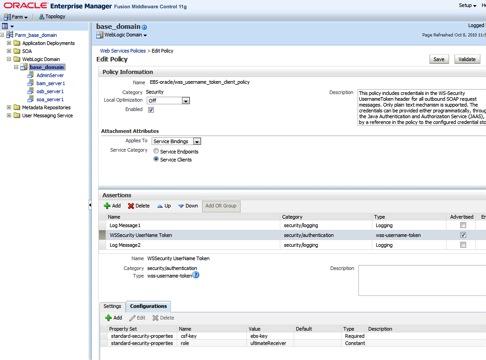
Scroll down to the Assertions section, and highligh the WSSecurity UserName Token entry.  Then click on the Configuration tab just below that.  Your screen should look like the image below:

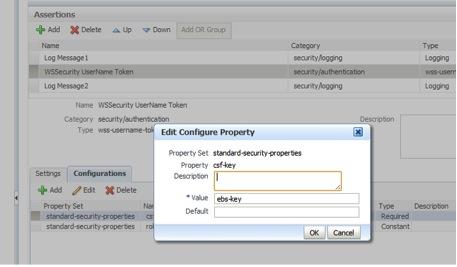
Highlight the csf-key entry in the Configurations table and click on the Edit button.  Enter ebs-key in the Value field.  This is the name of the credentials that we just created in the previous step.  Again, notice the nice clean separation, with the actual credentials being stored separately to the policy, so that they are reusable.  Click on the OK button and then the Save button to save this new policy.

Now that we have defined our policy, let’s apply it to our service and test it.

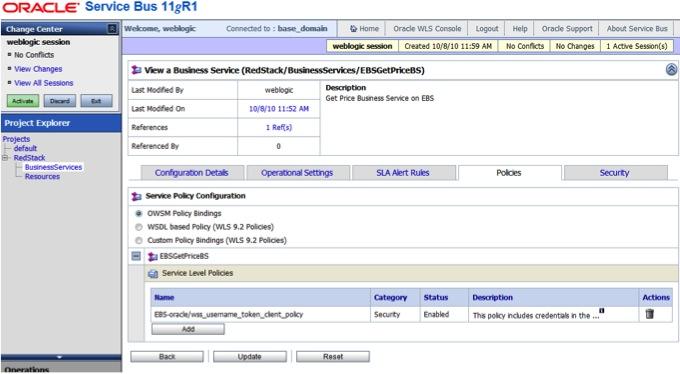
Back in the Oracle Service Bus console, create a new change session, and navigate to your EBSGetPriceBS service and open it.  Use the project tree in the laft hand side navigation to get to the folder and then click on the service name to open it.  Open the Policies tab as shown below.  From the list of Service Policy Configuration options, select OWSM Policy Bindings.  The screen will refresh, then click on the Add button in the Service Level Policies table.

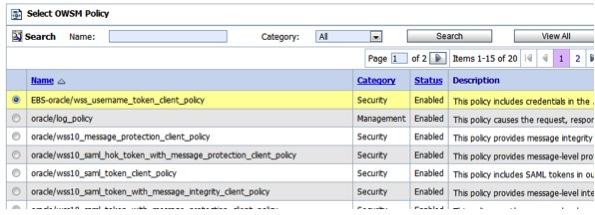
Select your newly defined policy from the list and click on Submit.

Now save and activate your changes (as we did before).

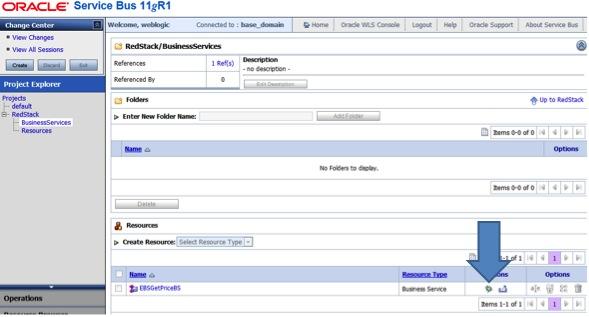
Now we are ready to test our service.  Click on the little green ladybug icon next to your service to open the test console.

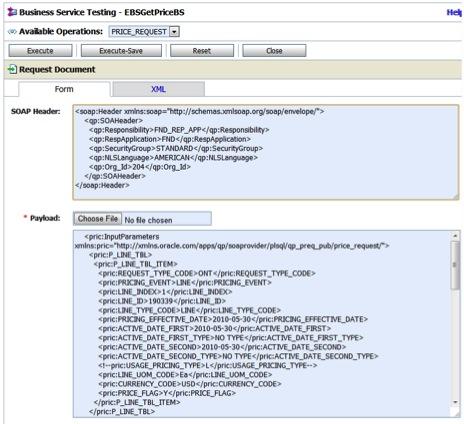
Enter the test data into the SOAP Header and Payload fields as shown below.  My test data is included just below the image.  Then click on Execute to run the test.

Here is the test data that I used.  This should work for you, but you may need to adjust some values to suit your E-Business Suite installation.

Header

<soap:Header xmlns:soap="http://schemas.xmlsoap.org/soap/envelope/">
    <qp:SOAHeader>
      <qp:Responsibility>FND_REP_APP</qp:Responsibility>
      <qp:RespApplication>FND</qp:RespApplication>
      <qp:SecurityGroup>STANDARD</qp:SecurityGroup>
      <qp:NLSLanguage>AMERICAN</qp:NLSLanguage>
      <qp:Org_Id>204</qp:Org_Id>
    </qp:SOAHeader>
</soap:Header>

Body

<pric:InputParameters xmlns:pric="http://xmlns.oracle.com/apps/qp/soaprovider/plsql/qp_preq_pub/price_request/">
      <pric:P_LINE_TBL>
        <pric:P_LINE_TBL_ITEM>
          <pric:REQUEST_TYPE_CODE>ONT</pric:REQUEST_TYPE_CODE>
          <pric:PRICING_EVENT>LINE</pric:PRICING_EVENT>
          <pric:LINE_INDEX>1</pric:LINE_INDEX>
          <pric:LINE_ID>190339</pric:LINE_ID>
          <pric:LINE_TYPE_CODE>LINE</pric:LINE_TYPE_CODE>
          <pric:PRICING_EFFECTIVE_DATE>2010-05-30</pric:PRICING_EFFECTIVE_DATE>
          <pric:ACTIVE_DATE_FIRST>2010-05-30</pric:ACTIVE_DATE_FIRST>
          <pric:ACTIVE_DATE_FIRST_TYPE>NO TYPE</pric:ACTIVE_DATE_FIRST_TYPE>
          <pric:ACTIVE_DATE_SECOND>2010-05-30</pric:ACTIVE_DATE_SECOND>
          <pric:ACTIVE_DATE_SECOND_TYPE>NO TYPE</pric:ACTIVE_DATE_SECOND_TYPE>
          <!--pric:USAGE_PRICING_TYPE>L</pric:USAGE_PRICING_TYPE-->
          <pric:LINE_UOM_CODE>Ea</pric:LINE_UOM_CODE>
          <pric:CURRENCY_CODE>USD</pric:CURRENCY_CODE>
          <pric:PRICE_FLAG>Y</pric:PRICE_FLAG>
        </pric:P_LINE_TBL_ITEM>
      </pric:P_LINE_TBL>
      <pric:P_QUAL_TBL>
        <pric:P_QUAL_TBL_ITEM>
          <pric:LINE_INDEX>1</pric:LINE_INDEX>
          <pric:QUALIFIER_CONTEXT>MODLIST</pric:QUALIFIER_CONTEXT>
          <pric:QUALIFIER_ATTRIBUTE>QUALIFIER_ATTRIBUTE4</pric:QUALIFIER_ATTRIBUTE>
          <pric:QUALIFIER_ATTR_VALUE_FROM>1000</pric:QUALIFIER_ATTR_VALUE_FROM>
          <pric:COMPARISON_OPERATOR_CODE>=</pric:COMPARISON_OPERATOR_CODE>
          <pric:VALIDATED_FLAG>Y</pric:VALIDATED_FLAG>
        </pric:P_QUAL_TBL_ITEM>
        <pric:P_QUAL_TBL_ITEM>
          <pric:LINE_INDEX>2</pric:LINE_INDEX>
          <pric:QUALIFIER_CONTEXT>CUSTOMER</pric:QUALIFIER_CONTEXT>
          <pric:QUALIFIER_ATTRIBUTE>QUALIFIER_ATTRIBUTE2</pric:QUALIFIER_ATTRIBUTE>
          <pric:QUALIFIER_ATTR_VALUE_FROM>1290</pric:QUALIFIER_ATTR_VALUE_FROM>
          <pric:COMPARISON_OPERATOR_CODE>=</pric:COMPARISON_OPERATOR_CODE>
          <pric:VALIDATED_FLAG>Y</pric:VALIDATED_FLAG>
        </pric:P_QUAL_TBL_ITEM>
      </pric:P_QUAL_TBL>
      <pric:P_LINE_ATTR_TBL>
        <pric:P_LINE_ATTR_TBL_ITEM>
          <pric:LINE_INDEX>1</pric:LINE_INDEX>
          <pric:PRICING_CONTEXT>ITEM</pric:PRICING_CONTEXT>
          <pric:PRICING_ATTRIBUTE>PRICING_ATTRIBUTE1</pric:PRICING_ATTRIBUTE>
          <pric:PRICING_ATTR_VALUE_FROM>208964</pric:PRICING_ATTR_VALUE_FROM>
          <pric:VALIDATED_FLAG>N</pric:VALIDATED_FLAG>
        </pric:P_LINE_ATTR_TBL_ITEM>
      </pric:P_LINE_ATTR_TBL>
      <pric:P_LINE_DETAIL_TBL/>
      <pric:P_LINE_DETAIL_QUAL_TBL/>
      <pric:P_LINE_DETAIL_ATTR_TBL/>
      <pric:P_RELATED_LINES_TBL/>
      <pric:P_CONTROL_REC>
        <pric:PRICING_EVENT>LINE</pric:PRICING_EVENT>
        <pric:CALCULATE_FLAG>Y</pric:CALCULATE_FLAG>
        <pric:SIMULATION_FLAG>N</pric:SIMULATION_FLAG>
        <pric:ROUNDING_FLAG>Q</pric:ROUNDING_FLAG>
        <pric:DEBUG_FLAG>Y</pric:DEBUG_FLAG>
        <pric:TEMP_TABLE_INSERT_FLAG>Y</pric:TEMP_TABLE_INSERT_FLAG>
        <pric:MANUAL_DISCOUNT_FLAG>Y</pric:MANUAL_DISCOUNT_FLAG>
        <pric:REQUEST_TYPE_CODE>ONT</pric:REQUEST_TYPE_CODE>
        <pric:ORG_ID>1642</pric:ORG_ID>
      </pric:P_CONTROL_REC>
    </pric:InputParameters>

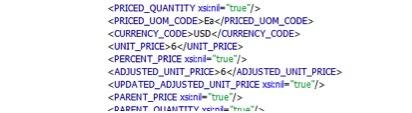
When the test completes (should be less than a second) you will see the results window.  Scroll down past the request message to find the response.  In the response you will find the UNIT_PRICE has been populated by E-Business Suite, as shown in the image below:

You will see that there are also many other peices of data in the response – this is a fairly complex interface.  In our next post in this series, we will look at how we can hide this complexity from clients and how we can cache the data from E-Business Suite to improve performance.

That completes this post, which shows us how to consume a WS-Security protected web service provided by E-Business Suite using the Oracle Service Bus and policy based security.  Of course, this approach will work for any WS-Security Username Token based web service, not just thos provided by E-Business Suite.  For example, JD Edwards Enterprise One uses this same style of security, so this approach will also work against JD Edwards.

Posted in Uncategorized | Tagged , , , , | 1 Comment

Deploying to WebLogic Server on Amazon EC2 from JDeveloper

Sometimes, when running WebLogic Server on the Amazon Elastic Compute Cloud, you may find that you are unable to deploy from your local JDeveloper to your WebLogic Server instance.

Andrew Rosson has written a helpful post (here) that provides a simple solution.

Posted in Uncategorized | Tagged , , , | Leave a comment

Purging old instance data from SOA/BPM 11g

When you are running a lot of instances of your composites through SOA/BPM 11g in your testing/development environment, you will start to fill up the available space in your database with the logging and auditing information for these instances.  From time to time, you will want to clean up your database by purging the old instance data.

Starting from version 11.1.1.2, we provide a set of SQL scripts in the following location that can be used for just this purpose.

<MIDDLEWARE_HOME>\Oracle_SOA1\rcu\integration\soainfra\sql\purge

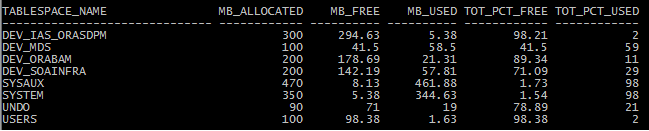
If you want to get a feeling for how much free space you have, you might like to use the query in this post, which will produce results like those shown below.

If you are running an earlier version, you can download the scripts as a patch by looking up Oracle Support document number 815896.1.  This document also provides details about how to define a filter so that the scripts will only remove certain instance data, and leave other data untouched.

To remove all old instance data, you can just invoke the scripts like this:

sqlplus dev_soainfra/welcome1 @purge_soainfra_oracle.sql
Posted in Uncategorized | Tagged , , , , | Leave a comment

Iterating/traversing arrays in BPM

Update: See this post for an updated example.

Recently, I was working with a customer who has a requirement to create an arbitrary number of human tasks, based on the cardinality of an input data structure (array).  A bit of hunt around did not turn up any good examples or documentation on this use case, so I did a bit of research and experimentation and have come up with the following approach.

Thanks to Ali Mukadam, Sushil Shukla and Meera Srinivasan for ideas and suggestions.

The scenario we will use here is ordering a number of pathology tests.  For simplicity, we will just display each request as a human task, and pass the input data into the process using the testing framework.

To complete this example, you will need JDeveloper 11.1.1.3 with the SOA Composite Editor and BPM extensions installed (you can install them from Help – Check for Updates) and a BPM 11.1.1.3 server to deploy to.  Details of how to install BPM are in this post, note though that you will not need all the WebCenter components for this example.

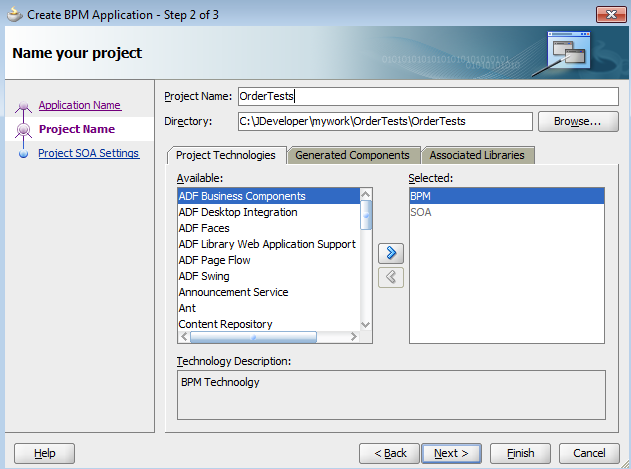
To start, in JDeveloper, from the File menu we select New and then Application.  In the Create BPM Application wizard that appears, enter a name for your application, I called mine OrderTests, select the BPM Application template, and then click on Next.

image

On the next page, provide a name for your project, I used the same name, and click on Next.

image

On the last page of the wizard, take the default option to create a Composite with BPMN Process and click on Finish.

image

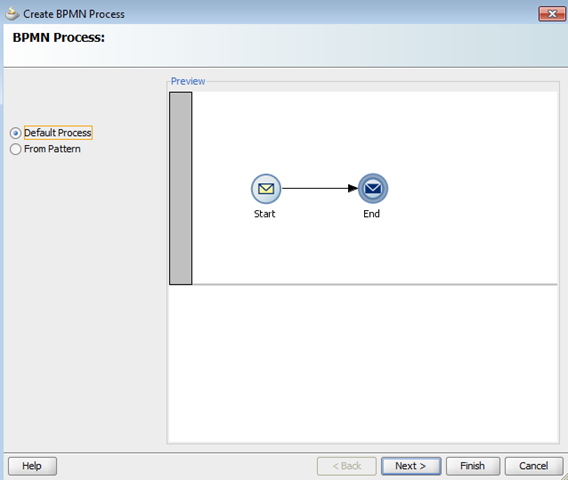
Your new application will be created, with a BPMN project in it, and the Create BPMN Process wizard will appear.  For this example, we will accept the default process template, just click on Next.
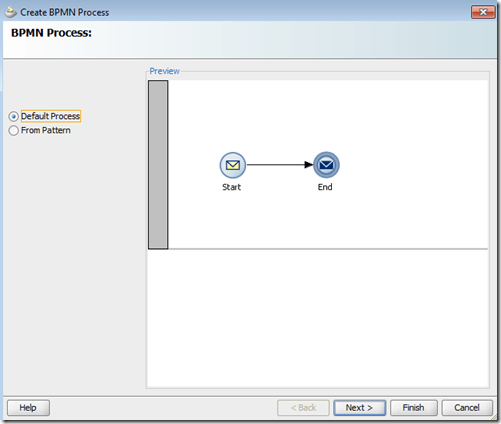
image

On the next page, give your actual BPMN process a name, I called mine OrderTests.  It is important that you give each process a different and meaningful name.  Then click on Finish.
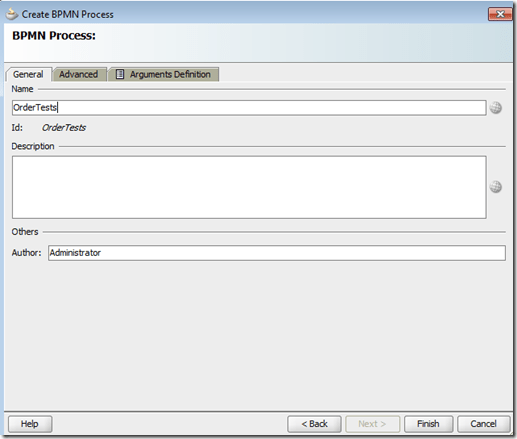
image

Your new process will open in JDeveloper.  Switch the BPM Application view, if it is not already visible, as shown below on the left hand side.  Open up the Business Catalog node as shown.  We are going to create some data definitions to hold information about our tests, and to hold a group of tests.

image

Right click on the Business Catalog folder and select New and then Module from the popup context menu.
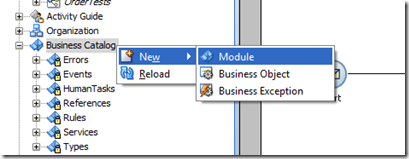
image

Enter a name for your new module, I called mine Data.  The module is really just a folder or container to hold the artefacts we are going to create.
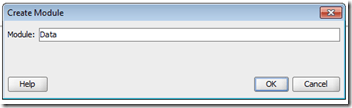
image

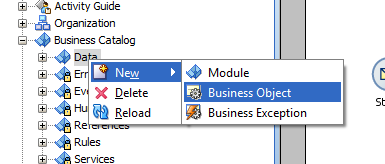
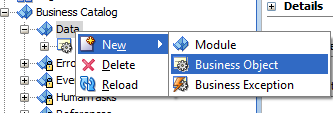
Now right click on your new container and select New and then Business Object from the popup context menu.  A business object is a data type in BPM.

image

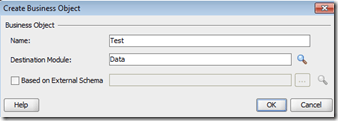
Enter a name for your new business object, I called mine Test.  Note that it will be placed into the module we created.  We could create it using an existing XML Schema, but in this case we will define it manually.  Click on OK to continue.
image

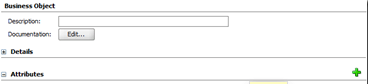
Click on the green plus icon at the right hand side of the Attributes section to add a new attribute to out business object.
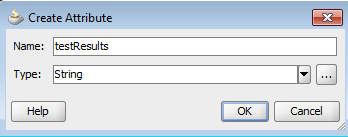
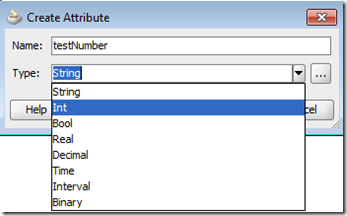
In the dialog box, enter a name for the attribute, I called mine testNumber.  Then select a type for the attribute.  I used Int for an integer.  Then click on OK.
image

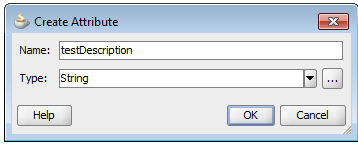
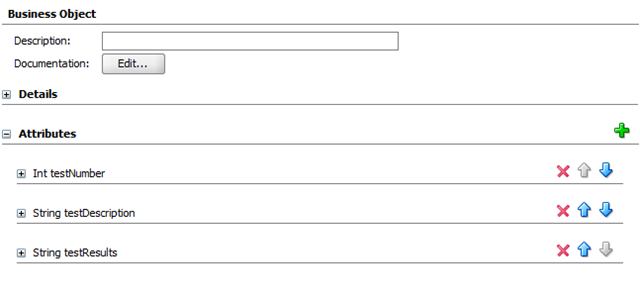
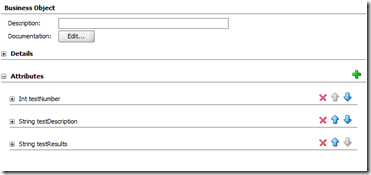
Create two more attributes in the same way, testDescription as a String, and …

image

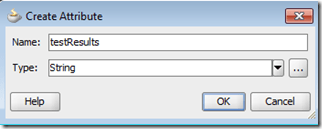
testResults as a String.

image

Your business object should now look like this:
image

Now we will create a second business object which will hold a collection of tests.  Right click on your Data module and select New and then Business Object from the popup context menu, as we did earlier.
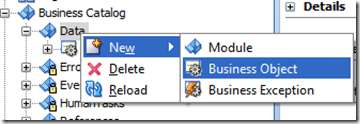
image

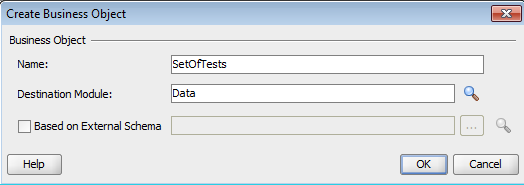
Enter a name for this business object, I called mine SetOfTests, and click on OK.
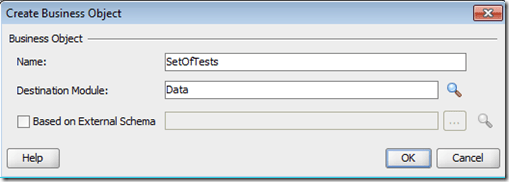
image

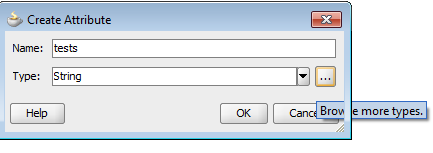
Click on the green plus icon to add a new attribute, as we did before.  Enter a name for this attribute.  I called mine tests.  For this attribute, we want to use our other business object as the type.  To do this we click on the button with the elipsis (…) next to the Type field to open up the type browser.

image

From the pulldown Type select the <Array> option.

image

The display changes to present a new Element Type field that was not previously displayed.  This allows us to select what type the elements of the array will be.

image

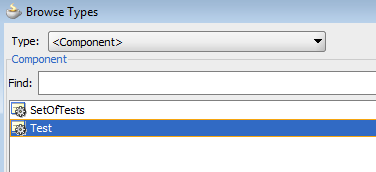
Click on the elipses (…) next to Element Type and select <Component> from the list of options.  We are going to use the component we defined earlier as the type of the elements in our array.

image

From the list of components, choose Test and click on OK.
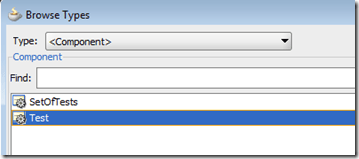
image

Your screen should now look like this:
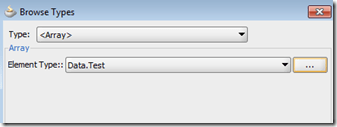
image

Click on OK to continue.  Your screen should now look like the image below, indicating that the new attribute tests will be an array of the Test component/business object in the Data module/folder.  Click on OK.

image

Your new business object should now look like this:

image

Now that we have defined our types, it is time to create a variable in our process, using these types, to actually hold the data we want to work on in the process.  Return to the process using the tabs at the top of the main pane, or by double clicking on it in the navigator (top left).  When the process is open, you should see the structure view (bottom left) as shown in the image below. If you do not see it, you can open it from the View menu.  Right click on the Process Data Objects folder and select New from the popup context menu.

image

In the dialog box that appears, give your variable (process data object) a name, I called mine testData, and then click on the elipsis (…) next to the Type field to select the type for the variable.

image

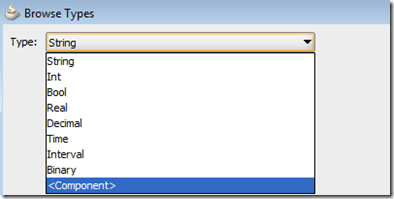
In the type browser, select <Component> from the drop down list.
image

Then select Test from the list of components, and click on OK.

image

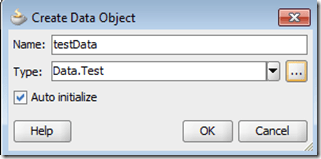
You should be returned to the dialog box, which should now look like the image below.  Click on OK to continue.
image

Now we will create a second variable for the set of tests, right click on the Process Data Objects folder again, and select New from the popup context menu.

image

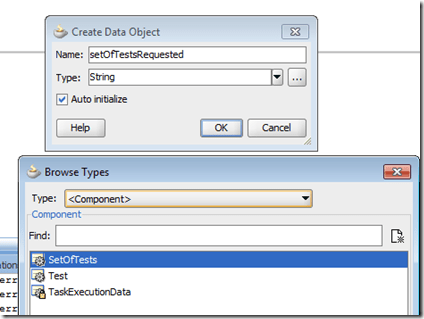
I named this second variable setOfTestRequested.  Click on the elipsis (…) to choose the type, select <Component> and then choose the SetOfTests component, then click on OK.
image

Click on OK in the dialog box.  This second variable will hold the array of test data objects.

image

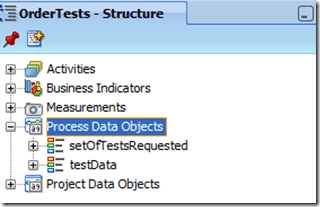
If you open up the Process Data Objects folder, you will see your two variables, as shown below.
image

Ok, now we have all our data and variables sorted out, let’s work on the process itself.  First, let’s define a role so we know what type of user will carry out the tasks in this process.  You can of course have multiple roles, but for our simple example we will only need one.  Double click on the swim lane header at the left hand side of the process, it is shown in a darker gray colour at the left hand side of the image below.  This will open the Role Properties dialog box.  Click on New to create a new role and enter a name for it.  I called mine Requestor.  Click on OK and then OK again.

image

You will notice now the the swim lane header shows the name of our new role.  Next, we will set up the inputs for our process.  Note that you do not have to have inputs for a process.  It is fine to have a human task at the beginning of the process where a user can enter the inputs directly.  By setting up inputs on the Start node, as we are here, we allow this process to be started (‘invoked’) as a service, or by sending it a message.  This will make it slightly easier for us to test.  Right click on the Start node and select Properties from the popup context menu (or double click on the Start node).

image

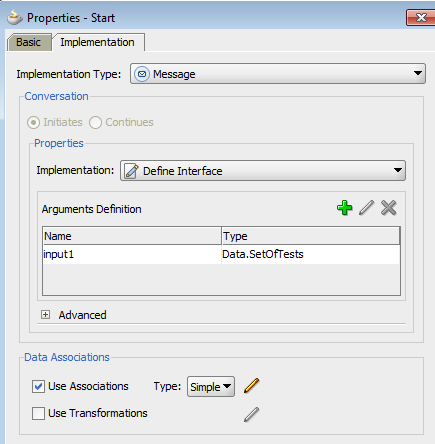
In the Properties – Start dialog box, select the Implementation tab, as shown in the image below.  The click on the green plus icon at the top right of the Arguments Definition section.

image

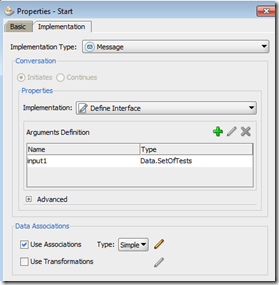
In the Create Argument dialog box, enter a name for your argument, I called mine input1 and then click on the elipsis (…) to choose the type.  Select <Component> and then SetOfTests from the component browser.  Then click on OK.

image

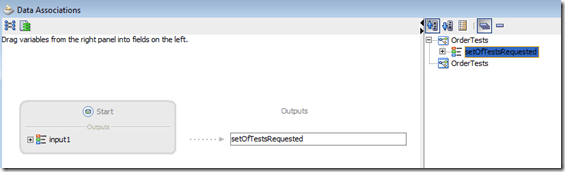
Tick the checkbox next to Use Associations and then click on the little pencil icon to the right, next to the Type: Simple drop down.  Drag the setOfTestsRequested variable from the right hand side into the Outputs box in the middle, as shown below.  This means that the inputs sent to the process (input1) will be stored in the variable setOfTestsRequested.  Click on OK to continue.
image

Your screen should now look like this.  Click on OK to continue.
image

Now repeat this process on the End node.  Add an argument called output1 of type SetOfTests, similarly to what you just did for the Start node.

image

In its associations, drag the setOfTestsRequested into the Inputs area as shown below.  This means the data in that variable will be sent out of the process as its output.

image

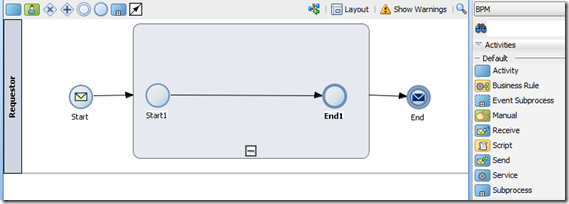
Now let’s implement the body of our process.  We will use the Subprocess object to handle the traversal of the array of tests.  Drag a Subprocess from the component palette on the right into the process and drop it on the line between the Start and End nodes.  You may want to move the End node across to the right first to give yourself some more room.  Notice that the line changes colour to blue when you hold a component over it.  If you cannot see the component palette, you can open it from the View menu.  Your process should now look like the image below.  You may need to click on the little plus icon to open the subprocess like this.
image

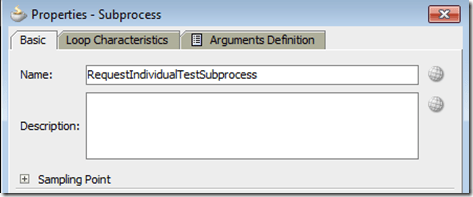
Now let’s set the properties of our subprocess.  We want one instance of the subprocess for each element in the input array.  Right click on the subprocess and select Properties from the popup context menu (or just double click on the subprocess).  Enter a name for the subprocess.  I called mine RequestIndividualTestSubprocess.  Then move to the Loop Characteristics tab.
image

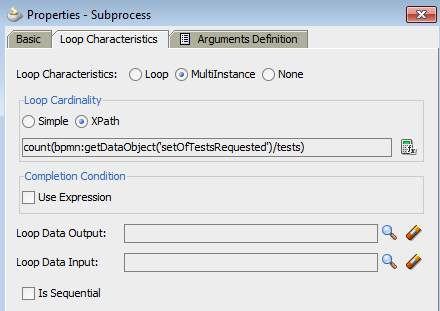
In the Loop Characteristics field at the top, select the MultiInstance option, as shown below.  For the Loop Cardinality select XPath, and for the Is Sequential option (down the bottom), deselect (uncheck) the checkbox.

The MultiInstance option tells the system to create a separate instance of the subprocess for each item.  Because we unchecked Is Sequential, they will all be created at once, and execute in parallel.

Your screen should now look like the image below.  Click on the little calculator icon to the right of the the Loop Cardinality field.

image

The Expression Builder will open, and we can enter an XPath expression to tell the system how many instances of the subprocess we want to run, i.e. the ‘cardinality’ of the loop.

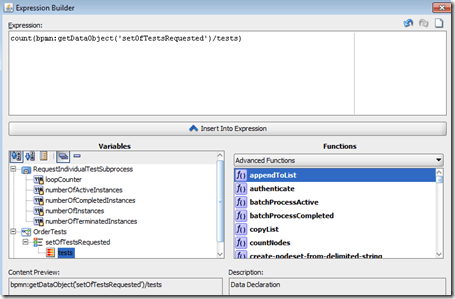
Type in count() in the expression field.  Then place your cursor between the parentheses, i.e. count(here).  In the Variables box at the bottom left, navigate to the tests part of the setOfTestsRequested variable, and highlight it, as shown below.  Then click on the Insert into Expression button to add it in between the parentheses.  Your screen should now look like this:
image

Note that you can just type in the whole expression if you want to.  Click on OK to return to the previous dialog box, which should now look like the image below.  This expression that we have entered tells the system to count how many tests nodes/elements there are inside the setOfTestsRequired variable, so if we pass in an array of two tests, the system will start two instances of the subprocess.

image

Now we move to the Arguments Definition tab.  On the Inputs tab inside this tab, click on the green plus icon to add a new argument.  Call it input1 and set the type to the component Test as we have done previously.

image

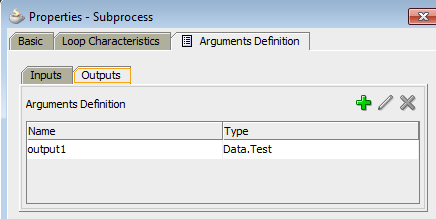
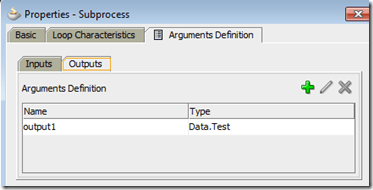
On the Outputs sub-tab, create an argument called output1 of type Test also.
image

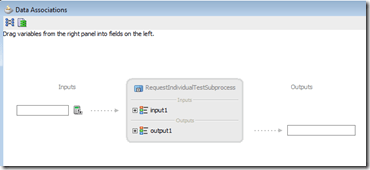
Check/select the checkbox next to Use Associations and then click on the pencil icon to edit the data associations.  Click on the little calculator icon next to Inputs as shown below.
image

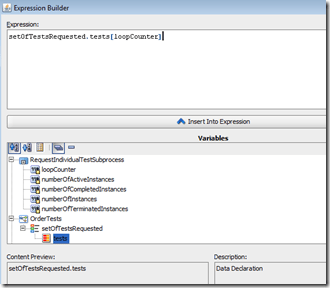
In the Expression Builder, enter the expression: setOfTestsRequested.tests[loopCounter] and press OK.  This expression selects just one of the tests in our variable.  The loopCounter is a special variable that the system will set to a different value for each instance of the subprocess, so in our example where we have two inputs, one instance of the subprocess will have loopCounter set to 1, and the other to 2.
image

Copy and paste this expression (or retype it) in the Outputs are too.  Your screen should now look like this:
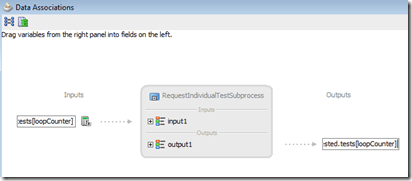
image

Click on OK and then OK again.

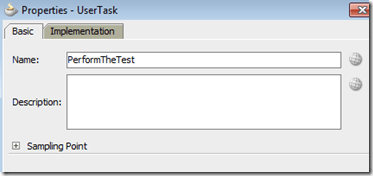
Now let’s define what we want to do inside our subprocess.  We will send the each test to the user, to have them complete it an update the test with the results.  To do this, we will use a human task.  Drag a User task from the component palette and drop it on the line between the Start and End nodes inside the subprocess.  Then right click on this new task and select Properties from the popup context menu.  Enter a name for this task, as shown below.  I called mine PerformTheTest.
image

Now move to the Implementation tab.  Click on the green plus icon next to the Human Task field to define a new human task.

image

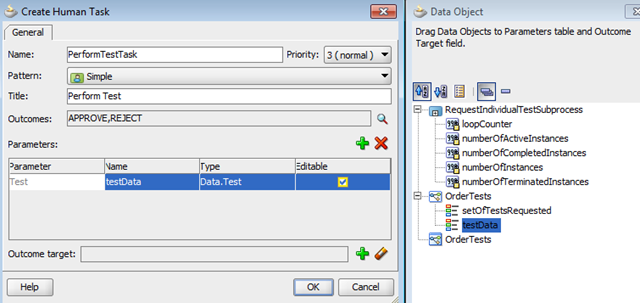
In the Create Human Task dialog box that appears, enter a name and title for the new human task.  I named mine PerformTestTask and set the title to Perform Test.  The title will be displayed to the users.  You need to make sure that the name of your task is different to the name of your process, or other components.  It is a good idea to put “Task” on the end of the names of your tasks so that they will be easily identifiable.

Next, click on the green plus icon next to Parameters to add a new data object for this task.  The Data Object browser will appear to the right, as shown below.  Drag the testData variable into the Parameters area and drop it.  Check/select the checkbox under the Editable column, so that users will be able to update this data object when they complete the task.  Your screen should now look like the image below.
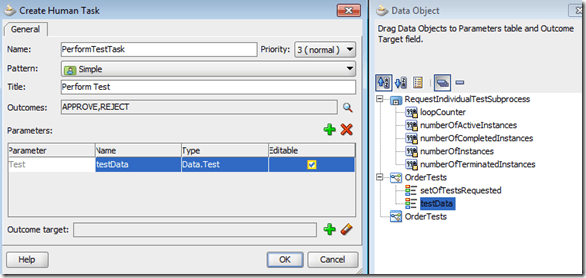
image

Click on OK to return the the previous dialog box.  Check/select the checkbox for Use Associations and then click on the pencil icon.

image

In the Data Associations dialog box, set the inputs and outputs for the test variable to setOfTestsRequested.tests[loopCounter] as we did earlier.  Make sure you put it in the right input/output box.  Your screen should look like the image below.
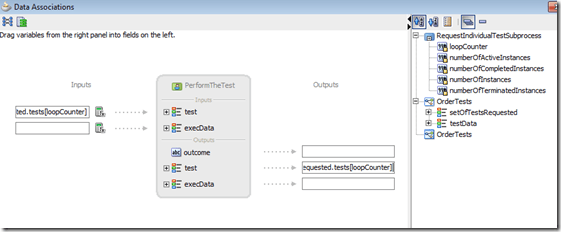
image

Click on OK and then OK again to return the process.  That completes our definition of our process.  It is a simple process to illustrate our example, in real life, you would obviously have a more complicated process.

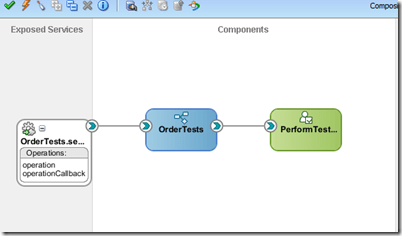
Now we need to create a user interface for our human task.  To do this we want to go to the “Composite” view.  This should have been opened automatically when we created our application.  You can open it by selecting its tab in the main pane.  If it is not there, go the the Application Navigator, by opening it from the View menu or selecting its tab in the top left pane, then navigate to the composite.xml under SOA Content in your project.  When you open it, the composite will display in the main pane, and should look like this:
image

This shows us that we have a business process (the blue box) that uses (indicated by the connecting line) a human task (the green box).  We can also see that our process is exposed as a service (the white box in the left hand column).  Double click on the green human task component to open it.  It will display in the main pane, and should look like this:

image

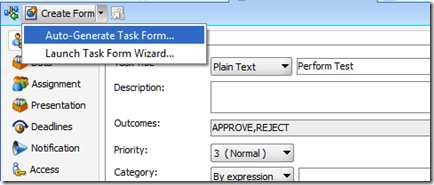
Click on the Create Form button at the top left of the main pane and select Auto-Generate Task Form… from the drop down menu.
image

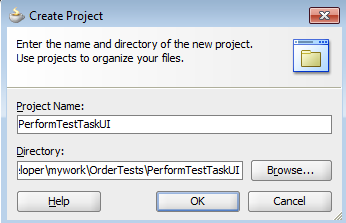
A dialog box will appear, asking you to name a new project (in your same application) to store the user interface components.  Give it a name, I usually just add “UI” to the end of the task name, so I called mine PerformTestTaskUI.  Then press OK and wait.

image

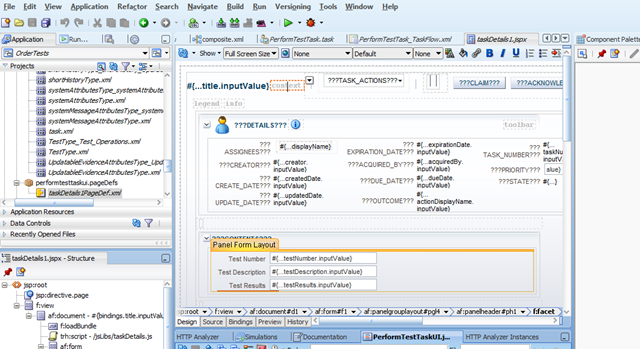
After some time (10-60 seconds depending on your machine) you will see a few new tabs open in the main pane, and finally a “task flow” page like the one shown below will appear.  When this happens, press the Save All button (or select it from the File menu) to ensure everything is saved.

image

Now we have everything we need to deploy and test our process.  From the Application Navigator, right click on our original project (not the human task one we just created) and select Deploy and then OrderTests… from the popup context menu, as shown below.

image

The deployment wizard will appear.  On the first page, select Deploy to Application Server and then press Next.

image

On the Deploy Configuration page, we can accept the defaults.  If anything goes wrong and you need to deploy again, you will need to either increase the revision ID, or check/select the Overwrite any existing composite with the same revision ID option.  Click on Next.

image

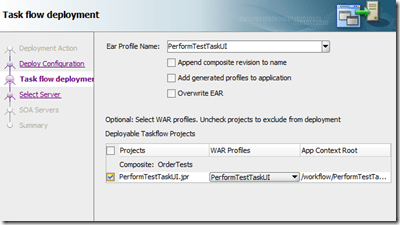
On the Task flow deployment page, we need to include our human task user interface by selecting it from the list, as shown below.  Note that you only need to do this once.  If you do redeploy your process later on, you don’t need to redeploy the task user interface (unless you also change the task user interface of course).  Click on Next.
image

On the next page, select the server connection that you want to deploy to, and click on Next.

image

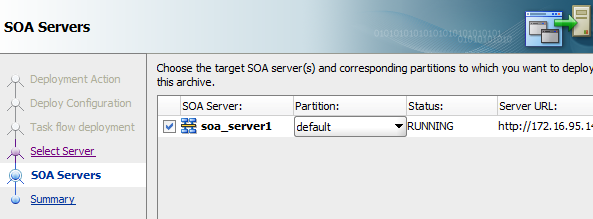
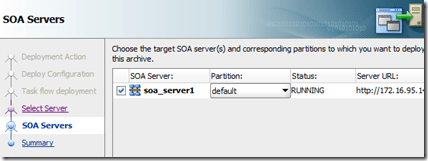
JDeveloper will connect to your server (there may be a small delay at this point) and retrieve a list of managed servers to which it can deploy.  In a typical development/test environment there will only be one, as shown below.  Make sure the correct one is selected, if you have more than one, and click on Next.
image

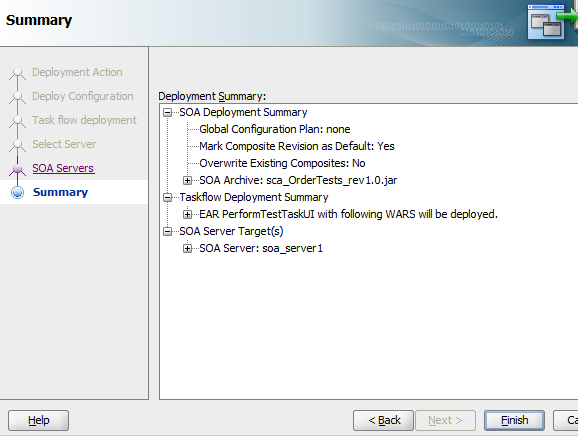
Check the details on the Summary page, then click on Finish to start the deployment.

image

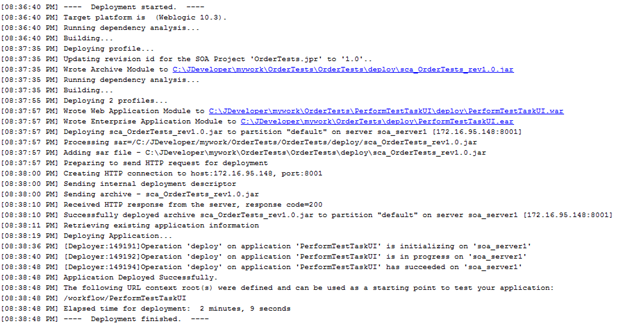
In the Log pane, at the bottom of the screen, you can watch progress of the deployment in the Deployment tab.  Your deployment should progress as shown below.  Note that you will get error messages if you have done something wrong, and you will need to go and fix those mistakes before you can deploy your process and task user interface.

image

When you see Deployment finished as shown above, we are ready to test our process.

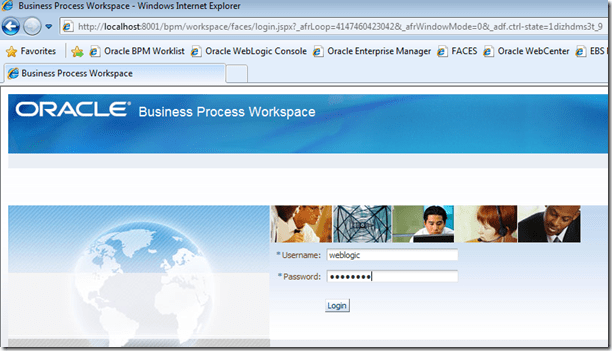
First, we need to go and map the role we created to an actual user, so that we will be able to see the tasks.  We do this in the BPM Workspace, which we can access at http://yourserver:8001/bpm/workspace.  Log on as an administrator, like weblogic.
image

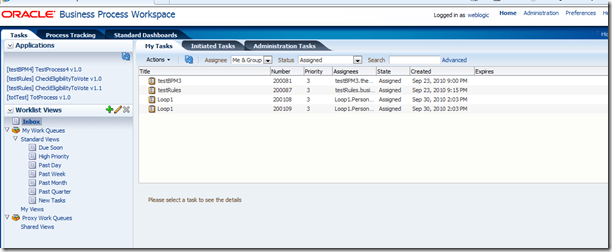
You will probably see some other processes and tasks sitting in your queue, as shown below (unless this is your first process on the server).  Click on the Administration link at the top right.
image

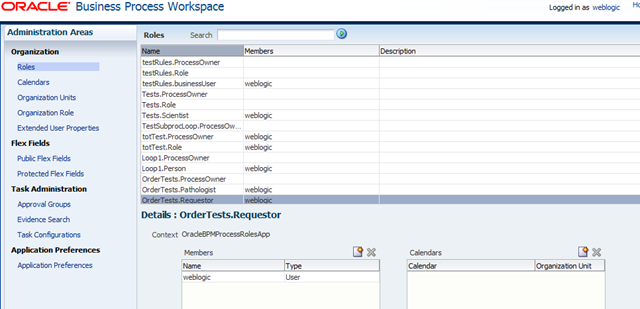
Scroll down to find the role we defined in the list of roles.  It will be called OrderTests.Requestor, as shown – this is the name of our process and then the name of the role.  Click on it to select it.  The Details view will appear in the bottom half of the screen, as shown below.

image

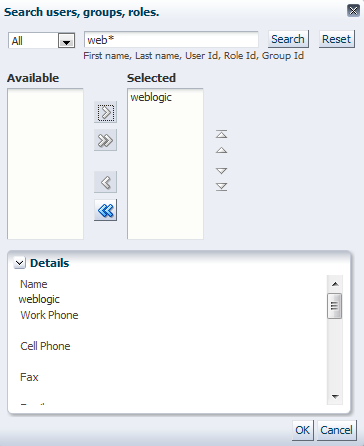
Click on the little paper and star icon at the top of the Members box to add a new member.  In the popup box, enter a search term, like web*, and click on the Search button.  Then click on the weblogic user in the Available box and click on the little blue right arrow to move it across to the Selected box.  Your screen should now look like this:

image

Click on the OK button, and then click on the Apply button at the top right of the Details view (bottom half of screen).  Make sure you click on Apply or your changes will be lost.  You should now see that your role displays the user weblogic in the list at the top of the screen, as shown below.

image

At this point, you may want to log out and log in again, just to make sure your session will receive new tasks.

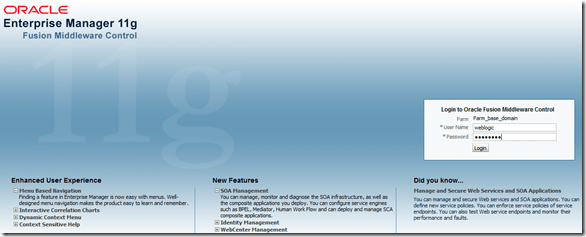
Now, we will use the Enterprise Manager to start an instance of our process and see what happens.  You can access the Enterprise Manager at http://yourserver:7001/em and log on as an administrative user, like weblogic.
image

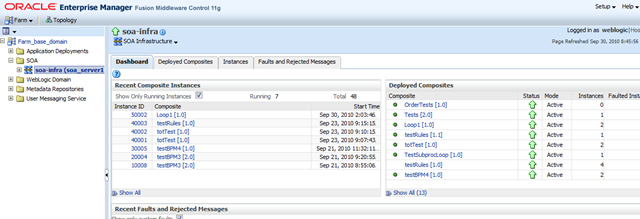
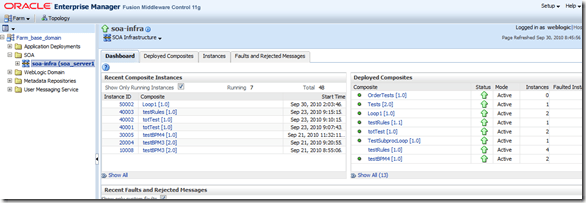
Navigate to the soa-infra node in the SOA folder, as shown.  You will see the SOA dashboard, as shown below.  You may see some existing instances of other composites if this is not a new server.  In the Deployed Composites area, on the right, click on our newly deployed OrderTests composite.
image

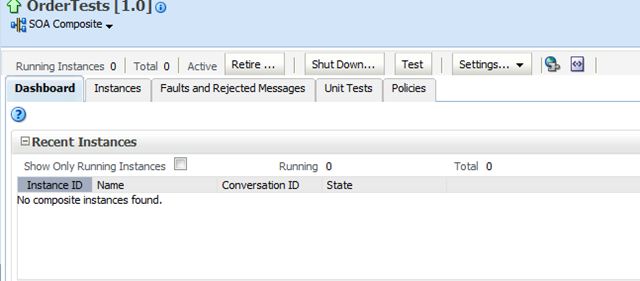
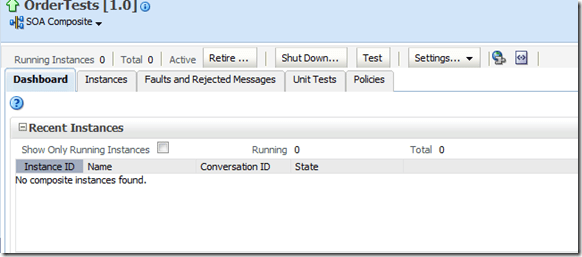
This will open up the dashboard for the OrderTests composite, as shown below.  Click on the Test button to start a test instance.
image

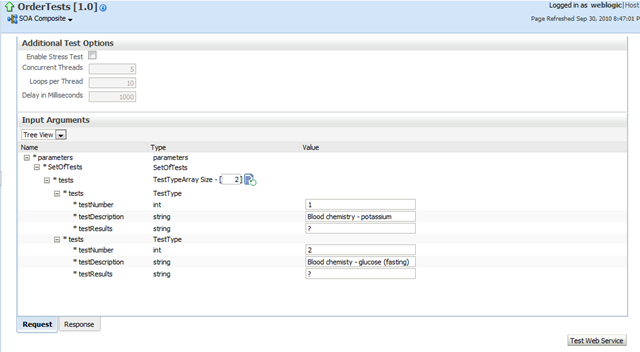
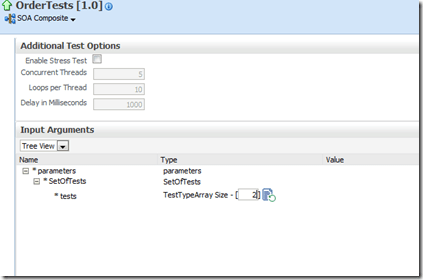
Scroll down past the various security, addressing, etc. options to the payload data at the bottom.  In the Size box, next to the tests node, enter 2 and then click on the little refresh icon immediately to the right of the Size box.  This will add two tests elements to our input message.
image

Your screen should now appear like the one below.  Enter the test data as shown, or your own test data as you wish.  Then click on the Test Web Service button to start our composite.

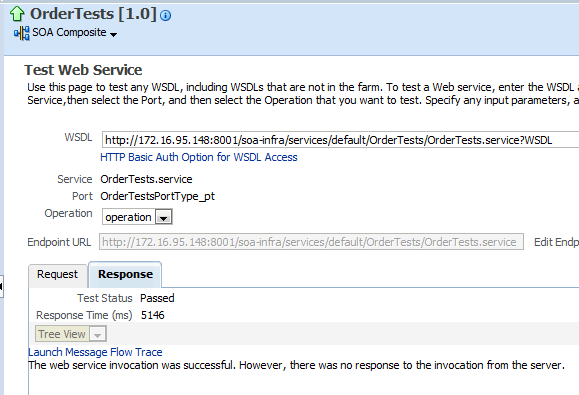
image

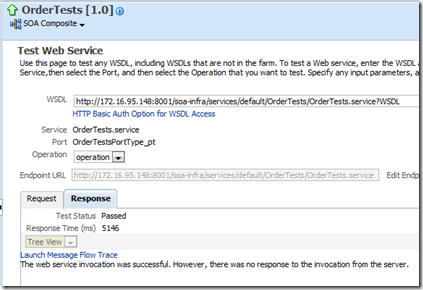
The screen will move to the Response tab, as shown below.  Click on the Launch Message Flow Trace link to open up our new instance of our composite.
image

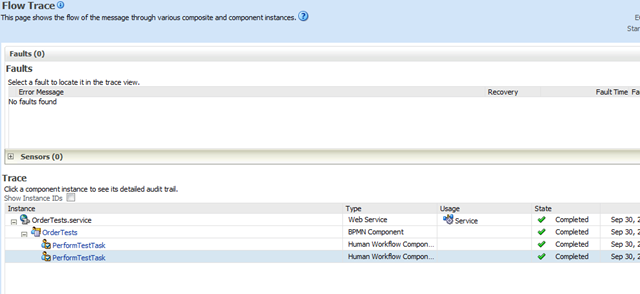
The Flow Trace window will open, as shown below.  Here we can see in the Trace section, that the OrderTests web service was called, which in turn started our OrderTests process, and that two PerformTestTask human tasks were started by our process.  Note that the status shows these are still Running.  Keep this window open, we will return to it shortly.

image

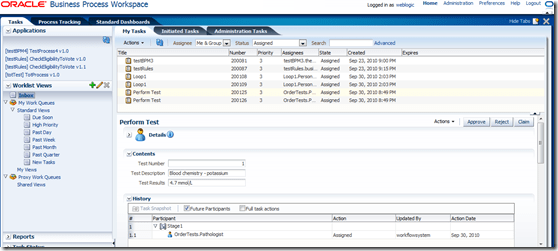
Return to your BPM Workspace window and click on the little blue circular arrows refresh icon above the task list.  You should see two new Perform Task tasks appear in the list, as shown below.  Click on the first one of these to highlight it.  After a moment, the user interface (which we generated earlier) for this taks will open in the bottom half of the screen, as shown below.  You will see the data that we entered for the first of our two tests elements displayed here.  Update the Test Results as shown below, and then click on the Approve button to complete the task.

Note that we are using the auto-generated user interface here.  You have complete control over the user interface, so you can make it look however you like, and can use all sorts of components like tables, buttons, maps, popup boxes, images, tabs, trains, etc.  We are just using the auto-generated one for simplicity.
image

Your screen will refresh and you will see that the first task has disappeared from your list of tasks.  Now process the second task as well, updating the status as shown below, and then completing it by pressing the Approve button.

image

Your screen will refresh and both tasks have now disappeared.  (They are still there, they have just moved to the “completed” view).

Now return to your Flow Trace window that we left a few moments ago.  Hit the little circular arrows refresh icon (top right) to update this page.  You will notice that the status of the process and the human tasks is now shown as Completed.  Click on the OrderTests link to drill down in to the process itself.
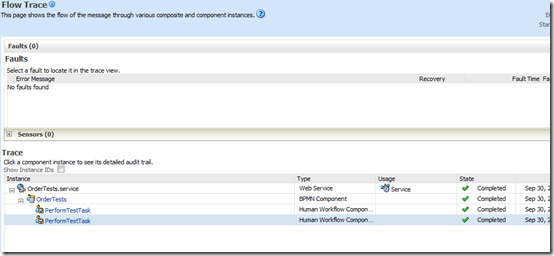
image

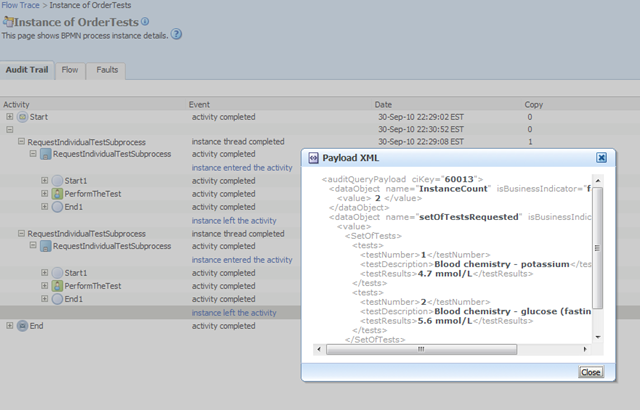
The Audit Trail view will open.  You can click on the little plus icons to open up the tree.  You can read from the audit trail that our process started, and created two instances of the subprocess, and that each of those created a human task.  Click on the instance left the activity link for one of the human tasks and note that you can see the updated data in the popup windows.  Click on each one and notice the differences.

image

This test confirms that our process worked as expected.  Feel free to go back and run a few more tests, with varying numbers of input tests.

So there you go, a simple method to iterate over (traverse) and update arrays of data in BPM.

Posted in Uncategorized | Tagged , , , | 6 Comments

End-to-end installation of WebCenter and BPM 11g (64-bit)

In this post we will present a complete end-to-end installation and configuration of Oracle BPM 11.1.1.3, including Oracle WebCenter 11.1.1.3 for the Process Portal, Spaces and Composer features, on the Oracle Enterprise Linux 5.4 64-bit operating system, with Oracle Database 11.2.0.1.

The system used in this post is a virtual machine running on Oracle VM 2.2.  The guest has 8 cores, 24GB of memory, 160GB of disk and 18GB of swap space.  It is running Oracle Enterprise Linux Release 5 Update 4.  Everything is 64-bit (unless otherwise stated).

If you want to complete this installation on a single machine, you are going to want to have at least 12GB of memory and 4 cores.  Otherwise it may be a little bit slow.  You could also install the various components on different machines, and in fact you probably would in a real production installation.

This post will help you set up everything you need to get started with BPM, including the runtime environment for business processes, the web-based Process Composer which allows business users to edit their processes, the worklist that allows business users to process tasks, and dashboard reporting.

It will also guide you through configuration of the Process Portal feature, which provides a whole stack of social BPM capabilities, including the ability for end users to create self-service collaboration spaces to share information around processes and process instances.

Note: It is possible to use BPM without the Process Portal feature.  If you were to do that, you could leave out about two thirds of the steps in this post!

Preparation

We created an operating system user and group, both called oracle, which will be used as our normal users to install and run the software.

Before we start the actual installation, we have a couple of housekeeping tasks to take care of.  The virtual machine is configured with a static IP address and hostname, and the DNS servers are configured.  This can be done using the system-config-network command, and by updating the /etc/hosts file to include a line for the static IP address and hostname you have chosen.

The virtual machine is also configured to use the Oracle Unbreakable Linux Network so that we can easily install updates and packages as required.  You need to be an Oracle Enterprise Linux customer to use this facility.  If you are not, you will need to download and install the packages individually, or use some other package management application to do this.

In order to install the Oracle Database, we need to meet a number of prerequisites.  Almost all of these can be handled with one simple command.  Note that throughout this post, commands that are shown with a # prompt must be issued as root.

# yum install oracle-validated

At the time of writing, two packages are missing, so you will also need to install them manually, using the following commands:

# yum install libaio-devel
# yum install unixODBC-devel

Install Database

Now we are ready to install the Oracle Database.  In this post, we are using Oracle Database 11.2.0.1 Enterprise Edition (also known as 11g Release 2).

First, we will create directory to install the database into, and give our oracle user access to this directory.

# mkdir /u01
# chown oracle:oracle /u01

Now we can run the installation program

oracle$ ./runInstaller

The installation program will launch and we need to step through a number of screens.  Firstly, you can provide your Oracle Support details if you want to get automatic security updates from Oracle.  If not, just uncheck the box and click on the Next button.

You will be asked to confirm that you do not want the security updates.  Click on Yes.

On the next screen we select what we want to do, leave Create and configure a database selected and click on Next.

For our installation, we are going to use a Server Class database.  You can choose Desktop Class if you want to, everything will still work, but our choice here will give us some more flexibility.  Click on Next.

In this case, we will just run a single instance of the database, not a cluster.  Click on Next.

We are going to want to change some of our settings from the defaults, like our database character set for example, so we want to choose Advanced Install here and click on Next.

Click Next to choose English as the language to install.  (Feel free to install in your own language.)

We will use the Enterprise Edition of the Oracle Database in this example.  Any of the database editions will work, so choose the one that you are licensed for, then click on Next.

Now we need to specify where we want to install the database.  We put ours in /u01 – the directory we created earlier.  The Software Location will be automatically determined based on the Oracle Base you specify.  Click on Next.

As this is our first installation, we need to create our “inventory.”  This may not happen in your environment, if you have installed other Oracle products previously.  Here we just need to provide the location for the inventory.  We put it in our home directory, as shown below.  Click on Next to continue.

Wow!  A lot of questions here!  We are almost done.  Next, we need to decide what kind of database we want.  We are going to use the General Purpose / Transaction Processing option and click on Next.

Now we need to define our Global database name and Oracle Service Identifier (SID).  Here we are just going to use obpm for both of these.  If you have a number of Oracle database instances in your environment already, your Database Administrators may have some standards for these, which you might want to comply with.  They are pretty hard to change later!  Enter whatever values you will use, and click on Next.

Now we get to memory and character sets.  We definitely want to make some changes here.  By default, the database will take around 40% of the physical memory.  This is a lot of memory for us to give up, and given our workload, it is not really necessary.  We set our database to use only 1,024 MB of memory as shown below.  This will be more than enough for our intended usage.  If you are installing a production environment, you will probably want more – you should check the documentation for recommendations.  Don’t click on Next just yet.  We also need to make some changes on the Character sets tab.

Change the setting to Use Unicode (AL32UTF8).  We need this character set to support the data that our other products will want to keep in the database.  Now click on Next to continue.

In this example, we are not using Grid Control, so just take the default option here to Use Database Control for database management.  Feel free to turn on email notifications if you wish.  Click on Next to continue,

Now we need to tell the installer where we want to keep our database files.  In our case we are just going to use the File System, nothing fancy.  Leave that selected and provide a location to keep the files.  We used /u01/oradata as shown below.  Click on Next.

It’s a good idea to Enable automated backup.  You may be happy you did one day!  Click on Next.

We used the same password for all of the system accounts.  You can do the same, or provide different passwords for each account.  This wont make any difference to our installation.  Complete either the top or bottom part of this screen and then click on Next.  Now, this may seem obvious, but you would be surprised how often we get support calls from people who did not bother to remember the passwords!  Make sure you remember your passwords – you will need them later.

On the next screen we set the operating system user and group that the database will run under.  In our environment these are both called oracle.  Then click on Next.

At this point, the installer will check if there are any additional packages required.  There should not be any, but depending on our choices in the installer, there may be.  In our case there were two, as shown below.  You will need to install these (using yum for example) and then click on Next.

Once all the packages are installed, the installation summary screen will be displayed.  We are finally ready to actually install this database!  Click on the Finish button to get started!

As the installation runs, you will see the progress windows (below) update to provide you information about what is happening.

After the installation phase is completed (i.e. after all the product binaries have been installed), the Database Configuration Assistant will run.  This is the part that creates your actual database instance.

When this is completed, you will get a final screen showing you details of what was done.  You are probably going to want to keep a copy of the information on this screen if you are not familiar with the Oracle Database already.  Click on OK when you are ready to go on.

At this point, we need to run a couple of scripts as the root user.  Open a terminal windows as root, and run the indicated scripts.  Once these are completed, click on the OK button ton continue.

Congratulations, you now have a shiny new Oracle 11g Release 2 database installed!

Install WebLogic Server

The next phase of our installation is to install WebLogic Server.  Most of the remaining components run on top of WebLogic Server.  In this post, we are using the WebLogic Server 10.3.3 installer.  You can download this from edelivery.oracle.com if you have a license, or otn.oracle.com if you want to take up the development license option.  Once you have it downloaded and unzipped, invoke runInstaller.  After a few moments, the installation interview will appear, as shown below.  Click Next to get started.

On this page, we need to tell the installer where we will create our new Middleware Home.  We used /u02.  The Middleware Home is the location where all of the product binaries will be installed, and additionally where we will create our data files as we create (one or more) domains.  You will want to make sure you have at least 5GB of free space in the Middleware Home.  If you want to put it on a separate disk, or a RAID group, to improve performance, you should cancel the installation and go and set that up now and mount it on /u02 or wherever you choose to put your Middleware Home.

Note that you can have more than one Middleware Home on a (virtual or physical) machine (or operating system image) and that these can contain different products and/or different versions of products.

On the next page you can provide your Oracle Support details, or uncheck the box and click on Next as we did.

Choose Typical for your installation type and click on Next.  In this example, the typical installation is fine for what we need.

Now we need to select the JDK to use.  The installer should automatically detect your JDK and list it for easy selection, as shown below.  If your JDK is not found automatically, or you want to use a different one, click on the Browse… button to locate it.  Otherwise, just click on Next.

You can change the product installation directories on this screen.  We will just accept the defaults and click on Next.

Now we are presented with the summary, click on Next to start the installation.

As the installation runs, we can see its progress.

When it is completed, uncheck the Run Quickstart option and click on Done to leave the installer.  If we were just installing WebLogic Server, we would go ahead and run the Domain Configuration tool now.  However, we are also planning to install additional products, so we will run it later on, after those other products are installed.

Run the Repository Creation Utility

Now we will set up the necessary schemas in the database to hold data for the various products we are planning to install.  This is done using the Repository Creation Utility.  Again, you can download this from edlivery or OTN.  You want the 11.1.1.3 version, which includes the schemas for Oracle Business Process Management.  It is not necessary to run the 11.1.1.2 version first.  Note that there is not a Linux 64-bit version of the download.  You can just use the 32-bit version.  This tool is just used during the installation, to create objects in the database, it is not part of the running system.

After you have downloaded and unzipped it, invoke runInstaller from the rcuHome/bin directory.  After a few moments, the installation interview will appear.  Click on Next to get started.

Select the option to Create the database schemas and click on Next.

On the next screen, we need to provide details to connect to our database (which we installed earlier).  Enter the hostname of your machine, the port number (the default port is 1521), the service name (this is the SID that we created earlier), sys as the username and the password that you set during the database installation.  The role will default to SYSDBA.

At this point, we need to pause to discuss the Oracle Database Listener.  This is a component of the database that is responsible for managing incoming connections.  When you created the database instance (a few minutes ago) it also created a set of configuration files for the listener.  These are located under the network/admin directory in the database home and are called listener.ora and tnsnames.ora.  If you have a problem connecting to your database at this step of the installation, and you are confident you have entered all the information correctly here, then it could be that you need to update the configuration of your listener, or perhaps change the information you provide on this screen to match what is already in the listener configuration.

You can use the command lsnrctl status to view information about the configuration of the listener.  This will tell you how many “services” it is supporting.  Those services are database instances.  You should see your database instance listed in the output.  The listener might also have derived a different hostname than you expected.  You might try localhost or look in the two configuration files mentioned above to find the name or IP address the listener is using.  You will need to supply the same information in the Host name field on this page.

If you do all of this, and still cannot connect, you may need to update your listener configuration.  A quick Google search on the two configuration files should turn up instructions on how to do that.  If this still does not solve your problem, post a comment and I will write a post on that topic.

Once you get the database details correct, a small dialog box will open and the Repository Creation Utility will run a prerequisites check on your database.  After this is completed, click on the OK button to continue.

Note: if you choose to use the Oracle Express Edition (XE) database, then you will get a warning message at this point informing you that it is not a supported database for production.  You will have to click on Ignore to continue.  It is perfectly reasonable to use XE as the database in your BPM development environment, but you should not use it in production.

On the next screen, we need to select which schemas we want to create.  Select all of the schemas in the two groups called SOA and BPM infrastructure and WebCenter Suite as shown below.  Then click on Next to continue.  Note that there is a prefix at the top of this page.  The default value is DEV.  This allows you to use a single database instance to hold schemas for more than one BPM domain.  You would probably only want to do this in your BPM environment if you have a large RAC database environment, or if your database is on an Oracle Database Machine (Exadata), or if all of the BPM environments are non-production.

A dialog box will appear as a further prerequisite check is completed.  Once this is done, click on the OK button to continue.

On the next page, we need to specify the password to use for the schemas.  You can specify to use the same password for all of them, as we have done here, or specify individual passwords for each schema.  Either way, complete the necessary details and click on Next.

The next page gives is the opportunity to map schemas to tablespaces if desired.  For this example, we will just accept the defaults.  If you are setting up a production environment, you may want to sit down with your Database Administrator and do a more thorough mapping.  Click on Next to continue.

Click OK in the confirmation dialog that appears.

Now the Repository Creation Utility will create any tablespaces that do not already exist.  This step can take a few minutes, depending on the speed of your storage.  When it is done, click on OK to continue.

Finally, we are presented with a summary of the work to be done.  Click on Create to go ahead and create all of the schemas and load them with data.

You can watch the progress as this task runs.  Note that this can also take some time if you have slower storage.

When it is complete, a summary will be displayed.  Click on Close to finish this part of the installation.

Installing SOA Suite 11.1.1.2

Now that our database contains all the necessary definitions and data, we are ready to move on to our other product installations.  First we will install Oracle SOA Suite.  You will need to download the 11.1.1.2 installer and also the 11.1.1.3 patchset installer, which we will use a little later on.

Unzip the 11.1.1.2 installer and invoke runInstaller from the Disk1 directory.  It may ask you to enter the location of your JDK before the installer interview appears on screen.   In our example this was /usr/java/jdk1.6.0_21.   Once the installer appears, click on Next to get started.

The installer will run some prerequisite checks.  Once these are completed, click on Next.

Now we need to specify the location where we want to install SOA Suite.  Note that our Middleware Home (which we created earlier) is automatically selected for us.  Click on Next.

Now a summary is displayed.  Click on Install to start the process.

Again, we can observe progress as the installer runs.

Once it is finished, click on Next to continue.

Here we see a summary of what was done.  Click on Finish to complete this phase of the installation.

Installing the Web Tier

Next we will install the Web Tier.  This is required by the Oracle Universal Content Management system (UCM) which is used to store content in the WebCenter environment.  When we have our business processes running later on, process participants are able to attach documents, comments, have discussions, tag, and collaborate in other ways around an instance of a process.  This content that they create is stored and managed in UCM.

The Web Tier contains a web server, load balancing and caching technologies, but for our purposes, we are just going to install the web server component.

Again, you will need to download the Web Tier 11.1.1.2 installer and 11.1.1.3 patchset installer from edelivery or OTN.  Keep the patchset installer for later on.  For now, unzip the 11.1.1.2 installer and invoke runInstaller from the Disk1 directory.  Again, you may need to provide the JDK location.  After a few moments, the installer will appear, as shown in the image below.  Click on Next to get started.

Select the option to Install and Configure the software and click on Next.

Some prerequisite checks will run.  When they are complete, click on Next.

We need to specify the installation location.  Put this into the same Middleware Home we have used for WebLogic Server and SOA Suite.  It should be automatically selected.  Press Next to continue.

On the Configure Components screen, uncheck everything except for Oracle HTTP Server and click on Next.  We are not going to use the Web Cache in our environment and we do not want to associate our web server with a WebLogic domain.  You might want to use these other options in a production environment, but they would most likely be installed on a different machine anyway.

On the next screen we need to specify the location for our instance.  Go ahead and accept the defaults here and click on Next to continue.

On the next page, we have the opportunity to set the port numbers to use.  The default port number for Web Tier is 7777.  We are going to accept the default in our example.  Click on Next to continue.

Again, you can provide your support details if you wish.  Click on Next to continue.

A summary page will be displayed.  Click on Install to start the installation.

You can watch the progress as the installer runs, and then the instance is created and started.  This step may take a while to complete as it will check that it can successfully start and stop the instance.

When the installation is finished and the configuration has completed, click on Next to continue.

A summary screen is displayed, showing what was done.  Click on Finish to leave this part of the installation.

Installing WebCenter

The next step is to install Oracle WebCenter.  This is the component that will provide all of the collaboration services to our BPM environment.  You will need to download both the WebCenter 11.1.1.2 installer and the WebCenter 11.1.1.3 patchset installer.  Again, keep the patchset installer for later on. You also need to download and unzip the Oracle Content Management for WebCenter 10.1.3.5.1 installer.  Take a note of where you unzip this.

Unzip the 11.1.1.2 installer and invoke runInstaller from the Disk1 directory.  You may need to specify the JDK path again.  After a few moments, the installer interview will appear.  Click on Next to get started.

A prerequisites check will run.  When it is complete, click on Next.

Again, we will install WebCenter in to the same Middleware Home.  Click on Next.

Make sure you leave the option to Install and Configure Oracle Universal Content Management selected.  Accept the default ports, 4444 and 4440, and enter the web server address as shown.  Note that this is the address of the Web Tier we just installed a few minutes ago, which should be running now, with /ucm on the end.  You should be able to hit the web server in your browser and get the Oracle Fusion Middleware welcome page.  In this example, this would be at http://bpm11g:7777/.  If you cannot view the homepage, then you need to stop and go fix that before you continue here.  When you are ready, click on Next.

On this screen, we need to provide the database details for UCM to use.  The connect string is in the format hostname:port:SID.  Substitute in the values that you used earlier when we ran the Repository Creation Utility.  In our case it is bpm11g:1521:obpm.  You also need to provide the schema username, note that this matches the one we created with the RCU, note also it has the DEV_ prefix that we pointed out earlier, and provide the password you set for the schema when we ran RCU.  When all of these details are entered, press Next.

The summary screen is displayed.  Click on Install to start the process.

We can watch the progress as the installer runs.

When it is complete, click on Next to continue.

Now we need to tell the installer where we unzipped the UCM installation media.  Note that you want to point at the ContentServer directory inside the directory where you unzipped the file, as shown below.  You can click on the Browse button to locate this directory.  Click on Next when you are ready to continue.

The installer will install UCM and configure it for use with WebCenter.  You can watch progress.

When this is complete, click on Finish to leave this part of the installation.

Installing the Web Tier PatchSet

Our next step is to run the patchset installers to upgrade our installation from 11.1.1.2 to 11.1.1.3.  We start with the Web Tier patchset installer, which we downloaded and unzipped earlier.  Invoke runInstaller from the Disk1 directory.  You may need to provide the JDK location.  When the installer opens, as shown below, click on Next to get started.

Point the installer to the location where you installed Web Tier earlier.  This should be automatically found for you.  Click on Next.

Provide your Oracle Support details if you wish, then click on Next.

The summary screen is displayed.  Click on Install.

We can watch progress.

When it is complete, click on Next.

And then click on Finish.

Installing the WebCenter 11.1.1.3 PatchSet

Next we will patch WebCenter.  Invoke the runInstaller from the Disk1 directory from your unzipped WebCenter 11.1.1.3 patchset.  Provide the JDK details if necessary.  When the installer opens, click on Next to get started.

Point it to the location where you installed WebCenter.  This should have been automatically found.  Click on Next.

Review the summary page and click on Install.

You can watch the progress.

When it is complete, click on Next.

Click on Finish.

Installing the SOA Suite 11.1.1.3 PatchSet

This is a large patch and it adds the BPMN support to SOA Suite, to effectively extend it to include BPM Suite.

Again, we invoke runInstaller from the Disk1 directory of the SOA Suite 11.1.1.3 patchset that we installed and unzipped previously.  Provide the JDK details if necessary.  When the installer opens, click on Next.

Point the installer to the location where we installed SOA Suite.  This should have been automatically populated for us.  Click on Next.

Review the summary screen and click on Install.

We can observe progress.

When it is complete, click on Next.

Review the summary and click on Finish.

Configure the Web Tier to support Oracle UCM

We need to make one small update to the configuration of the Web Tier to support Oracle Universal Content Management (UCM) which will act as the content server for various content created in our BPM environment.

To complete this configuration, you need to edit the httpd.conf (web server configuration) file for the Web Tier.  It is located here:

/u02/Oracle_WT1/instances/instance1/config/OHS/ohs1/httpd.conf

The following line must be added to the end of this file:

include "/u02/Oracle_WC1/ucm/data/users/apache22/apache.conf"

This change directs the web server to load up the configuration from UCM.  You will need to restart the web tier after making this change.  This can be done with the following commands:

cd /u02/Oracle_WT1/instances/instance1/bin
./opmnctl shutdown
./opmnctl startall

Providing there were no errors, the web server should now start up and be accessible at http://yourserver:7777/.  You should also be able to access UCM at http://yourserver:7777/ucm.  Note that this URL is formed using the information we provided during the WebCenter installation interview.  Your screen should look like this:

Configuring a Domain

Now that we have finished installing all of the software, we are ready to create our WebLogic Domain.  The domain is essentially all of the configuration information needed to actually run the software.  We can create as many domains as we like, with different combinations of software in them.  In our example, we will just create one.  In a real world installation, you would most likely have separate domains for production, disaster recovery, training, test, etc.

To create the domain, we use the Fusion Middleware Configuration Wizard.  Invoke config.sh in your /u02/Oracle_SOA1/common/bin directory.  When the configuration wizard opens, select Create a new WebLogic domain and click on Next.

On the Select Domain Source page, we need to select which components we want configured in the domain.  Select the components shown in the image below.  Pay special attention to the part in brackets at the end of the name.  There are some components that have very similar names.  When you have made your selections, press Next.

On the next page, we need to specify the name of the domain and the location where its files will be stored.  You can go ahead and accept the defaults and press Next to continue.

On the next page, we need to provide a password for the domain administrator (weblogic user).  Enter a password and click on Next.

Next, we specify whether we want the server to run in Development Mode or Production Mode, and which JDK to use.  For now, accept the defaults and click on Next.  We can change this later on, when we are ready.

Now we need to provide the database connection details.  Select all of the Component Schemas listed in the table by checking the boxes next to each one, then type in the appropriate values in the fields at the top.  The DBMS/Service field is our SID, we used obpm.  The hostname is bpm11g in our case, port 1521.  If you specified the same password for all schemas when we ran RCU, then you can just type that password in here.  If not, you will need to select each schema one by one and enter its password.  When you are done, click on Next.

The configuration wizard will check that all of the schemas are accessible.  If there are any errors, you will need to go back and correct them.  When everything is successful, click on Next to go on.

We do not need to do any optional configuration, so just click on Next.

The summary page is displayed.  Click on Create.

We can watch progress.

When it is complete, click on Finish.

Note that the configuration wizard gives you the Admin Server URL.  Take a note of that.

Starting the environment the first time

Now we are ready to start up the environment for the first time.  We will start everything from the command line so we have easy access to the consoles, and so we can easily start and stop the servers, as we will need to do this a few times as we complete the configuration.

First, we start the Administration Server.

cd /u02/user_projects/domains/base_domain/bin
./startWebLogic.sh

The server will start up and produce a number of messages.  This may take a few minutes the first time.  Eventually, a message will be displayed informing you that the server is in the RUNNING state.  Once you see this message, open a browser and point it to:

http://yourserver:7001/console

The WebLogic Server console will be displayed.  You can log on using the user weblogic and the password you specified during the domain creation wizard previously.

You may also like to point your browser at the Enterprise Manager URL:

http://yourserver:7001/em

You can log on using the same details.

When you log in, you will see the Farm status page, which will look something like the one below.  You may not have the same servers running as shown in the image, and the menus on the left may be slightly different for now.  When you start the additional servers, your screen should resemble the image quite closely.

To start the other servers, called the Managed Servers, run the following commands, each one in a separate shell/window (you will need to set the directory in each shell before executing the other command):

cd /u02/user_projects/domains/base_domain/bin
./startManagedWebLogic.sh soa_server1
./startManagedWebLogic.sh WLS_Services
./startManagedWebLogic.sh WLS_Portlet
./startManagedWebLogic.sh WLS_Spaces

The first time you start up these managed servers they will take a bit longer than usual and you will get some errors – as we have not configured security yet.  They will each ask you for a user and password (in their shell/window) when you start them.  You will need to enter weblogic and your password.  It is a useful exercise to start them up and validate they all start successfully.  You will know they have started when they each issue the message about being in RUNNING state.

If you want to stop one of these managed servers, you just type a Control-C in its shell/window.  It will perform an orderly shutdown.  You must stop all managed servers completely before you shutdown the admin server, and you must start the admin server completely before you start the managed servers.

Setting up boot.properties

We can create a special file called boot.properties to provide the user and password to WebLogic so that we don’t have to manually enter them when we start up the servers.  This file should contain the following data:

username=weblogic
password=whatever

Change the password from whatever to the one you chose during domain creation.

Save a copy of this file in each managed server’s security directory, i.e.:

/u02/user_projects/domains/base_domain/servers/soa_server1/security
/u02/user_projects/domains/base_domain/servers/bam_server1/security
/u02/user_projects/domains/base_domain/servers/WLS_Services/security
/u02/user_projects/domains/base_domain/servers/WLS_Portlet/security
/u02/user_projects/domains/base_domain/servers/WLS_Spaces/security

The file must be called boot.properties in each case.

Next time you start a managed server, it will read the details from this file and it will not ask you to enter them.  It will also encrypt the contents of this file.  You can verify this by taking a look at the file after you have restarted the managed server.

Using the Node Manager

At this point, you may wish to configure the Node Manager so that you can also start and stop servers from the WebLogic Server console or Enterprise Manager.  If you wish to do so, then take a look at this post for the instructions to enable the Node Manager.  Once you have done that, you can then start just the admin server and then the node manager from the shell window/command line.  The managed servers can then be managed from the consoles.  To start the Node Manager, you would use these commands:

cd /u02/wlserver_10.3/server/bin
startNodeManager.sh

Configuring WebCenter

Now we need to configure WebCenter for use with the Process Portal.  This part gives us access to the new social BPM features provided in the Oracle BPM 11g product release.

The first step is to register the connection to the content server.  Login to the Enterprise Manager at http://yourserver:7001/em using the user weblogic and your password.

In the main navigation tree on the left hand side of the page, navigate to “Farm” -> “WebCenter” -> “WebCenter Spaces” -> “webcenter”

In the context menu (at the top of the main content pane and indicated by the red arrow in the image below), select “Settings” -> “Service Configuration”

Click on “Content Repository” -> “Add”

Complete the fields as shown below:

Connection name = local-ucm
Repository type = Oracle Content Server
Active Connection = checked
Administrator User Name = sysadmin
Root Folder = /Spaces
Application Name = Spaces
RIDC Socket Type = Socket
Server Host = localhost 
Server Port = 4444
Others may be left on default values

Save your changes and restart the WLS_Spaces managed server.

To verify this has worked successfully, you should now be able to login to WebCenter Spaces at http://yourserver:8888/webcenter using your weblogic user and see that the Documents view (its a taskflow technically) displays correctly, with no error message.  Alternatively, you can see the same in your recent documents view in the personal side bar on the left hand side of the screen.  The image below shows the two places where you can validate this.

Next, we want to set up the discussions server.  We will need to configure WS-Security to do this, so we need to create our security keys first.

Create a directory to hold our keystore:

mkdir /u02/keystores

In this directory, create a new keystore and a RSA key pair.  Note that this whole command is entered on one line.  It is shown here on multiple lines for ease of reading only.  You may need to put the path to your JDK’s bin directory before the keytool command if that directory is not in your PATH.  You need to add in the appropriate Common Name (CN) as shown in bold.  Here we have used the fully qualified hostname of the WebCenter server, with the hostname as a cn and each domain name component as a dc.  You also need to provide a password for the key (keypass) and for the keystore (storepass), as shown.

keytool
-genkeypair
-keyalg RSA
-dname "cn=yourserver,dc=au,dc=oracle,dc=com"
-alias orakey
-keypass welcome1
-keystore webcenter.jks
-storepass welcome1
-validity 1064

Now we need to create the certificates.  In this example, we are going to use self signed certificates.  This is suitable for test or development systems, but in a production system you may wish to purchase certificates from a trusted external Certificate Authority.  Alternatively, you may have already purchased a signing certificate and have your own certificate authority.  In this case, you will need to get your certificates signed by the administrator of the certificate authority.

The following command is used to create a new certificate which we will call orakey.

keytool
-exportcert
-v
-alias orakey
-keystore webcenter.jks
-storepass welcome1
-rfc
-file orakey.cer
Certificate stored in file <orakey.cer>

Now we import that certificate into the WebCenter keystore with a new name, webcenter_spaces_ws.

keytool
-importcert
-alias webcenter_spaces_ws
-file orakey.cer
-keystore webcenter.jks
-storepass welcome1
Certificate already exists in keystore under alias <orakey>
Do you still want to add it? [no]:  yes
Certificate was added to keystore

Now we are ready to copy our keystore, which contains our certificate, into our domain configuration directory, using a command like this: (again, this command should be entered on one line)

cp webcenter.jks
/u02/user_projects/domains/boot_domain/config/fmwconfig/

Next, we will configure our domain to use this keystore.  In Enterprise Manager, navigate to “Farm_boot_domain” -> “Weblogic Domain” -> “boot_domain”

From the context menu, select “Security” -> “Security Provider Configuration”

Scroll down to Keystore, expand it, and click Configure.  Deselect (uncheck) the box Configure Keystore Management and click Ok.  This will make sure that we reset the configuration and remove any old values.  Obvisously, since we just installed the software and created our domain a few moments ago, there wont be any old values, but if you have to come back and do this again for any reason, then you will want to follow this two step process.

Now go back to Keystore, and click Configure again, this time check the box Configure Keystore Management and enter the following information:

Keystore Path = ./webcenter.jks
Password = welcome1 
Confirm Pwd = welcome1
Signature Key Alias = orakey
Signature Password = welcome1 
Confirm Pwd = welcome1
Encryption Key Crypt Alias = orakey
Crypt Password = welcome1
Confirm Pwd = welcome1

Save your changes and then stop all managed servers, and then the admin server, then restart the admin server and then the managed servers.

Now we need to create a keystore for the discussions service to use.  This is done by issuing the following command, this is done in the same directory as the commands we use previously to create the keystore for WebCenter, i.e. /u02/keystores.

keytool
-importcert
-alias df_orakey_public
-file orakey.cer
-keystore owc_discussions.jks
-storepass welcome1
Owner: CN=yourserver, DC=au, DC=oracle, DC=com
Issuer: CN=yourserver, DC=au, DC=oracle, DC=com
Serial number: 4b69f328
Valid from: Wed Feb 03 17:05:28 EST 2010 until: Wed Jan 02 17:05:28 EST 2013
Certificate fingerprints:
         MD5:  3C:7A:D7:33:1A:21:9F:BA:24:A2:D1:9E:09:F6:FC:93
         SHA1: 59:B6:3F:78:8D:5B:28:E4:E8:8C:7E:B1:9A:22:A9:20:F6:39:F1:20
         Signature algorithm name: SHA1withRSA
         Version: 3
Trust this certificate? [no]:  yes
Certificate was added to keystore

In this same directory, create a file named keystore.properties.  This file must contain the following text.  It is very important that this file does not contain any extra spaces at the ends of the lines, or any extra lines.  Please check carefully to make sure you have not added any extra spaces.  Note that the last line contains the name of the keystore we just created in the last step.

org.apache.ws.security.crypto.provider=org.apache.ws.security.components.crypto.Merlin
org.apache.ws.security.crypto.merlin.keystore.type=jks
org.apache.ws.security.crypto.merlin.keystore.password=welcome1
org.apache.ws.security.crypto.merlin.keystore.alias=df_orakey_public
org.apache.ws.security.crypto.merlin.file=/u02/keystores/owc_discussions.jks

We need to update our domain configuration so that this file can be found on the servers’ CLASSPATH.  This is done by updating the file that sets up the environment for the servers.  This file is:

/u02/user_projects/domains/boot_domain/bin/setDomainEnv.sh

You need to add the following lines to the end of this file:

if [ "${CLASSPATH}" != "" ] ; then
  CLASSPATH="${CLASSPATH}${CLASSPATHSEP}/u02/keystores/"
  export CLASSPATH
else
  CLASSPATH="/u02/keystores/"
  export CLASSPATH
fi

Note that the path to the directory containing the keystore.properties file is added to the CLASSPATH by this file.  You should now restart all your servers to pick up this change.

We need to tell the discussions server about the keystore now.  This is done by logging in to the Discussion Server Admin tool at http://yourserver:8890/owc_discussions/admin using the weblogic user.

Go to “System Properties”

Modify the value of webservices.soap.custom.crypto.fileName so that it points to the properties file you just created:

webservices.soap.custom.crypto.fileNamekeystore.properties

Note that you don’t need to specify full path, as you made the change to the CLASSPATH.  Click “Save Property”

Finally, we can register the Discussion Server with WebCenter.  Like before, this is done in the Enterprise Manager.

Navigate to “Farm” -> “WebCenter” -> “WebCenter Spaces” -> “webcenter”

From the context menu, select “Settings” -> “Service Configuration”

Click on “Discussions and Announcements” -> “Add”

Complete the fields as shown below:

Connection name = discussion_server
Active Connection = check
Server URL = http://yourserver:8890/owc_discussions
Administrator User Name = weblogic
Connection Secured = check

Then expand “Additional Properties” and click “Add” to add the following properties:

keystore.location = /u02/user_projects/domains/boot_domain/config/fmwconfig/webcenter.jks
keystore.type = jks
keystore.password = welcome1 - To encrypt the password, check "Is Property Secured"
encryption.key.alias = orakey
encryption.key.password = welcome1 - To encrypt the password, check "Is Property Secured"
group.mapping = forum - that is the default value

Save your work and restart your servers again to activate these changes.

At this point, you may feel like you are restarting your servers an awful lot.  Strictly speaking, all these restarts are not necessary – you could make all the changes in the one go, and then just do one restart.  But, if you get anything wrong, it will be pretty hard to find your mistake.  This way, step by step, it is easy to identify where you have gone wrong if anything does not work.

If you now log on to WebCenter Spaces (like before) you should be able to see your (empty) discussion forums using the discussions icon in the personal sidebar.  It is the one right underneath the documents icon we saw earlier.

Last, but not least, let’s set up the Wiki server.  Again, this is a two step process.  First, in Enterprise Manager, we will generate a passcode which will be used by the Wiki server for authentication.

Navigate to “Farm_boot_domain” -> “Weblogic Domain” -> “boot_domain”

In the context menu, select “Security” -> “Credentials”

Click “Create Map” to create a new credential map

Name the map owc_wiki

Highlight/select the owc_wiki map that you just created, click “Create Key” and complete the fields as shown:

Select Map = owc_wiki
Key = wsPasscode
Type = Password
User Name = weblogic - does not really matter
Password = welcome1

Click on OK to save this.

Now we can register the Wiki server to WebCenter.  Still in Enterprise Manager, navigate to “Farm” -> “WebCenter” -> “WebCenter Spaces” -> “webcenter”

From the context menu, select “Settings” -> “Service Configuration”

Click on “Wiki and Blog Server” -> “Add” and complete the fields as shown:

Connection name = wiki_server
Active Connection = check
Server URL = http://yourserver:8890
Passcode = welcome1 - the one we defined above

Now save your changes and restart all of your servers.  You should now be able to login to WebCenter Spaces and get the option to add Wiki and Blog pages when you click on Page Actions and Create Page as seen in the image below.  Note that these page types would not have been available previously.

That completes all of the necessary configuartion of WebCenter for use with BPM.  Now we can move on to the final phase of the installation, setting up the Process Portal feature.
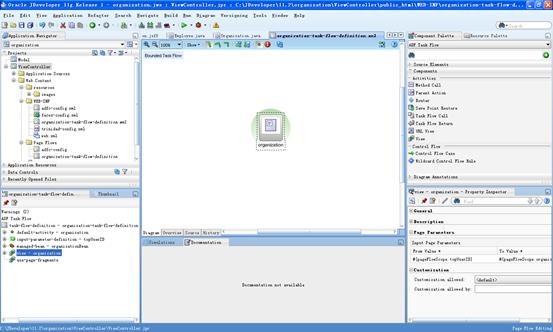
Configuring the Process Portal

The final step is to run the script that will configure the Process Portal, but first we need to set up the configuration file.  All the files you need are included in the installation in the following directory:

/u02/Oracle_SOA/bpm/processportal.zip

You need to unzip this file, then edit the process-portal-install.properties file located in the unzipped location.

Here is an example of the file contents:

################################################
# BPM Process Portal installation properties   #
################################################
#Flag to decide whether to extend existing BPM domain or create a new one.
extendSoa=true
#Flag to decide whether to prompt for passwords or read them from this file
promptForPasswords=false
#BPM Schema details
bpmDBUser=DEV_SOAINFRA
bpmDBPassword=welcome1
bpmDBType=ORACLE
bpmDBDriver=oracle.jdbc.OracleDriver
bpmDBUrl=jdbc:oracle:thin:@${oracle_db_host_name}:${oracle_db_port}:${db_sid}
#BPM MDS details
bpmMDSUser=DEV_MDS
bpmMDSPassword=welcome1
#BPM Runtime details
bpmHost=yourserver
#Managed server port if BPM is installed on managed server. Else admin port
bpmRuntimePort=8001
bpmAdminUser=weblogic
bpmAdminPassword=welcome1
#webcenter spaces installation details
wcOracleHome=/u02/Oracle_WC1
#If extendSoa flag is set to true, then configure the below two properties to point to BPM domain
wcDomainName=base_domain
#Flag to control whether to set domain realm password or not
wcSetDomainRealmPassword=true
#This is the password to setup trusted domains. Same password should be set on BPM domain as well
wcDomainRealmPassword=welcome1
wc.server.port=8888
#Webcenter's weblogic installation details
wcHost=yourserver
wcAdminPort=7001
wcAdminUser=weblogic
wcAdminPwd=welcome1
wcManagedServerName=WLS_Spaces
#Flag to control whether to configure services
wcConfigServices=false
#content server details
wcContentServerName=yourserver
wcContentServerPort=4444
wcContentSpacesRoot=/Spaces
wcContentAdminUser=sysadmin
#discussion server details
wcDiscussionServerUrl=http://yourserver:8890/owc_discussions
wcDiscussionAdminUser=orcladmin

You will need to go carefully through this file and check every value against your environment.  Now is a really good time to take a backup so that you can easily retry this step if you got anything wrong.

Once you are ready, you need to make sure you have ANT on your path.  If you don’t have it installed independently, you can use the one provided in your Oracle Middleware home, at /u02/modules/org.apache.ant_1.7.1

Then run ant -f install.xml in the directory where you unzipped your processportal.zip, i.e. the same directory where you just edited that properties file to match your environment.

This will probably run for a while – maybe ten minutes – and if you got all your parameters correct, you will be rewarded with a BUILD SUCCESSFUL at the end.

Congratulations!  You have successfully installed a full, complete, end to end Oracle BPM system, including the Process Portal and all social BPM features.  Give yourself a pat on the back!

Now that you have got one, what do you do with it?

A good place to start is to hit the following URL’s and start taking a look around.  In future posts we will discuss how to use this environment you now have at your disposal.

WebLogic Console 
    http://yourserver:7001/console
Enterprise Manager
    http://yourserver:7001/em
BPM Worklist Application
    http://yourserver:8001/bpm/workspace
WebCenter Spaces (and Process Portal) 
    http://yourserver:8888/webcenter
Process Composer
    http://yourserver:8001/bpm/composer
Business Activity Monitoring
    http://yourserver:9001/OracleBAM

p.s.  This post took us a long time to write – getting all the information together and typed up to present (we hope) nicely.  If it helped you out, or if you found anything was missing, please leave us a comment to let us know.

Posted in Uncategorized | Tagged , , , | 10 Comments

New “Oracle Now” iPhone application

The team that run the oracle.com website have just released a new iPhone application that brings you the latest news, events and blog posts.  You can get it free by searching for Oracle Now on the App Store.

If you allow it to use your location, it will also tell you about upcoming events in your country.

Posted in Uncategorized | Tagged | Leave a comment

Issue with JDK 1.6.0_18 under WebCenter

I was talking to an architect at a new WebCenter installation over the last few days, they were having a lot of strange issues with pages not rendering correctly, parts of the page missing and the layout getting all messed up.

Turns out the issue was due to a bug in the JDK version they were using, 1.6.0 update 18, and was resolved by upgrading to update 21.

So, if you are installing WebCenter, learn from their experience and don’t use that version of the JDK!

Posted in Uncategorized | Tagged , | Leave a comment