
In this post we will present a complete end-to-end installation and configuration of Oracle BPM 11.1.1.3, including Oracle WebCenter 11.1.1.3 for the Process Portal, Spaces and Composer features, on the Oracle Enterprise Linux 5.4 64-bit operating system, with Oracle Database 11.2.0.1.
The system used in this post is a virtual machine running on Oracle VM 2.2. The guest has 8 cores, 24GB of memory, 160GB of disk and 18GB of swap space. It is running Oracle Enterprise Linux Release 5 Update 4. Everything is 64-bit (unless otherwise stated).
If you want to complete this installation on a single machine, you are going to want to have at least 12GB of memory and 4 cores. Otherwise it may be a little bit slow. You could also install the various components on different machines, and in fact you probably would in a real production installation.
This post will help you set up everything you need to get started with BPM, including the runtime environment for business processes, the web-based Process Composer which allows business users to edit their processes, the worklist that allows business users to process tasks, and dashboard reporting.
It will also guide you through configuration of the Process Portal feature, which provides a whole stack of social BPM capabilities, including the ability for end users to create self-service collaboration spaces to share information around processes and process instances.
Note: It is possible to use BPM without the Process Portal feature. If you were to do that, you could leave out about two thirds of the steps in this post!
Preparation
We created an operating system user and group, both called oracle, which will be used as our normal users to install and run the software.
Before we start the actual installation, we have a couple of housekeeping tasks to take care of. The virtual machine is configured with a static IP address and hostname, and the DNS servers are configured. This can be done using the system-config-network command, and by updating the /etc/hosts file to include a line for the static IP address and hostname you have chosen.
The virtual machine is also configured to use the Oracle Unbreakable Linux Network so that we can easily install updates and packages as required. You need to be an Oracle Enterprise Linux customer to use this facility. If you are not, you will need to download and install the packages individually, or use some other package management application to do this.
In order to install the Oracle Database, we need to meet a number of prerequisites. Almost all of these can be handled with one simple command. Note that throughout this post, commands that are shown with a # prompt must be issued as root.
# yum install oracle-validated
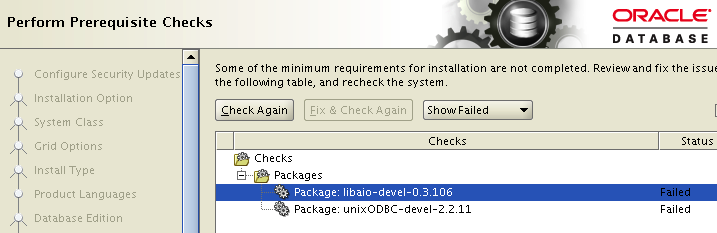
At the time of writing, two packages are missing, so you will also need to install them manually, using the following commands:
# yum install libaio-devel
# yum install unixODBC-devel
Install Database
Now we are ready to install the Oracle Database. In this post, we are using Oracle Database 11.2.0.1 Enterprise Edition (also known as 11g Release 2).
First, we will create directory to install the database into, and give our oracle user access to this directory.
# mkdir /u01
# chown oracle:oracle /u01
Now we can run the installation program
oracle$ ./runInstaller
The installation program will launch and we need to step through a number of screens. Firstly, you can provide your Oracle Support details if you want to get automatic security updates from Oracle. If not, just uncheck the box and click on the Next button.

You will be asked to confirm that you do not want the security updates. Click on Yes.

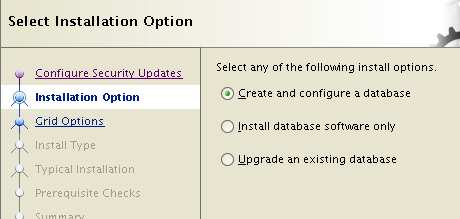
On the next screen we select what we want to do, leave Create and configure a database selected and click on Next.
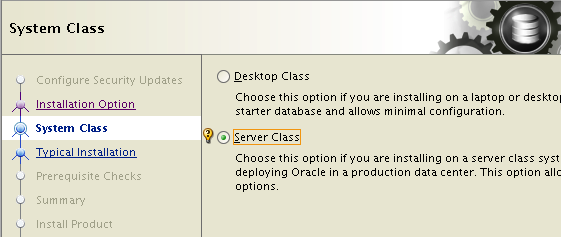
For our installation, we are going to use a Server Class database. You can choose Desktop Class if you want to, everything will still work, but our choice here will give us some more flexibility. Click on Next.
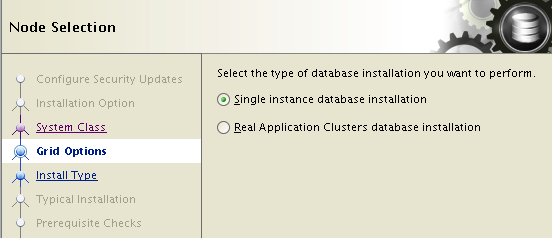
In this case, we will just run a single instance of the database, not a cluster. Click on Next.
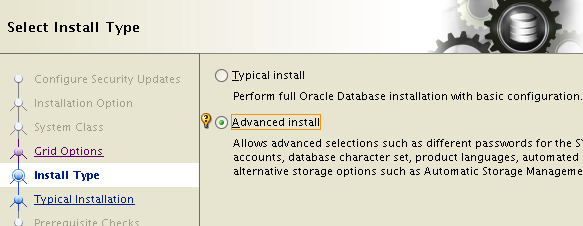
We are going to want to change some of our settings from the defaults, like our database character set for example, so we want to choose Advanced Install here and click on Next.
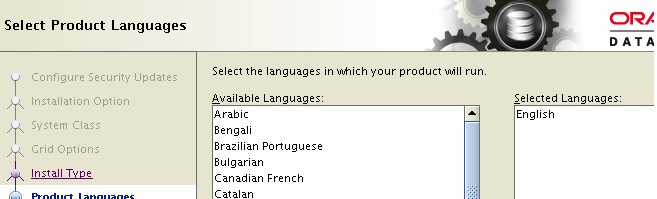
Click Next to choose English as the language to install. (Feel free to install in your own language.)
We will use the Enterprise Edition of the Oracle Database in this example. Any of the database editions will work, so choose the one that you are licensed for, then click on Next.

Now we need to specify where we want to install the database. We put ours in /u01 – the directory we created earlier. The Software Location will be automatically determined based on the Oracle Base you specify. Click on Next.

As this is our first installation, we need to create our “inventory.” This may not happen in your environment, if you have installed other Oracle products previously. Here we just need to provide the location for the inventory. We put it in our home directory, as shown below. Click on Next to continue.

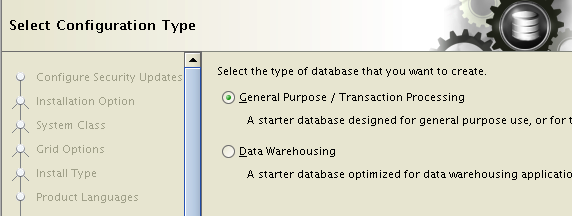
Wow! A lot of questions here! We are almost done. Next, we need to decide what kind of database we want. We are going to use the General Purpose / Transaction Processing option and click on Next.
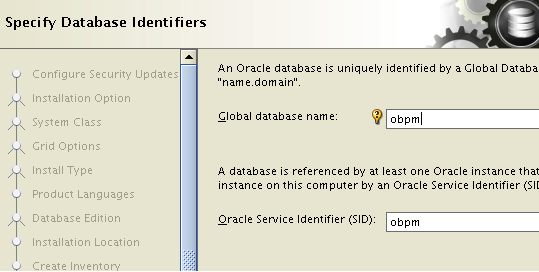
Now we need to define our Global database name and Oracle Service Identifier (SID). Here we are just going to use obpm for both of these. If you have a number of Oracle database instances in your environment already, your Database Administrators may have some standards for these, which you might want to comply with. They are pretty hard to change later! Enter whatever values you will use, and click on Next.
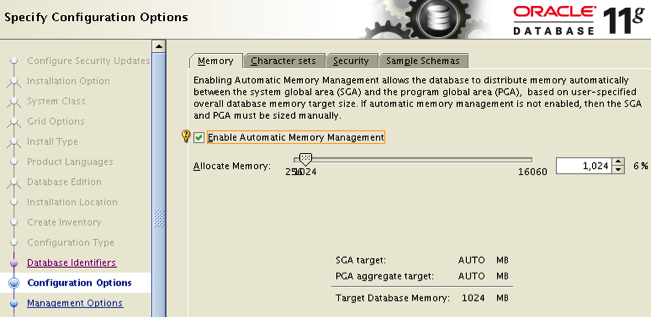
Now we get to memory and character sets. We definitely want to make some changes here. By default, the database will take around 40% of the physical memory. This is a lot of memory for us to give up, and given our workload, it is not really necessary. We set our database to use only 1,024 MB of memory as shown below. This will be more than enough for our intended usage. If you are installing a production environment, you will probably want more – you should check the documentation for recommendations. Don’t click on Next just yet. We also need to make some changes on the Character sets tab.
Change the setting to Use Unicode (AL32UTF8). We need this character set to support the data that our other products will want to keep in the database. Now click on Next to continue.

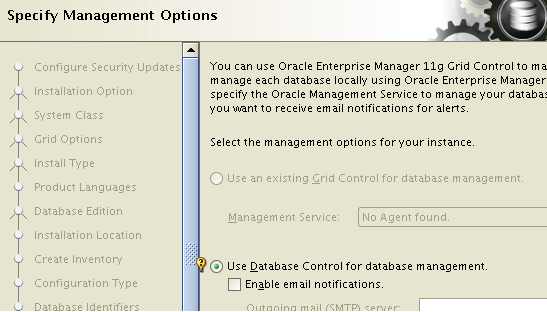
In this example, we are not using Grid Control, so just take the default option here to Use Database Control for database management. Feel free to turn on email notifications if you wish. Click on Next to continue,
Now we need to tell the installer where we want to keep our database files. In our case we are just going to use the File System, nothing fancy. Leave that selected and provide a location to keep the files. We used /u01/oradata as shown below. Click on Next.

It’s a good idea to Enable automated backup. You may be happy you did one day! Click on Next.

We used the same password for all of the system accounts. You can do the same, or provide different passwords for each account. This wont make any difference to our installation. Complete either the top or bottom part of this screen and then click on Next. Now, this may seem obvious, but you would be surprised how often we get support calls from people who did not bother to remember the passwords! Make sure you remember your passwords – you will need them later.

On the next screen we set the operating system user and group that the database will run under. In our environment these are both called oracle. Then click on Next.

At this point, the installer will check if there are any additional packages required. There should not be any, but depending on our choices in the installer, there may be. In our case there were two, as shown below. You will need to install these (using yum for example) and then click on Next.
Once all the packages are installed, the installation summary screen will be displayed. We are finally ready to actually install this database! Click on the Finish button to get started!

As the installation runs, you will see the progress windows (below) update to provide you information about what is happening.

After the installation phase is completed (i.e. after all the product binaries have been installed), the Database Configuration Assistant will run. This is the part that creates your actual database instance.

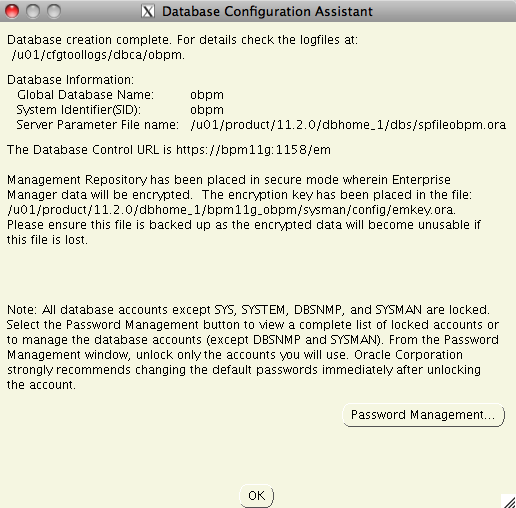
When this is completed, you will get a final screen showing you details of what was done. You are probably going to want to keep a copy of the information on this screen if you are not familiar with the Oracle Database already. Click on OK when you are ready to go on.
At this point, we need to run a couple of scripts as the root user. Open a terminal windows as root, and run the indicated scripts. Once these are completed, click on the OK button ton continue.

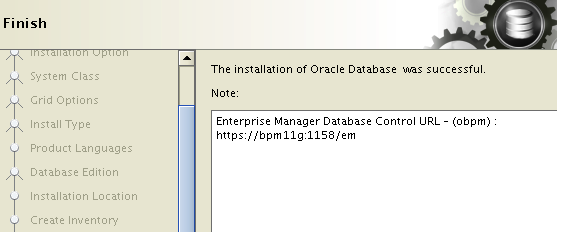
Congratulations, you now have a shiny new Oracle 11g Release 2 database installed!
Install WebLogic Server
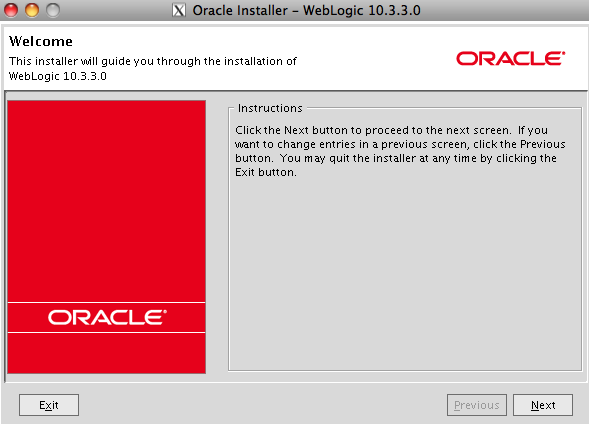
The next phase of our installation is to install WebLogic Server. Most of the remaining components run on top of WebLogic Server. In this post, we are using the WebLogic Server 10.3.3 installer. You can download this from edelivery.oracle.com if you have a license, or otn.oracle.com if you want to take up the development license option. Once you have it downloaded and unzipped, invoke runInstaller. After a few moments, the installation interview will appear, as shown below. Click Next to get started.
On this page, we need to tell the installer where we will create our new Middleware Home. We used /u02. The Middleware Home is the location where all of the product binaries will be installed, and additionally where we will create our data files as we create (one or more) domains. You will want to make sure you have at least 5GB of free space in the Middleware Home. If you want to put it on a separate disk, or a RAID group, to improve performance, you should cancel the installation and go and set that up now and mount it on /u02 or wherever you choose to put your Middleware Home.
Note that you can have more than one Middleware Home on a (virtual or physical) machine (or operating system image) and that these can contain different products and/or different versions of products.

On the next page you can provide your Oracle Support details, or uncheck the box and click on Next as we did.

Choose Typical for your installation type and click on Next. In this example, the typical installation is fine for what we need.

Now we need to select the JDK to use. The installer should automatically detect your JDK and list it for easy selection, as shown below. If your JDK is not found automatically, or you want to use a different one, click on the Browse… button to locate it. Otherwise, just click on Next.

You can change the product installation directories on this screen. We will just accept the defaults and click on Next.

Now we are presented with the summary, click on Next to start the installation.
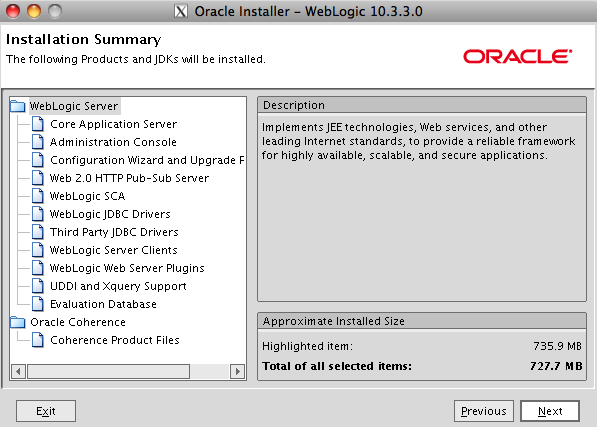
As the installation runs, we can see its progress.
When it is completed, uncheck the Run Quickstart option and click on Done to leave the installer. If we were just installing WebLogic Server, we would go ahead and run the Domain Configuration tool now. However, we are also planning to install additional products, so we will run it later on, after those other products are installed.
Run the Repository Creation Utility
Now we will set up the necessary schemas in the database to hold data for the various products we are planning to install. This is done using the Repository Creation Utility. Again, you can download this from edlivery or OTN. You want the 11.1.1.3 version, which includes the schemas for Oracle Business Process Management. It is not necessary to run the 11.1.1.2 version first. Note that there is not a Linux 64-bit version of the download. You can just use the 32-bit version. This tool is just used during the installation, to create objects in the database, it is not part of the running system.
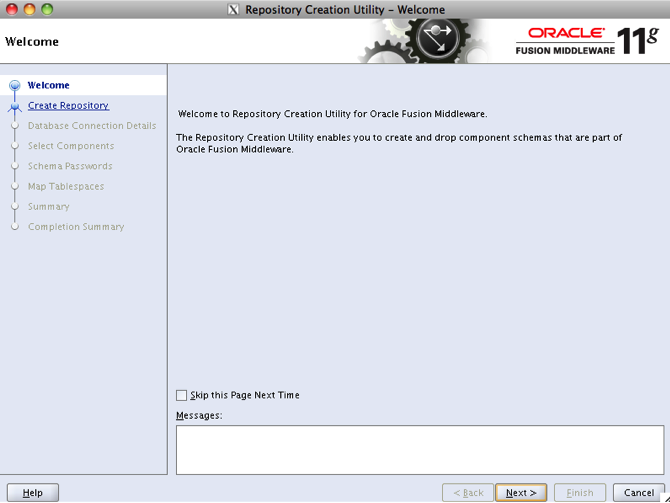
After you have downloaded and unzipped it, invoke runInstaller from the rcuHome/bin directory. After a few moments, the installation interview will appear. Click on Next to get started.
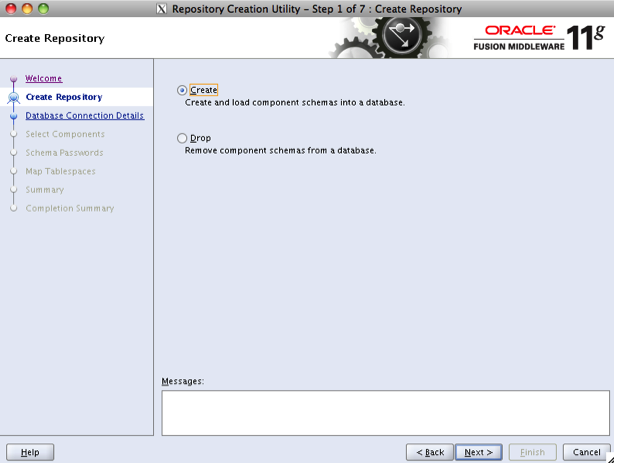
Select the option to Create the database schemas and click on Next.
On the next screen, we need to provide details to connect to our database (which we installed earlier). Enter the hostname of your machine, the port number (the default port is 1521), the service name (this is the SID that we created earlier), sys as the username and the password that you set during the database installation. The role will default to SYSDBA.
At this point, we need to pause to discuss the Oracle Database Listener. This is a component of the database that is responsible for managing incoming connections. When you created the database instance (a few minutes ago) it also created a set of configuration files for the listener. These are located under the network/admin directory in the database home and are called listener.ora and tnsnames.ora. If you have a problem connecting to your database at this step of the installation, and you are confident you have entered all the information correctly here, then it could be that you need to update the configuration of your listener, or perhaps change the information you provide on this screen to match what is already in the listener configuration.
You can use the command lsnrctl status to view information about the configuration of the listener. This will tell you how many “services” it is supporting. Those services are database instances. You should see your database instance listed in the output. The listener might also have derived a different hostname than you expected. You might try localhost or look in the two configuration files mentioned above to find the name or IP address the listener is using. You will need to supply the same information in the Host name field on this page.
If you do all of this, and still cannot connect, you may need to update your listener configuration. A quick Google search on the two configuration files should turn up instructions on how to do that. If this still does not solve your problem, post a comment and I will write a post on that topic.

Once you get the database details correct, a small dialog box will open and the Repository Creation Utility will run a prerequisites check on your database. After this is completed, click on the OK button to continue.
Note: if you choose to use the Oracle Express Edition (XE) database, then you will get a warning message at this point informing you that it is not a supported database for production. You will have to click on Ignore to continue. It is perfectly reasonable to use XE as the database in your BPM development environment, but you should not use it in production.

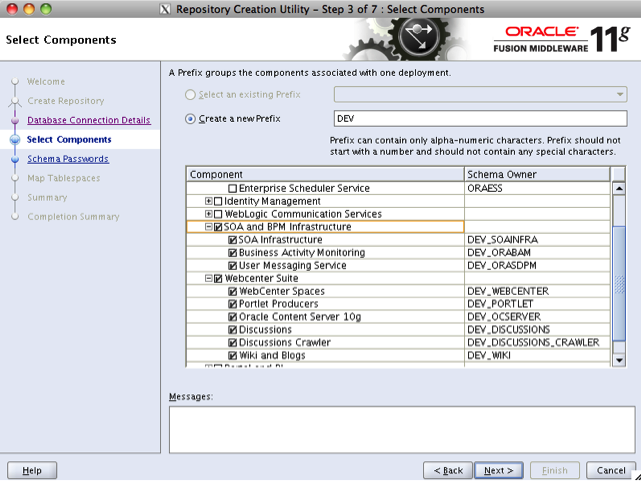
On the next screen, we need to select which schemas we want to create. Select all of the schemas in the two groups called SOA and BPM infrastructure and WebCenter Suite as shown below. Then click on Next to continue. Note that there is a prefix at the top of this page. The default value is DEV. This allows you to use a single database instance to hold schemas for more than one BPM domain. You would probably only want to do this in your BPM environment if you have a large RAC database environment, or if your database is on an Oracle Database Machine (Exadata), or if all of the BPM environments are non-production.
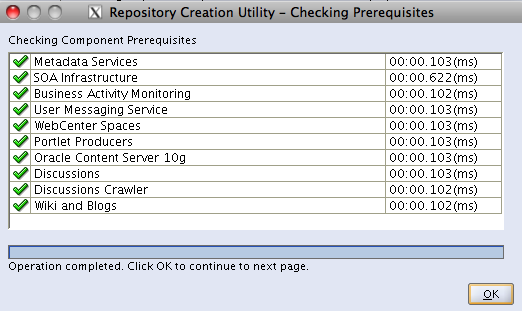
A dialog box will appear as a further prerequisite check is completed. Once this is done, click on the OK button to continue.
On the next page, we need to specify the password to use for the schemas. You can specify to use the same password for all of them, as we have done here, or specify individual passwords for each schema. Either way, complete the necessary details and click on Next.

The next page gives is the opportunity to map schemas to tablespaces if desired. For this example, we will just accept the defaults. If you are setting up a production environment, you may want to sit down with your Database Administrator and do a more thorough mapping. Click on Next to continue.
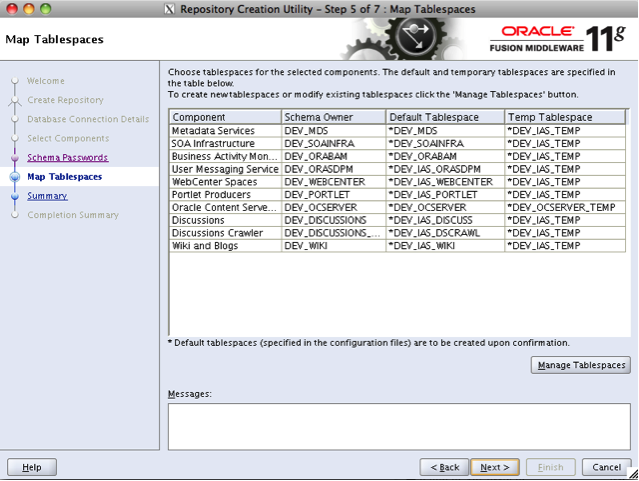
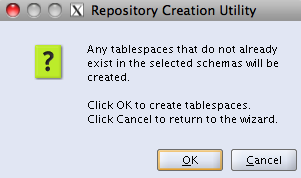
Click OK in the confirmation dialog that appears.
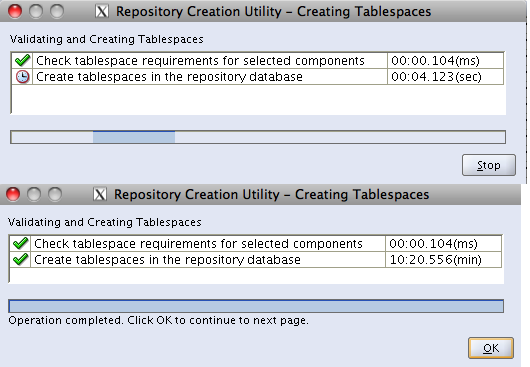
Now the Repository Creation Utility will create any tablespaces that do not already exist. This step can take a few minutes, depending on the speed of your storage. When it is done, click on OK to continue.
Finally, we are presented with a summary of the work to be done. Click on Create to go ahead and create all of the schemas and load them with data.

You can watch the progress as this task runs. Note that this can also take some time if you have slower storage.

When it is complete, a summary will be displayed. Click on Close to finish this part of the installation.
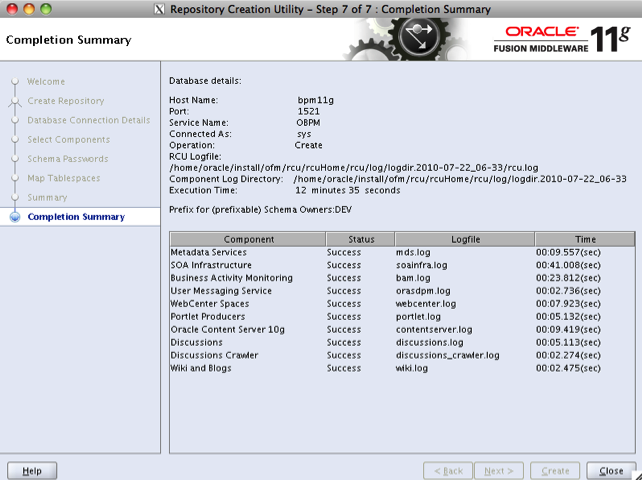
Installing SOA Suite 11.1.1.2
Now that our database contains all the necessary definitions and data, we are ready to move on to our other product installations. First we will install Oracle SOA Suite. You will need to download the 11.1.1.2 installer and also the 11.1.1.3 patchset installer, which we will use a little later on.
Unzip the 11.1.1.2 installer and invoke runInstaller from the Disk1 directory. It may ask you to enter the location of your JDK before the installer interview appears on screen. In our example this was /usr/java/jdk1.6.0_21. Once the installer appears, click on Next to get started.

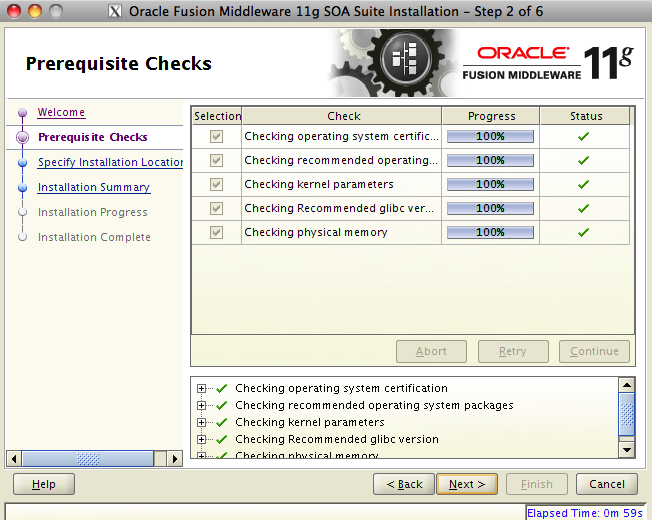
The installer will run some prerequisite checks. Once these are completed, click on Next.
Now we need to specify the location where we want to install SOA Suite. Note that our Middleware Home (which we created earlier) is automatically selected for us. Click on Next.

Now a summary is displayed. Click on Install to start the process.

Again, we can observe progress as the installer runs.

Once it is finished, click on Next to continue.

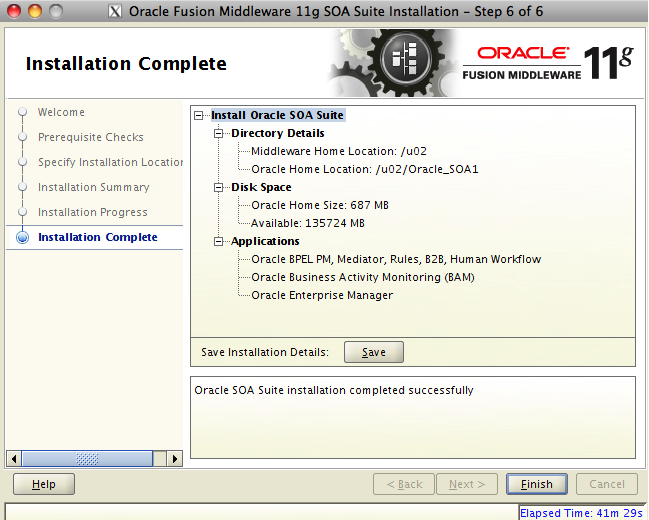
Here we see a summary of what was done. Click on Finish to complete this phase of the installation.
Installing the Web Tier
Next we will install the Web Tier. This is required by the Oracle Universal Content Management system (UCM) which is used to store content in the WebCenter environment. When we have our business processes running later on, process participants are able to attach documents, comments, have discussions, tag, and collaborate in other ways around an instance of a process. This content that they create is stored and managed in UCM.
The Web Tier contains a web server, load balancing and caching technologies, but for our purposes, we are just going to install the web server component.
Again, you will need to download the Web Tier 11.1.1.2 installer and 11.1.1.3 patchset installer from edelivery or OTN. Keep the patchset installer for later on. For now, unzip the 11.1.1.2 installer and invoke runInstaller from the Disk1 directory. Again, you may need to provide the JDK location. After a few moments, the installer will appear, as shown in the image below. Click on Next to get started.

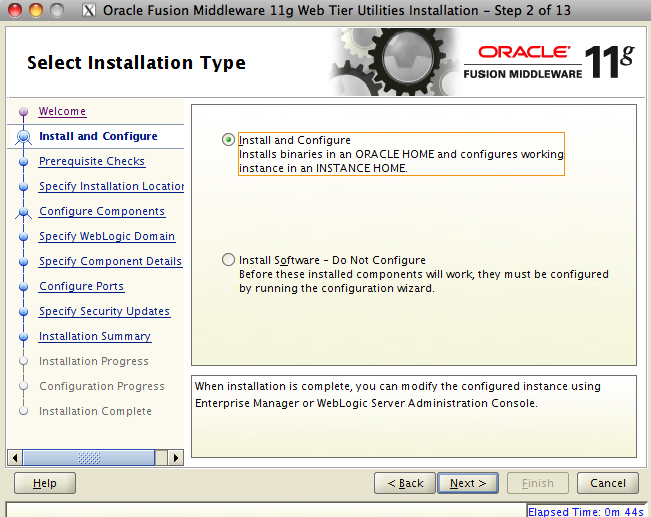
Select the option to Install and Configure the software and click on Next.
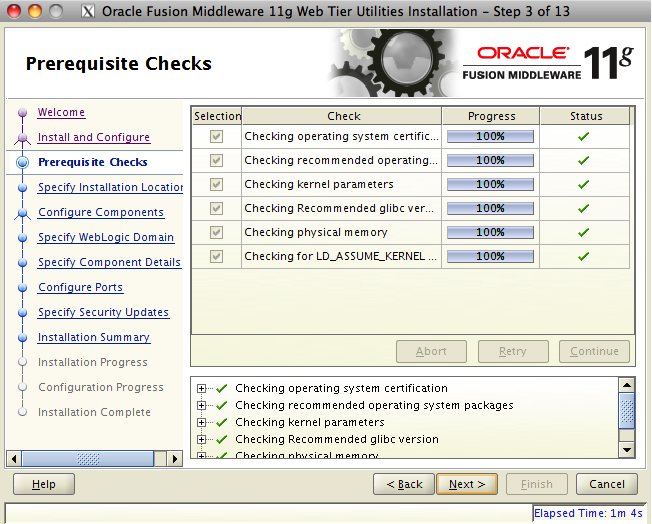
Some prerequisite checks will run. When they are complete, click on Next.
We need to specify the installation location. Put this into the same Middleware Home we have used for WebLogic Server and SOA Suite. It should be automatically selected. Press Next to continue.

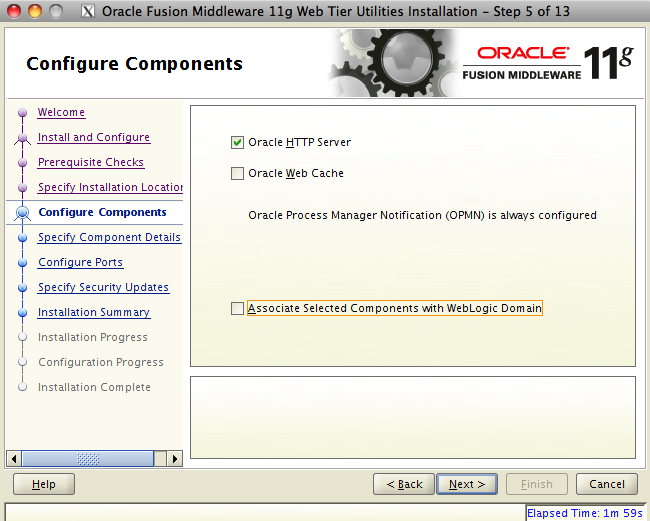
On the Configure Components screen, uncheck everything except for Oracle HTTP Server and click on Next. We are not going to use the Web Cache in our environment and we do not want to associate our web server with a WebLogic domain. You might want to use these other options in a production environment, but they would most likely be installed on a different machine anyway.
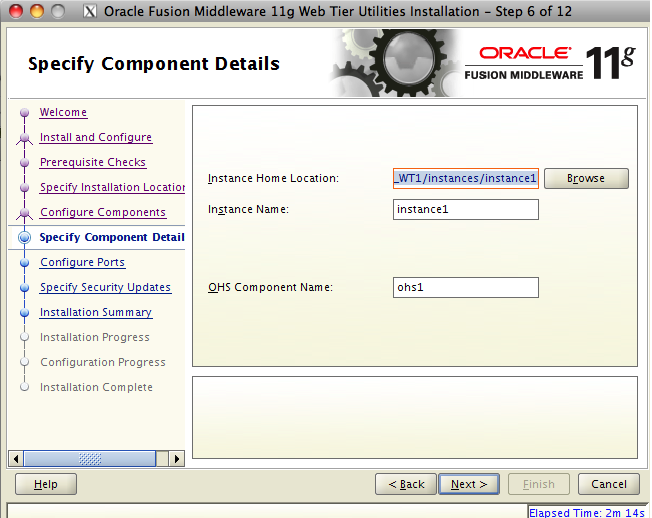
On the next screen we need to specify the location for our instance. Go ahead and accept the defaults here and click on Next to continue.
On the next page, we have the opportunity to set the port numbers to use. The default port number for Web Tier is 7777. We are going to accept the default in our example. Click on Next to continue.

Again, you can provide your support details if you wish. Click on Next to continue.
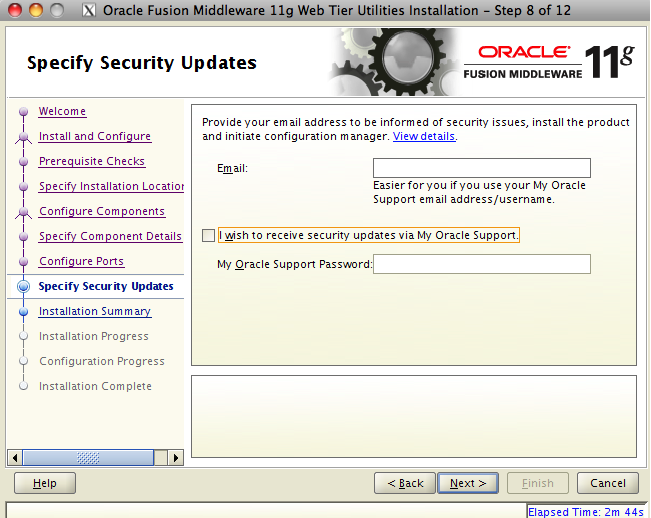
A summary page will be displayed. Click on Install to start the installation.

You can watch the progress as the installer runs, and then the instance is created and started. This step may take a while to complete as it will check that it can successfully start and stop the instance.
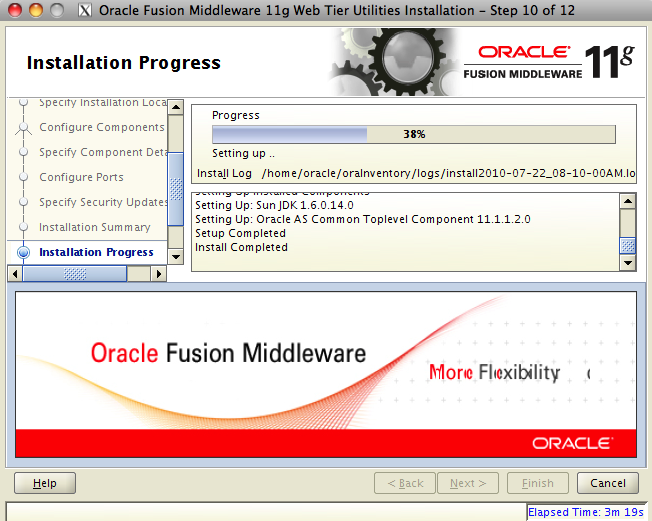
When the installation is finished and the configuration has completed, click on Next to continue.
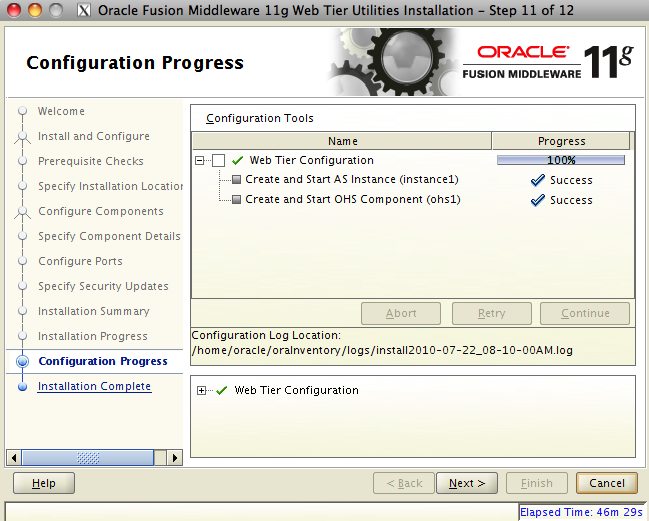
A summary screen is displayed, showing what was done. Click on Finish to leave this part of the installation.

Installing WebCenter
The next step is to install Oracle WebCenter. This is the component that will provide all of the collaboration services to our BPM environment. You will need to download both the WebCenter 11.1.1.2 installer and the WebCenter 11.1.1.3 patchset installer. Again, keep the patchset installer for later on. You also need to download and unzip the Oracle Content Management for WebCenter 10.1.3.5.1 installer. Take a note of where you unzip this.
Unzip the 11.1.1.2 installer and invoke runInstaller from the Disk1 directory. You may need to specify the JDK path again. After a few moments, the installer interview will appear. Click on Next to get started.

A prerequisites check will run. When it is complete, click on Next.
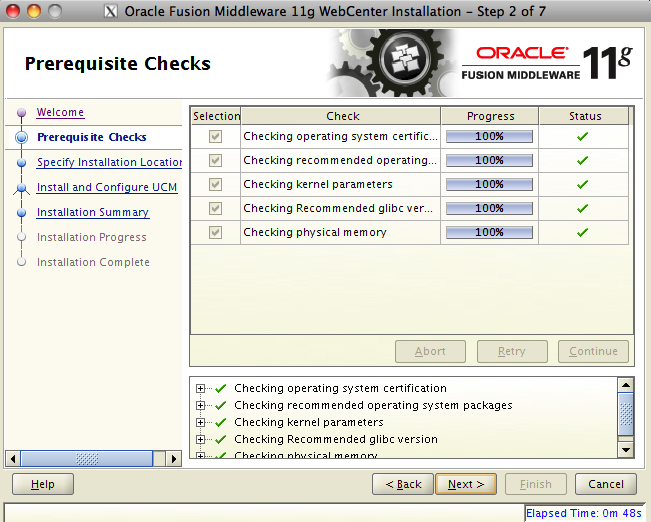
Again, we will install WebCenter in to the same Middleware Home. Click on Next.
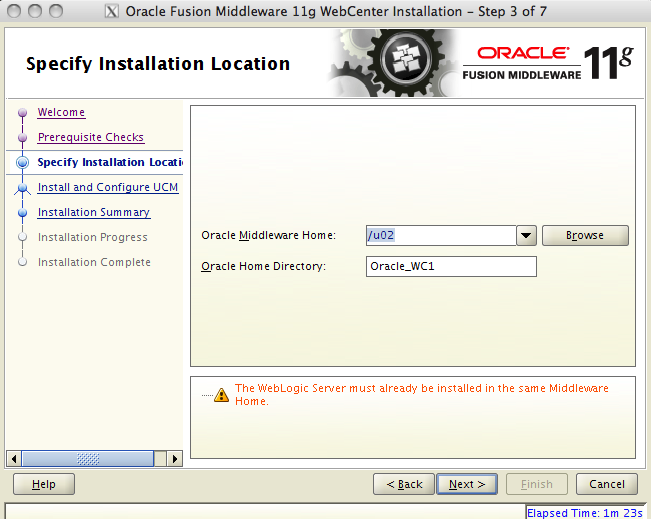
Make sure you leave the option to Install and Configure Oracle Universal Content Management selected. Accept the default ports, 4444 and 4440, and enter the web server address as shown. Note that this is the address of the Web Tier we just installed a few minutes ago, which should be running now, with /ucm on the end. You should be able to hit the web server in your browser and get the Oracle Fusion Middleware welcome page. In this example, this would be at http://bpm11g:7777/. If you cannot view the homepage, then you need to stop and go fix that before you continue here. When you are ready, click on Next.

On this screen, we need to provide the database details for UCM to use. The connect string is in the format hostname:port:SID. Substitute in the values that you used earlier when we ran the Repository Creation Utility. In our case it is bpm11g:1521:obpm. You also need to provide the schema username, note that this matches the one we created with the RCU, note also it has the DEV_ prefix that we pointed out earlier, and provide the password you set for the schema when we ran RCU. When all of these details are entered, press Next.

The summary screen is displayed. Click on Install to start the process.

We can watch the progress as the installer runs.
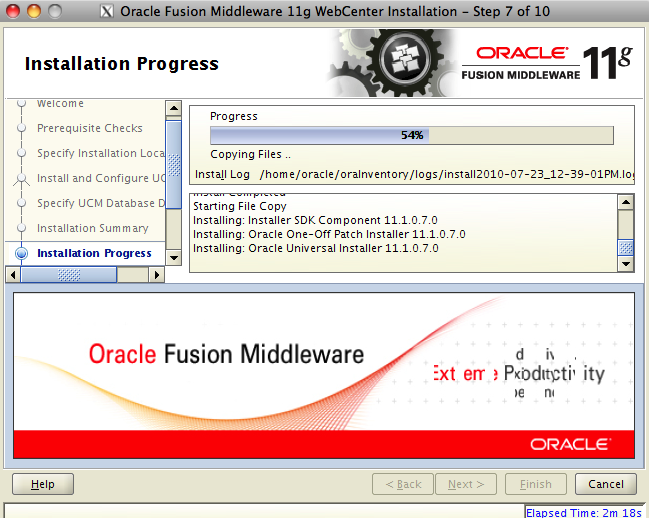
When it is complete, click on Next to continue.

Now we need to tell the installer where we unzipped the UCM installation media. Note that you want to point at the ContentServer directory inside the directory where you unzipped the file, as shown below. You can click on the Browse button to locate this directory. Click on Next when you are ready to continue.

The installer will install UCM and configure it for use with WebCenter. You can watch progress.
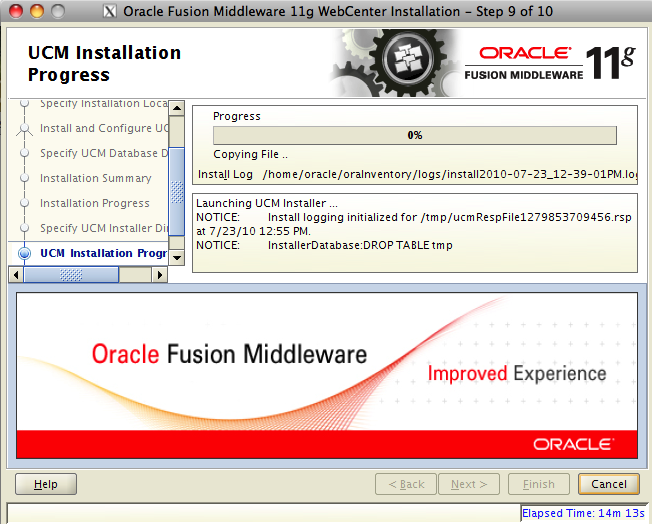
When this is complete, click on Finish to leave this part of the installation.
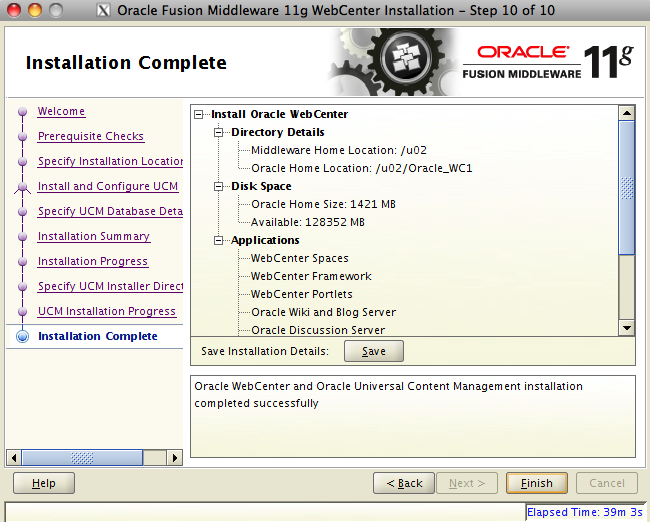
Installing the Web Tier PatchSet
Our next step is to run the patchset installers to upgrade our installation from 11.1.1.2 to 11.1.1.3. We start with the Web Tier patchset installer, which we downloaded and unzipped earlier. Invoke runInstaller from the Disk1 directory. You may need to provide the JDK location. When the installer opens, as shown below, click on Next to get started.
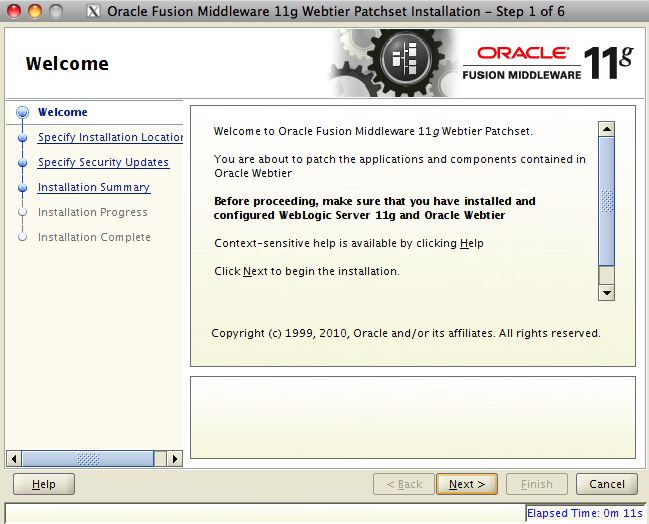
Point the installer to the location where you installed Web Tier earlier. This should be automatically found for you. Click on Next.

Provide your Oracle Support details if you wish, then click on Next.
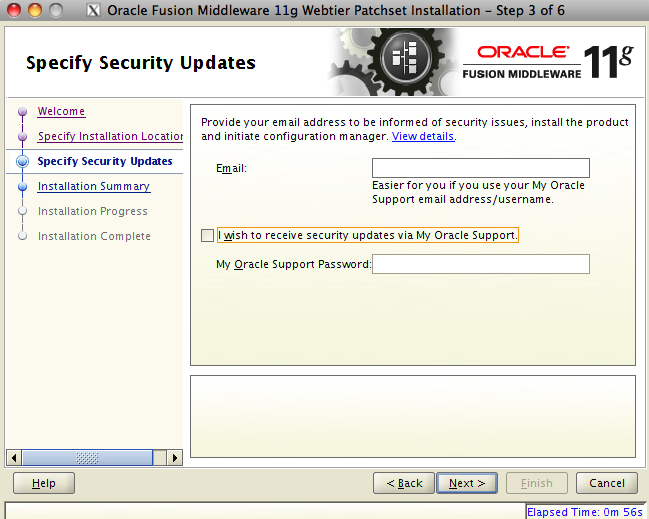
The summary screen is displayed. Click on Install.
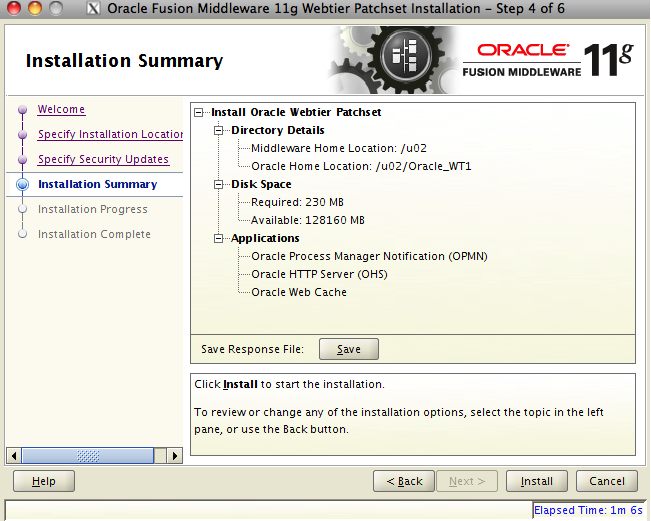
We can watch progress.

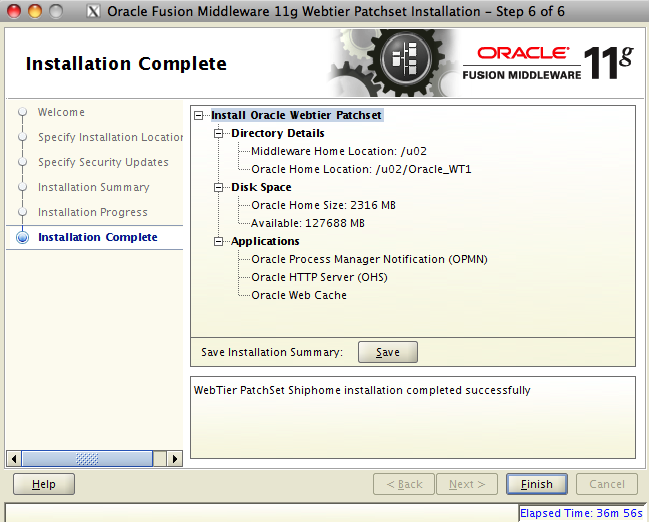
When it is complete, click on Next.

And then click on Finish.
Installing the WebCenter 11.1.1.3 PatchSet
Next we will patch WebCenter. Invoke the runInstaller from the Disk1 directory from your unzipped WebCenter 11.1.1.3 patchset. Provide the JDK details if necessary. When the installer opens, click on Next to get started.

Point it to the location where you installed WebCenter. This should have been automatically found. Click on Next.

Review the summary page and click on Install.
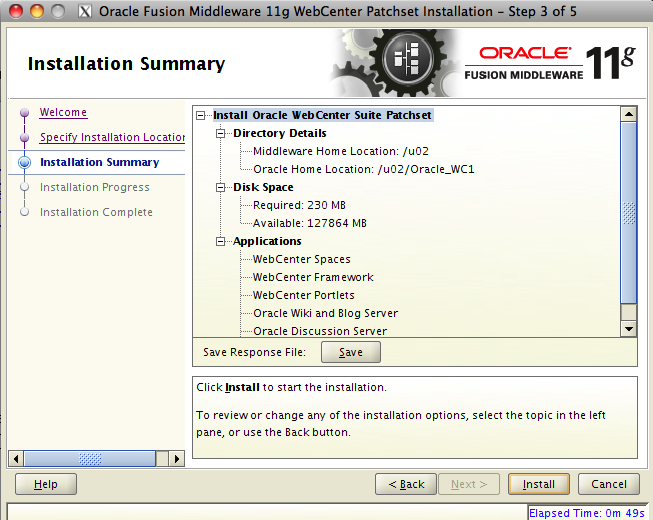
You can watch the progress.

When it is complete, click on Next.
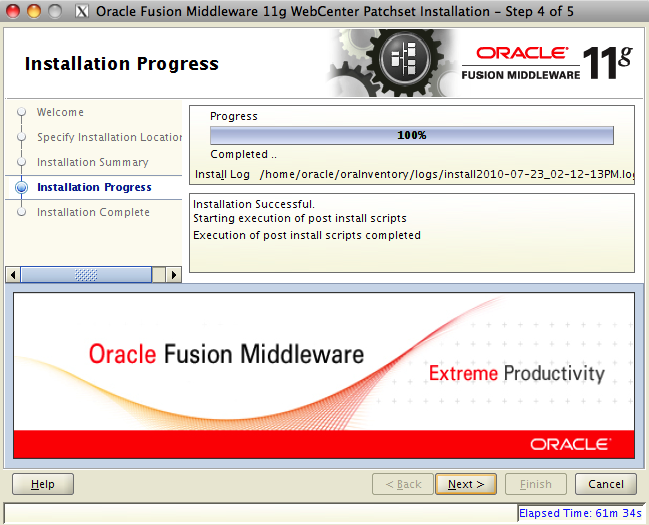
Click on Finish.

Installing the SOA Suite 11.1.1.3 PatchSet
This is a large patch and it adds the BPMN support to SOA Suite, to effectively extend it to include BPM Suite.
Again, we invoke runInstaller from the Disk1 directory of the SOA Suite 11.1.1.3 patchset that we installed and unzipped previously. Provide the JDK details if necessary. When the installer opens, click on Next.
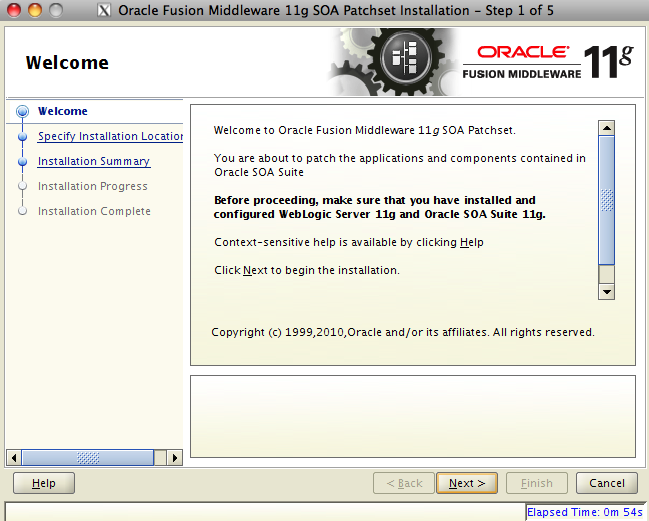
Point the installer to the location where we installed SOA Suite. This should have been automatically populated for us. Click on Next.
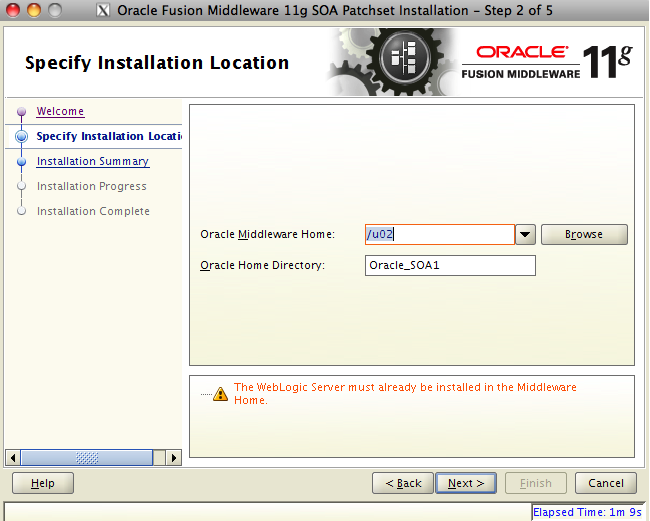
Review the summary screen and click on Install.

We can observe progress.

When it is complete, click on Next.

Review the summary and click on Finish.

Configure the Web Tier to support Oracle UCM
We need to make one small update to the configuration of the Web Tier to support Oracle Universal Content Management (UCM) which will act as the content server for various content created in our BPM environment.
To complete this configuration, you need to edit the httpd.conf (web server configuration) file for the Web Tier. It is located here:
/u02/Oracle_WT1/instances/instance1/config/OHS/ohs1/httpd.conf
The following line must be added to the end of this file:
include "/u02/Oracle_WC1/ucm/data/users/apache22/apache.conf"
This change directs the web server to load up the configuration from UCM. You will need to restart the web tier after making this change. This can be done with the following commands:
cd /u02/Oracle_WT1/instances/instance1/bin
./opmnctl shutdown
./opmnctl startall
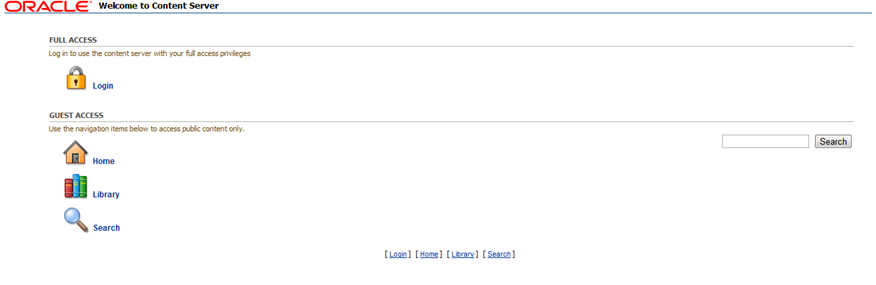
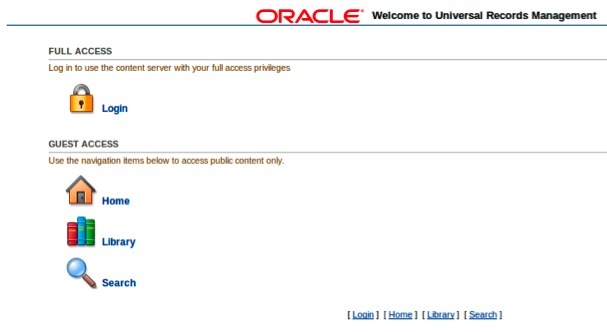
Providing there were no errors, the web server should now start up and be accessible at http://yourserver:7777/. You should also be able to access UCM at http://yourserver:7777/ucm. Note that this URL is formed using the information we provided during the WebCenter installation interview. Your screen should look like this:
Configuring a Domain
Now that we have finished installing all of the software, we are ready to create our WebLogic Domain. The domain is essentially all of the configuration information needed to actually run the software. We can create as many domains as we like, with different combinations of software in them. In our example, we will just create one. In a real world installation, you would most likely have separate domains for production, disaster recovery, training, test, etc.
To create the domain, we use the Fusion Middleware Configuration Wizard. Invoke config.sh in your /u02/Oracle_SOA1/common/bin directory. When the configuration wizard opens, select Create a new WebLogic domain and click on Next.

On the Select Domain Source page, we need to select which components we want configured in the domain. Select the components shown in the image below. Pay special attention to the part in brackets at the end of the name. There are some components that have very similar names. When you have made your selections, press Next.
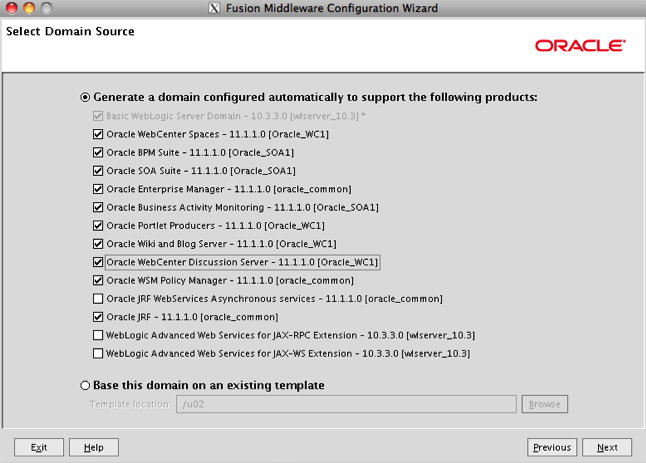
On the next page, we need to specify the name of the domain and the location where its files will be stored. You can go ahead and accept the defaults and press Next to continue.

On the next page, we need to provide a password for the domain administrator (weblogic user). Enter a password and click on Next.

Next, we specify whether we want the server to run in Development Mode or Production Mode, and which JDK to use. For now, accept the defaults and click on Next. We can change this later on, when we are ready.

Now we need to provide the database connection details. Select all of the Component Schemas listed in the table by checking the boxes next to each one, then type in the appropriate values in the fields at the top. The DBMS/Service field is our SID, we used obpm. The hostname is bpm11g in our case, port 1521. If you specified the same password for all schemas when we ran RCU, then you can just type that password in here. If not, you will need to select each schema one by one and enter its password. When you are done, click on Next.

The configuration wizard will check that all of the schemas are accessible. If there are any errors, you will need to go back and correct them. When everything is successful, click on Next to go on.

We do not need to do any optional configuration, so just click on Next.

The summary page is displayed. Click on Create.
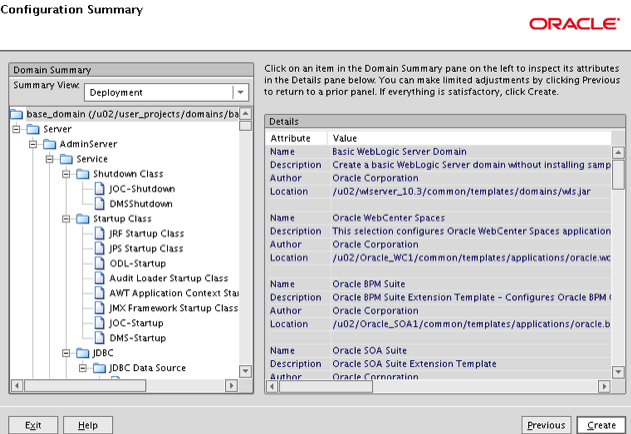
We can watch progress.

When it is complete, click on Finish.

Note that the configuration wizard gives you the Admin Server URL. Take a note of that.
Starting the environment the first time
Now we are ready to start up the environment for the first time. We will start everything from the command line so we have easy access to the consoles, and so we can easily start and stop the servers, as we will need to do this a few times as we complete the configuration.
First, we start the Administration Server.
cd /u02/user_projects/domains/base_domain/bin
./startWebLogic.sh
The server will start up and produce a number of messages. This may take a few minutes the first time. Eventually, a message will be displayed informing you that the server is in the RUNNING state. Once you see this message, open a browser and point it to:
http://yourserver:7001/console
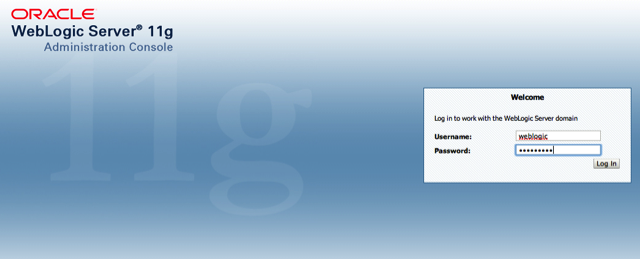
The WebLogic Server console will be displayed. You can log on using the user weblogic and the password you specified during the domain creation wizard previously.
You may also like to point your browser at the Enterprise Manager URL:
http://yourserver:7001/em
You can log on using the same details.
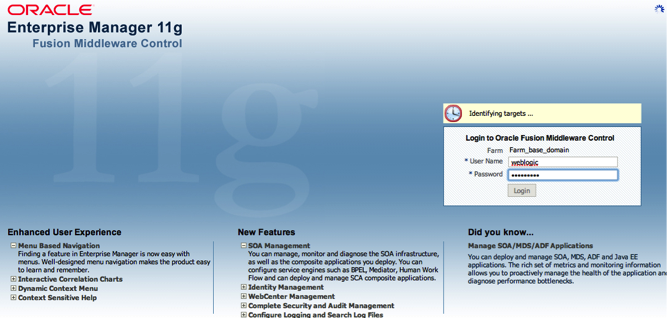
When you log in, you will see the Farm status page, which will look something like the one below. You may not have the same servers running as shown in the image, and the menus on the left may be slightly different for now. When you start the additional servers, your screen should resemble the image quite closely.

To start the other servers, called the Managed Servers, run the following commands, each one in a separate shell/window (you will need to set the directory in each shell before executing the other command):
cd /u02/user_projects/domains/base_domain/bin
./startManagedWebLogic.sh soa_server1
./startManagedWebLogic.sh WLS_Services
./startManagedWebLogic.sh WLS_Portlet
./startManagedWebLogic.sh WLS_Spaces
The first time you start up these managed servers they will take a bit longer than usual and you will get some errors – as we have not configured security yet. They will each ask you for a user and password (in their shell/window) when you start them. You will need to enter weblogic and your password. It is a useful exercise to start them up and validate they all start successfully. You will know they have started when they each issue the message about being in RUNNING state.
If you want to stop one of these managed servers, you just type a Control-C in its shell/window. It will perform an orderly shutdown. You must stop all managed servers completely before you shutdown the admin server, and you must start the admin server completely before you start the managed servers.
Setting up boot.properties
We can create a special file called boot.properties to provide the user and password to WebLogic so that we don’t have to manually enter them when we start up the servers. This file should contain the following data:
username=weblogic
password=whatever
Change the password from whatever to the one you chose during domain creation.
Save a copy of this file in each managed server’s security directory, i.e.:
/u02/user_projects/domains/base_domain/servers/soa_server1/security
/u02/user_projects/domains/base_domain/servers/bam_server1/security
/u02/user_projects/domains/base_domain/servers/WLS_Services/security
/u02/user_projects/domains/base_domain/servers/WLS_Portlet/security
/u02/user_projects/domains/base_domain/servers/WLS_Spaces/security
The file must be called boot.properties in each case.
Next time you start a managed server, it will read the details from this file and it will not ask you to enter them. It will also encrypt the contents of this file. You can verify this by taking a look at the file after you have restarted the managed server.
Using the Node Manager
At this point, you may wish to configure the Node Manager so that you can also start and stop servers from the WebLogic Server console or Enterprise Manager. If you wish to do so, then take a look at this post for the instructions to enable the Node Manager. Once you have done that, you can then start just the admin server and then the node manager from the shell window/command line. The managed servers can then be managed from the consoles. To start the Node Manager, you would use these commands:
cd /u02/wlserver_10.3/server/bin
startNodeManager.sh
Configuring WebCenter
Now we need to configure WebCenter for use with the Process Portal. This part gives us access to the new social BPM features provided in the Oracle BPM 11g product release.
The first step is to register the connection to the content server. Login to the Enterprise Manager at http://yourserver:7001/em using the user weblogic and your password.
In the main navigation tree on the left hand side of the page, navigate to “Farm” -> “WebCenter” -> “WebCenter Spaces” -> “webcenter”
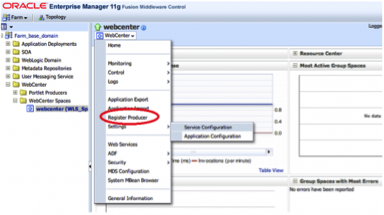
In the context menu (at the top of the main content pane and indicated by the red arrow in the image below), select “Settings” -> “Service Configuration”
Click on “Content Repository” -> “Add”

Complete the fields as shown below:
Connection name = local-ucm
Repository type = Oracle Content Server
Active Connection = checked
Administrator User Name = sysadmin
Root Folder = /Spaces
Application Name = Spaces
RIDC Socket Type = Socket
Server Host = localhost
Server Port = 4444
Others may be left on default values
Save your changes and restart the WLS_Spaces managed server.
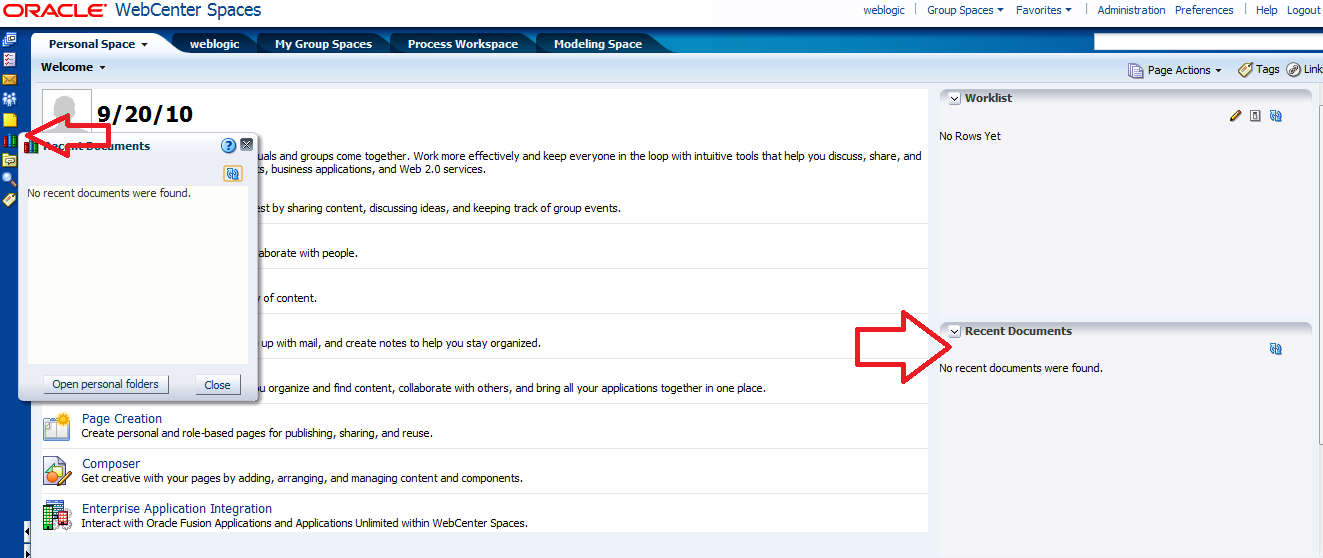
To verify this has worked successfully, you should now be able to login to WebCenter Spaces at http://yourserver:8888/webcenter using your weblogic user and see that the Documents view (its a taskflow technically) displays correctly, with no error message. Alternatively, you can see the same in your recent documents view in the personal side bar on the left hand side of the screen. The image below shows the two places where you can validate this.
Next, we want to set up the discussions server. We will need to configure WS-Security to do this, so we need to create our security keys first.
Create a directory to hold our keystore:
mkdir /u02/keystores
In this directory, create a new keystore and a RSA key pair. Note that this whole command is entered on one line. It is shown here on multiple lines for ease of reading only. You may need to put the path to your JDK’s bin directory before the keytool command if that directory is not in your PATH. You need to add in the appropriate Common Name (CN) as shown in bold. Here we have used the fully qualified hostname of the WebCenter server, with the hostname as a cn and each domain name component as a dc. You also need to provide a password for the key (keypass) and for the keystore (storepass), as shown.
keytool
-genkeypair
-keyalg RSA
-dname "cn=yourserver,dc=au,dc=oracle,dc=com"
-alias orakey
-keypass welcome1
-keystore webcenter.jks
-storepass welcome1
-validity 1064
Now we need to create the certificates. In this example, we are going to use self signed certificates. This is suitable for test or development systems, but in a production system you may wish to purchase certificates from a trusted external Certificate Authority. Alternatively, you may have already purchased a signing certificate and have your own certificate authority. In this case, you will need to get your certificates signed by the administrator of the certificate authority.
The following command is used to create a new certificate which we will call orakey.
keytool
-exportcert
-v
-alias orakey
-keystore webcenter.jks
-storepass welcome1
-rfc
-file orakey.cer
Certificate stored in file <orakey.cer>
Now we import that certificate into the WebCenter keystore with a new name, webcenter_spaces_ws.
keytool
-importcert
-alias webcenter_spaces_ws
-file orakey.cer
-keystore webcenter.jks
-storepass welcome1
Certificate already exists in keystore under alias <orakey>
Do you still want to add it? [no]:  yes
Certificate was added to keystore
Now we are ready to copy our keystore, which contains our certificate, into our domain configuration directory, using a command like this: (again, this command should be entered on one line)
cp webcenter.jks
/u02/user_projects/domains/boot_domain/config/fmwconfig/
Next, we will configure our domain to use this keystore. In Enterprise Manager, navigate to “Farm_boot_domain” -> “Weblogic Domain” -> “boot_domain”

From the context menu, select “Security” -> “Security Provider Configuration”

Scroll down to Keystore, expand it, and click Configure. Deselect (uncheck) the box Configure Keystore Management and click Ok. This will make sure that we reset the configuration and remove any old values. Obvisously, since we just installed the software and created our domain a few moments ago, there wont be any old values, but if you have to come back and do this again for any reason, then you will want to follow this two step process.

Now go back to Keystore, and click Configure again, this time check the box Configure Keystore Management and enter the following information:
Keystore Path = ./webcenter.jks
Password = welcome1
Confirm Pwd = welcome1
Signature Key Alias = orakey
Signature Password = welcome1
Confirm Pwd = welcome1
Encryption Key Crypt Alias = orakey
Crypt Password = welcome1
Confirm Pwd = welcome1
Save your changes and then stop all managed servers, and then the admin server, then restart the admin server and then the managed servers.
Now we need to create a keystore for the discussions service to use. This is done by issuing the following command, this is done in the same directory as the commands we use previously to create the keystore for WebCenter, i.e. /u02/keystores.
keytool
-importcert
-alias df_orakey_public
-file orakey.cer
-keystore owc_discussions.jks
-storepass welcome1
Owner: CN=yourserver, DC=au, DC=oracle, DC=com
Issuer: CN=yourserver, DC=au, DC=oracle, DC=com
Serial number: 4b69f328
Valid from: Wed Feb 03 17:05:28 EST 2010 until: Wed Jan 02 17:05:28 EST 2013
Certificate fingerprints:
         MD5:  3C:7A:D7:33:1A:21:9F:BA:24:A2:D1:9E:09:F6:FC:93
         SHA1: 59:B6:3F:78:8D:5B:28:E4:E8:8C:7E:B1:9A:22:A9:20:F6:39:F1:20
         Signature algorithm name: SHA1withRSA
         Version: 3
Trust this certificate? [no]:  yes
Certificate was added to keystore
In this same directory, create a file named keystore.properties. This file must contain the following text. It is very important that this file does not contain any extra spaces at the ends of the lines, or any extra lines. Please check carefully to make sure you have not added any extra spaces. Note that the last line contains the name of the keystore we just created in the last step.
org.apache.ws.security.crypto.provider=org.apache.ws.security.components.crypto.Merlin
org.apache.ws.security.crypto.merlin.keystore.type=jks
org.apache.ws.security.crypto.merlin.keystore.password=welcome1
org.apache.ws.security.crypto.merlin.keystore.alias=df_orakey_public
org.apache.ws.security.crypto.merlin.file=/u02/keystores/owc_discussions.jks
We need to update our domain configuration so that this file can be found on the servers’ CLASSPATH. This is done by updating the file that sets up the environment for the servers. This file is:
/u02/user_projects/domains/boot_domain/bin/setDomainEnv.sh
You need to add the following lines to the end of this file:
if [ "${CLASSPATH}" != "" ] ; then
  CLASSPATH="${CLASSPATH}${CLASSPATHSEP}/u02/keystores/"
  export CLASSPATH
else
  CLASSPATH="/u02/keystores/"
  export CLASSPATH
fi
Note that the path to the directory containing the keystore.properties file is added to the CLASSPATH by this file. You should now restart all your servers to pick up this change.
We need to tell the discussions server about the keystore now. This is done by logging in to the Discussion Server Admin tool at http://yourserver:8890/owc_discussions/admin using the weblogic user.
Go to “System Properties”
Modify the value of webservices.soap.custom.crypto.fileName so that it points to the properties file you just created:
webservices.soap.custom.crypto.fileName = keystore.properties
Note that you don’t need to specify full path, as you made the change to the CLASSPATH. Click “Save Property”
Finally, we can register the Discussion Server with WebCenter. Like before, this is done in the Enterprise Manager.
Navigate to “Farm” -> “WebCenter” -> “WebCenter Spaces” -> “webcenter”
From the context menu, select “Settings” -> “Service Configuration”
Click on “Discussions and Announcements” -> “Add”
Complete the fields as shown below:
Connection name = discussion_server
Active Connection = check
Server URL = http://yourserver:8890/owc_discussions
Administrator User Name = weblogic
Connection Secured = check
Then expand “Additional Properties” and click “Add” to add the following properties:
keystore.location = /u02/user_projects/domains/boot_domain/config/fmwconfig/webcenter.jks
keystore.type = jks
keystore.password = welcome1 - To encrypt the password, check "Is Property Secured"
encryption.key.alias = orakey
encryption.key.password = welcome1 - To encrypt the password, check "Is Property Secured"
group.mapping = forum - that is the default value
Save your work and restart your servers again to activate these changes.
At this point, you may feel like you are restarting your servers an awful lot. Strictly speaking, all these restarts are not necessary – you could make all the changes in the one go, and then just do one restart. But, if you get anything wrong, it will be pretty hard to find your mistake. This way, step by step, it is easy to identify where you have gone wrong if anything does not work.
If you now log on to WebCenter Spaces (like before) you should be able to see your (empty) discussion forums using the discussions icon in the personal sidebar. It is the one right underneath the documents icon we saw earlier.
Last, but not least, let’s set up the Wiki server. Again, this is a two step process. First, in Enterprise Manager, we will generate a passcode which will be used by the Wiki server for authentication.
Navigate to “Farm_boot_domain” -> “Weblogic Domain” -> “boot_domain”
In the context menu, select “Security” -> “Credentials”
Click “Create Map” to create a new credential map
Name the map owc_wiki
Highlight/select the owc_wiki map that you just created, click “Create Key” and complete the fields as shown:
Select Map = owc_wiki
Key = wsPasscode
Type = Password
User Name = weblogic - does not really matter
Password = welcome1
Click on OK to save this.
Now we can register the Wiki server to WebCenter. Still in Enterprise Manager, navigate to “Farm” -> “WebCenter” -> “WebCenter Spaces” -> “webcenter”
From the context menu, select “Settings” -> “Service Configuration”
Click on “Wiki and Blog Server” -> “Add” and complete the fields as shown:
Connection name = wiki_server
Active Connection = check
Server URL = http://yourserver:8890
Passcode = welcome1 - the one we defined above
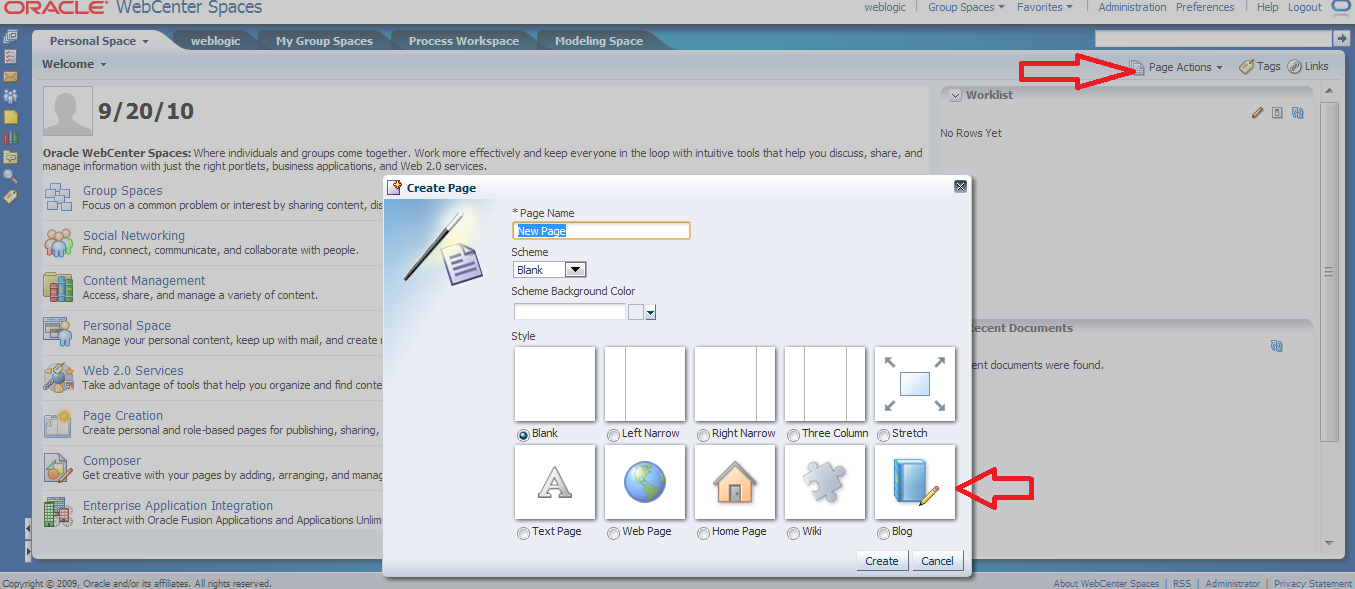
Now save your changes and restart all of your servers. You should now be able to login to WebCenter Spaces and get the option to add Wiki and Blog pages when you click on Page Actions and Create Page as seen in the image below. Note that these page types would not have been available previously.
That completes all of the necessary configuartion of WebCenter for use with BPM. Now we can move on to the final phase of the installation, setting up the Process Portal feature.
Configuring the Process Portal
The final step is to run the script that will configure the Process Portal, but first we need to set up the configuration file. All the files you need are included in the installation in the following directory:
/u02/Oracle_SOA/bpm/processportal.zip
You need to unzip this file, then edit the process-portal-install.properties file located in the unzipped location.
Here is an example of the file contents:
################################################
# BPM Process Portal installation properties   #
################################################
#Flag to decide whether to extend existing BPM domain or create a new one.
extendSoa=true
#Flag to decide whether to prompt for passwords or read them from this file
promptForPasswords=false
#BPM Schema details
bpmDBUser=DEV_SOAINFRA
bpmDBPassword=welcome1
bpmDBType=ORACLE
bpmDBDriver=oracle.jdbc.OracleDriver
bpmDBUrl=jdbc:oracle:thin:@${oracle_db_host_name}:${oracle_db_port}:${db_sid}
#BPM MDS details
bpmMDSUser=DEV_MDS
bpmMDSPassword=welcome1
#BPM Runtime details
bpmHost=yourserver
#Managed server port if BPM is installed on managed server. Else admin port
bpmRuntimePort=8001
bpmAdminUser=weblogic
bpmAdminPassword=welcome1
#webcenter spaces installation details
wcOracleHome=/u02/Oracle_WC1
#If extendSoa flag is set to true, then configure the below two properties to point to BPM domain
wcDomainName=base_domain
#Flag to control whether to set domain realm password or not
wcSetDomainRealmPassword=true
#This is the password to setup trusted domains. Same password should be set on BPM domain as well
wcDomainRealmPassword=welcome1
wc.server.port=8888
#Webcenter's weblogic installation details
wcHost=yourserver
wcAdminPort=7001
wcAdminUser=weblogic
wcAdminPwd=welcome1
wcManagedServerName=WLS_Spaces
#Flag to control whether to configure services
wcConfigServices=false
#content server details
wcContentServerName=yourserver
wcContentServerPort=4444
wcContentSpacesRoot=/Spaces
wcContentAdminUser=sysadmin
#discussion server details
wcDiscussionServerUrl=http://yourserver:8890/owc_discussions
wcDiscussionAdminUser=orcladmin
You will need to go carefully through this file and check every value against your environment. Now is a really good time to take a backup so that you can easily retry this step if you got anything wrong.
Once you are ready, you need to make sure you have ANT on your path. If you don’t have it installed independently, you can use the one provided in your Oracle Middleware home, at /u02/modules/org.apache.ant_1.7.1
Then run ant -f install.xml in the directory where you unzipped your processportal.zip, i.e. the same directory where you just edited that properties file to match your environment.
This will probably run for a while – maybe ten minutes – and if you got all your parameters correct, you will be rewarded with a BUILD SUCCESSFUL at the end.
Congratulations! You have successfully installed a full, complete, end to end Oracle BPM system, including the Process Portal and all social BPM features. Give yourself a pat on the back!
Now that you have got one, what do you do with it?
A good place to start is to hit the following URL’s and start taking a look around. In future posts we will discuss how to use this environment you now have at your disposal.
WebLogic Console
    http://yourserver:7001/console
Enterprise Manager
    http://yourserver:7001/em
BPM Worklist Application
    http://yourserver:8001/bpm/workspace
WebCenter Spaces (and Process Portal)
    http://yourserver:8888/webcenter
Process Composer
    http://yourserver:8001/bpm/composer
Business Activity Monitoring
    http://yourserver:9001/OracleBAM
p.s. This post took us a long time to write – getting all the information together and typed up to present (we hope) nicely. If it helped you out, or if you found anything was missing, please leave us a comment to let us know.

















 RedStack
You must be logged in to post a comment.