Portable reference to ADF components

The web application found here is a great way to carry a portable reference library of ADF components along with you wherever you go.  This is very handy if you are working on the design of an ADF or WebCenter application, and you want to check the functionality of a component.

All you need is JDeveloper.  I used 11.1.1.2.  It’s easy to set up:

  • In JDeveloper, select Start Server Instance from the Run menu.  This will start up your WebLogic Server.
  • Open a browser and navigate to http://localhost:7101/console.
  • Log on to the WebLogic console as weblogic/weblogic1.
  • Click on Deployments in the left hand menu.
  • Click on the Install button.
  • Point to the location of the war file you just downloaded.
  • Click on Next until Finish is available, then click on Finish.  Your war file will deploy.
  • Now point your browser to http://localhost:7101/faces-trunk/faces/components/index.jspx and you’re done!

Here are some examples of what you get!

First, a variety of inputs.  You can see over there on the right hand side a bunch of attributes you can change at runtime to see the effect.

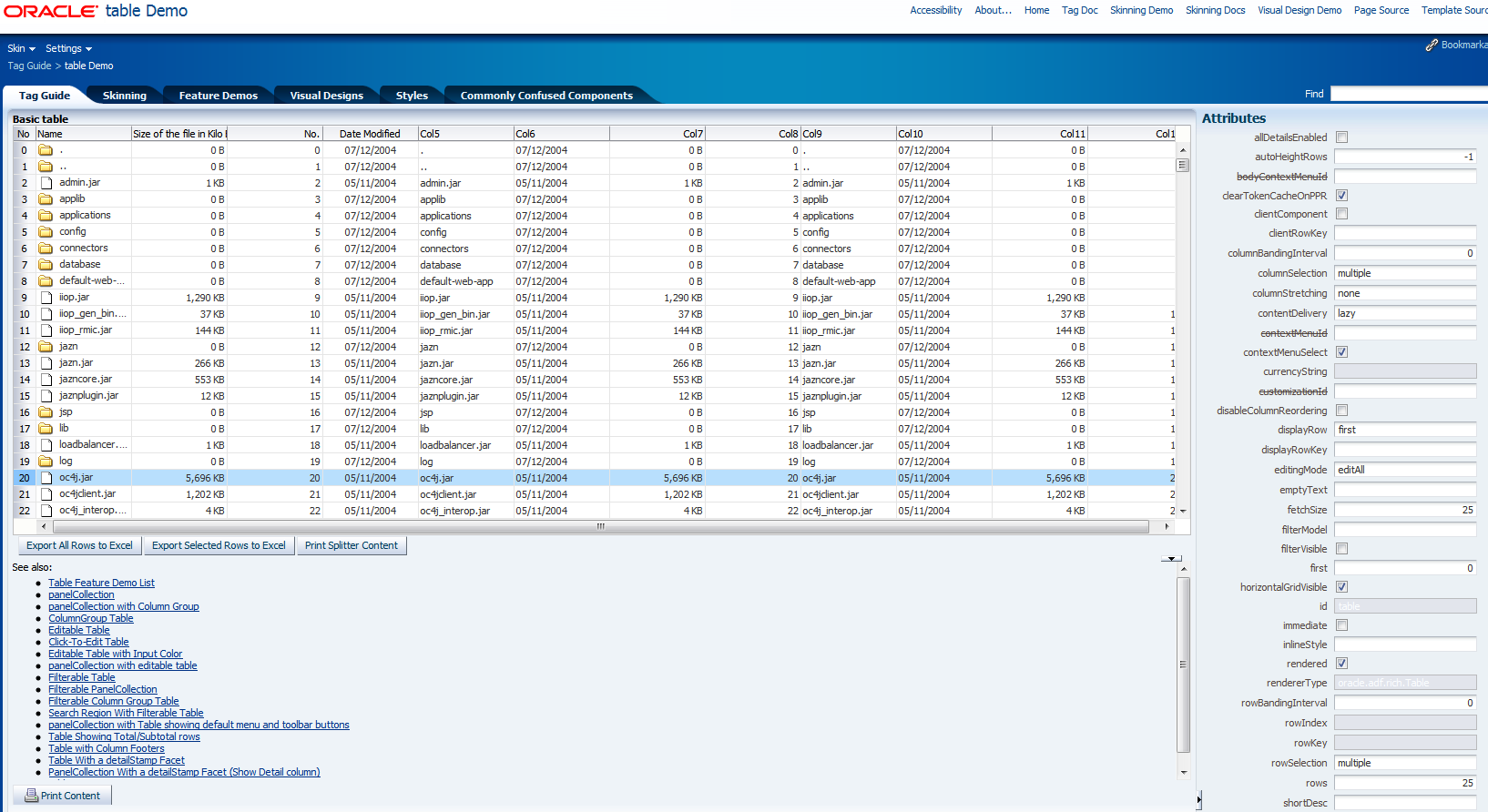
And here is a table, in this case showing some files.

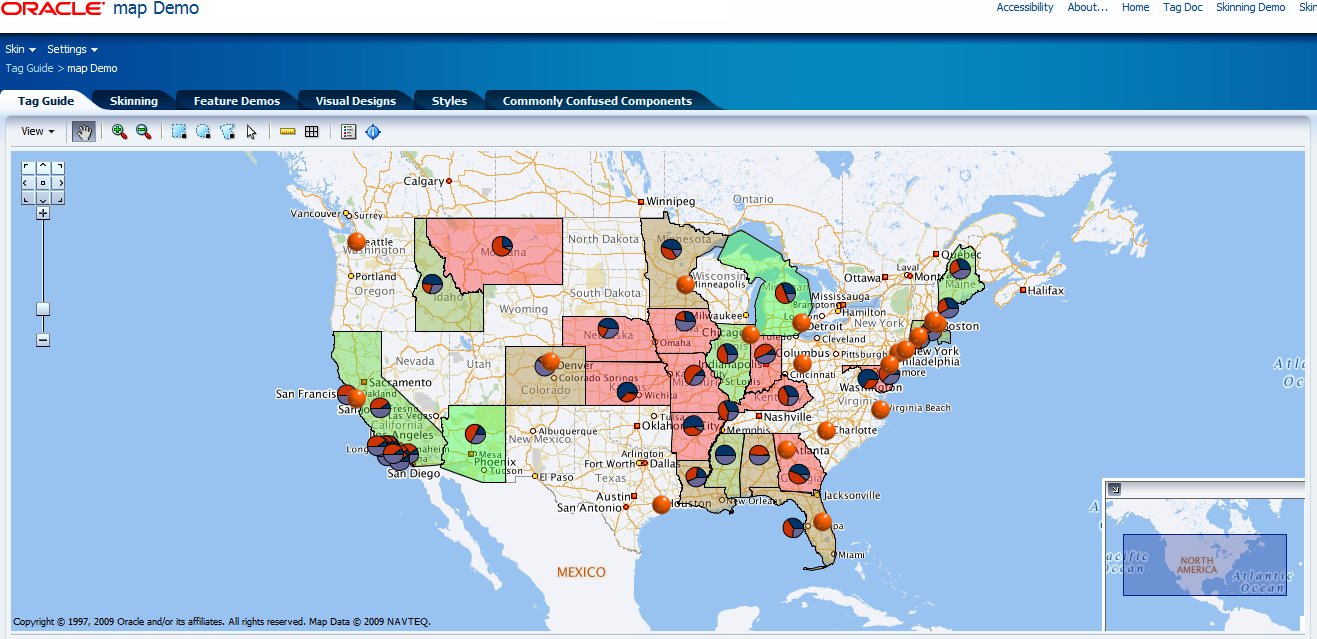
This one is a map (one of my favourites)

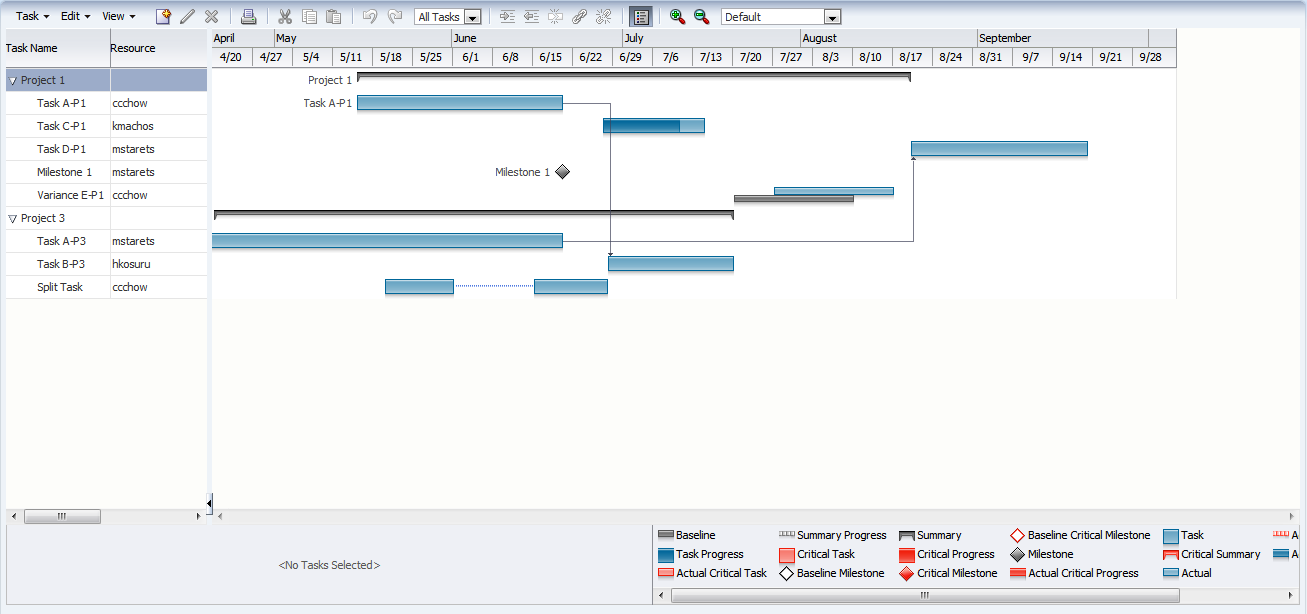
And last but not least, the Project Gantt component.

Of course, you can see many more components that these four.  There are examples in there of hundreds of components, layouts and styles and skinning too.

Posted in Uncategorized | Tagged | Leave a comment

An updated simple WebLogic JMS client in .Net (C#)

In previous posts, we presented a simple WebLogic JMS client in Java here, and an updated one here.  We also presented a simple C# JMS program here.

In this post, we present a more or less equivalent C#/.Net implementation of the updated simple JMS client.  Please refer to the referenced posts for details of how to set up the necessary queues, etc. on WebLogic, and how to build and use this code.

Update: You can grab this code from our Subversion repository:
svn checkout https://www.samplecode.oracle.com/svn/jmsclients/trunk

using System;
using System.Collections.Generic;
using System.Linq;
using System.Text;
using WebLogic.Messaging;

namespace SimpleJMSClient
{

  class Program
  {

    private static string DEFAULT_URL = "t3://localhost:7101";
    private static string cfName = "weblogic.jms.ConnectionFactory";
    private static string DEFAULT_QUEUE = "jms/MarksQueue";
    private static string DEFAULT_USER = "weblogic";
    private static string DEFAULT_PASSWORD = "weblogic1";

    static void Main(string[] args)
    {
      sendMessage("hello from .net with 1 arg");
      sendMessage("t3://localhost:7101",
                  "weblogic",
                  "weblogic1",
                  "jms/MarksQueue",
                  "hello from .net with 5 args");
    }

    static void sendMessage(string messageText)
    {
      sendMessage(DEFAULT_URL,
                  DEFAULT_USER,
                  DEFAULT_PASSWORD,
                  DEFAULT_QUEUE,
                  messageText);
    }

    static void sendMessage(string url, string user, string password, string queueName, string messageText)
    {
      // create properties dictionary
      IDictionary<string, Object> paramMap = new Dictionary<string, Object>();

      // add necessary properties
      paramMap[Constants.Context.PROVIDER_URL] = url;
      paramMap[Constants.Context.SECURITY_PRINCIPAL] = user;
      paramMap[Constants.Context.SECURITY_CREDENTIALS] = password;

      // get the initial context
      IContext context = ContextFactory.CreateContext(paramMap);

      // lookup the connection factory
      IConnectionFactory cf = context.LookupConnectionFactory(cfName);

      // lookup the queue
      IQueue queue = (IQueue)context.LookupDestination(queueName);

      // create a connection
      IConnection connection = cf.CreateConnection();

      // start the connection
      connection.Start();

      // create a session
      ISession session = connection.CreateSession(
      Constants.SessionMode.AUTO_ACKNOWLEDGE);

      // create a message producer
      IMessageProducer producer = session.CreateProducer(queue);
      producer.DeliveryMode = Constants.DeliveryMode.PERSISTENT;

      // create a text message
      ITextMessage textMessage = session.CreateTextMessage(messageText);

      // send the message
      producer.Send(textMessage);

      // CLEAN UP
      connection.Close();
      context.CloseAll();
    }

  }

}
Posted in Uncategorized | Tagged , , , | 3 Comments

An updated simple WebLogic JMS client

A little while ago, we posted a simple JMS client for WebLogic here.  That post demonstrated how to create a simple JMS client program that could send messages to a WebLogic JMS queue.  It also showed how to set up the necessary definitions on the WebLogic Server in the first place, and how to see the details of the messages after they had been sent.

In that post we mentioned that there are often times when we want to be able to send messages to a JMS queue.  One such time was recently when we wanted Oracle Universal Content Management (UCM) to send a JMS message every time a new piece of content was checked in to the content management system.  In order to do that, we reused this code, but it needed a small update to allow us to pass in details of the server, queue name, etc.

This post presents an updated simple JMS client, in Java.  Here it is still general purpose.  In a future post, we will show how it is used to satisfy the use case described above.  We will also present this updated simple client in C# in a separate post.  This post will be updated with links when these new posts are published.

Update: You can grab this code from our Subversion repository:
svn checkout https://www.samplecode.oracle.com/svn/jmsclients/trunk

The C# version is here and a Scala version here.

Please refer to the earlier post for details of how to use this code.

package jmsclient;

import java.util.Hashtable;
import javax.naming.*;
import javax.jms.*;

public class SimpleJMSClient {

  private static InitialContext ctx = null;
  private static QueueConnectionFactory qcf = null;
  private static QueueConnection qc = null;
  private static QueueSession qsess = null;
  private static Queue q = null;
  private static QueueSender qsndr = null;
  private static TextMessage message = null;
  private static final String DEFAULT_QCF_NAME = "jms/MarksConnectionFactory";
  private static final String DEFAULT_QUEUE_NAME = "jms/MarksQueue";
  private static final String DEFAULT_URL = "t3://localhost:7101";
  private static final String DEFAULT_USER = "weblogic";
  private static final String DEFAULT_PASSWORD =  "weblogic1";

  public SimpleJMSClient() {
    super();
  }

  public static void sendMessage(String messageText) {
    sendMessage(DEFAULT_URL,
    DEFAULT_USER,
    DEFAULT_PASSWORD,
    DEFAULT_QCF_NAME,
    DEFAULT_QUEUE_NAME,
    messageText);
  }

  public static void sendMessage(String url, String user, String password,
                                 String cf, String queue, String messageText) {
    // create InitialContext
    Hashtable properties = new Hashtable();
    properties.put(Context.INITIAL_CONTEXT_FACTORY,
                   "weblogic.jndi.WLInitialContextFactory");
    properties.put(Context.PROVIDER_URL, url);
    properties.put(Context.SECURITY_PRINCIPAL, user);
    properties.put(Context.SECURITY_CREDENTIALS, password);

    try {
      ctx = new InitialContext(properties);
    } catch (NamingException ne) {
      ne.printStackTrace(System.err);
      System.exit(0);
    }
    System.out.println("Got InitialContext " + ctx.toString());

    // create QueueConnectionFactory
    try {
      qcf = (QueueConnectionFactory)ctx.lookup(cf);
    } catch (NamingException ne) {
      ne.printStackTrace(System.err);
      System.exit(0);
    }
    System.out.println("Got QueueConnectionFactory " + qcf.toString());

    // create QueueConnection
    try {
      qc = qcf.createQueueConnection();
    } catch (JMSException jmse) {
      jmse.printStackTrace(System.err);
      System.exit(0);
    }
    System.out.println("Got QueueConnection " + qc.toString());

    // create QueueSession
    try {
      qsess = qc.createQueueSession(false, 0);
    } catch (JMSException jmse) {
      jmse.printStackTrace(System.err);
      System.exit(0);
    }
    System.out.println("Got QueueSession " + qsess.toString());

    // lookup Queue
    try {
      q = (Queue)ctx.lookup(queue);
    } catch (NamingException ne) {
      ne.printStackTrace(System.err);
      System.exit(0);
    }
    System.out.println("Got Queue " + q.toString());

    // create QueueSender
    try {
      qsndr = qsess.createSender(q);
    } catch (JMSException jmse) {
      jmse.printStackTrace(System.err);
      System.exit(0);
    }
    System.out.println("Got QueueSender " + qsndr.toString());

    // create TextMessage
    try {
      message = qsess.createTextMessage();
    } catch (JMSException jmse) {
      jmse.printStackTrace(System.err);
      System.exit(0);
    }
    System.out.println("Got TextMessage " + message.toString());

    // set message text in TextMessage
    try {
      message.setText(messageText);
    } catch (JMSException jmse) {
      jmse.printStackTrace(System.err);
      System.exit(0);
    }
    System.out.println("Set text in TextMessage " + message.toString());

    // send message
    try {
      qsndr.send(message);
    } catch (JMSException jmse) {
      jmse.printStackTrace(System.err);
      System.exit(0);
    }
    System.out.println("Sent message ");

    // clean up
    try {
      message = null;
      qsndr.close();
      qsndr = null;
      q = null;
      qsess.close();
      qsess = null;
      qc.close();
      qc = null;
      qcf = null;
      ctx = null;
    } catch (JMSException jmse) {
      jmse.printStackTrace(System.err);
    }
    System.out.println("Cleaned up and done.");
  }

  public static void main(String[] args) {
    sendMessage("hello from sendMessage() with 1 arg");
    sendMessage("t3://localhost:7101",
                "weblogic",
                "weblogic1",
                "jms/MarksConnectionFactory",
                "jms/MarksQueue",
                "hello from sendMessage() with 6 args");
  }

}
Posted in Uncategorized | Tagged , | 6 Comments

Oracle WebCenter Spaces Task Flow Customization

I’v posted a blog about how to customize Oracle WebCenter task flows in your own custom application.

Some of us might also wonder how to do such kinds of customizations on Spaces.

There are some differentiates between custom application and Spaces.

Here are some tips of those:

1. Make WebCenter Spaces Task Flow Libraries Available to Your Application

To customize the WebCenter Spaces task flows, you need to include WebCenter Spaces View JAR file in your customization project.

The WebCenter View jar (webcenter-app-view.jar) is packaged and shipped with WebCenter Spaces, and is located here:
FMW_HOME/lib/java/internal/oracle.webcenter.spaces/11.1.1.0.0/webcenter-app-view.jar
FMW_HOME is the installed home of the WebCenter Spaces install.

WebCenter Service task flows, such as the Discussion Forum and Mail task flows, are part of the WebCenter Extension and are available in the Task Flows folder in the WebCenter Services Catalog, located in the Resource Palette in JDeveloper.

To set up JDeveloper for WebCenter Spaces task flow customization:

(1) In the Application Navigator, right-click the ViewController project for your WebCenter application and choose Project Properties.

(2) In the Project Properties dialog, select Libraries & Classpath and click Add JAR /Directory….

(3) Navigate to the Oracle WebCenter Spaces installation directory and select webcenter-app-view.jar.

(4) Click Select.

(5) Click OK.

(6) Save your files.

(7) In the Application Navigator, next to the Projects drop-down list, click the Navigator Display Options icon and select Show Libraries.

(8) Save all your files.

2. Applying Seeded Customizations to Deployed WebCenter Applications

In previous section, we customized WebCenter task flows for different scenarios. The output of these exercises is the generated MDS customization. The customizations show up as .xml.xml or .jspx.xml files in the View project of the application under “libraryCustomization” package.

These customization documents are essentially instructions for MDS to apply delta on top of the base document that is shipped to show the customized behavior at runtime. Once you create the customizations, you must apply them to the deployed WebCenter application.

If those customized task flows are used in your own custom WebCenter application, the customizations in MDS will be deployed to WebCenter container as well as the custom WebCenter application. So you can skip this step. But for Spaces, we have to apply those customizations to WebCenter Spaces application seperately.

To see customizations performed on Oracle WebCenter task flows in JDeveloper at runtime, you must import these customizations to the MDS repository of the deployed WebCenter application. Since this step updates the runtime WebCenter application metadata repository, you should first back up the MDS schema before performing this step. Oracle also advises that you test your customizations in a development or stage environment first.

These steps cover how to apply the seeded customizations to a deployed instance of Oracle WebCenter Spaces. The same steps can be followed to deploy customizations to a custom WebCenter application repository as well.

To import design time Oracle WebCenter task flow seeded customizations to the MDS repository:

(1) While the your application is open in JDeveloper, rebuild the ViewController project by right-clicking ViewController and choosing Rebuild ViewController.jpr.

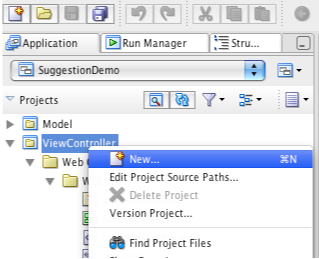
(2) Next, create a JAR profile and package the library customizations under the ViewController project in the JAR archive. In the Application Navigator, these customizations display under ADFLibraryCustomization package. On your file system, the customizations are located in the libraryCustomization folder under ViewController. Right-click the Model project and select New.

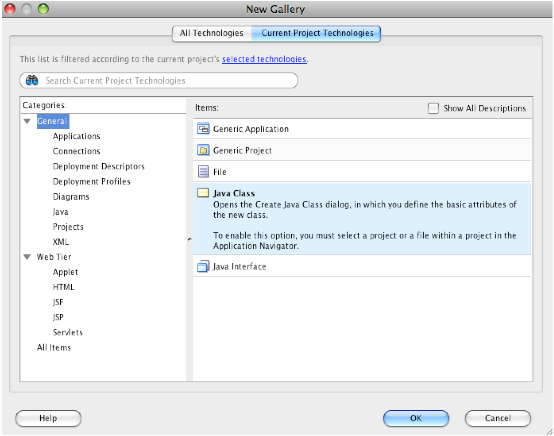
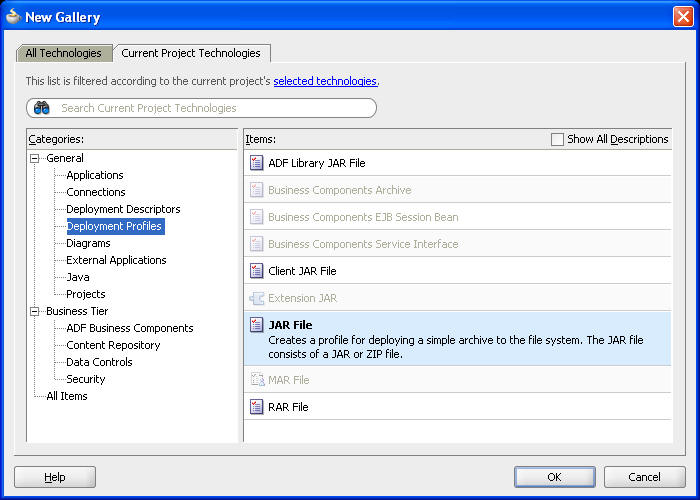
(3) In the New Gallery, select Deployment Profiles, choose JAR File from the Items list, and click OK to generate the JAR profile.

(4) Create a name for the JAR file, such as SampleWebCenterApplicationCustomizations.

(5) In the Edit JAR Deployment Profile Properties dialog, click Filters on the left, then select all the customization documents in the ADFLibrarycustomization package, then click OK.

(6) Copy this JAR file, which now contains the customizations, to the machine where the WebCenter application is deployed. Note: Maintain a backup of this file so that you always have a version of the customizations for this application.

(7) Extract the JAR to a temporary directory on the machine, for example /tmp/wc-cust.

(8) Use the MDS WLST import command to import the task flow customizations to the application’s MDS repository.

The following is an example of the command to import customizations.

wls:/weblogic/serverConfig>importMetadata(application='webcenter',
server='srg',
fromLocation='/tmp/wc-cust',
docs='/**')

(9) Then testing those customizations on Spaces.

Posted in Uncategorized | Tagged , , , , | Leave a comment

Task Flow Customization on WebCenter Applications

There are several out-of-box task flows to be used to access and manage Oracle UCM easier after Oracle WebCenter 11g RC1 is released. Those provide seamless integration to Oracle UCM on WebCenter.

We used the Document Library – List View task flow in one of our custom WebCenter applications as document manager to Oracle UCM.

But unfortunately, the out-of-box functions of those task flows are not enough according to our requirements.

Here we had two addition requirements over that:

    (1) To display contents’ HTML Rendition column on document query list table;
    (2) A specific and more complex document check in form, in place of the default one.

As the default functions were really useful to us and it was able to be customized, we decided to customize one of task flows (Document Library – List View task flow) to implement ours inside together.

Please refer to the below document published on OTN, which describes how to customize the task flow:
http://www.oracle.com/technology/products/webcenter/pdf/owcs_r11_custom_taskflow_wp.pdf

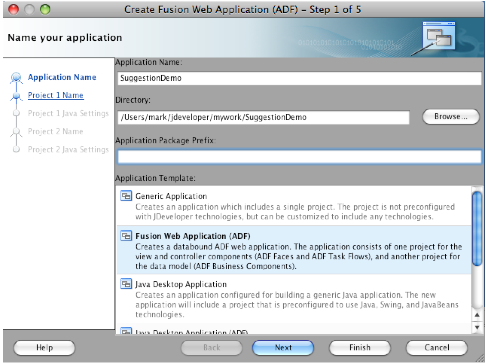
Preparing a Customizable WebCenter Application

Open JDeveloper as the Default role:

(1) Preparing a Customizable WebCenter Application
To customize the task flows in your WebCenter application, first ensure that you have a custom WebCenter application (that is, an application you’ve created using the WebCenter template).

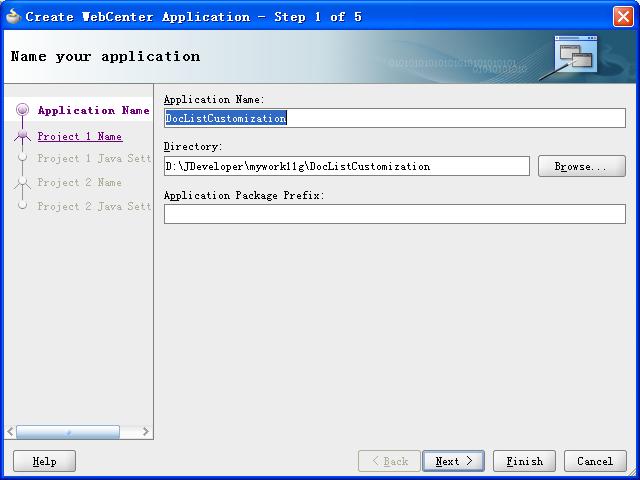
For example, naming it as “DocListCustomization”, this is a WebCenter application.

Example of Custom WebCenter Application

(2) Creating the Customization Classes
Once you have a WebCenter application, you must make the customization classes that you want to use in your application. A customization class is the interface that MDS uses to define which customization applies to the base definition metadata. Each customization class defines a customization layer and can contain multiple layer values.

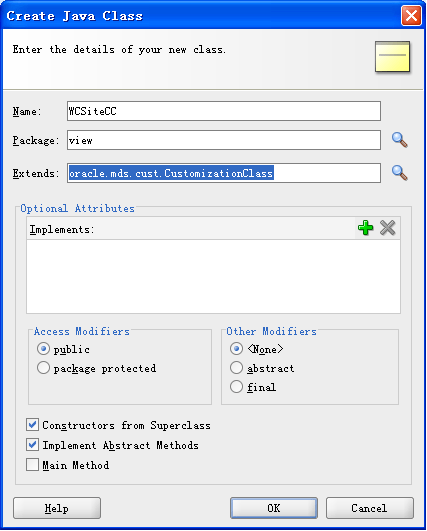
For example: Creating a java class naming WCSiteCC, which extends “oracle.mds.cust.CustomizationClass

Example of Creating the Customization Classes

(3) In the Source code of the WCSiteCC.java file, replace the code with the following:

package view;
import java.io.IOException;
import java.io.InputStream;
import java.util.Properties;
import oracle.mds.core.MetadataObject;
import oracle.mds.core.RestrictedSession;
import oracle.mds.cust.CacheHint;
import oracle.mds.cust.CustomizationClass;

public class WCSiteCC extends CustomizationClass {

    private static final String DEFAULT_LAYER_NAME = “site”;

    private String mLayerName = DEFAULT_LAYER_NAME;

    public WCSiteCC() {
    }

    public WCSiteCC(String layerName) {
        mLayerName = layerName;
    }

    public CacheHint getCacheHint() {
        return CacheHint.ALL_USERS;
    }

    public String getName() {
        return mLayerName;
    }

    public String[] getValue(RestrictedSession sess, MetadataObject mo) {
        return new String[] {“webcenter”};
    }
}

Note: The example code uses a customization layer “site” with the value “webcenter”.

(4) Make the Customization Classes Available to JDeveloper
After you create the customization classes, you must make them available to JDeveloper so that you can use them when implementing customizations. When working in JDeveloper Customization Developer role, your customization classes must be available in JDeveloper’s classpath.

So next to package the customization classes as a jar and add them into your custom project classpath.

For example, creating a new deployment profile of JAR File as follows:

Example of creating deployment profile

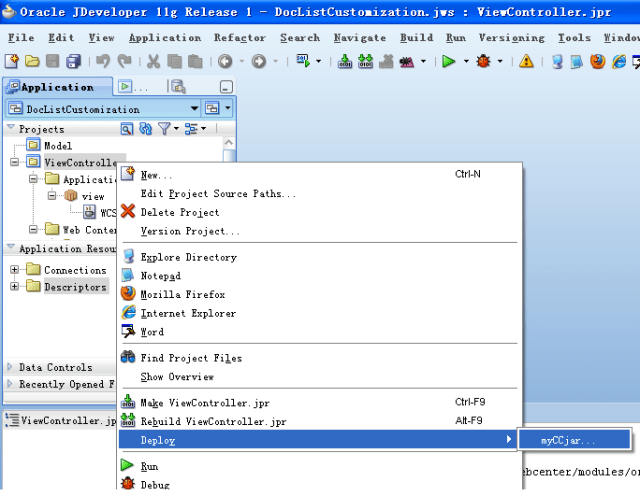
In the Application Navigator, right-click the ViewController project and choose Deploy > myCCjar > To Jar file to deploy the JAR.

Example of how to deploy a jar

Then adding this new jar into your custom WebCenter application’s classpath.

Example of setting classpath

(5) Enable Seeded Customizations for View Projects in WebCenter Applications
In the Application Navigator, right-click the ViewController project, and choose Project Properties.

In the Project Properties dialog, select ADF View, then select the Enable Seeded Customizations checkbox.

Example of enabling customization

Click OK and save your files.

(6) Configure the Design Time Customization Layers for JDeveloper

To enable customization of WebCenter task flows at design time, you must configure the CC layer values that you want to use in the JDeveloper Customization Developer role. In your file system directory, in JDEV_HOME/jdev, open the CustomizationLayerValues.xml and configure the CC layer values.

In the following example, the “site” Layer is configured with the value “webcenter” for the JDeveloper Customization Developer role.

Example 2: Customization Layer

<cust-layers xmlns="http://xmlns.oracle.com/mds/dt"> 
    <cust-layer name="site" id-prefix="s"> 
        <cust-layer-value value="webcenter" display-name="WebCenter"/>
    </cust-layer> 
</cust-layers>

(7) Configure Your Application’s adf-config.xml File
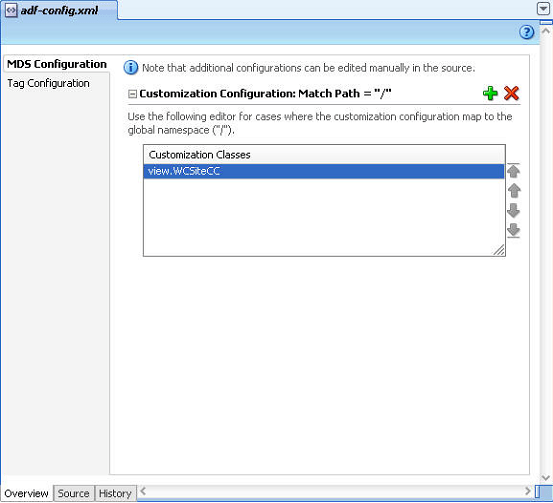
The application’s adf-config.xml file must have an appropriate cust-config element in the mds-config section. The cust-config element allows clients to define an ordered and named list of customization classes. You can use the overview editor for the adf-config.xml file to add customization classes.

In the Application Resource panel, under Descriptors > ADF META-INF, open the adf-config.xml. Before you make any changes to the code, back up the adf-config.xml file.

In the Overview editor, select MDS Configuration. Add the WCSiteCC class to the file to generate MDS custom configuration, and save all your files.

Example of setting MDS custom configuration

(8) Restart JDeveloper in the Customization Developer Role and Verify the Configuration
After you’ve enabled customization for your application, you can switch to the Customization Developer role and begin customizing your task flows.

In JDeveloper, choose Tools >Preference > Roles, select Customization Developer role, and then click OK.

JDeveloper prompts you to restart. Choose Yes to restart JDeveloper in the Customization Developer Role.

Example of changing role

In JDeveloper, in the Customization Developer role, you will see a Customization Context window with ‘Edit with following Customization Context” radio button selected and customization layer name selected as “site” and “webcenter” as the layer value. If you see that means that you have successfully configured SampleWebCenterApplication to enable customization of Oracle WebCenter task flows.

Example of customization

Customizing WebCenter Task Flows: Document Library – List View

This example shows how you can customize the Document Library – List View task flow to add two additional functions described above.

    (1) Adding a column to display contents’ HTML Rendition;
    (2) Adding a new check in form with specified metadata to be set.

Before you perform these steps, ensure that you have prepared a customizable WebCenter application.

To customize the Document Library – List View task flow:

(1) In the Resource Palette, under My Catalogs, expand the WebCenter Services Catalog, and open the Task Flows folder.

(2) Right-click Document Library – List View and choose Add to project. If a confirmation dialog displays, click Add Library.

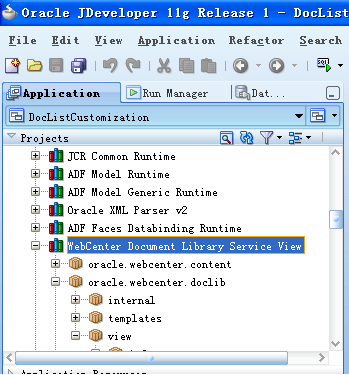
(3) In the Application Navigator, expand the ViewController project to view the “WebCenter Document Library Services View” library.

Example of showing libraries

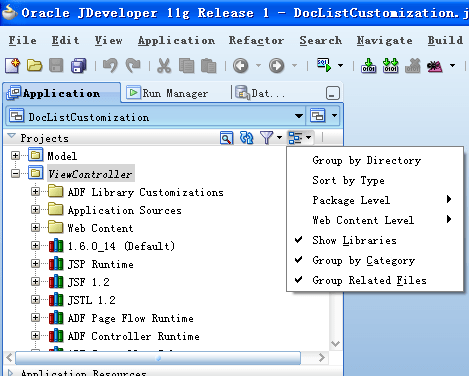
If you cannot find the library, right click the ViewController project, select “Navigation Display Options” on the right of the Projects bar, and then tick “Show Libraries”:

Example of showing libraries added

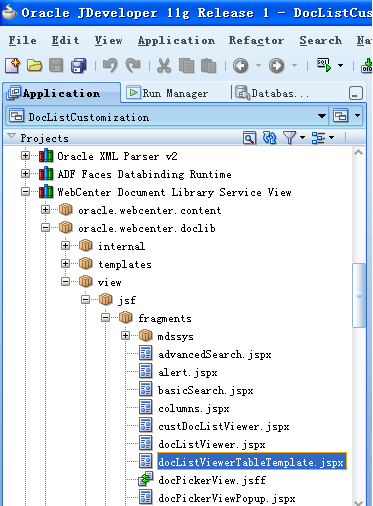
(4) In the WebCenter Document Library Services View library, open the docListViewerTableTemplate.jspx file under oracle.webcenter.doclib.view.jsf.fragments.

Example of how to customize

(5) Adding a new additional column after ITEM_NAME_COLUMN_HEADER to display its HTML Rendition

Example of how to customize pages

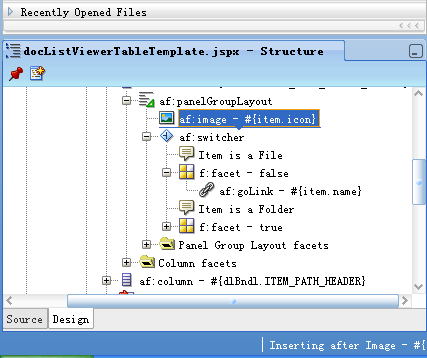
In the Structure Panel, right-click the column with title #{dlBndl.ITEM_NAME_COLUMN-HEADER} and choose copy and paste, then a new ADF Column Component was created automatically.

In the Property Inspector for the new ADF Column component, change the headerText property to “HTML Rendition”.

In the Structure Panel, expand this new column and delete the af:image component

Example of adding a new column

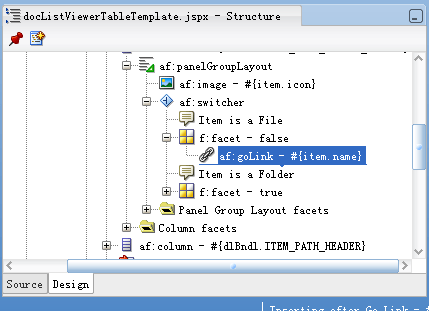
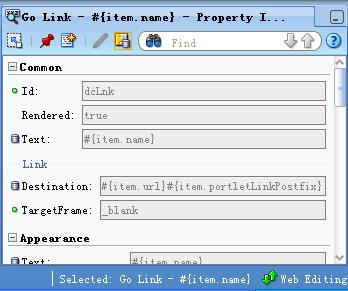
Right click af:goLink component inside af:switcher -> f:facet – false and choose Go to property:

Example of property window

Change the values of Text and Destination inside.

For example:

Text=” Get Conversion (HTML)”
Destination=”http://host:port/idcplg?IdcService=GET_DYNAMIC_CONVERSION&amp;dID=#{item.dID}&amp;coreContentOnly=1#{item.portletLinkPostfix}"

Example

(6) Save all your files.

(7) All the customizations happened on the same page will be written into the file docListViewerTableTemplate.jspx.xml under libraryCustomizations folder in your project physical path.

The above customization source will looks like below:

(8) Now you can test it simply. Create a new jspx page naming “docslist.jspx”, then drag and drop Document Library View from Resource Palette on the page in JDev.

<af:column xmlns:af="http://xmlns.oracle.com/adf/faces/rich" id="column1"
               sortable="true" sortProperty="name" customizationId="namCol"
               headerText="HTML Rendition">
      <af:panelGroupLayout xmlns:af="http://xmlns.oracle.com/adf/faces/rich"
                           id="panelGroupLayout1">
        <af:switcher xmlns:af="http://xmlns.oracle.com/adf/faces/rich"
                     facetName="#{item.folder}" id="switcher1">
          <f:facet xmlns:f="http://java.sun.com/jsf/core" name="false">
            <af:goLink xmlns:af="http://xmlns.oracle.com/adf/faces/rich"
                       id="goLink1" text="Get Conversion (HTML)"
                       destination="#{myUploadBean.ecmUrl}/idcplg?IdcService=GET_DYNAMIC_CONVERSION&amp;dID=#{item.dID}&amp;coreContentOnly=1#{item.portletLinkPostfix}"
                       shortDesc="#{item.urlToolTip}" targetFrame="_blank"/>
          </f:facet>
          <f:facet xmlns:f="http://java.sun.com/jsf/core" name="true"/>
        </af:switcher>
      </af:panelGroupLayout>
    </af:column>

(9) Then right click the page in the Application Navigation and choose Run. You will find the document list table having one more column named HTML Rendition on the page.
Example of testing

(10) Then you can follow the similar way described above to add a new check in form in this task flow.

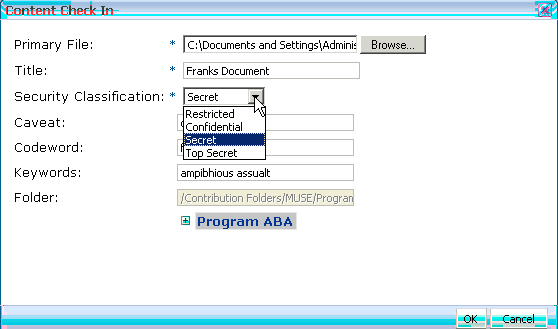
See from the above diagram of the customized task flow, there is also a new button “Upload” to pop up the dialog to display a new check-in form for the end user, which looks like below:

Example of uploading

Each drop down list values in the new check-in form are from Oracle UCM each metadata preconfigured values. So I used Content Repository Data Control to query data from UCM.

But after you define the data control and drag and drop methods of it on this page, it would report an error of no page definition created for this page and it is not allowed to generate it automatically in WebCenter RC1 release.

So how to solve this problem?

There are two ways:

1) One is to create page definition and add it into DataControls.cpx file manually, which need to repack the WebCenter Document Library Service View lib after that.

And each time when this task flow is customized like this, you will have to replace the original library with the updated one in the server container.

But it is very complex and you have to be very careful to work it out.

2) The other is to share the page definition of the page where uses this customized task flow. In other words, to use the definitions of the parent page.

Comparing the first solution, it is much easier.

For example,

Drag and drop the getItems.Return from the content repository data control on your own page docslist.jspx, which generates a tree on the page and the data bindings in its pageDef automatically.

Go to check the pageDef of your own page, it looks like the below:

<?xml version = '1.0' encoding = 'UTF-8'?>
<pageDefinition xmlns="http://xmlns.oracle.com/adfm/uimodel" version="11.1.1.53.92" id="docslistPageDef" Package="view.pageDefs">
   <parameters/>
   <executables>
      <taskFlow id="doclibdocumentlistviewer1" taskFlowId="/oracle/webcenter/doclib/view/jsf/taskflows/docListViewer.xml#doclib-document-list-viewer" xmlns="http://xmlns.oracle.com/adf/controller/binding">
         <parameters>
            <parameter id="taskFlowInstId" value="${''}" xmlns="http://xmlns.oracle.com/adfm/uimodel"/>
            <parameter id="showFolders" value="${true}" xmlns="http://xmlns.oracle.com/adfm/uimodel"/>
            <parameter id="connectionName" value="${'ecm'}" xmlns="http://xmlns.oracle.com/adfm/uimodel"/>
            <parameter id="startFolderPath" value="${'/Contribution Folders/MUSE'}" xmlns="http://xmlns.oracle.com/adfm/uimodel"/>
            <parameter id="creator" value="${''}" xmlns="http://xmlns.oracle.com/adfm/uimodel"/>
            <parameter id="lastModifier" value="${''}" xmlns="http://xmlns.oracle.com/adfm/uimodel"/>
            <parameter id="createdBefore" value="${''}" xmlns="http://xmlns.oracle.com/adfm/uimodel"/>
            <parameter id="createdAfter" value="${''}" xmlns="http://xmlns.oracle.com/adfm/uimodel"/>
            <parameter id="lastModifiedBefore" value="${''}" xmlns="http://xmlns.oracle.com/adfm/uimodel"/>
            <parameter id="lastModifiedAfter" value="${''}" xmlns="http://xmlns.oracle.com/adfm/uimodel"/>
         </parameters>
      </taskFlow>
      <variableIterator id="variables"/>
      <methodIterator Binds="getItems.result" DataControl="ContentDataControl" RangeSize="25" BeanClass="view.ContentDataControl.getItems_return" id="getItemsIterator"/>
   </executables>
   <bindings>
      <methodAction id="getItems" RequiresUpdateModel="true" Action="invokeMethod" MethodName="getItems" IsViewObjectMethod="false" DataControl="ContentDataControl" InstanceName="ContentDataControl" ReturnName="ContentDataControl.methodResults.getItems_ContentDataControl_getItems_result">
         <NamedData NDName="path" NDValue="/Contribution Folders/MUSE" NDType="java.lang.String"/>
         <NamedData NDName="type" NDValue="nt:folder" NDType="java.lang.String"/>
      </methodAction>
      <tree IterBinding="getItemsIterator" id="Return">
         <nodeDefinition DefName="view.ContentDataControl.getItems_return" Name="Return0">
            <AttrNames>
               <Item Value="name"/>
            </AttrNames>
            <Accessors>
               <Item Value="Items"/>
            </Accessors>
         </nodeDefinition>
      </tree>
   </bindings>
</pageDefinition>

As the tree is generated and doesn’t need to display on your own page, go to the source of your own page, delete or comment the tree definition:

Now change to Customization Developer role in JDeveloper to customize the task flow and restart JDeveloper.

After that, open up docListViewerTableTemplate.jspx file, drag and drop an ADF tree component from the component palette on this page under the popup component.

Then set the value of this tree as #{bindings.Return.treeModel} when the tree properties window pops up.

OK. The customizations are done and located under the ADF Library Customizations (libraryCustomizations folder) of the current project in JDeveloper.

Back to Default role in JDeveloper, run and test your own page.

Note: don’t forget to wrap the task flow in an ADF form (af:form) component with useUpload set as true, as it will upload a file in this task flow first before it is checked in.

Posted in Uncategorized | Tagged , , | 1 Comment

JDeveloper 11.1.1.2 Integrated Server will not start

A quick post as I find that the JDeveloper integrated server will not start with JDeveloper 11.1.1.2 in some cases, looks like when the user’s home directory has a space in the path.

You can work around this issue by adding a line to the JDeveloper configuration file at <JDEV_HOME>\jdev\bin\jdev.conf as follows:

AddVMOption  -Dide.user.dir=c:/jdev/jdevhome

You need to set the path name at the end to something without a space in it.

Note that this will “forget” about your old “mywork” directory, so you may want to copy your applications to the new location.

Posted in Uncategorized | Tagged , | Leave a comment

Human Workflow in 11g

Update:  If you are interested in Human Workflow, you may also find this post interesting.  It’s not about workflow per se, but it does show how to use a simple workflow in a BPMN process on 11g.

I am often asked about the Human Workflow included in the Fusion Middleware 11g platform – what is provided out of the box?  How are human tasks developed or designed?  How flexible is the user interface?  How are tasks queued/assigned to people/groups?  These are some of the most common questions.  I will attempt to address these in several posts.

In this first post on Human Workflow, I will provide a simple example, that you should be able to follow in your own environment, that shows how a human task is defined and used in a process.  Following these steps should get you a human task up and running in your own environment in less than 15 minutes.  Subsequent posts will build on this one to explore additional features of the human workflow engine.

You will need SOA Suite 11g and JDeveloper 11g to follow this example.  I used version 11.1.1.2 of both, running on Windows 2003 Server R2 in this example.

We will start by creating a new Service Component Architecture (SCA) Composite in JDeveloper.  The Composite is used to group together all of the components that make up our application.  It is the unit on which we do version control, deployment and so on.

Select New from the File menu.  I called my composite “SimpleTask.”  Select the “SOA Application” Application Template.  Note:  If you don’t see the SOA Application template, it probably means you have not added the SOA tools into your newly installed JDeveloper.  If this is the case, select Check for Updates from the Help menu and find and install the SOA tools from Oracle.

When you have filled out these details, click on Next to go on to the Project Name page in the wizard.  I also called my project “SimpleTask.”  Then click on Next to configure the SOA settings.

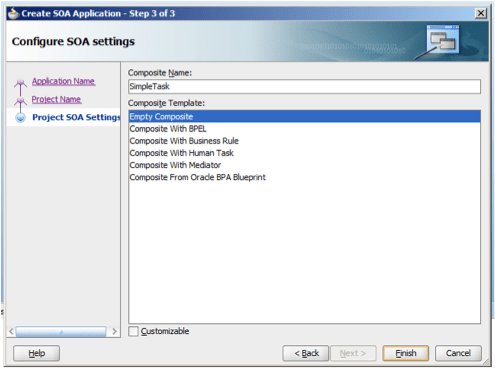
Choose the default (Empty Composite) and click on Finish.  We will add our components in the next steps.
You should now see your new Application (and SOA Project) opened in JDeveloper.  The composite will be opened in the assembly diagram in the centre.  On the right hand side, you can see a palette of the various components that can be used in a composite, and on the left hand side, you see the various files that make up the project.

We will start by defining a data structure that we will use later on in the human task and our process.  We are going to take the example of a simple Expense Claim.  Right click on the xsd folder and select New… from the popup menu.

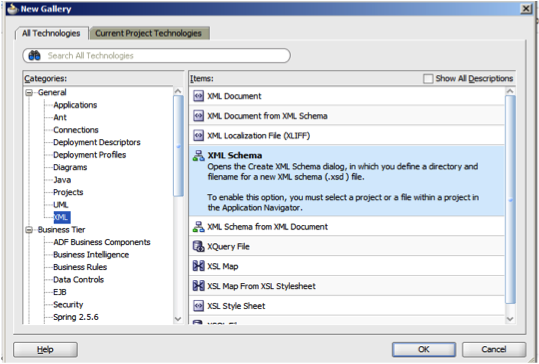
You may need to switch to the All Technologies tab.  Then locate the XML entry under General in the Categories tree on the left, and select XML Schema on the right.

I called my schema “ExpenseClaim.xsd.”  Click on OK to continue.

You can now use the visual tools to define the XML Schema, or you can switch to the source view, using the tabs at the bottom left of the main pane.  I won’t provide all the steps to define the XML Schema using the graphical editor here, as it is a bit off topic.  Rather, I will just give you the source that you can copy and paste into JDeveloper.  When you have copied it in, you can switch back to the design view, and it should look like this:

Here is the XML Schema source to copy and paste:

<?xml version="1.0" encoding="windows-1252" ?>
<xsd:schema xmlns:xsd="http://www.w3.org/2001/XMLSchema"
  xmlns="http://www.example.org"
  targetNamespace="http://www.example.org"
  elementFormDefault="qualified">
  <xsd:element name="expenseClaim">
    <xsd:annotation>
      <xsd:documentation>
        A sample element
      </xsd:documentation>
    </xsd:annotation>
    <xsd:complexType>
      <xsd:sequence>
        <xsd:element name="employeeNumber" type="xsd:string"/>
        <xsd:element name="expenseDescription" type="xsd:string"/>
        <xsd:element name="expenseLineItems">
          <xsd:complexType>
            <xsd:sequence>
              <xsd:element name="expenseDate" type="xsd:date"/>
              <xsd:element name="expenseAmount" type="xsd:decimal"/>
              <xsd:element name="expenseReason" type="xsd:string"/>
            </xsd:sequence>
          </xsd:complexType>
        </xsd:element>
      </xsd:sequence>
    </xsd:complexType>
  </xsd:element>
</xsd:schema>

Now that we have defined our data item, we are ready to go on and define our human task.  In this example, the human task will obtain an approval (or rejection) for a given expense claim, represented by this data item we have just defined.

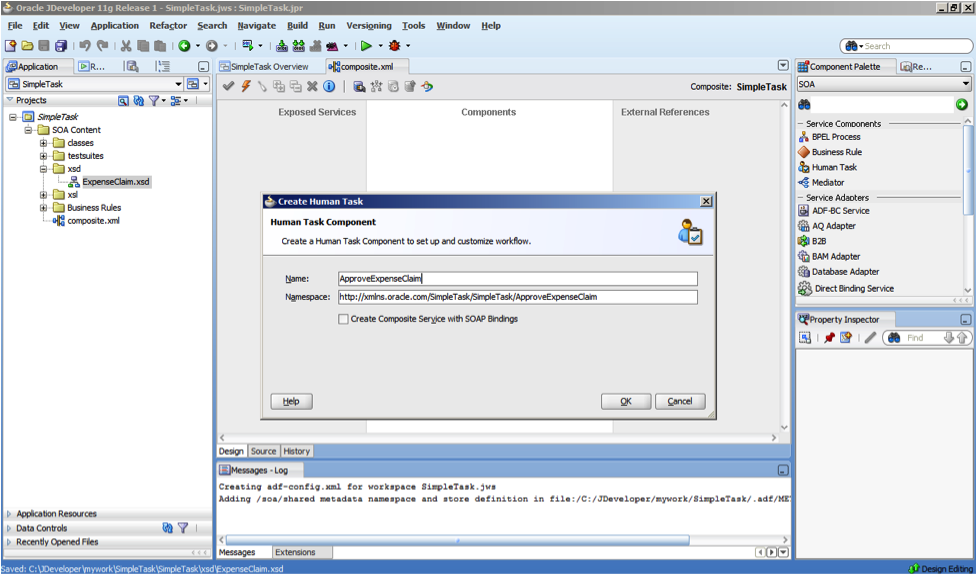
To create the human task, we return to the composite assembly diagram, and drag a Human Task from the palette on the right, and drop it on to our composite.  A dialog box will open to collect more information:

I called my human task “ApproveExpenseClaim.”  Note that there is an option to create SOAP bindings.  Doing so would enable this task to be accessible from outside of the composite that it belongs to.  We do not want to do this right now.  Just click on OK to finish.  You should now see the new human task on the assembly diagram, as shown below.  Human tasks are shown in green.

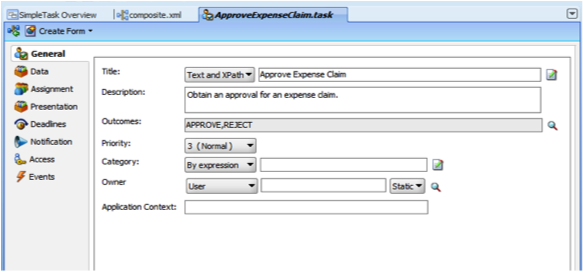
Double click on the human task to open up the human task editor, where we can provide more details about the task, as shown below.  The first page (“General“) lets us specify a title and description for the task.  I have left all of the other fields at their default values.  Note that the Outcomes field is used to set the list of allowed outcomes for this task.  These can be completely arbitrary and as many or as few as you like.  I have kept the defaults, “Approve” and “Reject.”

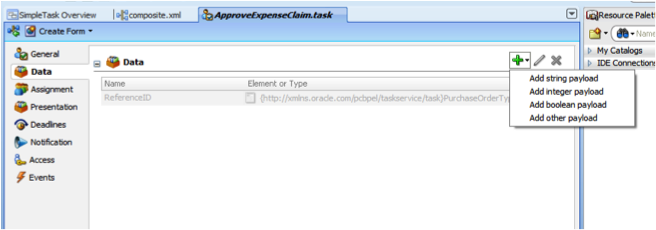
On the Data page we can add information to the “payload” of the task.  These are the data that the task will present to the user/approver to assist them in completing any necessary manual work, choosing the correct outcome and also there is an option to allow the user to make changes to these data.  We are going to add just one data item, which we will define using our expense claim type.  Click on the little green plus sign to add a data item to the payload, and choose Add other payload.

The dialog box allows us to choose the type for this data item.  Leave the selection on Element and click on the little magnifying glass to the right of the Element field.  Note that we are not selecting the Editable via worklist checkbox at this time.  If we were to select that checkbox, it means that users would be able to update this data item when they are processing this task.
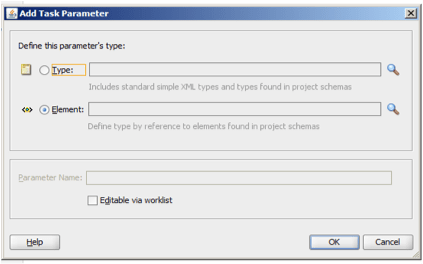
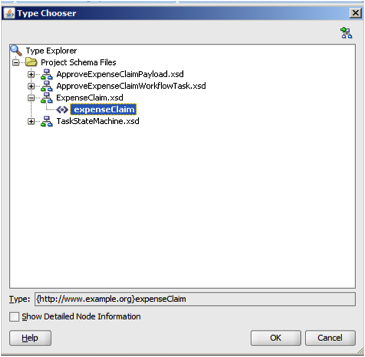
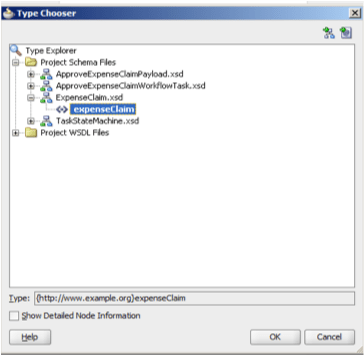
A popup box allows us to select the type for the data item.  We want to look in our Project Schema Files, in the file we created earlier, ExpenseClaim.xsd, at the type called expenseClaim.  Select it and click on OK.

The next page, “Assignment“, allows us to set the routing information for this task.  The simplest case, which we are going to use now, is to send it to a single person for processing.  There are many other options available that we will explore in subsequent posts.  For now, click on the <Edit Participant> box to highlight it, and then click on the Edit button.

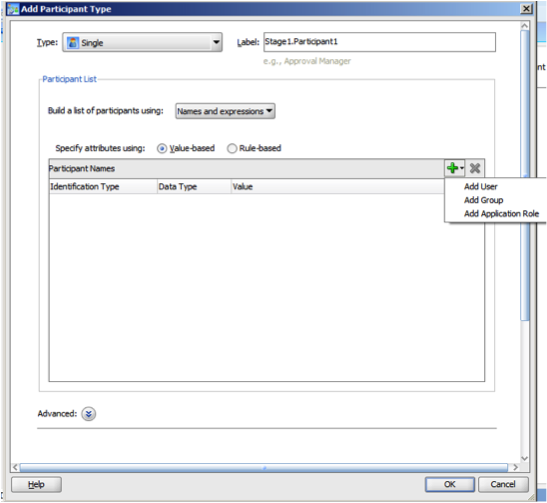
The popup allows us to set the user or group to route the task to.  Again there are various options available, and we are going to select the simplest in this example. Click on the green plus and select Add User to add a user for the task to be routed to.

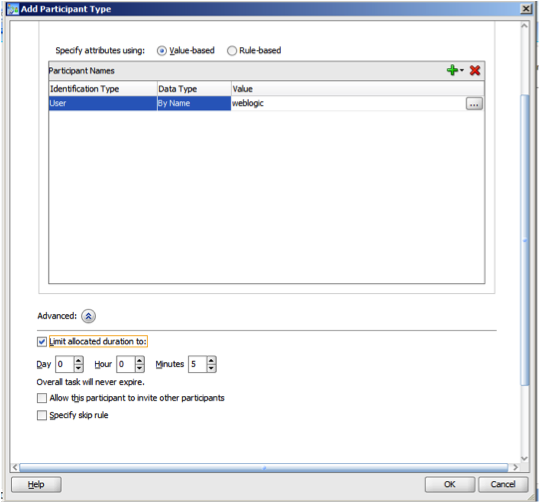
You may not have a lot of users defined in your test environment, but the user weblogic will always be present, so let’s use that one.  Enter weblogic in the value field as shown.
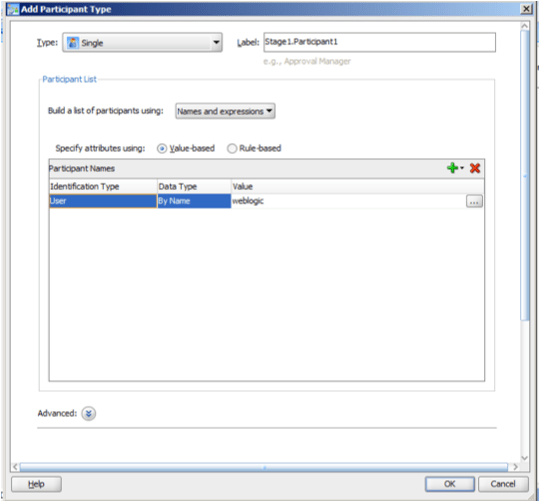
Once more, you may notice there are various other options, including the ability to provide an expression to work out the user/group dynamically at runtime.  Scroll down in this window and we will set an expiry time for the user.  Open up the Advanced settings as shown.  Tick the checkbox for Limit allocated duration to: and set a time period.  I chose 5 minutes for this example.  This is long enough to give us time to look around, and not too long that we will get tired of waiting for it to expire.

This setting means that the user weblogic will get 5 minutes to process this task.  If they do not process it in this time, it would move on to the next person in the list (if there were one).  Click on OK to continue.

That is enough human task definition for now.  We have set up a fairly ordinary or basic human task.  In later posts, we will explore the more advanced options that are available in human tasks.

Now, let’s create a process that uses this human task.

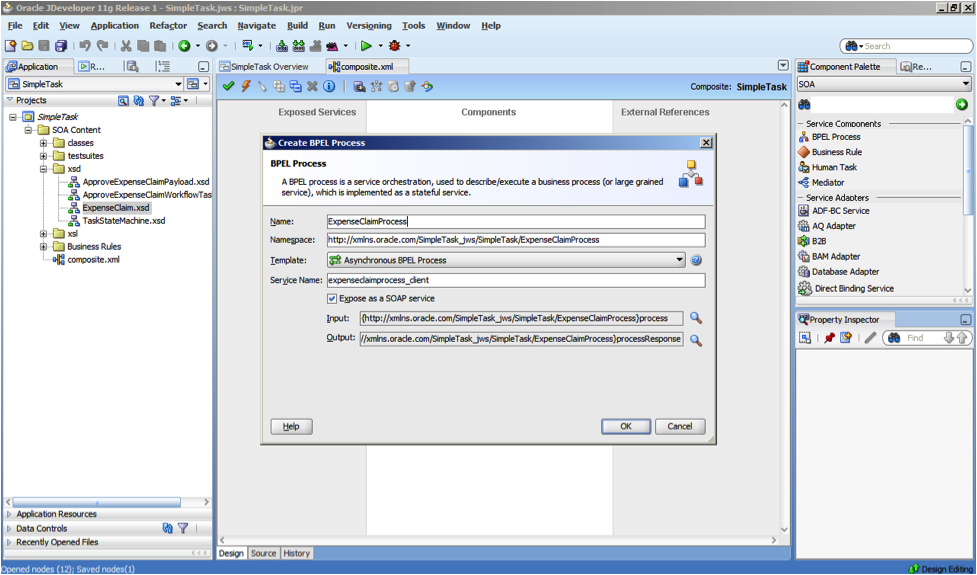
Return to the composite assembly diagram and drag a BPEL Process from the palette on to the composite.  When you drop it, a dialog box will appear where we call fill in some more details.  I called my BPEL Process “ExpenseClaimProcess.”  Don’t press OK just yet!

We want to set the input for this process to be an expense claim, using the data type we defined earlier.  To do this, we click on the little magnifying glass to the right of the Input field in the dialog box.  This will open a Type Chooser, just like the one we saw earlier when we were adding a data item to our human task.  Choose the expenseClaim type again, as shown, then press OK in the Type Chooser, and then OK again in the Create BPEL Process dialog box.
Now you will see your BPEL Process along with the Human Task on the composite assembly diagram.  BPEL Processes are shown in blue.  You may also note that the BPEL Process is connected to an interface in the Exposed Services part of the diagram.  This is because we accepted the default selection of the Expose as a SOAP Service setting in the Create BPEL Process dialog box just a moment ago.  This creates a web service interface that allows the process to be accessed from outside the composite.  We will use this interface later on to test the composite.  For now, let’s double click on the BPEL Process to open it up and provide some details.

When the BPEL Process opens in the editor, you will see the graphical representation of the process in the main pane, as shown below.  You may notice that the palette changes to show items that make sense in a BPEL Process.  There is also a Thumbnail view that makes it easier to navigate around large processes.

Because we set the input of the process to our expenseClaim type, the process will already collect an expense claim for us when it is started.  We will see this later on.  So the next step in our very simple process is going to be to use the human task to get an approval for this expense claim.  To do this, we drag a Human Task from the palette and drop it into our process right between the receiveInput and the callbackClient.  When you drag the Human Task from the palette, a little drop target will appear in between these two activities.

When you drop the Human Task in to the process, a dialog box will appear, as shown below, where you can select which task to use.  Select the ApproveExpenseClaim task that we defined earlier.

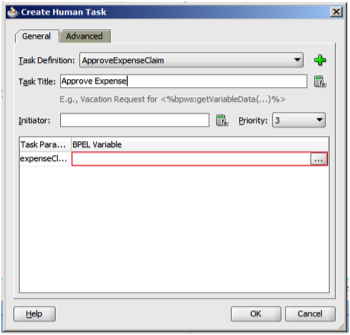
Some additional fields will appear now (based on the task that you selected).  Provide a Task Title as shown below.  We also need to tell it where to get the task’s payload variables from.  Click on the button beside the expenseClaim parameter (highlighted in the red rectangle).

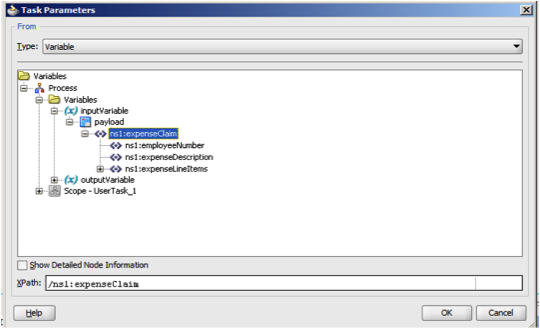
In the popup box, we select where the data will come from.  We want to get the expense claim that was passed into the process as its input.  This is in the variable called inputVariable, as shown in the diagram below.  This variable was automatically created for us by the wizard when we created the BPEL Process.  Highlight the variable as shown and press OK.

The Create Human Task dialog should now look like this:
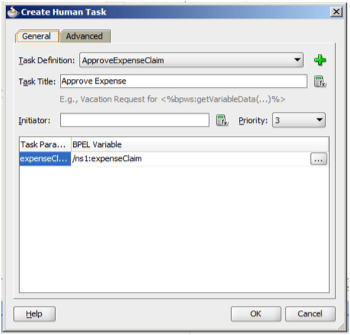
Press OK to return to the process.  You may notice that the final activity in the process has a little yellow exclamation point marker on it, indicating a warning.  In this case, we are returning a variable that has not been initialised yet.  We can fix this by setting a value in the output variable.  Let’s use the outcome of the task.  This will be “APPROVED” or “REJECTED” depending on how the task is processed by the user.  To assign this value to the output variable, we use an Assign activity.  Drag an Assign from the palette and drop it in the process right before the callbackClient activity as shown.

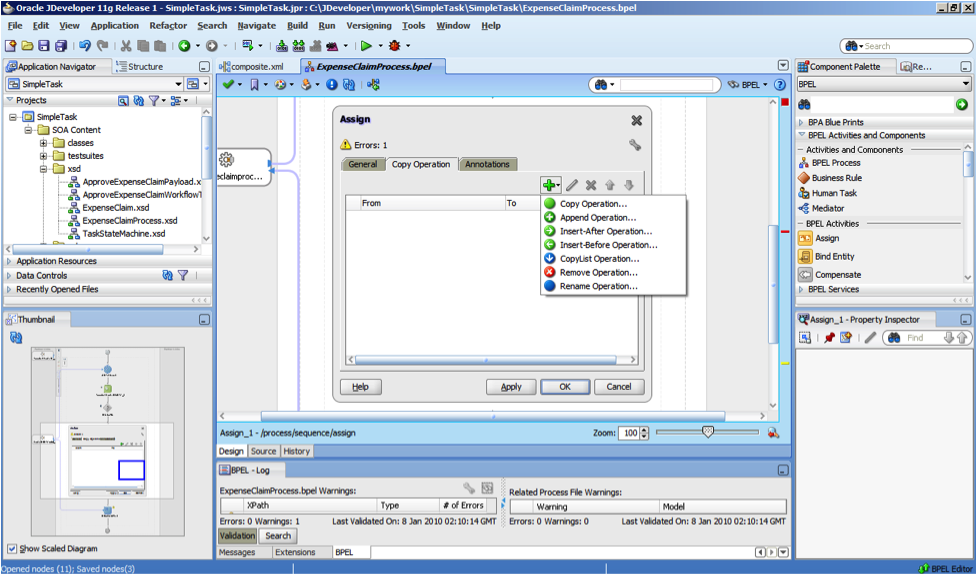
Double click on the Assign to open its settings, which appear as in the diagram below.  Click on the green plus to add a new Copy Operation.

A Copy Operation is used to copy data from one variable to another.  In the popup box, you can select the data to be copied.  On the left hand side (the source) navigate to the task:outcome.  The full path is shown in the diagram below.  On the right hand side, navigate to the result in the outputVariable.  Check your paths against the diagram, then press OK to close the Create Copy Operation dialog, and then OK again to return to the process.

Now our process will have no more errors or warnings.  If you wish, you can click on the build icon to check.  This is the small icon in the task bar (right under the menu bar) which has two little green arrows pointing down.

The Human Workflow Engine provides a fairly comprehensive out-of-the-box web user interface, which we will see later.  This interface includes the option of having a custom details page for each task.  On this page you can display anything you wish to.  Typically, you would want to display information about the task, perhaps the path it has already followed to get to the current approver, the data included in the task, maybe some documentation or instructions, and so on.

For this example, we will go ahead and generate the default details page, and deploy it as is.  This will let us see what we get “out-of-the-box,” with no additional effort.  In later posts, we will look at how to build on this to include additional functionality, e.g. multiple screens/pages, or including a scanned document.  For now, right click on the human task icon in the process (as shown below) and select Auto-Generate Task Form… from the popup menu.

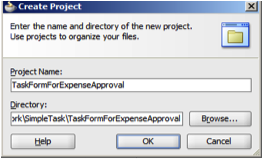
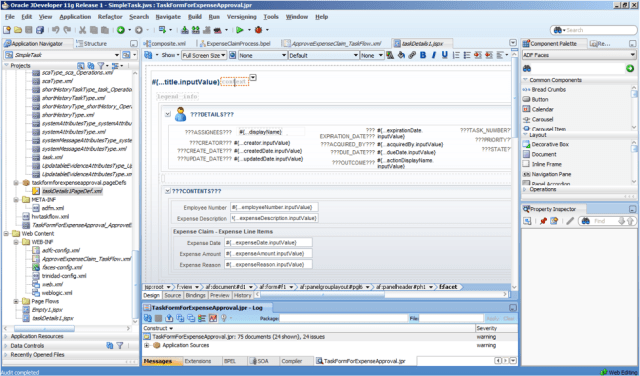
The task forms are kept in a separate project, as they have different dependencies and deployment requirements.  You need to provide a name for this project.  I called mine “TaskFormForExpenseApproval.”

When you click on OK, several actions will be taken, including creating the new project, and all of the necessary files.  This can take a few minutes on some machines, so you need to wait until it is done.  When it is finished, you will see a screen like this:
Now is an excellent time to select Save All from the File menu, to make sure all of your work so far is saved!

Once that is taken care of, we are ready to deploy our work to our server and test it.  We need to do two deployment actions – one for the task form we just created, and one for the composite.  In a real production environment, these may be to different servers.  In my case I have a single server set up on the same machine as JDeveloper.  I have already set up the connections in JDeveloper to be able to deploy to the servers.  You should do this now if you have not already done it.

To deploy the task form, you need to click on the Application pulldown menu.  This is done by clicking on the little icon to the right of the project name as shown in the diagram.  You can also use the Application menu in the menu bar.  Either way, you then select Deploy and then TaskFormForExpenseApproval…
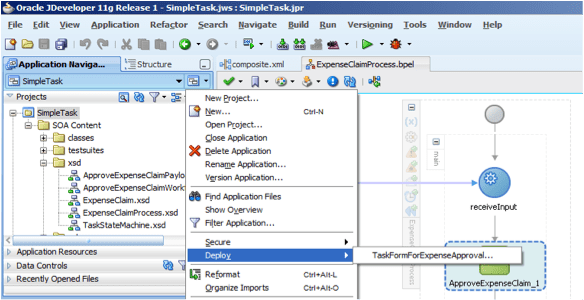
The deployment wizard will open.  Select Deploy to Application Server and then click on Next.

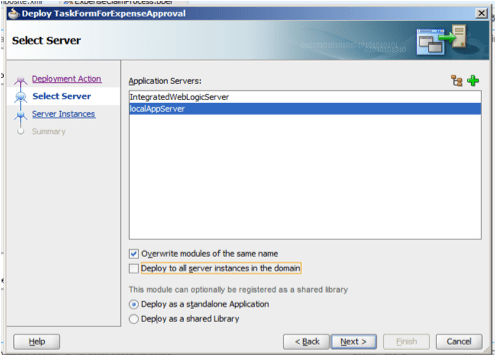
Select your application server connection from the list.  Make sure you deselect the option to Deploy to all server instances in the domain.  Not all of the server instances in a domain will necessarily have the same configuration, libraries, etc. so we want to choose just the one server instance that we want to deploy to.  Click on Next.
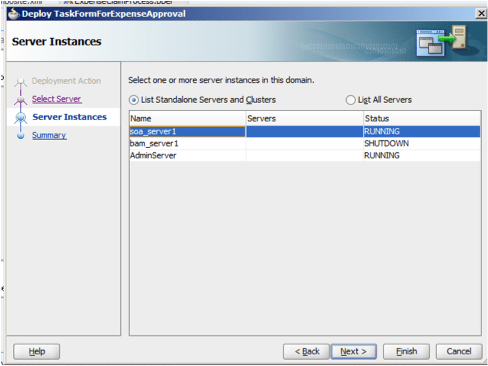
JDeveloper will connect to the server and retrieve a list of server instances.  You want to select your SOA Server instance.  In a default install, it will most likely be called soa_server1.  Then click on Next.
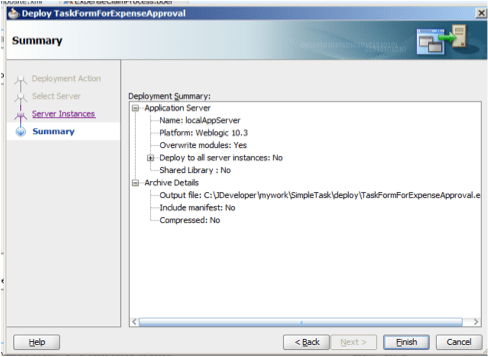
A summary page will display, like the one below.  Click on Finish to start the deployment.
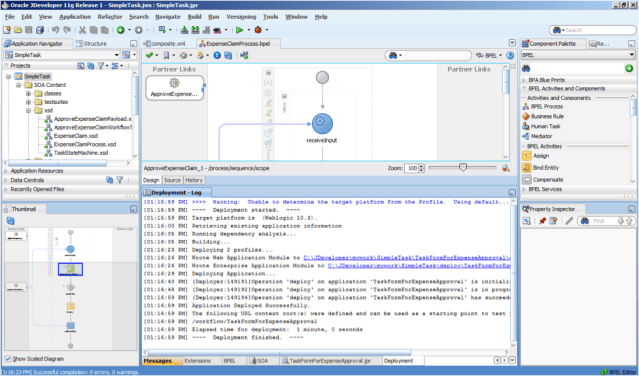
You can watch the deployment progress in the Deployment Log, as shown below.
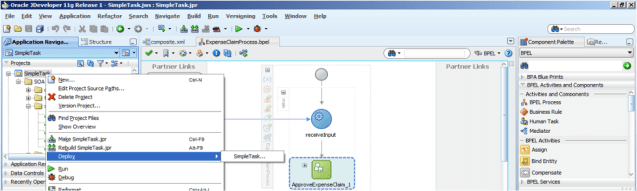
Next, we will deploy the composite.  This is done by right clicking on the composite project (SimpleTask) and selecting Deploy then SimpleTask… from the popup menu.
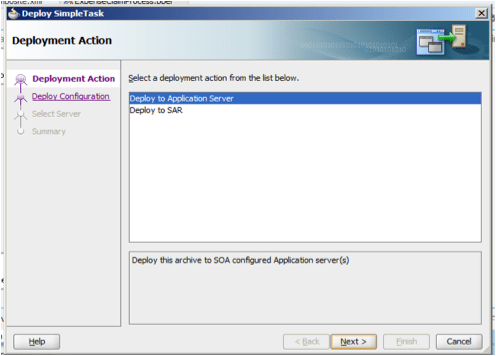
A similar deployment wizard will start.  Again, we select Deploy to Application Server and then Next.
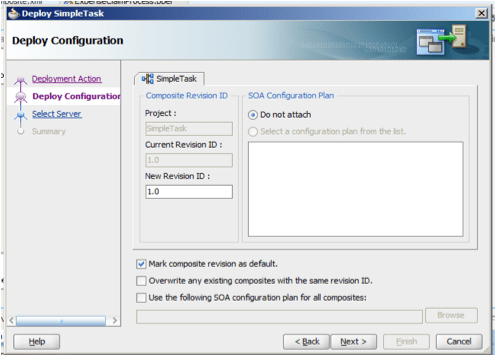
As this is our first deployment of this composite, we can take the defaults on the next page.  If you need to deploy it again, you will need to provide a new revision ID, or check the box next to Overwrite any existing composites with the same revision ID.  Click on Next.
Select your application server connection and click on Next.
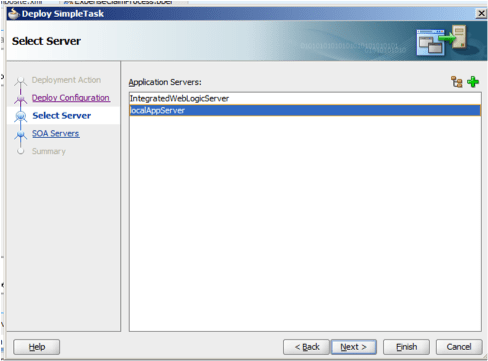
Select you soa_server1 instance and click on Next.

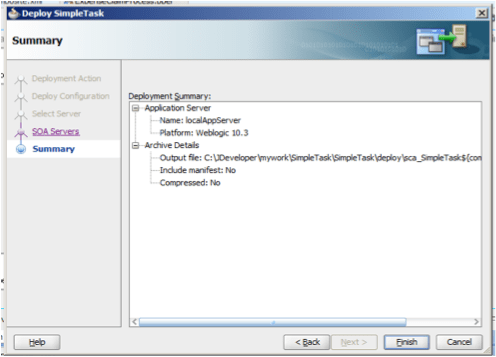
Review the summary page and click on Finish to start the deployment.
You may be prompted to log on to the server, if this is your first deployment in this JDeveloper session.  If so, provide the appropriate details and click on OK to continue.

Again, you can review the progress and results in the Deployment Log window as shown below.
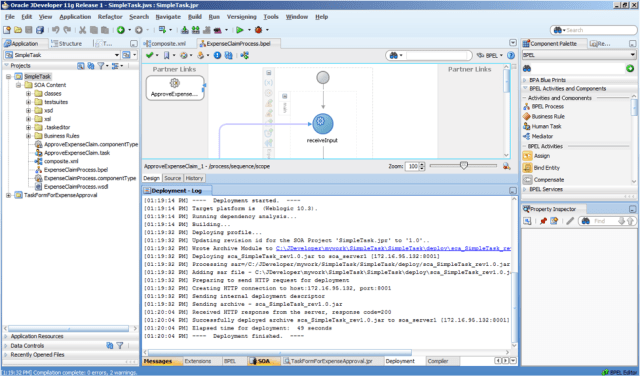
Now that we have completed the deployment, we are ready to test our composite and the human task!

We can start an instance of the composite using the test facility in Oracle Enterprise Manager.  This is accessible on the server using the address http://server:7001/em.  You will need to change server to the name of your server.  You will see a page as shown below.  You need to use Internet Explorer 7+ or Firefox 3+ to access Enterprise Manager.  Chrome and Safari seem to work quite well too.  Log on to Enterprise Manager as shown below.

In the menu on the left hand side, navigate to SOA and then soa-infra.  You will see a screen like the one below.  Notice on the right hand side, in the Deployed Composites area, you will see SimpleTask.  Click on the name SimpleTask to view more details of this composite.

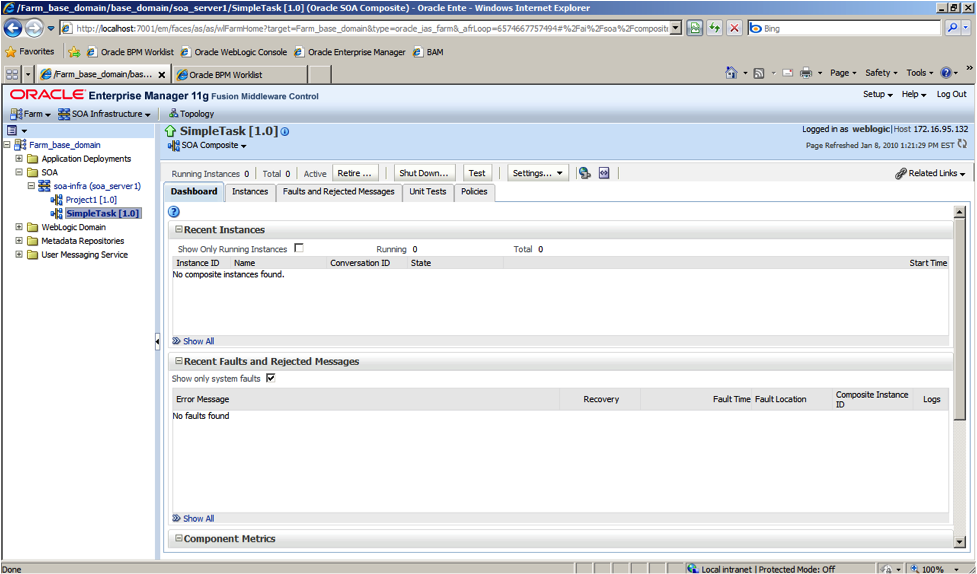
You will see a screen like the one below.  Click on the Test button near the centre at the top of the main area, just under the blue header.  This will allow us to start a test instance of the composite.
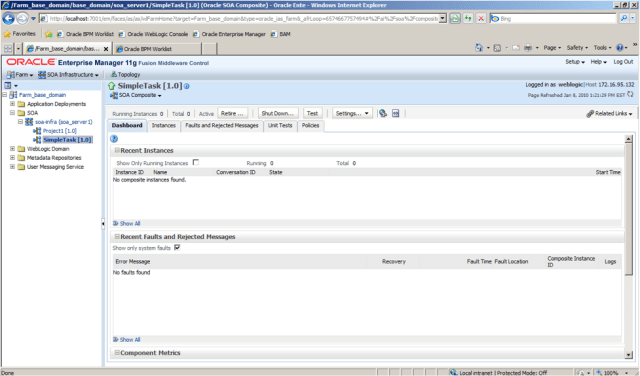
The test form is generated for us automatically from the input data structure, so we can just fill out the form.  Notice that there are a lot of options for security, quality of service, etc.  We don’t need any of these right now, so just scroll down until you find the input data.
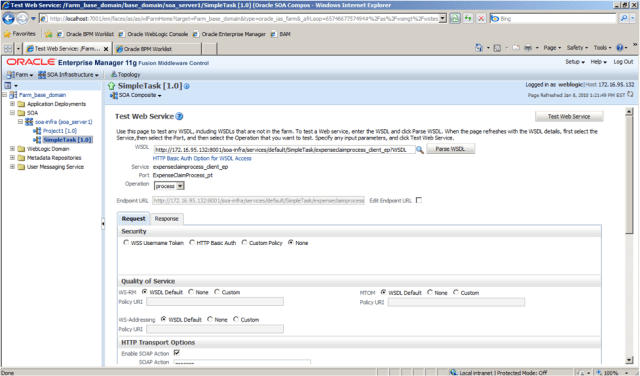
Fill out the input data as shown below, then click on the Test Web Service button to start a test instance of the composite.  The button is in the lower right corner, you may need to scroll down further to see it.

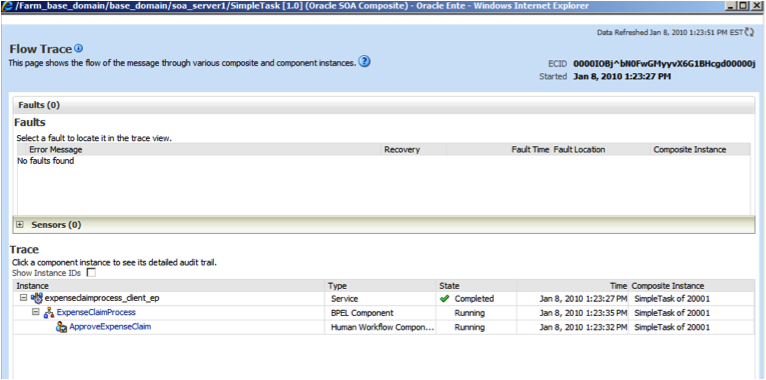
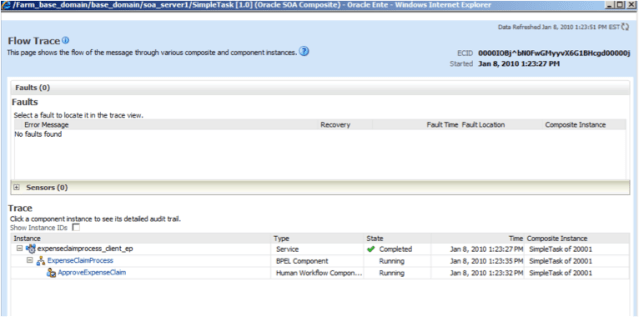
When the instance has started (should be practically immediately) you will see a screen like this.  Click on the Launch Message Flow Trace link so that we can see some information about the instance of the composite.

This screen is telling us that in this particular instance of the composite, it was started using the expenseclaimprocess_client_ep interface, that is the SOAP interface we saw in the assembly diagram earlier, ir is running the BPEL Process called ExpenseClaimProcess, and that process has started a Human Task called ApproveExpenseClaim.  Let’s click on the ExpenseClaimProcess to see details of the BPEL Process.  Click on the link.
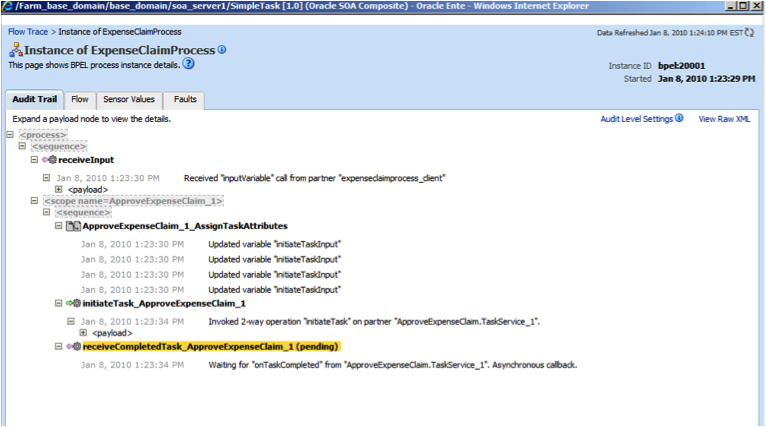
Here we see the Audit Trail view of the BPEL Process instance.  You can see from this view that the instance is waiting for a reply from the Human Workflow engine to let it know that the human task was completed.  Click on the tab labeled Flow to see a graphical view of the process instance.
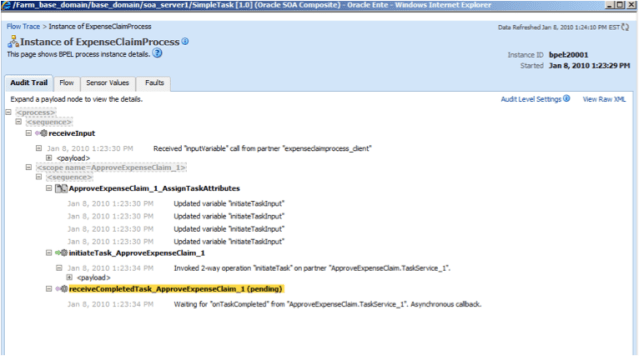
The graphical view provides the same information.  You can click on the activities to see detailed information about each one.

Now, let’s use the out-of-the-box human workflow web user interface to view and process this task!  This is the moment of truth!

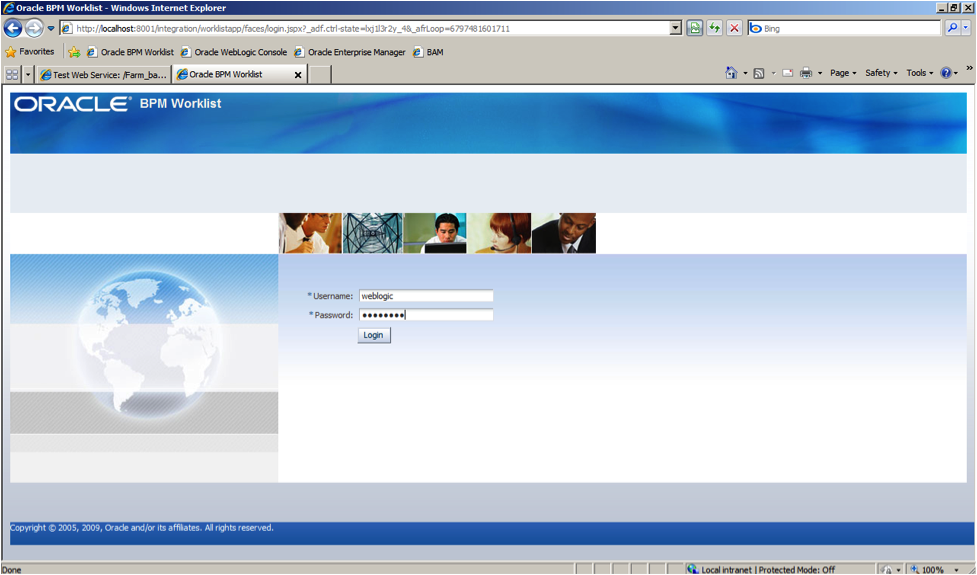
The “Worklist” application is available at http://server:8001/integration/worklistapp.  Again, change server to the name of your server.  Log in as user weblogic (remember that we assigned the task to user weblogic earlier.
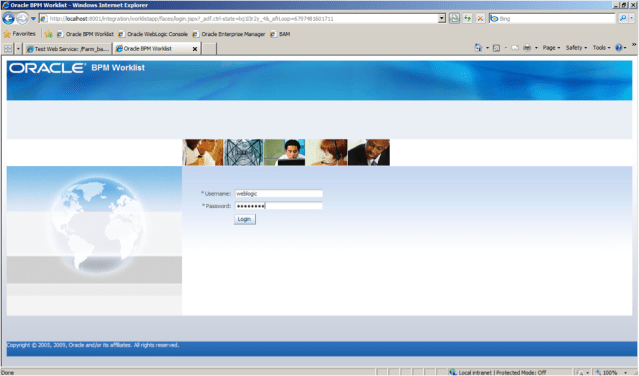
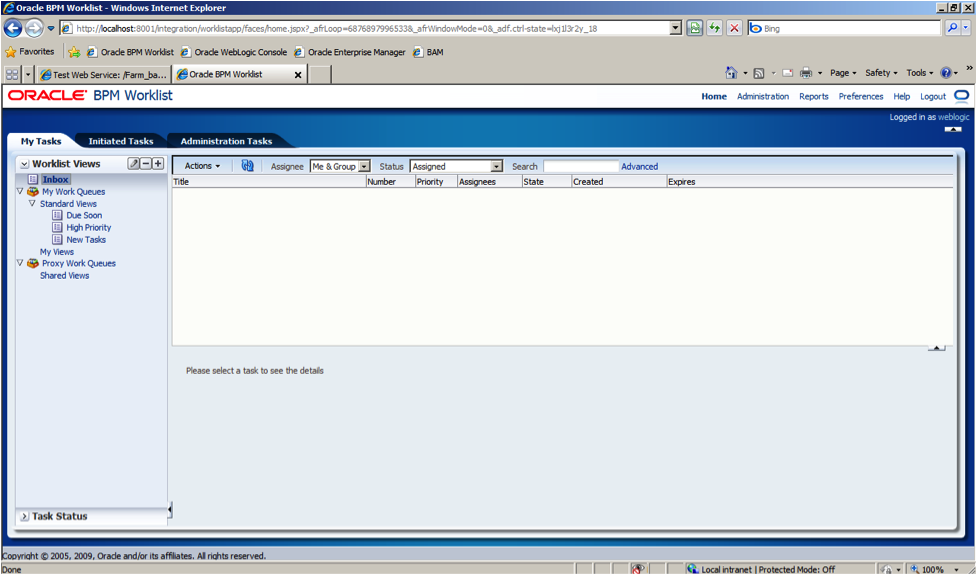
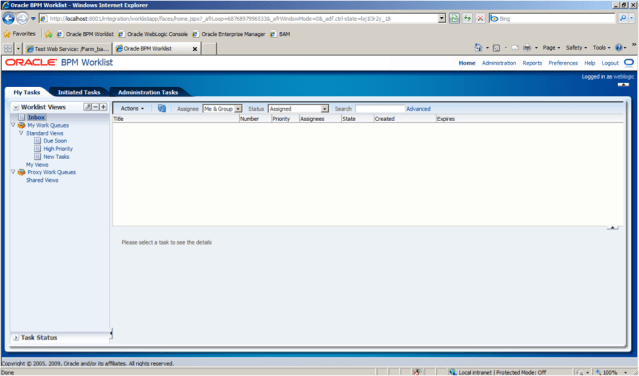
Here we see the standard worklist application interface.  You will notice that our Approve Expense task is listed in the inbox for the user weblogic.  Click on the line to view more details.  Note that the first time we do this for a particular type of task, the system needs to compile some JSP files, so there will be a short delay.  The second and subsequent times we view details for a task of this type, there will be no such delay.

The task details appear in the lower half of the screen, as shown below.  You may want to adjust the divider so you can see more of the details page at once.  You can also scroll to view more information.

This task details page that we are viewing now in the lower right hand pane is the task form that we generated earlier and then deployed.  What you see here is what you get with no additional effort.  If we wanted to customise the look and feel of this details page, or add extra information, then we would need to do a little more work.  We will see examples of this in future posts.  There is also a lot more out-of-the-box functionality in this application that we will look at in later posts.  Feel free to explore yourself now, but remember that you only have five minutes before your task will expire!

When you have seen enough, click on the Approve button to approve this task.  The screen will refresh and you will see that your worklist is now empty.  If you want to explore further, try using the pulldown filters at the top of the worklist to view completed tasks too.
When you are ready, return to the Enterprise Manager window, which we left on the graphical representation of the process instance.  We would expect that now we have processed the human task, the BPEL process should have moved on to completion.  Click on the Audit Trail tab again to refresh the window.
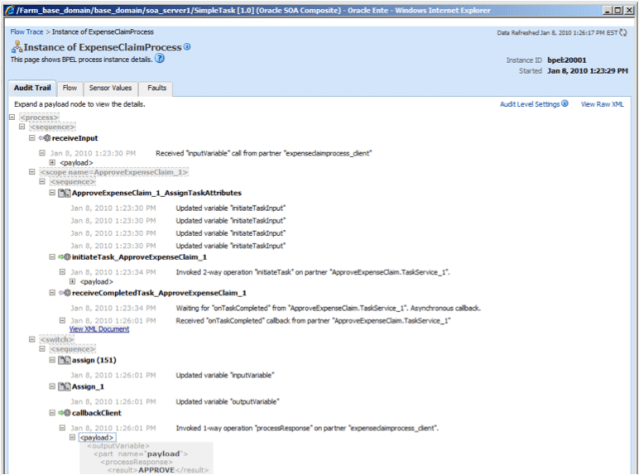
If you scroll down, you will see here that the human task was completed, and the final “callbackClient” activity was executed and the process instance completed.  You can open up the payload of the callbackClient as shown in the diagram above and you will see the outcome of the task in the outputVariable.

This completes our introduction to the basic features of the human workflow engine, and how to design tasks and use them in processes.  There are many more features that have not been touched on at all in this post.  You will have seen indications of many of them if you were watching carefully and reading the other fields as you worked through this example.  We will explore more of these features in additional posts.  If there are any that you are particularly interested in, feel free to comment on this post and let us know!

Posted in Uncategorized | Tagged , , , | 18 Comments

Using JMS in .Net Applications

I was asked recently what we could do about allowing .Net applications to participate in pub/sub environments alongside Java applications.  It turns out that WebLogic Server, since 10.3, has a built-in .Net JMS client, which allows us to easily write JMS programs in C#.  This client supports most of the JMS 1.1 standard (the exceptions being to do with temporary queues and topics) and several of the WebLogic extensions too.  It supports pub/sub and persistent and non-persistent messaging.  Even durable subscriptions!
You can find some documentation on the client at http://download.oracle.com/docs/cd/E15523_01/web.1111/e13746/develop.htm

In this post, I will show you how easy it is to build a simple JMS client in C#.  In the images I am using Visual C# 2008 Express Edition, which is freely available from Microsoft’s web site for anyone who would like to try this out, but does not have access to a full install of Visual Studio.  Everything will work with the Express Edition.

Preparation

First of all, you will need a WebLogic Server (10.3 or later) with JMS set up.  At the very least you need a Connection Factory and a Queue.  If you don’t know how to set it up, take a look at this earlier post.

You will also need the WebLogic JMS .NET client, which is installed in the following directory on the WebLogic Server platform:

MW_HOME/modules/com.bea.weblogic.jms.dotnetclient_x.x.x.x

There is a WebLogic.Messaging.dll in that directory.  Take a copy of that file, you will need it later.  There is also a pdb if you want to be able to debug!
Note that the library will be there regardless of the server platform.  In this post, I am using a WebLogic Server running on Oracle Enterprise Linux.  The server does not need to be running on Windows.

Creating the Client

Now we are ready to create our C# JMS client.  In Visual Studio, create a New Project.  I chose Console Application, you may want to be more creative!

I called my project JMS.  An empty project will be displayed, as shown below.

Now we need to add a reference to our WebLogic.Messaging.dll.  This is done by right clicking on the References in the Solution Explorer and selecting Add Reference…

In the dialog box, switch to the Browse tab, and locate the dll you copied earlier.  Click on OK to add it to your project.

Now you are ready to add the code to your Class.  You can copy my code from below.  The comments explain what is going on.

using System;
using System.Collections.Generic;
using System.Linq;
using System.Text;
using WebLogic.Messaging;
namespace JMS
{
class Program
{
private static string host = "ec2-67-202-24-135.compute-1.amazonaws.com";
private static int port = 8001;
private static string cfName = "weblogic.jms.ConnectionFactory";
private static string queueName = "jms/marksQueue";
private static string username = "weblogic";
private static string password = "welcome1";
static void Main(string[] args)
{
// create properties dictionary
IDictionary<string, Object> paramMap = new Dictionary<string, Object>();
// add necessary properties
paramMap[Constants.Context.PROVIDER_URL] =
"t3://" + host + ":" + port;
paramMap[Constants.Context.SECURITY_PRINCIPAL] = username;
paramMap[Constants.Context.SECURITY_CREDENTIALS] = password;
// get the initial context
IContext context = ContextFactory.CreateContext(paramMap);
// lookup the connection factory
IConnectionFactory cf = context.LookupConnectionFactory(cfName);
// lookup the queue
IQueue queue = (IQueue)context.LookupDestination(queueName);
// create a connection
IConnection connection = cf.CreateConnection();
// start the connection
connection.Start();
// create a session
ISession session = connection.CreateSession(
Constants.SessionMode.AUTO_ACKNOWLEDGE);
// create a message producer
IMessageProducer producer = session.CreateProducer(queue);
producer.DeliveryMode = Constants.DeliveryMode.PERSISTENT;
// create a text message
ITextMessage textMessage = session.CreateTextMessage("Hello from .Net!!");
// send the message
producer.Send(textMessage);
// CLEAN UP
connection.Close();
context.CloseAll();
}
}
}

You can now Build (F6) and Run(F5) your code.  If all went well, it should have put a message on the queue containing the text “Hello from .Net!!” which we should be able to see from the WebLogic console.

In the WebLogic console (again, see this earlier post if you are not sure how to get there) navigate to your queue.

Click on the name of the queue to view details, and then open the Monitoring tab.

You should see that you have a message in the queue.  Click on the check box beside the queue and the click on the Show Messages button.  You will now see a list of messages in the queue.

Click on the message ID to view more details of the message, including the content (payload).

There it is!  So you see that it can be very easy to create a C# JMS client.  The documentation that I mentioned at the beginning of this post contains a lot more information and some sample code.  There is also API level documentation there to help you explore further.  Good luck!


Posted in Uncategorized | Tagged , , , | 1 Comment

A simple JMS client for WebLogic 11g

UPDATE: An update to this simple client is posted here.

Quite often I find that I want to be able to send some JMS messages programmatically, so I decided to write a simple, reusable Java class to help with this need.  In this example, I am using WebLogic Server 11g as my JMS server.

Preparation

First, I will set up a JMS Queue on my WebLogic Server.  This is done through the WebLogic Server console, which is normally accessible at http://your.server.name:7001/console, using an adminstrative user like weblogic.

After you log in, navigate to Services -> Messaging -> JMS Modules in the menu on the left hand side of the console.

You will see one or more modules listed.  Your list will almost certainly be different to mine.  If you are not sure which one to use, take a look at the settings.  The most important thing to note is the port that is used to connect to the server that your JMS module is deployed on.  You will need that later.  You can find that by clicking on the name of the JMS Module, then going to the Targets tab.  Then go to Environment -> Servers in the main menu and read the port number of the server you saw selected as the Target for the JMS Module.  In my case, it is 9001.

Click on the name of the JMS Module  to display the resources.  You will most likely see a mixture of Queues and Topics and one or more Connection Factories.  Note that you will need to have a QueueConnectionFactory for this example to work.  You should have one there already, take a note of its JNDI name.  In my example it is jms/QueueConnectionFactory.

Now we will create the Queue.  Click on the New button to start.

Select Queue as the type of resource we want to create.  Click on Next.

Enter the Name and JNDI Name for the new queue.  I have followed the convention of using the same name for each, but with “jms/” prepended to the JNDI Name.  Click on Next.

Select your Subdeployment from the drop down list and the JMS Server in the Targets section.  Note that you need to choose the same one as before.  Then click on Finish to create the Queue.  You should now see your new Queue listed in the resources page, as shown below.

JMSSender Class

Here is the Java Class that provides the simple JMS client.  There are two libraries (jar files) that are needed to compile and run this class.  These are located in your WebLogic Server directory:

  • <WebLogic_Directory>\server\lib\wlclient.jar
  • <WebLogic_Directory>\server\lib\wljmsclient.jar

Update: In newer versions of WebLogic Server, there is a new lightweight library called wlthint3client.jar (in the same location) that you can use instead of these libraries.

In JDeveloper, right click on the project and select Project Properties… from the popup menu.  Navigate to the Libraries and Classpath page.  Click on the Add Jar/Directory… button and navigate to the libraries mentioned above to add them to your project.

Then create a new Java Class and add the code below.  Take note of the two comments near the beginning of the file with “NOTE:” in them.  You will need to change five lines of code here to make this code work.

package bamrunner;
import java.util.Hashtable;
import javax.naming.*;
import javax.jms.*;

public class JMSSender {
   private static InitialContext ctx = null;
   private static QueueConnectionFactory qcf = null;
   private static QueueConnection qc = null;
   private static QueueSession qsess = null;
   private static Queue q = null;
   private static QueueSender qsndr = null;
   private static TextMessage message = null;
   // NOTE: The next two lines set the name of the Queue Connection Factory
   //       and the Queue that we want to use.
   private static final String QCF_NAME = "jms/QueueConnectionFactory";
   private static final String QUEUE_NAME = "jms/OPOQueue";
   public JMSSender() {
       super();
   }
   public static void sendMessage(String messageText) {
       // create InitialContext
       Hashtable properties = new Hashtable();
       properties.put(Context.INITIAL_CONTEXT_FACTORY,
                      "weblogic.jndi.WLInitialContextFactory");
       // NOTE: The port number of the server is provided in the next line,
       //       followed by the userid and password on the next two lines.
       properties.put(Context.PROVIDER_URL, "t3://localhost:9001");
       properties.put(Context.SECURITY_PRINCIPAL, "weblogic");
       properties.put(Context.SECURITY_CREDENTIALS, "welcome1");
       try {
           ctx = new InitialContext(properties);
       } catch (NamingException ne) {
           ne.printStackTrace(System.err);
           System.exit(0);
       }
       System.out.println("Got InitialContext " + ctx.toString());
       // create QueueConnectionFactory
       try {
           qcf = (QueueConnectionFactory)ctx.lookup(QCF_NAME);
       }
       catch (NamingException ne) {
           ne.printStackTrace(System.err);
           System.exit(0);
       }
       System.out.println("Got QueueConnectionFactory " + qcf.toString());
       // create QueueConnection
       try {
           qc = qcf.createQueueConnection();
       }
       catch (JMSException jmse) {
           jmse.printStackTrace(System.err);
           System.exit(0);
       }
       System.out.println("Got QueueConnection " + qc.toString());
       // create QueueSession
       try {
           qsess = qc.createQueueSession(false, 0);
       }
       catch (JMSException jmse) {
           jmse.printStackTrace(System.err);
           System.exit(0);
       }
       System.out.println("Got QueueSession " + qsess.toString());
       // lookup Queue
       try {
           q = (Queue) ctx.lookup(QUEUE_NAME);
       }
       catch (NamingException ne) {
           ne.printStackTrace(System.err);
           System.exit(0);
       }
       System.out.println("Got Queue " + q.toString());
       // create QueueSender
       try {
           qsndr = qsess.createSender(q);
       }
       catch (JMSException jmse) {
           jmse.printStackTrace(System.err);
           System.exit(0);
       }
       System.out.println("Got QueueSender " + qsndr.toString());
       // create TextMessage
       try {
           message = qsess.createTextMessage();
       }
       catch (JMSException jmse) {
           jmse.printStackTrace(System.err);
           System.exit(0);
       }
       System.out.println("Got TextMessage " + message.toString());
       // set message text in TextMessage
       try {
           message.setText(messageText);
       }
       catch (JMSException jmse) {
           jmse.printStackTrace(System.err);
           System.exit(0);
       }
       System.out.println("Set text in TextMessage " + message.toString());
       // send message
       try {
           qsndr.send(message);
       }
       catch (JMSException jmse) {
           jmse.printStackTrace(System.err);
           System.exit(0);
       }
       System.out.println("Sent message ");
       // clean up
       try {
           message = null;
           qsndr.close();
           qsndr = null;
           q = null;
           qsess.close();
           qsess = null;
           qc.close();
           qc = null;
           qcf = null;
           ctx = null;
       }
       catch (JMSException jmse) {
           jmse.printStackTrace(System.err);
       }
       System.out.println("Cleaned up and done.");
   }
   public static void main(String args[]) {
       sendMessage("test");
   }
}

How to use it

The code shown above has a main() method included, which will send a simple message containing the word “test.”  You can just right click on the Class and run it to execute the main() method.

After you do this, you will be able to see your message in the queue (assuming everything worked).  To do this, click on the name of your queue in the resources page (where we left the console earlier), then select the Monitoring tab.  You will see the details of messages in the queue.  Select the queue and click on the Show Messages button.

You will see a list of the messages.  You can click on the message ID to drill down to more details, including the data.

Here you see the JMS header information and the data in the message body (payload):

Posted in Uncategorized | Tagged , , | 11 Comments

Running JDeveloper 11g and Oracle database on Mac OS X

A quick note to my fellow Mac OS X users who want to use JDeveloper 11g to do development and testing on Mac OS X.

I found the newly released JDeveloper 11g (the one that came with the Fusion Middleware 11g release and added SOA and WebCenter development on top of Java EE, web services, ADF, etc.) had a strange issue when building.  It would place its temporary files in /var/folders/ye and use some strange characters in the temporary file names, like + for example.

The end result of all this is that you cant really build anything – somewhat limiting.

Anyway, it turns out it is a known issue, and only occurs with a certain version of Apple’s Java software, and that it is easy to fix!

You need only to add the following line to the end of your ?/Oracle/Middleware/jdeveloper/jdev/bin/jdev-Darwin.conf file:

AddVMOption    -Djava.io.tmpdir=/var/tmp

After this, everything works as expected.  If you have a Mac and you have not tried JDeveloper on it, I would encourage you to give it a go!  The first time you see WebLogic Server fire up on the Mac, and log in to its admin console – its kinda special.

Also, if you didn’t catch the very discreet announcement – the Oracle database is also available for Mac OS X now – on Intel 64-bit machines.  Enjoy!

http://www.oracle.com/technology/software/products/database/oracle10g/htdocs/10204macsoft_x86-64.html

Posted in Uncategorized | Tagged , , | 1 Comment