How to disable on-demand deployment of WebLogic console application

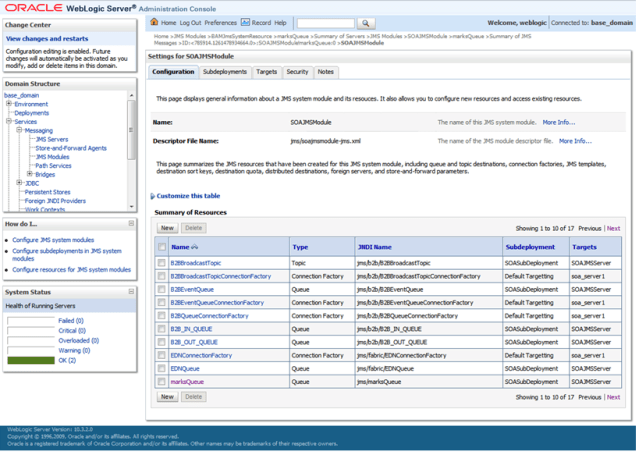
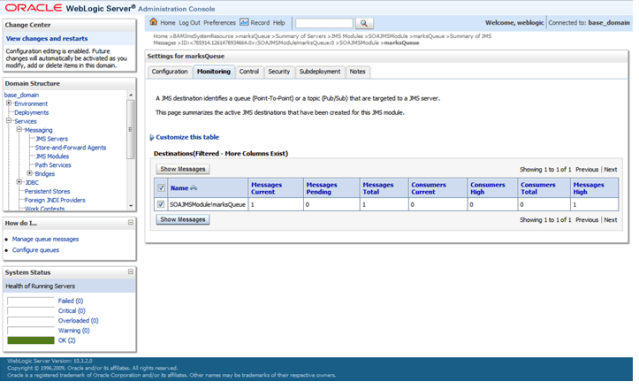
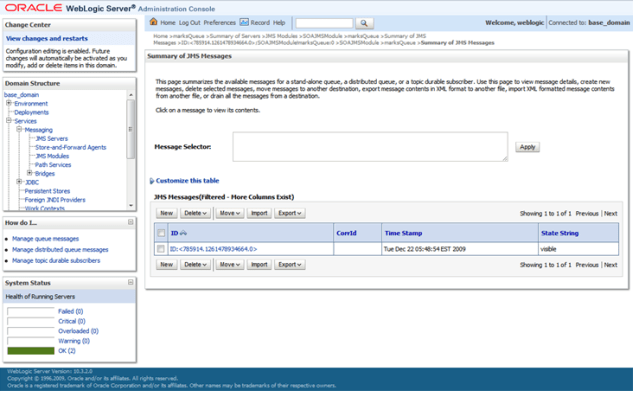
This is just a quick one… I often find that just after installing WebLogic Server, I want to disable the on-demand deployment of the console application.  No good reason why, I just don’t like it.  Maybe because I tend to use the console quite a bit, I don’t want to have to wait for it to deploy – yes, I know I have to wait longer for the server to start up, but it’s a perception thing…

Anyway, I can never remember how to do it, so here are the instructions:

  • Log on to the WebLogic console,
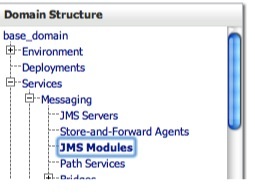
  • Click on your domain, e.g. base_domain,  in the left navigation bar in the WLS console,
  • Open the Configuration tab and then the General sub-tab,
  • Deselect the checkbox labeled Enable on-demand deployment of internal applications, and
  • Click on the Save button.

Voila !
Posted in Uncategorized | Tagged , , | 1 Comment

Configuring Spaces to authenticate with Active Directory

WebCenter Spaces 11g was released on July 1, 2009.  It is a collaboration platform, built on top of Oracle WebCenter 11g.

I recently went through the process of setting it up for a client, and integrating it with Microsoft technologies for user management and authentication, mail, presence and instant messaging.

The environment is running on Windows Server 2003, and looks like this:

spaces-ad

You can see from the diagram which components need to be configured to work with Active Directory.  The configuration for the Content Server is covered in this earlier post.  That leaves WebLogic Server and also the Wiki service, which has a separate configuration requirement.  I will cover the configuration of WebLogic Server in this post.

Preparing Active Directory

To prepare Active Directory for use with Spaces, you need to create a new group in Active Directory, named Spaces-User and add to this group any users who will be able to use Spaces.

Configuring WebLogic Server for Active Directory

By configuring Active Directory as an authentication provider in WebLogic Server, we allow users to sign on to Spaces and the Content Server and most WebCenter services (expect wiki).

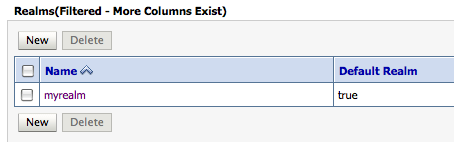
The configuration is quite simple, and is done in mostly in the WebLogic Server administration console, located at http://yourserver:7001/console, and you need to log on as an administrative user, like weblogic, and navigate to the Security Realms section of the console.

security_realms

Click on myrealm.

myrealm

Open the Providers tab.

providerstab

Click on the New button to create a new provider.  Name it ActiveDirectory and select ActiveDirectoryAuthenticator as the type.

newprovider

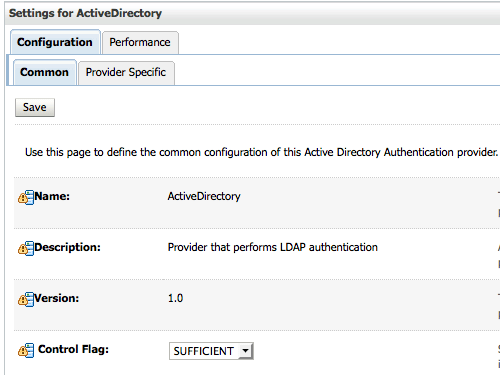
Click on your new provider.  You should see the settings page, similar to this:

providerinfo

Your Control Flag should have defaulted to OPTIONAL.  Don’t change it yet.  Click on the Provider Specific tab to see more settings.  On this tab, we need to provide the details to connect to the Active Directory server.

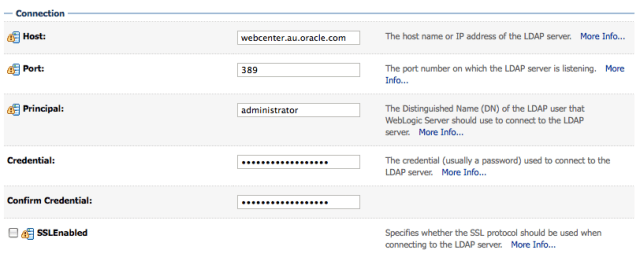
ps1

In the Connection section, we provide the hostname and port number for the Active Directory server, along with the CN and password for the administrative user.  In my case, this is the Administrator user on the Windows Server.  Note that you must provide the CN of this user, not the full DN, i.e. administrator as opposed to cn=administrator,cn=Users,dc=webcenter,dc=au,dc=oracle,dc=com.

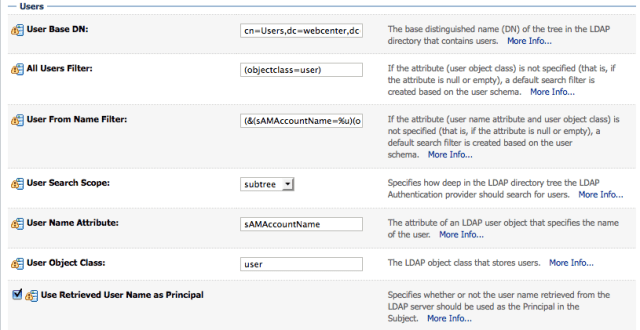
ps2

In the Users section, we provide information about how to find user accounts in Active Directory.  The User Base DN is the DN of the container where users are stored.  In my case, this is cn=Users,dc=webcenter,dc=au,dc=oracle,dc=com.

The All Users Filter can be left blank, or you can specify a query like (objectclass=user) as I have.

The User From Name Filter must be updated to reflect the correct attribute for user account names in Active Directory.  It should be set to: (&(sAMAccountName=%u)(objectclass=user)).

Leave the User Search Scope as subtree.

Set the User Name Attribute to sAMAccountName.  This is the attribute in the directory where the user account name is stored.

the User Object Class should be set to user.

And finally, make sure you check the User Retrieved User Name as Principal option.

ps3

In the Groups section, you just need to update the Group Base DN to reflect where you want to search for groups in Active Directory, in my case this is dc=webcenter,dc=au,dc=oracle,dc=com.

The remainder of the settings can be left as the defaults.

It is also necessary to make a change to one of the WebLogic Server configuration files, since we have changed the account name attribute.  Open the jps-config.xml file, located under your domain directory in the config\fmwconfig subdirectory.  On my system, the file is located at c:\Oracle\Middleware\user_projects\domains\base_domain\config\fmwconfig\jps-config.xml.

Find the serviceInstance entry for idstore.ldap.provider and add the two properties shown below in bold.

<serviceInstances>

 <!-- JPS WLS LDAP Identity Store Service Instance -->
 <serviceInstance name="idstore.ldap" provider="idstore.ldap.provider">
 <property name="idstore.config.provider" value="oracle.security.jps.wls.internal.idstore.WlsLdapIdStoreConfigProvider"/>
 <property name="username.attr" value="sAMAccountName"/>
 <property name="user.login.attr" value="sAMAccountName"/>
 </serviceInstance>

You can now save your settings, and restart the WebLogic Server (the AdminServer and any managed servers you have running).

After WebLogic Server has restarted, log back in to the administration console and return to the myrealm security realm.

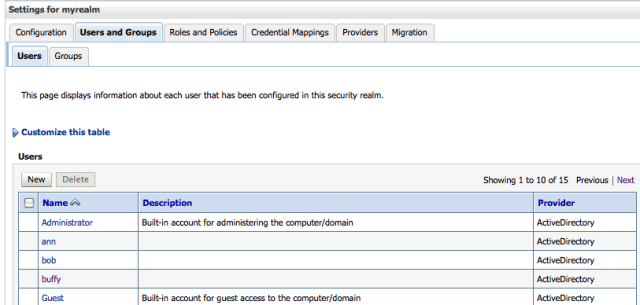
Click on the Users and Groups tab.  If you got all the settings correct, you should now see your Active Directory users listed in the Users table.  Note that the value in the Provider column indicates where the users come from.

users

If this has not worked, you got your configuration settings wrong.  Check the AdminServer log file, you will probably get a reasonably helpful error message in there to help you work out which setting needs to be updated.

The final step is to go back into your myrealm security realm again, and edit both your ActiveDirectory and DefaultAuthenticator providers to change their Control Flag to SUFFICIENT.  Then reorder the providers so that ActiveDirectory is the first in the list.

adfirst

Now restart your WebLogic Servers one more time, and you should then be able to log on to Spaces using an Active Directory username and password.  If you have also completed the configuration of UCM for Active Directory authentication, you should also get seamless single sign on to UCM whenever you access a “documents” portlet in Spaces.

Posted in Uncategorized | Tagged , , | 4 Comments

WebCenter Interaction的单点登录

To English readers: This is a translation of an earlier post, for Chinese audience.

发布于2009年4月1日

Brenda Yin 翻译于2009年6月24日
最近利用了一些时间搭建了一个WebCenter Interaction (WCI) 单点登录的环境。
下面是环境配置信息:
操作系统:Windows 2003 Server
安装的软件:
WebCenter Interaction 10.3
Oracle WebLogic Server 10.3:   运行WCI 的应用服务器
Oracle HTTP Server (Apache 1.3): 为WCI提供HTTP Proxy
Oracle Access Manager:   提供SSO功能
Oracle Internet Directory:  LDAP 认证服务器
Oracle 11g Database (11.1.0.7):WCI数据库
在搭建的过程中, 参考了官方文档,但是其中一部分文档还没有更新涉及到软件新版本上运行问题的解决办法。出现问题后, 只能在文档的基础上靠经验猜测和他人的帮助来解决。因此非常有必要记录那些问题的解决方法,以供其他人或者自己以后做参考。
在此,特别感谢以下给我提供帮助的人(按字母顺序):  Clarence Cheah, Rory Douglas, Iyad Kloub, Ali Mukadam, Luke McQueen, Igor Polyakov, Tamer Qumhieh, Mike Wertzberger 和 Tanya Williams.
下面列出了一些在文档里没有涉及的重要配置步骤。

Oracle 11g Database配置问题

在本次环境中,WebCenter Interaction 10.3 使用 Oracle Database 11g作为门户数据库, 同时安装了WebCenter Identity Integration for LDAP 服务去连接Oracle Internet Directory。之后该服务的定时工作(job)运行时报出一个SQL错误,然后门户访问也失败了,而且再也无法成功启动。查看日志后,发现以下的SQL查询语句执行失败:

SELECT
 MAX(CS.ACCESSLEVEL) AS ACCESSLEVEL,
 C.NAME,
 C.ISLOCALIZED,
 C.OBJECTID,
 MC2.MEMBERSHIPTYPE
FROM
 PTCOMMUNITIES C,
 PTCOMMSECURITY CS,
 PTVGROUPMEMBERSHIP GM,
 (SELECT
 MAX(MC.MEMBERSHIPTYPE) AS MEMBERSHIPTYPE,
 MC.COMMUNITYID
 FROM
 PTMYCOMMUNITIES MC,
 PTVGROUPMEMBERSHIP GM
 WHERE
 GM.GROUPID=MC.GROUPID
 AND GM.USERID=263
 GROUP BY
 MC.COMMUNITYID) MC2
 WHERE GM.GROUPID=CS.GROUPID
 AND GM.USERID=263
 AND C.OBJECTID=CS.OBJECTID
 AND C.OBJECTID=MC2.COMMUNITYID
GROUP BY
 C.NAME,
 C.ISLOCALIZED,
 C.OBJECTID,
 MC2.MEMBERSHIPTYPE
ORDER BY
 LOWER(C.NAME) ASC

出现了这样的错误:“not a GROUP BY expression.” 。仔细检查了该查询语句没有发现问题。同样该语句在Oracle 10g database上运行成功。经过深入的研究发现是因为启用了11g的查询优化器导致了错误,通过下面的数据库设置可以禁用它:
ALTER SYSTEM SET “_OPTIMIZER_GROUP_BY_PLACEMENT”=FALSE;
在此之前我已经在数据库打了11.1.0.7 的补丁。  所以没有在11.1.0.6版本上测试过这个方法,因此不能肯定是否能解决上述问题。

WebCenter Interaction 配置

为了确保WebCenter Interaction 能和HTTP proxy 很好的工作,需要对位于<BEA_HOME>\alui\settings\portal 目录下的一些配置文件进行修改:
在 configuration.xml中, 查找SystemProperties 组件,然后指定ServerName 和 HTTPPort为你的代理服务器。请参照下面的例子:

 <component name="portal:SystemProperties" type="http://www.plumtree.com/config/component/types/portal/systemproperties">
 <!-- lines removed for brevity -->
 <setting name="ServerName">
 <value xsi:type="xsd:string">proxy.server</value>
 </setting>
 <setting name="HTTPPort">
 <value xsi:type="xsd:integer">8080</value>
 </setting>
 <!-- lines removed for brevity -->
 </component>

然后,修改portalconfig.xml 文件(目录为<BEA_HOME>\alui\settings\portal)。首先查找URLMapping 组件配置,替换 ApplicationURL0和 SecureApplicationURL0 中URL中的门户服务器为代理服务器。请参照下面的例子:假设代理服务器为proxy.server:8080。

 <component name="portal:URLMapping" type="http://www.plumtree.com/config/component/types/portal/urlmapping">
 <!-- URLMapping - Entry 0 -->
 <setting name="URLFromRequest0">
 <value xsi:type="xsd:string">*</value>
 </setting>
 <setting name="ApplicationURL0">
 <value xsi:type="xsd:string">http://proxy.server:8080/portal/server.pt</value>
 </setting>
 <setting name="SecureApplicationURL0">
 <value xsi:type="xsd:string">http://proxy.server:8080/portal/server.pt</value>
 </setting>
 <clients>
 <client name="portal"/>
 </clients>
 </component>

另外一个更改发生在SSO设置部分。查找Authentication 组件,然后设置 SSOVendor 值为 3 (使用 Oracle Access Manager)和CookieDomain.  请参考下面的例子:

 <component name="portal:Authentication" type="http://www.plumtree.com/config/component/types/portal/authentication">
 <!-- lines removed for brevity -->
 <setting name="SSOVendor">
 <value xsi:type="xsd:integer">3</value>
 </setting>
 <setting name="CookieDomain">
 <value xsi:type="xsd:string">.server</value>
 </setting>
 <!-- lines removed for brevity -->
 </component>

Oracle Access Manager 配置

当你为HTTP proxy上WebGate建立Policy Domain的时候,你需要做如下设置:
•    在Resources 标签上, 增加了一个类型为http的Resource,其URL设置为/portal”.
•    在Default Rules标签上, 新建一个Default Rule,其Authentication post success action重定向到/portal/SSOServlet , 并且传递一个 名为UID的 HeaderVar ,它的值为cn。
•    确保你的策略中为类型 http选择了GET 和 POST.
总结
综上所述,这些都是保证它能正确配置和运行的关键点,是从文档中不能明确得到解决办法的,希望对大家有帮助。

Posted in Uncategorized | Tagged , , | Leave a comment

Configuring UCM to use Active Directory with Apache

Today, I wanted to configure Oracle Universal Content Management (UCM) 10gR3 to allow authentication via Active Directory.  I am running UCM through an Apache web server.  Everything is running on Windows Server 2003 R2.

Preparing Active Directory

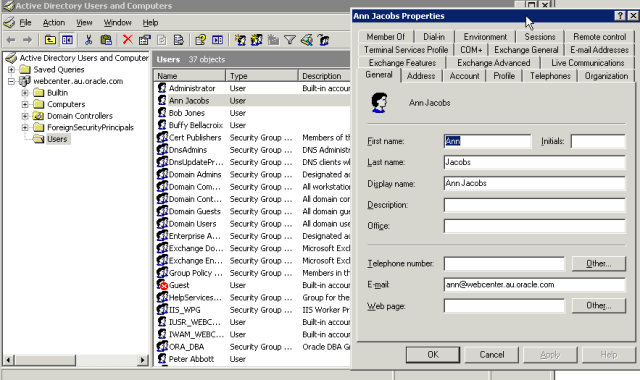
The first step is to set up some user accounts in Active Directory.  I created one called Ann Jacobs, with a username of ann.

ad-user

UCM uses group membership to assign roles.  We need to create a set of groups in Active Directory that match (exactly) the names of the roles in UCM.  By adding the Active Directory user to the group, the role of the same name is assigned when they log on to UCM.

The UCM LDAP provider uses a prefix to filter which groups it will consider when assigning roles.  There is not convenient way to create this structure in Active Directory using the standard management tools.  Fortunately, Microsoft provide a utility that allows us to easily modify the LDAP structure.  This utility is called ADSIEdit and is on the Windows 2003 Server install disk.

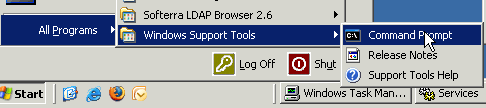
You can install it by running tools\suptools.msi.  You will get a new program group on the Start Menu called Windows Support Tools. Go into this group and run the Command Shell, then type adsiedit.msc to start ADSIEdit.

wst

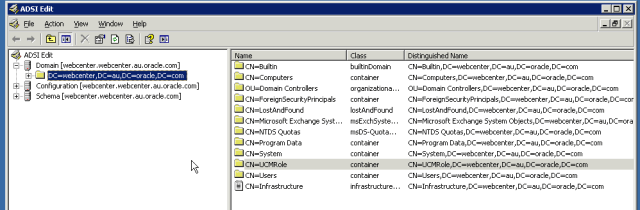
This is what the ADSIEdit utility looks like when it starts up:

adsi1

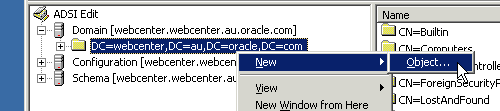
You can see that my LDAP Base Suffix for this Active Directory server is dc=webcenter,dc=au,dc=oracle,dc=com.  We are going to create a container called cn=UCMRole that we can store our groups in.  It is highlighted in the image above.  To create it, you right click on the root (highlighted in blue in the image above) and select New, Object…

adsi2

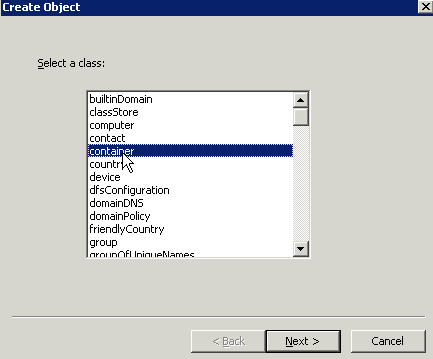
Select container as the type, then click on Next.

adsi3

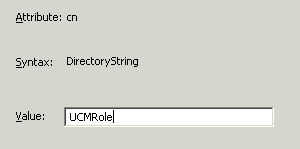
Enter UCMRole as the cn, and then click on Next and then Finish to create the object.

adsi4

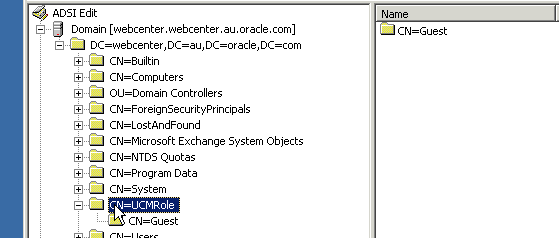
Now you will see your new cn=UCMRole object in the right hand pane, as shown in the earlier image.

Next, we create the groups to represent the roles in UCM.

Right click on your new container object and select New, Object… like you did earlier to create the container.  Follow through the same process as before, this time choose group as the object type, set the cn to Guest, the sAMAccountName to ucmGuest, and the group type to 4.  This will create a group that we can use to give users the “Guest” role in UCM.  Repeat this process to create groups for each role in UCM.

When you are done, you should see something like this in ADSIEdit:

adsi5

This completes the necessary set up of groups in Active Directory.  Now, we can add our user Ann Jacobs to our Guest group, so that she can log on to UCM.  Note that users who have no group mappings will be assigned no roles at all if they try to log on to UCM.

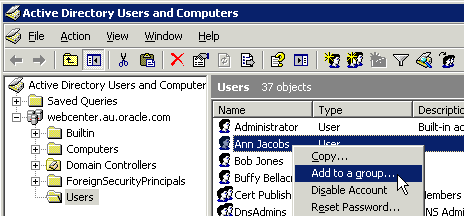
Back in the standard Active Directory Users and Computers management tool, navigate to Ann Jacobs and right click on her, and select Add to a group

add2group

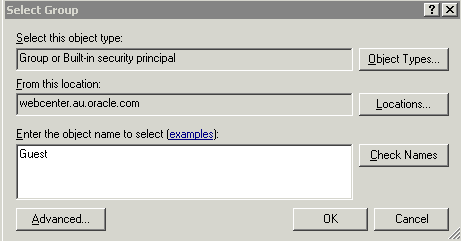
In the dialog box, type in Guest and click on the Check Names button.

checknames

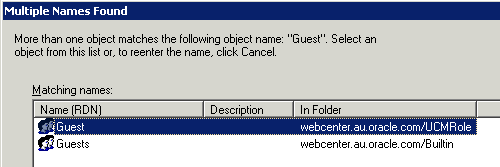
Note that this name is very similar to one of the “out of the box” groups in Active Directory.  make sure you select the correct one by checking the cn in the “In Folder” column.

whichgroup

Select the correct group and press OK, and the OK again.  Ann is now in our group Guest.

Configuring UCM

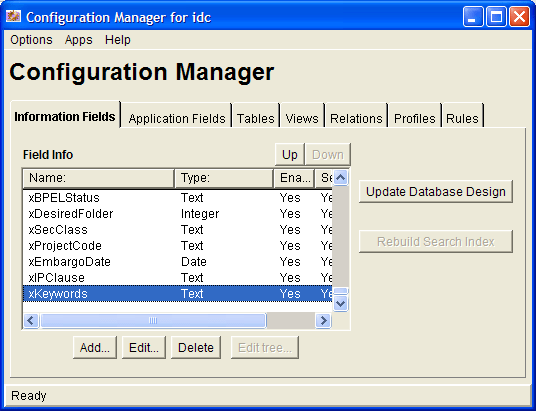
Next, we need to configure UCM to allow authentication against Active Directory.  This can be done two ways, by using the built-in Active Directory security capabilities (see the documentation) or by configuring Active Directory as an LDAP Provider, which is what we are going to do.  The first method requires that UCM is running through Microsoft Internet Information Services.  As I mentioned at the beginning, I am using Apache, so the second option is the one I can use.

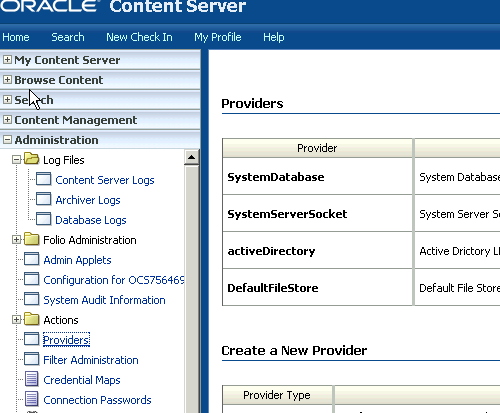
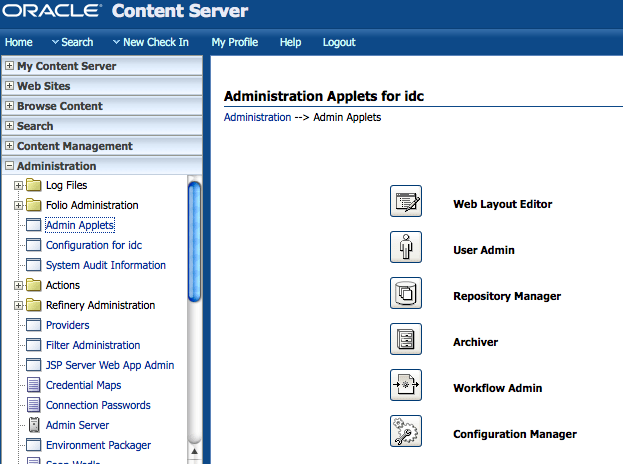
Log on to the UCM web interface as a system administrator, sysadmin by default.  Navigate to the Administration folder, and then into Providers.

providers

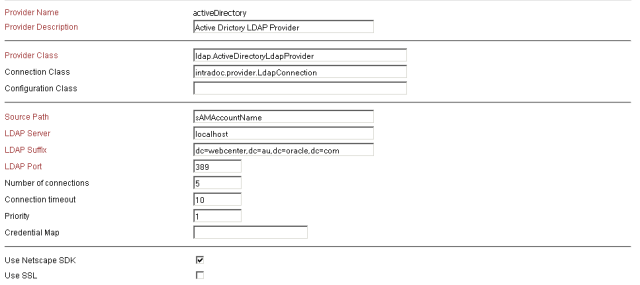
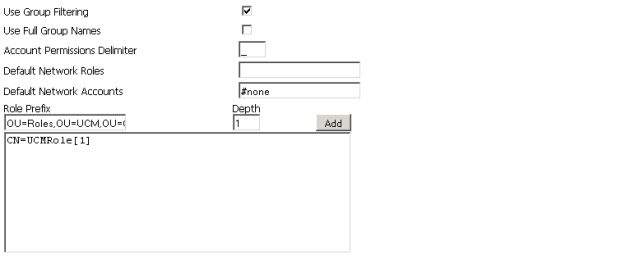
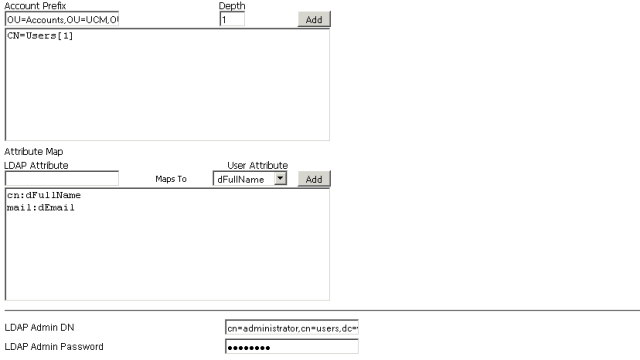
Under Create a New Provider click on the Add action for the ldapuser provider type.  This opens the configuration form for this new provider.  You will need to fill it out as follows:

providertop

provider2

provider3

The fields are as follows, where I do not mention a field, you should accept the default value:

Provider Name.  This can be any name you want to use for the provider.  I called mine activeDirectory.

Provider Description.  This is a description for the provider, again anything you like.

Provider Class.  This tells UCM which class to use to talk to this provider.  This one is important, we need to change the default value.  The documentation has the wrong class name in it, intradoc.ActiveDirectoryLdapProvider.  If you enter this, you will get a ClassNotFoundException in your startup log, and the provider will not start.  The correct value to enter here is ldap.ActiveDirectoryLdapProvider as shown in the image.

Source Path.  This is a unique name for this provider.  I named mine sAMAccountName after the account name attribute in Active Directory, but you can call it whatever you like.

LDAP Server.  This one should be fairly obvious, it is the host name for your Active Directory server.

LDAP Suffix.  This is the suffix for your Active Directory LDAP server.  You will have seen it earlier in ADSIEdit.

LDAP Port.  This is the port that the Active Directory LDAP server is listening on.  The default is 389.

Use Group Filtering.  Turn this on.  This causes UCM to map the Active Directory groups to UCM roles as we discussed earlier.

Role Prefix.  This is used to tell the provider where to find the groups in Active Directory that should be mapped to UCM roles.  It will only consider groups that have this prefix, plus the suffix above.  You need to enter CN=UCMRole[1] in this field.  You can either type it directly into the text area, as shown, or enter it into the text box and then press the Add button.

When the mapping is performed, UCM will look for any groups that end with cn=UCMRole,dc=webcenter,dc=au,dc=oracle,dc=com, like the Guest group we created and assigned Ann to.

Account Prefix.  This works similarly ot the role prefix, and tells the provider where to look in the LDAP tree for users.  It also has the LDAP suffix appended to it, so you just specify the extra prefix, cn=Users[1].

The Attribute Map is optional, you can use it to map Active Directory attributes to UCM ones, as shown in the diagram.

LDAP Admin DN.  This is the full DN for the administrative user in Active Directory.  In my case this is the Administrator user on my Windows Server.  So the full DN is:

cn=Administrator,cn=Users,dc=webcenter,dc=au,dc=oracle,dc=com

LDAP Admin Password.  This is the password for the administrative user.

Once you have entered all of this information, you can save your new provider.  Notice that the provider list now includes your new provider, and indicates that a restart is necessary.

Restart the IDC Content Server service from the Services control panel.

Now you can navigate to the UCM login page in a new browser window.  When you click on the login link, you can now log in using an Active Directory username and password.

Posted in Uncategorized | Tagged , | 2 Comments

Free space in Oracle tablespaces

I occasionally want to know what tablespaces I have defined, how big they are and how much free space is available.

Thanks to Praveen at http://www.expertsharing.com/2008/02/26/calculate-size-of-tablespace-free-space-of-a-tablespace/ for providing the following query, which makes this information available easily.

set pages 999;
set lines 132;
SELECT * 
FROM 
( SELECT 
    c.tablespace_name,
    ROUND(a.bytes/1048576,2)                    MB_Allocated,
    ROUND(b.bytes/1048576,2)                    MB_Free,
    ROUND((a.bytes-b.bytes)/1048576,2)          MB_Used,
    ROUND(b.bytes/a.bytes * 100,2)              tot_Pct_Free,
    ROUND((a.bytes-b.bytes)/a.bytes,2) * 100    tot_Pct_Used
  FROM 
    ( SELECT 
        tablespace_name,
        SUM(a.bytes) bytes
      FROM 
        sys.DBA_DATA_FILES a
      GROUP BY 
        tablespace_name
    ) a,
    ( SELECT 
        a.tablespace_name,
        NVL(SUM(b.bytes),0) bytes
      FROM 
        sys.DBA_DATA_FILES a,
        sys.DBA_FREE_SPACE b
      WHERE 
        a.tablespace_name = b.tablespace_name (+)
        AND a.file_id = b.file_id (+)
      GROUP BY 
        a.tablespace_name
    ) b,
    sys.DBA_TABLESPACES c
  WHERE 
    a.tablespace_name = b.tablespace_name(+)
    AND a.tablespace_name = c.tablespace_name
  ) 
WHERE 
  tot_Pct_Used >=0
ORDER BY 
  tablespace_name;
Posted in Uncategorized | Tagged | 3 Comments

Integrating SOA Suite with Oracle Internet Directory

My colleague Srini wrote an article on integrating SOA Suite with Oracle Internet Directory, which is available at http://redshift-au.blogspot.com/2009/05/soa-oid-integration.html

Posted in Uncategorized | Tagged | Leave a comment

Using opmnctl to start enterprise applications

Using Oracle Application Server or OC4J, you sometimes want to start an enterprise application from the command line, when the Enterprise Manager (administration console) is not available – usually it is the ascontrol application (the administration console itself) that I want to start this way.

This is pretty easy to do using the opmnctl command in the application server’s home\opmn\bin directory:

opmnctl startproc application=ascontrol
Posted in Uncategorized | Tagged | Leave a comment

Service enabling WebCenter Interaction

Today, I needed to create a web service to expose some functionality from WebCenter Interaction.  In this case, I needed to be able to have an external process move a document from one folder to another in the knowledge repository.

While this could be done by simply updating a record in the database, I wanted to create a web service using the WebCenter Interaction APIs.

I have WebCenter Interaction 10gR3 running on Oracle WebLogic Server 10.3, so I will do my development in Oracle Workshop for WebLogic.  To start, create a new Project of type Web Service Project, and add it to a new EAR file.

In the wizard, unselect the following libraries:

  • beehive-controls
  • weblogic-controls
  • wls-common-logging-bridge

Now open the Java Resources folder, and right click on src and create a new package called “test” or whatever you like.  You need a package to contain the web service files.

Right click on your new package and create a new WebLogic Web Service.  I called mine “TestMoveDoc.”

We need to add some libraries so that we will be able to compile and run our code.  The libraries we need are in our WebCenter Interaction install directory, in my case it is c:\bea\alui\ptportal\10.3.0\lib\java.  We need to add the libraries into the WEB-INF\lib directory under WebContent.  Navigate to the lib directory, right click on it, and select Import.

In the import dialog, enter the from directory (or browse to it).  You should see a folder called java appear in the left hand side of the dialog.  Click on it to highlight it.  You will see a list of libaries (jar files) appear on the right.  We need the following:

  • connectionpool.jar
  • dbutils.jar
  • opencache.jar
  • openconfig.jar
  • opencoutners.jar
  • opendb.jar
  • openfoundation.jar
  • openhttp.jar
  • openkernel.jar
  • openkernelsearch_4-3.jar
  • openlog-framework.jar
  • opentempfile.jar
  • plbase.jar
  • ploracle.jar  (I am using an Oracle database for WebCenter Interaction)
  • plumtreeserver.jar
  • plutil.jar
  • pmb.jar
  • ptportalobjects.jar
  • xercesImpl.jar

The libraries that I have highlighted in italics are the ones we directly need, the others are all dependencies.

Now we are ready to write the code for our web service.  The web service designer should still be on the screen.  Click on the hello() service to open the editor.

You can rename the service by changing its name in the code editor, I changed mine to moveDocument.  Here is the code that I used:

package test;

import javax.jws.*;

import com.plumtree.openkernel.config.IOKContext;
import com.plumtree.openkernel.factory.OKConfigFactory;
import com.plumtree.server.IPTCatalog;
import com.plumtree.server.IPTSession;
import com.plumtree.server.PortalObjectsFactory;

@WebService
public class TestMoveDoc {

    @WebMethod
    public String moveDocument(MoveDocumentRequest request) {

        IOKContext context = OKConfigFactory.createInstance
           ("c:\\bea\\alui\\settings", "portal");
        PortalObjectsFactory.Init(context);
        IPTSession session = PortalObjectsFactory.CreateSession();
        try {
            // userid and password are the parameters
            session.Connect("administrator", "welcome1", null);
        } catch (Exception e) {
            //TODO handle this
        }
        IPTCatalog catalog = session.GetCatalog();
        catalog.MoveCards(request.getSourceFolder(),
           request.getDocumentId(),
           request.getTargetFolder(), 2, true);
        // clean up
        catalog = null;
        session = null;
        context = null;
        return "DONE";
    }
}

You will notice that I created a simple bean class, MoveDocumentRequest, to hold the inputs to the service.  Here is the definition of that class, you can add it to the same package as the web service (right click on package, New, Java Class).

package test;

public class MoveDocumentRequest {

    private int documentId;
    private int sourceFolder;
    private int targetFolder;

    public MoveDocumentRequest() {
        super();
        // TODO Auto-generated constructor stub
    }
    public int getDocumentId() {
        return documentId;
    }
    public void setDocumentId(int documentId) {
        this.documentId = documentId;
    }
    public int getSourceFolder() {
        return sourceFolder;
    }
    public void setSourceFolder(int sourceFolder) {
        this.sourceFolder = sourceFolder;
    }
    public int getTargetFolder() {
        return targetFolder;
    }
    public void setTargetFolder(int targetFolder) {
        this.targetFolder = targetFolder;
    }
}

To deploy this to the server, you right click on the EAR project, and select Export, EAR file with JSP pre-compilation, save it as TestMove.ear (or whatever you like), and then deploy it using the WebLogic Server console.

You can also obtain the WSDL location from the WebLogic Server console, and from there you can test it or consume it as needed.

Posted in Uncategorized | Tagged , | Leave a comment

Database won’t start because of missing datafile

I had a situation today where my database would not start because “someone” had deleted a datafile.  While deleting the datafile at the OS level was probably not a particularly good decision, things like this do happen occasionally, so how to get the database back up?

Here is the error message when the database refused to start:

ORA-01157: cannot identify/lock data file 14 - see DBWR trace file
ORA-01110: data file 14: 'C:\DATABASE\ORADATA\ORCL\CDBWKLW.DBF'

This command is the quickest and easiest way to get rid of the problem:

alter database datafile 'c:\database\oradata\orcl\cdbwklw.dbf' offline drop ;

After this the database will start happily.  You may need to drop the tablespace too.

Posted in Uncategorized | Tagged | 1 Comment