
As regular readers will know, I am working on a .Net version of the custom worklist sample. As I work on this, I am playing with a few different things in .Net along the way, and it seemed like it would be worth sharing these.
Ardent readers will recall that the Human Workflow APIs (generally under oracle.bpel package) have web services exposed, but the BPM APIs (generally under oracle.bpm) do not. In this post, we are looking only at the Human Workflow APIs, so this is not an issue for us (yet…)
Arguably the most interesting of the Human Workflow APIs/web services is the TaskQueryService. This lets us get information about, and take action on, tasks in the workflow system. In this first example, let us take a look at using the TaskQueryService (web service) from .Net to get a list of tasks.
I am using Visual Studio 2010 Professional on Windows 7 Ultimate 64-bit with .Net Framework 4.0.30319 and my language of choice is (of course) C#. If you don’t have a ‘full use’ version of Visual Studio, you could download the free ‘Express’ version and still be able to build this sample.
To keep things simple, we will use a ‘console’ (command line) application. From the File menu, select New then Project. Select a Console Application from the gallery.
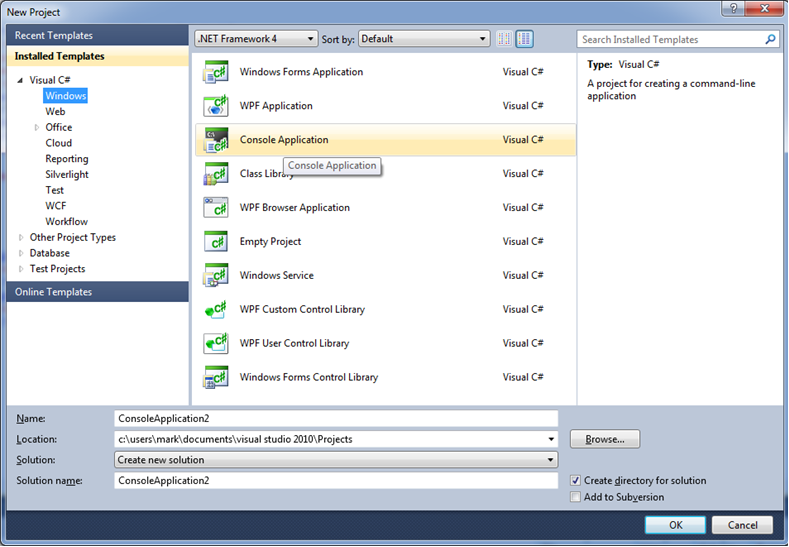
Click on OK to create the new project. Next, we want to add a couple of references that we will need. In the Solution Explorer pane (on the right hand side) right click on the References entry and select Add Reference…
In the dialog box, navigate to the .Net tab. You need to add the System.Web.Services component. Select it from the list and then press OK. Then go and add a second reference, to the System.ServiceModel component.
These two .Net components (libraries) are needed to allow us to call Web Services and use WS-Security, which we will need to do to call the TaskQueryService.
Next, we need to add a reference to the web service itself. Right click on the References entry again and this time select Add Service Reference… In the Add Service Reference dialog box, enter the address of the TaskQueryService in the Address box and click on OK. The address should look like this:
http://server:8001/integration/services/TaskQueryService/TaskQueryService?wsdl
You will obviously need to update the server name and make sure you have the right port.
Enter a Namespace, I called mine TaskQueryService, and click on OK. Visual Studio will create some resources for you. You will see the new reference listed in the solution explorer and you may also notice that you get a new source file and an app.config file. We will come to these later.
Now we are ready to start writing our code. We need to add a couple of using statements to reference those three references that we just added:
using ConsoleApplication1.TaskQueryService;
using System.Web.Services;
using System.ServiceModel.Security;
using System.ServiceModel.Security.Tokens;
Here is the code, with some comments in it to explain what it is doing:
using System;
using System.Collections.Generic;
using System.Linq;
using System.Text;
using ConsoleApplication1.TaskQueryService;
using System.Web.Services;
using System.ServiceModel.Security;
using System.ServiceModel.Security.Tokens;

namespace ConsoleApplication1
{
    class Program
    {
        static void Main(string[] args)
        {
            Console.WriteLine("Sample C# TaskQueryService client");

            // set up the TaskQueryService client
            // Note that this constructor refers to an endpoint configuration that is defined in the app.config
            // which was created by Visual Studio when you added the web service reference.
            // You have to edit the app.config to set the security mode to "TransportCredentialOnly"
            // and the transport clientCredentialType to "Basic"
            TaskQueryServiceClient tqs = new TaskQueryServiceClient("TaskQueryServicePort");
            // provide credentials for ws-security authentication to WLS to call the web service
            tqs.ClientCredentials.UserName.UserName = "weblogic";
            tqs.ClientCredentials.UserName.Password = "welcome1";

            // set up the application level credentials that will be used to get a session on BPM (not WLS)
            credentialType cred = new credentialType();
            cred.login = "weblogic";
            cred.password = "welcome1";
            cred.identityContext = "jazn.com";

            // authenticate to BPM
            Console.WriteLine("Authenticating...");
            workflowContextType ctx = tqs.authenticate(cred);
            Console.WriteLine("Authenticated to TaskQueryService");

            // now we need to build the request ... there is a whole bunch of stuff
            // we have to specify in here ... a WHOLE bunch of stuff...
            taskListRequestType request = new taskListRequestType();
            request.workflowContext = ctx;
            // predicate
            taskPredicateQueryType pred = new taskPredicateQueryType();
            // predicate->order - e.g. ascending by column called "TITLE"
            orderingClauseType order = new orderingClauseType();
            order.sortOrder = sortOrderEnum.ASCENDING;
            order.nullFirst = false;
            order.Items = new string[] { "TITLE" };
            order.ItemsElementName = new ItemsChoiceType1[] { ItemsChoiceType1.column };
            orderingClauseType[] orders = new orderingClauseType[] { order };
            pred.ordering = orders;
            // predicate->paging controls - remember TQS.queryTasks only returns 200 maximum rows
            // you have to loop/page to get more than 200
            pred.startRow = "0";
            pred.endRow = "200";
            // predicate->task predicate
            taskPredicateType tpred = new taskPredicateType();
            // predicate->task predicate->assignment filter - e.g. "ALL" users
            tpred.assignmentFilter = assignmentFilterEnum.All;
            tpred.assignmentFilterSpecified = true;
            // predicate->task predicate->clause - e.g. column "STATE" equals "ASSIGNED"
            predicateClauseType[] clauses = new predicateClauseType[1];
            clauses[0] = new predicateClauseType();
            clauses[0].column = "STATE";
            clauses[0].@operator = predicateOperationEnum.EQ;
            clauses[0].Item = "ASSIGNED";
            tpred.Items = clauses;
            pred.predicate = tpred;
            // items->display columns
            displayColumnType columns = new displayColumnType();
            columns.displayColumn = new string[] { "TITLE" };
            // items->presentation id
            string presentationId = "";
            // items->optional info
            taskOptionalInfoType opt = new taskOptionalInfoType();
            object[] items = new object[] { columns, opt, presentationId };
            pred.Items = items;
            request.taskPredicateQuery = pred;

            // get the list of tasks
            Console.WriteLine("Getting task list...");
            task[] tasks = tqs.queryTasks(request);

            // display our results with a bit of formatting
            Console.WriteLine();
            Console.WriteLine("Title                                    State           Number");
            Console.WriteLine("---------------------------------------- --------------- ----------");

            foreach (task task in tasks) {

                Console.WriteLine(
                    string.Format("{0,-40}", task.title)
                    + " "
                    + string.Format("{0,-15}", task.systemAttributes.state)
                    + " "
                    + string.Format("{0,-10}", task.systemAttributes.taskNumber)
                );

            }

            // get rid of the context
            tqs.destroyWorkflowContext(ctx);

            // all done
            Console.WriteLine();
            Console.WriteLine("Press enter to exit");
            Console.Read();

        }
    }
}
In order to run this, we also need to set up WS-Security. Go ahead and open up the app.config file. It should look similar to the following example:
<?xml version="1.0" encoding="utf-8" ?>
<configuration>
  <system.serviceModel>
    <bindings>
      <basicHttpBinding>
        <binding name="TaskQueryServiceSOAPBinding" closeTimeout="00:01:00"
          openTimeout="00:01:00" receiveTimeout="00:10:00" sendTimeout="00:01:00"
          allowCookies="false" bypassProxyOnLocal="false" hostNameComparisonMode="StrongWildcard"
          maxBufferSize="65536" maxBufferPoolSize="524288" maxReceivedMessageSize="65536"
          messageEncoding="Text" textEncoding="utf-8" transferMode="Buffered"
          useDefaultWebProxy="true">
          <readerQuotas maxDepth="32" maxStringContentLength="8192" maxArrayLength="16384"
          maxBytesPerRead="4096" maxNameTableCharCount="16384" />
          <security mode="TransportCredentialOnly">
            <transport clientCredentialType="Basic" proxyCredentialType="None"
              realm="" />
            <message clientCredentialType="UserName" algorithmSuite="Default"  />
          </security>
        </binding>
      </basicHttpBinding>
    </bindings>
    <client>
      <endpoint address="http://192.168.174.132:8001/integration/services/TaskQueryService/TaskQueryService2/*"
        binding="basicHttpBinding" bindingConfiguration="TaskQueryServiceSOAPBinding"
        contract="TaskQueryService.TaskQueryService" name="TaskQueryServicePortSAML" />
      <endpoint address="http://192.168.174.132:8001/integration/services/TaskQueryService/TaskQueryService"
        binding="basicHttpBinding" bindingConfiguration="TaskQueryServiceSOAPBinding"
        contract="TaskQueryService.TaskQueryService" name="TaskQueryServicePort" />
    </client>
  </system.serviceModel>
</configuration>
The section that you will need to update is the security section (shown below). You need to change the security mode to TransportCredentialOnly, the clientCredentialType to Basic in the transport section, and in the message section to UserName. This will allow .Net to call the WS-Security web service with username token policy on the BPM server.
<security mode="TransportCredentialOnly">
  <transport clientCredentialType="Basic" proxyCredentialType="None"
    realm="" />
  <message clientCredentialType="UserName" algorithmSuite="Default"  />
</security>
That’s all we need. Now you can go ahead and build and run the solution. You should get a window open with output like the following:
Sample C# TaskQueryService client
Authenticating...
Authenticated to TaskQueryService
Getting task list...

Title                                    State           Number
---------------------------------------- --------------- ----------
Choose Next User                         ASSIGNED        200401
Claim This Task                          ASSIGNED        200435
Do Something                             ASSIGNED        200393
Do Something                             ASSIGNED        200396
DotNetTest                               ASSIGNED        200750
MTLChooseNextUser                        ASSIGNED        200293
UserTaskWithUCMContent                   ASSIGNED        200385

Press enter to exit
Enjoy, and stay tuned for more .Net articles.

 RedStack
Pingback: Updating a task from .Net | RedStack
Thanks for the article, I’m looking forward for the next ones!
I do have a question, though. Since TQS.queryTasks only returns 200 maximum rows, it looks like it was designed to be used with a virtual scroller (as in the original WorkList), instead of a regular paged navigation. Is there any way to obtain a count of ALL tasks in the system using this API, without having to loop until no more rows are found? This is important, because I want to define how many pages I’m going to display on the first query, so I need the total number of rows beforehand.
Hi, there is an API that will give you a count of the tasks, but it can be unreliable, as they might change between the time you get the count and the time you get the actual tasks. I usually get all the tasks then count them. When you get the tasks in this way (using queryTasks) you do not get fully populated task objects, so you don’t have to worry about running out of memory unless you have millions of tasks in a single view – and then you would most likely have bigger problems 🙂