Implementing the Task List

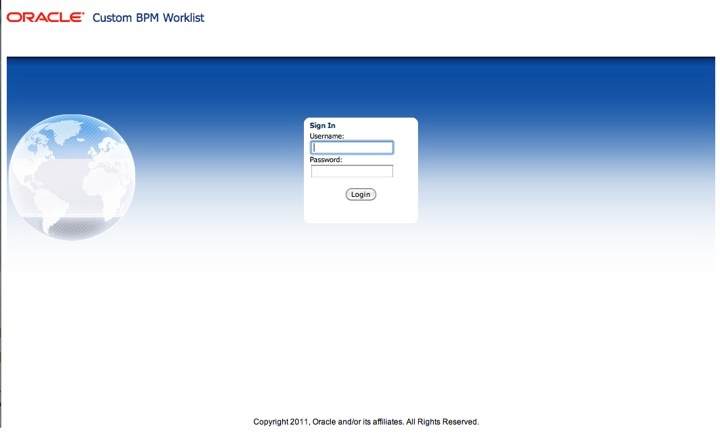
This post is part of a series on building a custom worklist for BPM/SOA 11g.

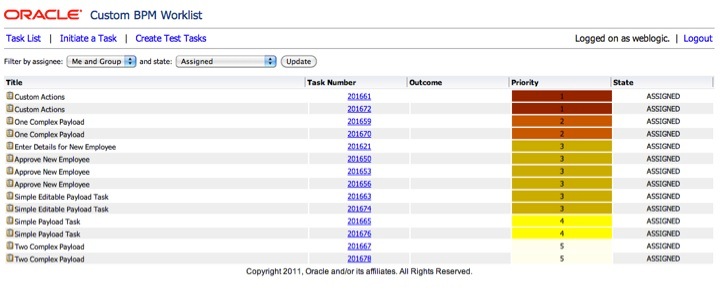
In the previous posts, we built the model and skeleton pages.  Now we will implement the Controller and View for the Task List.

Let’s take a look at the com.oracle.ateam.TaskListController code:

package com.oracle.ateam;

import org.springframework.web.servlet.mvc.Controller;
import org.springframework.web.servlet.ModelAndView;

import javax.servlet.http.HttpServletRequest;
import javax.servlet.http.HttpServletResponse;

import com.oracle.ateam.domain.*;
import com.oracle.ateam.util.MLog;

import java.util.List;
import java.util.Map;
import java.util.HashMap;

public class TaskListController extends SimpleSuccessFailureController {

 @Override
 public ModelAndView handleRequest(HttpServletRequest request, HttpServletResponse response)
 throws Exception {
   MLog.log("TaskListController", "Entering handleRequest()");
   String filter = request.getParameter("x_assignee");
   String state = request.getParameter("x_state");
   if ((filter == null) || (filter.length() < 1)) filter = "megroup";
   if ((state == null) || (state.length() < 1)) state = "assigned";
   MLog.log("TaskListController", "Got filter=" + filter + ", state=" + state);
   Map<String, Object> model = new HashMap<String, Object>();
   List tasks = MTaskList.getMTasks(request.getUserPrincipal().getName(), filter, state);
   MLog.log("TaskListController", "Found " + ((tasks == null) ? "0" : tasks.size()) + " tasks.");
   model.put("tasks", tasks);
   return new ModelAndView("/WEB-INF/jsp/tasklist.jsp", "model", model);
 }

}

This is a simple Spring Controller that extends the SimpleSucessFailureController we saw earlier.  First we obtain the x_assignee and x_state parameters passed in from the caller.  These are used to determine the filtering of tasks in the list.  If these are empty, we set default values.

Next, we create a HashMap<String, Object> to hold the model.

Then, we call the List<MTask> MTaskList.getMTasks(user, filter, state) method in our domain package to obtain the list of tasks.  Note that this will give us back a list of partially populated tasks, as we discussed earlier.

We then add these tasks into the model.  Note that the line model.put(“tasks”, tasks) will add the List<MTask> tasks object to the model using the key (name) “tasks”.  This means we will be able to access it in the view using Expression Language such as ${model.tasks} and we will be able to access properties in MTask using the property name (abbreviated getter name), e.g. ${task.title}.  We will see this in the view shortly.  Note that the Express Language express {$task.title} means call the getTitle() method on the task object.

Finally, we return a new ModelAndView passing the view name and adding the model object, calling it “model”.

There are also some logging in there, and again, the code in Subversion has more comments.

The Controller is relatively simple as we have encapsulated the code that deals with the BPM API in our com.oracle.ateam.domain package.

Now, let’s take a look at the view.  Here is the code:

<%@ page import="com.oracle.ateam.util.MLog" %>
<%@ page import="com.oracle.ateam.domain.MTask" %>
<%@ page import="java.util.List" %>
<%@ include file="/WEB-INF/jsp/common/head.jspf" %>

<%
 MLog.log("tasklist.jsp", "Entered tasklist.jsp");
 String x_ass = request.getParameter("x_assignee");
 String x_st = request.getParameter("x_state");
 if ((x_ass == null) || (x_ass.length() < 1)) x_ass = "megroup";
 if ((x_st == null) || (x_st.length() < 1)) x_st = "assigned";
%>
 <form action="tasklist.do" method="POST">
 Filter by assignee:
 <select name="x_assignee">
<%      if ("me".compareTo(x_ass) == 0) {
%>      <option value="me" selected>Me</option>
<%      } else {
%>        <option value="me">Me</option>
<%      };
 if ("group".compareTo(x_ass) == 0) {
%>        <option value="group" selected>Group</option>
<%      } else {
%>        <option value="group">Group</option>
<%      };
 if ("megroup".compareTo(x_ass) == 0) {
%>        <option value="megroup" selected>Me and Group</option>
<%      } else {
%>        <option value="megroup">Me and Group</option>
<%      };
 if ("previous".compareTo(x_ass) == 0) {
%>        <option value="previous" selected>Previous</option>
<%      } else {
%>        <option value="previous">Previous</option>
<%      };
 if ("reviewer".compareTo(x_ass) == 0) {
%>        <option value="reviewer" selected>Reviewer</option>
<%      } else {
%>        <option value="reviewer">Reviewer</option>
<%      };
%>
 </select>
 and state:
 <select name="x_state">
<%      if ("any".compareTo(x_st) == 0) {
%>        <option value="any" selected>Any</option>
<%      } else {
%>        <option value="any">Any</option>
<%      };
 if ("assigned".compareTo(x_st) == 0) {
%>        <option value="assigned" selected>Assigned</option>
<%      } else {
%>        <option value="assigned">Assigned</option>
<%      };
 if ("completed".compareTo(x_st) == 0) {
%>        <option value="completed" selected>Completed</option>
<%      } else {
%>        <option value="completed">Completed</option>
<%      };
if ("suspended".compareTo(x_st) == 0) {
%>        <option value="suspended" selected>Suspended</option>
<%      } else {
%>        <option value="suspended">Suspended</option>
<%      };
 if ("withdrawn".compareTo(x_st) == 0) {
%>        <option value="withdrawn" selected>Withdrawn</option>
<%      } else {
%>        <option value="withdrawn">Withdrawn</option>
<%      };
 if ("expired".compareTo(x_st) == 0) {
%>        <option value="expired" selected>Expired</option>
<%      } else {
%>        <option value="expired">Expired</option>
<%      };
 if ("errored".compareTo(x_st) == 0) {
%>        <option value="errored" selected>Errored</option>
<%      } else {
%>        <option value="errored">Errored</option>
<%      };
 if ("alerted".compareTo(x_st) == 0) {
%>        <option value="alerted" selected>Alerted</option>
<%      } else {
%>        <option value="alerted">Alerted</option>
<%      };
 if ("info".compareTo(x_st) == 0) {
%>        <option value="info" selected>Information Requested</option>
<%      } else {
%>        <option value="info">Information Requested</option>
<%      };
%>    </select>
 <input type="submit" value="Update"/>
 </form>
 <table border="0" width="100%">
 <tr>
 <th class="tl-head" width="*">Title</th>
 <th class="th-head" width="150">Task Number</th>
 <th class="th-head" width="150">Outcome</th>
 <th class="th-head" width="150">Priority</th>
 <th class="th-head" width="150">State</th>
 </tr>
 </table>
 <table border="0" width="100%">
 <c:forEach var="task" items="${model.tasks}">
 <tr>
 <td class="th-row" width="*"><img src="images/task_untouched_16x16.png" height="13"/><c:out value="${task.id}"/></td>
 <td class="th-row" width="150"><a href="taskdetail.do?x_tasknumber=<c:out value="${task.number}"/>"><c:out value="${task.number}"/></a></td>
 <td class="th-row" width="150"><c:out value="${task.outcome}"/></td>
 <td class="th-row" width="150"><c:out value="${task.priority}"/></td>
 <td class="th-row" width="150"><c:out value="${task.state}"/></td>
 </tr>
 </c:forEach>
 </table>
<%@ include file="/WEB-INF/jsp/common/tail.jspf" %>
<%
 MLog.log("tasklist.jsp", "Done");
%>

The View technology is JSP with JSTL.  You can see at the start of the View, we have some import statements, and then we include /WEB-INF/jsp/common/head.jspf.  This JSP fragment handles the header and menu.  We created it in an earlier post.

<%@ page import="com.oracle.ateam.util.MLog" %>
<%@ page import="com.oracle.ateam.domain.MTask" %>
<%@ page import="java.util.List" %>
<%@ include file="/WEB-INF/jsp/common/head.jspf" %>

Next, we retrieve the x_assignee and x_state parameters from the request.  If the user selects a different option from the drop down lists, these will be passed back to us in these parameters, as we will see shortly.  If there are no values, we assign default values.

 String x_ass = request.getParameter("x_assignee");
 String x_st = request.getParameter("x_state");
 if ((x_ass == null) || (x_ass.length() < 1)) x_ass = "megroup";
 if ((x_st == null) || (x_st.length() < 1)) x_st = "assigned";

The next part of the page creates those two drop down filters.  You can see in the first part of that code (below) that it will post back to the same view.  The if/then/else logic in this section works out which item in the drop down list should be selected, based on the value that was passed in (or defaulted above).  This means that the user will see the current set of filter settings in the drop down boxes when they look at the page.

 <form action="tasklist.do" method="POST">
 Filter by assignee:
 <select name="x_assignee">
<%      if ("me".compareTo(x_ass) == 0) {
%>      <option value="me" selected>Me</option>
<%      } else {
%>        <option value="me">Me</option>
<%      };
 if ("group".compareTo(x_ass) == 0) {
%>        <option value="group" selected>Group</option>
<%      } else {
%>        <option value="group">Group</option>
<%      };

Next, we have the main part of the page, the table that displays the information about the tasks.  Here is the relevant section of the page:

 <table border="0" width="100%">
 <tr>
 <th class="tl-head" width="*">Title</th>
 <th class="th-head" width="150">Task Number</th>
 <th class="th-head" width="150">Outcome</th>
 <th class="th-head" width="150">Priority</th>
 <th class="th-head" width="150">State</th>
 </tr>
 </table>
 <table border="0" width="100%">
 <c:forEach var="task" items="${model.tasks}">
 <tr>
 <td class="th-row" width="*"><img src="images/task_untouched_16x16.png" height="13"/><c:out value="${task.id}"/></td>
 <td class="th-row" width="150"><a href="taskdetail.do?x_tasknumber=<c:out value="${task.number}"/>"><c:out value="${task.number}"/></a></td>
 <td class="th-row" width="150"><c:out value="${task.outcome}"/></td>
 <td class="th-row" width="150"><c:out value="${task.priority}"/></td>
 <td class="th-row" width="150"><c:out value="${task.state}"/></td>
 </tr>
 </c:forEach>
 </table>

Here we use JSTL to loop through the tasks in the model.  The construct c:forEach var=”task” items=”${model.tasks}” will repeat the enclosed HTML for each item in the List<MTask> that we put in the model using the key “tasks” back in the controller.

Within the loop, the current item is known as task, as set by the var=”task” part of that statement.  We can then access properties of the task using the syntax ${task.number} as we see in the sample above.

Note that the Task Number column contains an hyperlink to taskdetail.do and passes the task number as a parameter named x_tasknumber.

Finally, we also include the /WEB-INF/jsp/common/tail.jspf fragment to add the copyright notice and finish the page.

The CSS styles that we set up earlier will handle the look and feel of the page.

In the next post, we will build the Task Details Controller and View.

Posted in Uncategorized | Tagged , , , | Leave a comment

Setting up security for the worklist

This post is part of a series on building a custom worklist for BPM/SOA 11g.

In the previous posts we have created our model and skeleton view.  Now, we want to set up security.  One of our goals was to integrate with WebLogic security so that we don’t need to worry about security in our application.  It also makes our application more secure, as we will not be collecting or storing any credentials.

Using WebLogic security is pretty straight forward.  We will use a FORM login page, as opposed to BASIC HTTP authentication or some other method.  This way we can have control over how our login page looks.  So we will need to create the login page and the form.

We also need to set up some rules in our deployment descriptors to tell WebLogic what content can be accessed by anonymous users and which require authentication.

Since we are using Spring Web MVC, we will be accessing our login page through a controller.  Our anonymous login page will be accessed through the com.oracle.ateam.HomeController, which will use the view src/main/webapp/WEB-INF/jsps/Home.jsp.

In our Spring configuration file, src/main/webapp/WEB-INF/worklist-servlet.xml, we map the URL /home to the controller.  All of our other URLs end with ‘.do‘, e.g. /tasklist.do.  We will use the absence of the ‘.do‘ in our security rules to make the login page available to anonymous users.

Here are our URL mappings:

         /home=homeController
         /tasklist.do=tasklistController
         /taskdetail.do=taskdetailController
         /login.do=loginController
         /logout.do=logoutController
         /createtasks.do=createTestTasksController
         /processtask.do=processTaskController
         /addcomment.do=addCommentController
         /initiatelist.do=initiateListController
         /initiatetask.do=initiateTaskController
         /error.do=errorController

Let’s take a look at the login form.  Here is the essential code for the login form:

<form action="j_security_check" method="post">
  <div>Username:</div>
  <input name="j_username" size="20" type="text">
  <div>Password:</div>
  <input name="j_password" size="20" type="password">
  <input type="submit" value="Login">
</form>

The actual code (available in Subversion) has a fair bit more HTML in there to make it look nice 🙂 but the snippet above has everything we need to understand how it works.

The important part is the FORM action and the names of the input fields.  The action needs to be j_security_check.  This is how we invokeWebLogic authentication.  The user name needs to be in an input field called j_username and the password in a password field called j_password.  The form must use the POST method.

When the user completes this form and submits it, WebLogic will attempt to authenticate them using the provided information.  They can be authenticated against any of the WebLogic Authentication Providers, just like any other WebLogic application.

The other ingredient is to set some rules in the deployment descriptor.  In the Java EE standard web application deployment descriptor – src/main/webapp/WEB-INF/web.xml – we need to set the ‘welcome file,’ some ‘security constraints’ and a ‘login config.’  Let’s take a look at these now.  Here is the welcome file:

<welcome-file-list>
  <welcome-file>/login.do</welcome-file>
</welcome-file-list>

Notice that this points to /login.do, the first page we want users to see after they have authenticated.  When a user tries to access our application, they will be directed to this page, but WebLogic will notice that they are not logged in (due to the configuration entries we are about to make) and redirect them to the login page.

Here is the section that defines the security constraints:

<security-constraint>
  <web-resource-collection>
    <web-resource-name>worklist</web-resource-name>
    <url-pattern>/*do</url-pattern>
    <http-method>GET</http-method> 
  </web-resource-collection>
</security-constraint>

Here we are saying that any URL matching /*do will only be served to authenticated users.  So given our mappings (above) this means that everything except for the home (login) page will require the user to login first.

Here is our login config:

<login-config> 
  <auth-method>FORM</auth-method>
  <form-login-config>
    <form-login-page>/home</form-login-page>
    <form-error-page>/home</form-error-page> 
  </form-login-config>
</login-config>

This is telling WebLogic that we are using FORM based authentication and that our login form is accessed by sending the user to the URL /home, which maps to our HomeController and our Home.jsp login form view.

We also set the error page to the same URL, so that the user will be sent back to the login page if they do not login successfully.  Our login controller will add a message to tell the user about the failure to authenticate.  We will see this shortly.

That completes the configuration of the deployment descriptor.  Now we need to implement a login controller.  Since we are delegating the actual authentication to WebLogic, our login controller does not actually need to do much.  We will just check if the user is logged in successfully, validate they can access the workflow engine, and if not, we will send a message to tell them to try again.  Here is the code:

package com.oracle.ateam;

import org.springframework.web.servlet.ModelAndView;

import javax.servlet.http.HttpServletRequest;
import javax.servlet.http.HttpServletResponse;

import com.oracle.ateam.util.MLog;
import com.oracle.ateam.domain.MTaskList;

public class LoginController extends SimpleSuccessFailureController {

  @Override
  public ModelAndView handleRequest(HttpServletRequest request, HttpServletResponse response)
      throws Exception {
    MLog.log("LoginController", "Entering handleInternalRequest()");
    if (request.getRemoteUser() == null) {
      // user has not tried to login to weblogic yet
      // this will happen on the first visit to the webapp
      request.getSession(true).setAttribute("message", "");
      return new ModelAndView(getFailureView());
    }
    if(MTaskList.login(request)) {
      request.getSession(true).setAttribute("message", "");
    } else {
      request.getSession(true).setAttribute("message", "Error: Login details incorrect.");
      return new ModelAndView(getFailureView());
    }
    return (new TaskListController()).handleRequest(request, response);
  }

}

Again, the source code in Subversion has more comments.

If the user has logged in to WebLogic successfully, their HttpServletSession will return the username when we call getRemoteUser().  Otherwise, it will return null.  So first, we check this to see if the user is logged on.  We need to check because we don’t want to give the user an error message when they first arrive at the login page, before they have tried to login.

Next, we use the MTaskList.login(HttpServletRequest) method to check if the user has access to the workflow engine.  If this method returns true then we are happy and we can send the user to the first page of the application.  These users will arrive at the return (new TaskListController()).handleRequest(request, response) statement.  This shows how we can chain together Spring controllers.  Since the user is logged in, we just pass them along to the TaskListController which will get a list of tasks, put that in the model and pass it to its view.  We will come to all of this in a later post!  For now, just notice how we can easily chain together the controllers to redirect the user to another page.

If the user did authenticate to WebLogic, but does not have permission to access the workflow engine, we consider this a failed login attempt and send them an error message.  The error message is sent by adding it to the session and returning the failure view.

Now, a login is not much good without a logout, so let’s take a look at the com.oracle.ateam.LogoutController that handles the user logout.  Again, this is a fairly simple class.  Here is the code (more comments in Subversion):

package com.oracle.ateam;

import org.springframework.web.servlet.ModelAndView;

import javax.servlet.http.HttpServletRequest;
import javax.servlet.http.HttpServletResponse;

import com.oracle.ateam.util.MLog;
import com.oracle.ateam.domain.ContextCache;

public class LogoutController extends SimpleSuccessFailureController {

  @Override
  protected ModelAndView handleRequestInternal(HttpServletRequest request, HttpServletResponse response)
      throws Exception {
    MLog.log("LogoutController", "Entering handleInternalRequest()");
    // get rid of the context
    ContextCache.getContextCache().remove(request.getRemoteUser());
    // invalidate the session
    request.getSession().invalidate();
    return super.handleRequestInternal(request, response);
  }

}

There are two things we need to do to cleanly logout the user.  First, we remove their context from the ContextCache, then we invalidate their session. We also do this in the com.oracle.ateam.ErrorController which we will see later on.

That completes our security work!  (Wasn’t too bad, was it?)  Now, let’s move on to the next post, where we will create that Task List Controller and View.

Posted in Uncategorized | Tagged , , , | Leave a comment

Building the skeleton worklist

This post is part of a series on building a custom worklist for BPM/SOA 11g.

In this post, we will establish the skeleton of the web application by creating the various pages and some JSP fragments to handle the page header, footer and navigation.

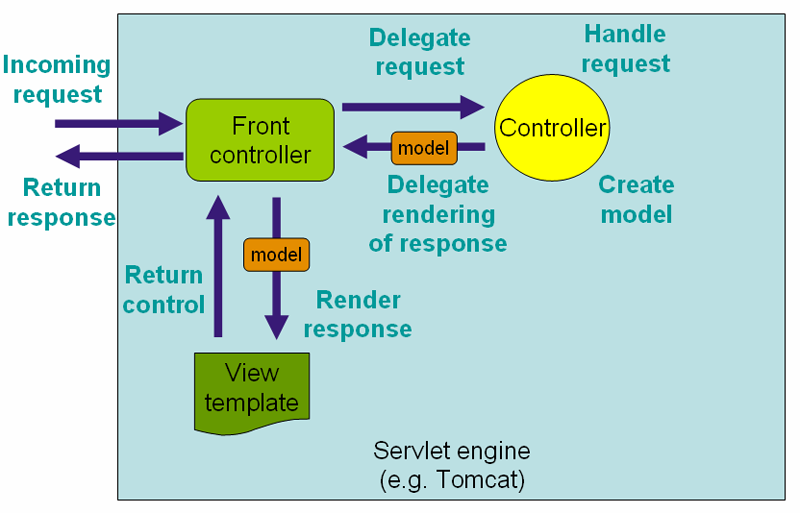
Setting up Spring Web MVC

The first thing we need to do is to set up our project to use Spring Web MVC.  As we discussed earlier, Spring (like many web frameworks) uses a Dispatcher Servlet, so we need to add this into our deployment descriptor.  Here is the relevant part of the web.xml:

  <servlet>
    <servlet-name>worklist</servlet-name>
    <servlet-class>org.springframework.web.servlet.DispatcherServlet</servlet-class>
    <load-on-startup>1</load-on-startup>
  </servlet>

  <servlet-mapping>
    <servlet-name>worklist</servlet-name>
    <url-pattern>*.do</url-pattern>
  </servlet-mapping>

  <servlet-mapping>
    <servlet-name>worklist</servlet-name>
    <url-pattern>home</url-pattern>
  </servlet-mapping>

The servlet entry tells WebLogic that we want to register the Spring Dispatcher Servlet in our application, call it worklist and load it when the web application starts.

We then add two servlet mappings to tell WebLogic when to use this servlet.  The first entry tells WebLogic to use the Spring Dispatcher Servlet if the URL ends with .do.  The second entry tells WebLogic to use it if the URL is home.  The reason we have two URL mappings here is because we are going to define different security rules for these two (in the next post in the series).

Note that we named the servlet worklist.  This is important, as it tells Spring where to look for its configuration file.  The first part of the configuration file’s name will match the servlet name.  So we will create our configuration file as src/main/webapp/WEB-INF/worklist-servlet.xml.  Here it is (note that there are more comments in the file on Subversion):

<?xml version="1.0" encoding="UTF-8"?>

<beans xmlns="http://www.springframework.org/schema/beans"
       xmlns:xsi="http://www.w3.org/2001/XMLSchema-instance"
       xsi:schemaLocation="http://www.springframework.org/schema/beans
       http://www.springframework.org/schema/beans/spring-beans-2.5.xsd">

<!-- the application context definition for the springapp DispatcherServlet -->

 <bean id="tasklistController" class="com.oracle.ateam.TaskListController">
    <property name="successView" value="/WEB-INF/jsp/tasklist.jsp"/>
  </bean>

 <bean id="initiateListController" class="com.oracle.ateam.InitiateListController">
    <property name="successView" value="/WEB-INF/jsp/initiatelist.jsp"/>
  </bean>

 <bean id="initiateTaskController" class="com.oracle.ateam.InitiateTaskController">
    <property name="successView" value="/WEB-INF/jsp/initiatelist.jsp"/>
  </bean>

 <bean id="taskdetailController" class="com.oracle.ateam.TaskDetailController">
    <property name="successView" value="/WEB-INF/jsp/taskdetail.jsp"/>
  </bean>

 <bean id="homeController" class="com.oracle.ateam.HomeController">
    <property name="successView" value="/WEB-INF/jsp/Home.jsp"/>
  </bean>

 <bean id="loginController" class="com.oracle.ateam.LoginController">
    <property name="successView" value="/WEB-INF/jsp/tasklist.jsp"/>
    <property name="failureView" value="/WEB-INF/jsp/Home.jsp"/>
  </bean>

 <bean id="createTestTasksController" class="com.oracle.ateam.CreateTestTasksController">
    <property name="successView" value="/WEB-INF/jsp/Home.jsp"/>
 </bean>

 <bean id="processTaskController" class="com.oracle.ateam.ProcessTaskController">
    <property name="successView" value="/WEB-INF/jsp/tasklist.jsp"/>
  </bean>

 <bean id="addCommentController" class="com.oracle.ateam.AddCommentController">
    <property name="successView" value="/WEB-INF/jsp/taskdetail.jsp"/>
  </bean>

 <bean id="logoutController" class="com.oracle.ateam.LogoutController">
    <property name="successView" value="/WEB-INF/jsp/Home.jsp"/>
  </bean>

 <bean id="errorController" class="com.oracle.ateam.ErrorController">
    <property name="successView" value="/WEB-INF/jsp/Home.jsp"/>
  </bean>

 <bean id="handlerMapping">
     <property name="mappings">
       <value>
         /home=homeController
         /tasklist.do=tasklistController
         /taskdetail.do=taskdetailController
         /login.do=loginController
         /logout.do=logoutController
         /createtasks.do=createTestTasksController
         /processtask.do=processTaskController
         /addcomment.do=addCommentController
         /initiatelist.do=initiateListController
         /initiatetask.do=initiateTaskController
         /error.do=errorController
       </value>
     </property>
   </bean>
</beans>

In this configuration file, you can see that we define each of our controllers.  Let’s take a look at the first one:

  <bean id="tasklistController" class="com.oracle.ateam.TaskListController">
    <property name="successView" value="/WEB-INF/jsp/tasklist.jsp"/>
  </bean>

This defines a controller called tasklistController and tells the Spring Dispatch Controller which class to send control to – com.oracle.ateam.TaskListController.  As most of our controllers inherit from our com.oracle.ateam.SimpleSuccessFailureController, they expect two properties: successView and failureView.  We only define a failureView where it is needed.  You can see in the example above that the (success) view for this controller is /WEB-INF/jsp/tasklist.jsp.

This establishes the linkage between the Controller and the View.

In the last part of the configuration file, in the handlerMapping section, you can see that we create a mapping between URLs and Controllers.  Here is an example:

/tasklist.do=tasklistController

This tells Spring that the Controller that matches the URL /tasklist.do is the tasklistController defined above.

We will write our various controllers and views in the next several posts in this series.  For now, let’s just create some empty pages and our header and footer fragments.

Setting up the skeleton pages

Here are the pages in our worklist application:

src/main/webapp/WEB-INF/jsp/common/head.jspf
src/main/webapp/WEB-INF/jsp/common/Include.jspf
src/main/webapp/WEB-INF/jsp/common/tail.jspf

src/main/webapp/WEB-INF/jsp/Home.jsp
src/main/webapp/WEB-INF/jsp/initiatelist.jsp
src/main/webapp/WEB-INF/jsp/taskdetail.jsp
src/main/webapp/WEB-INF/jsp/tasklist.jsp

The first group are JSP fragments which are used (included) on the other pages to provide consistent headers, footers and navigation (menus) across our application.

The second group are the actual views.  Home.jsp is the login page that is shown to unauthenticated users.  The others are only available to logged in users.

Notice that all of the JSP pages are located inside the WEB-INF directory.  WebLogic Server will not serve pages located inside this directory to users.  They can only be accessed by a Servlet, i.e. a Controller.  This provides additional security to our application, as there is no way that a malicious user is able to enter a URL to access these pages.

Let’s take a look at the fragments first.

Common includes

The src/main/webapp/WEB-INF/jsp/common/Include.jspf fragment contains common include directives that we want to include on many pages.  Here is the content:

<%@ page session="true" contentType="text/html; charset=ISO-8859-15" %>
<%@ taglib prefix="c" uri="http://java.sun.com/jsp/jstl/core" %>
<%@ taglib prefix="x" uri="http://java.sun.com/jsp/jstl/xml" %>
<%@ taglib prefix="f" uri="http://java.sun.com/jsp/jstl/fmt" %>
<%@ taglib prefix="form" uri="http://www.springframework.org/tags/form" %>
<%@ taglib prefix="spring" uri="http://www.springframework.org/tags" %>

The first line sets the content type and enables the JSP session object.  The remaining lines are loading some JSP Tag Libraries.  We are using the Java Standard Tag Library (JSTL) in our view, as we will see shortly.  The first three taglibs enable JSTL.  The last two are for Spring and Spring Forms support.

The page header

We want the same header and navigation on each page.  This is handled in our page header fragment, src/main/webapp/WEB-INF/jsp/common/head.jspf.  Here is the content of this file:

<%@ include file="Include.jspf" %>

<html>
<head>
  <title>Custom BPM Worklist</title>
  <link rel="stylesheet" href="ateam.css" type="text/css">
</head>
<c:choose>
  <c:when test="${empty pageContext.request.remoteUser}">
    <body onLoad="document.x_form.j_username.focus();">
  </c:when>
  <c:otherwise>
    <body>
  </c:otherwise>
</c:choose>
<table border="0" width="100%" height="40" cellpadding="0" cellspacing="0">
  <tr>
    <td style="width:119"><img src="images/oracle.gif" width="119"></td>
    <td align="left" class="page-head">&nbsp;&nbsp;Custom BPM Worklist</td>
    <td style="width:250; text-align:right">&nbsp;</td>
  </tr></table><table border="0" width="100%" height="40" cellpadding="0" cellspacing="0">
  <tr>
    <c:choose>
      <c:when test="${empty pageContext.request.remoteUser}">
        <td></td>
      </c:when>
      <c:otherwise>
        <td class="main-menu">
          <a class="main-menu" href="tasklist.do">Task List</a>
          &nbsp;&nbsp;|&nbsp;&nbsp;
          <a class="main-menu" href="initiatelist.do">Initiate a Task</a>
        </td>
      </c:otherwise>
    </c:choose>
    <c:choose>
      <c:when test="${empty pageContext.request.remoteUser}">
        <td></td>
      </c:when>
      <c:otherwise>
        <td align="right" class="main-menu">
          Logged on as ${pageContext.request.remoteUser}.&nbsp;&nbsp;|&nbsp;&nbsp;
          <a class="main-menu" href="logout.do">Logout</a>
        </td>
      </c:otherwise>
    </c:choose>
  </tr>
  <tr>
    <td class="message">${message}</td>
  </tr>
</table>

We start by importing our common page directives, then we set the title and import our stylesheet – we will create that shortly.

<%@ include file="Include.jspf" %>

<html>
<head>
  <title>Custom BPM Worklist</title>
  <link rel="stylesheet" href="ateam.css" type="text/css">
</head>

Next, we start the HTML BODY.  If the user is not logged in yet, we want to move the cursor to the username field in the login form automatically, so the user will not need to click in the field or user the keyboard to navigate to it.

To build conditional logic, we are using JSTL’s choose/when/otherwise construct and Expression Language to specify the test (condition).  You can have as many when clauses as you like.  In our test here, to check if the user is logged on, we are going to check if the remoteUser in the request in the pageContext scope has a value.  WebLogic Server will set the value of remoteUser to the user (principal) name if a user is logged in to WebLogic.  The expression ${empty pageContext.request.remoteUser} is equivalent to saying if (request.getRemoteUser() == null) in a Servlet (more or less…) where request is the HttpServletRequest parameter on the Servlet.

<c:choose>
  <c:when test="${empty pageContext.request.remoteUser}">
    <body onLoad="document.x_form.j_username.focus();">
  </c:when>
  <c:otherwise>
    <body>
  </c:otherwise>
</c:choose>

Following this, we start an HTML TABLE and build our page header with an image and some text.

Then we draw our menu.  Again, we test pageContext.request.remoteUser to see if a user is logged in.  We only draw the menu if there is a user logged in.

    <c:choose>
      <c:when test="${empty pageContext.request.remoteUser}">
        <td></td>
      </c:when>
      <c:otherwise>
        <td class="main-menu">
          <a class="main-menu" href="tasklist.do">Task List</a>
          &nbsp;&nbsp;|&nbsp;&nbsp;
          <a class="main-menu" href="initiatelist.do">Initiate a Task</a>
          &nbsp;&nbsp;|&nbsp;&nbsp;
          <a class="main-menu" href="createtasks.do">Create Test Tasks</a>
        </td>
      </c:otherwise>
    </c:choose>

We also show a message indicating the name of the logged in user and a logout link, if there is a user logged in.

    <c:choose>
      <c:when test="${empty pageContext.request.remoteUser}">
        <td></td>
      </c:when>
      <c:otherwise>
        <td align="right">
          Logged on as ${pageContext.request.remoteUser}.&nbsp;&nbsp;|&nbsp;&nbsp;
          <a class="main-menu" href="logout.do">Logout</a>
        </td>
      </c:otherwise>
    </c:choose>

Finally, we have an area reserved for messages to the user.  This area is used when the user enters incorrect login credentials for example.

  <tr>
    <td class="message">${message}</td>
  </tr>

The page footer

The footer is fairly simple, it just displays our Copyright message and finishes the HTML for the page.

<table border="0" width="100%" height="20" cellpadding="0" cellspacing="0">
  <tr>
    <td align="center" class="copyright">Copyright 2011, Oracle and/or its affiliates.  All Rights Reserved.</td>
  </tr>
</table>
</body>
</html>

Stylesheet

We built a small CSS stylesheet to make the application look ‘beautiful,’ well, a little more beautiful than plain old Times New Roman on a white background anyway.

There are a few images used in the application.  These are available in Subversion in the src/main/webapp/images directory.  See this page for details of how to access Subversion.

Our CSS file is located at src/main/webapp/ateam.css.  Here are the contents (without all the white space and comments that are in the file in Subversion):

body {background-color: #ffffee  font-family: tahoma, verdana, geneva, arial, helvetica, sans-serif;  font-size: 11px;}
.filters {font-family: tahoma, verdana, geneva, arial, helvetica, sans-serif;  font-size: 11px;}
.stylenormal {font-family: tahoma, verdana, geneva, arial, helvetica, sans-serif;  font-size: 11px;}
td.page-head {font-family: tahoma, verdana, geneva, arial, helvetica, sans-serif;  font-size: 18px;  color: #093e7d;  font-weight: normal;}
td.copyright {font-family: Arial, Helvetica, sans-serif;  font-size: 12px;}
td.message {font-family: Arial, Helvetica, sans-serif;  color: red;  font-size: 12px;}
td.main-menu {border-top: 1px solid #8c8e95;  border-bottom: 1px solid #8c8e95;  padding: 3px;}
.main-menu {font-family: tahoma, verdana, geneva, arial, helvetica, sans-serif;  font-size: 14px;}
a.main-menu:link {text-decoration: none; color: blue; }a.main-menu:visited { text-decoration: none; color: blue; }
a.main-menu:active  { text-decoration: none; color: blue; }a.main-menu:hover   { text-decoration: underline; color: red; }
th.tl-head {font-family: Tahoma, Verdana, Helvetica, sans-serif;  font-size: 11px;  border-right: 1px solid #8c8e95;  text-align: left;}
h1.td-h1 {font-family: tahoma, verdana, geneva, arial, helvetica, sans-serif;  font-size: 18px;  font-weight: bold;}
h2.td-h2 {font-family: tahoma, verdana, geneva, arial, helvetica, sans-serif;  font-size: 14px;  font-weight: bold;}
td.tl-row {font-family: Tahoma, Verdana, Helvetica, sans-serif;  font-size: 11px;  margin-left: 3px;  margin-right: 3px;}
td.tl-alt-row {font-family: Tahoma, Verdana, Helvetica, sans-serif;  font-size: 11px;  margin-left: 3px;  margin-right: 3px;  background-color: #eeeeee;}
td.p1 {font-family: Tahoma, Verdana, Helvetica, sans-serif;  font-size: 11px;  margin-left: 3px;  margin-right: 3px;  background-color: #992200; }
td.p2 {font-family: Tahoma, Verdana, Helvetica, sans-serif;  font-size: 11px;  margin-left: 3px;  margin-right: 3px;  background-color: #cc5511; }
td.p3 {font-family: Tahoma, Verdana, Helvetica, sans-serif;  font-size: 11px;  margin-left: 3px;  margin-right: 3px;  background-color: #ccaa11; }
td.p4 {font-family: Tahoma, Verdana, Helvetica, sans-serif;  font-size: 11px;  margin-left: 3px;  margin-right: 3px;  background-color: #ffff00; }
td.p5 {font-family: Tahoma, Verdana, Helvetica, sans-serif;  font-size: 11px;  margin-left: 3px;  margin-right: 3px;  background-color: #ffffee; }
th.td-head {font-family: tahoma, verdana, geneva, arial, helvetica, sans-serif;  font-size: 11px;  color: #755600;  text-align: right;  margin-right: 3px;}
td.td-row {font-family: tahoma, verdana, geneva, arial, helvetica, sans-serif;  font-size: 11px;  color: #333;}
td.homepage {font-family: tahoma, verdana, geneva, arial, helvetica, sans-serif;  font-size: 11px;  color: #755600;  text-align: right;  margin-right: 3px;}
td.td-row {font-family: tahoma, verdana, geneva, arial, helvetica, sans-serif;  font-size: 11px;  color: #333;}
td.homepage {background-color: #fcfcfc;  background: url(images/background_dark_blue_whitegradient_.png);  background-position: 0% 0%;  background-repeat: repeat-x;}
div.globe {left: 1em;  position: absolute;  top: 16em;}
.lefttop {margin:0;padding:12px 0 12px 0;background:url("images/leftmedium.png") top left no-repeat;}
.leftmiddle {background-image: url("images/leftmidmedium.png"); background-position: left; background-repeat: repeat-y;}
.leftbottom {margin: 0; padding: 0 0 0 12px; background: url("images/leftmedium.png") bottom left no-repeat;}
.topmiddle {width:100%; background-image:url("images/topmidmedium.png"); background-position:top; background-repeat:repeat-x;}
.boxcontent {background: transparent; background-color: #FFFFFF; margin: 0;}
.bottommiddle {background-image:url("images/bottommidmedium.png"); background-position:bottom; background-repeat:repeat-x;}
.righttop {margin: 0; padding: 12px 0 12px 0; background: url("images/rightmedium.png") top right no-repeat;}
.rightmiddle {background-image:url("images/rightmidmedium.png"); background-position: right; background-repeat: repeat-y;}
.rightbottom {display: block; padding: 0 12px 12px 0; background: url("images/rightmedium.png") bottom right no-repeat;}
.tableBody {background-image:url("../img/login/background_white_mesh_whitegradient_.png"); background-position:left upper corner; background-repeat:no-repeat;}
table.tl-table {background-color: #f9f9fb;  background-image: url(images/ch_bg_ena.png);  background-repeat: repeat-x;  border-bottom: 1px solid #e5e5e5;  background-position: 50% 100%;}

I wont go through this in detail, but just make a couple of comments – there is only this one CSS file, so you wont have to go hunting to find where a style came from.  Also, I have tried to give things reasonable names so you can guess where they belong.  For example td-head and td-row are styles for table head and table row on the Task Detail (td) page.  tl-head and tl-row similar for the Task List (tl) page.

The skeleton pages

We will also create our three JSP pages for logged in users:

src/main/webapp/WEB-INF/jsp/initiatelist.jsp
src/main/webapp/WEB-INF/jsp/taskdetail.jsp
src/main/webapp/WEB-INF/jsp/tasklist.jsp

For now, each of these can just contain the following code.  Note that you should change pagename to the name of the page, e.g. tasklist, taskdetail, etc.  This skeleton will just include the header and footer and send some logging messages to let us know we entered and left the page.

<%@ include file="/WEB-INF/jsp/common/head.jspf"      %>
<%  MLog.log("pagename.jsp", "Entered tasklist.jsp"); %>

Page contents will go here.

<%@ include file="/WEB-INF/jsp/common/tail.jspf"      %>
<%  MLog.log("pagename.jsp", "Done");                 %>

We will create the Home.jsp page in the next post.

Summary

We are still not a point where we can run our application, but we have some pretty solid foundations in place now.  Let’s move on to set up security, and then we can create our Controllers and Views.

In the next post in this series we will set up the security environment for the worklist.

Posted in Uncategorized | Tagged , , , | Leave a comment

Creating the domain layer for the worklist

This post is part of a series on building a custom worklist for BPM/SOA 11g.

Introduction

In the earlier posts in this series we have set up our development environment and created a skeleton project.  Now we are ready to create our ‘business logic’ for the worklist application.  This is the Model part of the application, the part that interacts with the BPM API.

We are going to build four classes:

  • com.oracle.ateam.domain.MTaskList
    This class is a wapper around the BPM API that provides us access to the APIs that we need and handles caching of important objects.
  • com.oracle.ateam.domain.MTask
    This class is a wrapper around the Task class in the BPM API that makes the interface simpler, so that it will be easier for us to build the View.
  • com.oracle.ateam.domain.ContextCache
    This class is used to cache security credentials for the duration of a user’s session.
  • com.oracle.ateam.util.MLog
    This class is used for logging to the WebLogic console.

Tour of the BPM API

Before we begin, let’s take a quick tour of the important parts of the BPM API to get familiar with the problem space.

The BPM API is documented here.  The three key classes that we are interested in are:

  • oracle.bpel.services.workflow.query.ejb.TaskQueryServiceBean, and matching interface oracle.bpel.services.workflow.query.ITaskQueryService
  • oracle.bpel.services.workflow.task.ejb.TaskServiceBean, and matching interface oracle.bpel.services.workflow.task.ITaskService
  • oracle.bpel.services.workflow.services.task.model.Task

Before we can use any of the BPM APIs, we need to authenticate with the workflow engine.  We took a design decision to delegate security to WebLogic Server.  This means that we do not have to handle any user information, including credentials, in our application.  This contributes to making our application more secure and also simplifies administration and maintenance.

To authenticate to the workflow engine, we use the following API:

IWorkflowContext TaskQueryService.createContext(
  HttpServletRequest request)

We will configure authentication rules in the WebLogic deployment descriptor to control when a user must login.  This will be covered in a later post.  We will use an HTML FORM to collect the username and password and send these to WebLogic for authentication.  Once the user has successfully authenticated to WebLogic, we will have an authenticated HttpServletRequest coming in to our Controllers.  In our LoginController (which we will cover in a later post) we will pass this to the createContext() method to obtain an IWorkflowContext.  We will then need to send this context back to the workflow engine with every subsequent request.

We use the TaskQueryService to obtain a list of tasks from the workflow engine.  This is done using the queryTasks() method.  Let’s take a look at that method:

List ITaskQueryService.queryTasks(
  IWorkflowContext ctx,
  java.util.List displayColumns,
  java.util.List optionalInformation,
  ITaskQueryService.AssignmentFilter assignmentFilter,
  java.lang.String keywords,
  Predicate predicate,
  Ordering ordering,
  int startRow,
  int endRow)

This method is going to return a List of tasks.  We will take a look at the Task class shortly.  The first parameter is the context we discussed in the previous paragraph.

Second, we need to pass a list of the columns that we want populated in the response.  The API will just return the information that we ask for.  It is designed this way to minimise the load on the system and data volumes.  All other columns will not be populated in the response.

We will pass an ArrayList which contains a list of the columns we want.  In this example, we ask for TASKID, TASKNUMBER, TITLE, STATE, OUTCOME and PRIORITY.  The column names are documented  in the JavaDoc for the ITaskQueryService interface (see link above).

The optionalInformation parameter is used to request that additional information be populated in the response, e.g. the payload, attachments, etc.  We will not be using this.

The assignmentFilter is used to tell the workflow engine which tasks we are interested in, based on who they are assigned to (if anyone).  There are a set of constants defined in ITaskQueryService.AssignmentFilter that we will use to specify what we want.  Our default will be ITaskQueryService.AssignmentFilter.MY_AND_GROUP, indicating we are interested in tasks that are assigned exclusively to us, or to any group that we are a member of.

keywords is used to further narrow the search.  We will not be using this.

predicate is used to filter on additional characteristics of the task.  We will use it to filter based on the status of the task.  There are a set of constants defined in IWorkflowConstants, with names beginning with ‘TASK_STATE_.’  Our default will be IWorkflowConstants.TASK_STATE_ASSIGNED.

We will not use the remaining parameters.  They can be used to order the results and to control paging.  Note that the API will return a maximum of 200 tasks, so in order to get all tasks, it is necessary to call the API repeatedly until less that 200 tasks are returned in the result.

We will see this API used in our com.oracle.ateam.domain.MTaskList.getMTasks() method.

The second API we are interested in is the getTaskDetailsByTaskNumber() method, also on ITaskQueryService.

This API is used to obtain a fully populated Task object for the task we are interested in.  Again, we pass in our context, and then the taskNumber (as the name suggests).  There is a similar method to lookup a Task based on the taskId.

Next, let’s look at the ITaskService.  There are a number of methods in this Interface that we are interested in:

  • updateTaskOutcome() allows us to take an action on a task, or to process the task, and set the outcome.  The allowed outcomes are set in the definition of the task.  We will see this later.
  • escalateTask() will escalate the task to the current assignee’s manager.
  • withdrawTask() will withdraw the task.
  • suspendTask() will suspend the task, i.e. take it out of the active assignments and stop the expiry and notification timers.
  • resumeTask() will resume a task that has previously been suspended.
  • purgeTask() will delete the task from the system.
  • errorTask() will put the task into an error state.
  • acquireTask() will acquire (claim) the task for the current user – the opposite of withdraw.

These are reasonably self explanatory, and we will see them in com.oracle.ateam.domain.MTaskList.processTask().

Now, let’s take a look at Task.  This class is used to hold details about an individual task in the workflow engine.  Some of the details that we are interested in are accessed by getters on Task itself, and others from Task.getSystemAttributes().  We will build a wrapper class to hide this complexity from our view design, and also to centralise some of the extra processing we want to do.

Of particular interest is the payload.  We will retrieve this using the org.w3c.dom.Element Task.getPayloadAsElement() method.  A task can have multiple (or even no) payloads, and these can be complex or simple.  For our ‘Version 1.0’ we opted not to do anything fancy, but just to render the payload(s) as Strings in the View.  In our com.oracle.ateam.domain.MTask class, we have use the javax.xml.transform package to convert the Element(s) into String(s) that we can display in the View.

The MTask wrapper class

Let’s go ahead and take a look at this class now.  Here is the source code:

package com.oracle.ateam.domain;

import oracle.bpel.services.workflow.task.model.Task;

import java.util.List;
import java.util.Date;
import java.util.ArrayList;

import java.io.StringWriter;
import javax.xml.transform.TransformerFactory;
import javax.xml.transform.Transformer;
import javax.xml.transform.TransformerConfigurationException;
import javax.xml.transform.TransformerException;
import javax.xml.transform.stream.StreamResult;
import javax.xml.transform.Result;
import javax.xml.transform.Source;
import javax.xml.transform.dom.DOMSource;

import oracle.xml.parser.v2.XMLElement;

import org.w3c.dom.Element;
import org.w3c.dom.NodeList;

import com.oracle.ateam.util.MLog;

public class MTask {

  private int    number;
  private String id;
  private String title;
  private String state;
  private String outcome;
  private int    priority;
  private List   comments;
  private List   attachments;
  private List   systemActions;
  private List   customActions;
  private List   payload;
  private String creator;
  private String acquirer;
  private Date   createDate;
  private Date   expiryDate;
  private Date   updateDate;

  public MTask() {}

  public MTask(int number, String id, String title, String outcome, int priority, String state) {
    this.number        = number;
    this.id            = id;
    this.title         = title;
    this.state         = state;
    this.outcome       = outcome;
    this.priority      = priority;
  }

  public MTask(Task task) {
    this.number        = task.getSystemAttributes().getTaskNumber();
    this.id            = task.getSystemAttributes().getTaskId();
    this.title         = task.getTitle();
    this.state         = task.getSystemAttributes().getState();
    this.outcome       = task.getSystemAttributes().getOutcome();
    this.priority      = task.getPriority();
    this.comments      = task.getUserComment();
    this.attachments   = task.getAttachment();
    this.systemActions = task.getSystemAttributes().getSystemActions();
    this.customActions = task.getSystemAttributes().getCustomActions();

    Element xPayload = task.getPayloadAsElement();
    if (xPayload == null) {
      MLog.log("MTask", "payload is null");
      this.payload = null;
    } else if (xPayload.hasChildNodes()) {
      this.payload = new ArrayList();
      NodeList children = xPayload.getChildNodes();
      if (children != null) {
        for (int i = 0; i < children.getLength(); i++) {
          if (children.item(i) instanceof oracle.xml.parser.v2.XMLElement) {
            try {
              Source source = new DOMSource(children.item(i));
              StringWriter sw = new StringWriter();
              Result result = new StreamResult(sw);
              TransformerFactory.newInstance().newTransformer().transform(source, result);
              payload.add(sw.getBuffer().toString());
            } catch (TransformerConfigurationException e) {
              e.printStackTrace();
            } catch (TransformerException e) {
              e.printStackTrace();
            }
          }
        }
      }
    }

    this.creator       = task.getCreatorDisplayName();
    this.acquirer      = ((task.getSystemAttributes().getAcquiredBy() == null) ? null :
                         task.getSystemAttributes().getAcquiredBy());
    this.createDate    = task.getSystemAttributes().getCreatedDate().getTime();
    this.expiryDate    = ((task.getSystemAttributes().getExpirationDate() == null) ? null :
                         task.getSystemAttributes().getExpirationDate().getTime());
    this.updateDate    = ((task.getSystemAttributes().getUpdatedDate() == null) ? null :
                         task.getSystemAttributes().getUpdatedDate().getTime());
  }

  public int    getNumber()        { return number;        }
  public String getId()            { return id;            }
  public String getTitle()         { return title;         }
  public String getState()         { return state;         }
  public String getOutcome()       { return outcome;       }
  public int    getPriority()      { return priority;      }
  public List   getComments()      { return comments;      }
  public List   getAttachments()   { return attachments;   }
  public List   getSystemActions() { return systemActions; }
  public List   getCustomActions() { return customActions; }
  public List   getPayload()       { return payload;       }
  public String getCreator()       { return creator;       }
  public String getAcquirer()      { return acquirer;      }
  public Date   getCreateDate()    { return createDate;    }
  public Date   getExpiryDate()    { return expiryDate;    }
  public Date   getUpdateDate()    { return updateDate;    }

  public List getPayloadAsHtml() {
    if ((this.payload == null) || (this.payload.size() < 1)) return null;
    List result = new ArrayList();
    for (Object p : this.payload) {
      result.add(((String)p).replaceAll("<", "<").replaceAll(">", ">"));
    }
    return result;
  }

  public void setNumber  (int number)               { this.number        = number;        }
  public void setId      (String id)                { this.id            = id;            }
  public void setTitle   (String title)             { this.title         = title;         }
  public void setState   (String state)             { this.state         = state;         }
  public void setOutcome (String outcome)           { this.outcome       = outcome;       }
  public void setPriority(int priority)             { this.priority      = priority;      }
  public void setComments(List comments)            { this.comments      = comments;      }
  public void setAttachments(List attachments)      { this.attachments   = attachments;   }
  public void setSystemActions(List systemActions)  { this.systemActions = systemActions; }
  public void setCustomActions(List customActions)  { this.customActions = customActions; }
  public void setPayload(List payload)              { this.payload       = payload;       }
  public void setCreator(String creator)            { this.creator       = creator;       }
  public void setAcquirer(String acquirer)          { this.acquirer      = acquirer;      }
  public void setCreateDate(Date createDate)        { this.createDate    = createDate;    }
  public void setExpiryDate(Date expiryDate)        { this.expiryDate    = expiryDate;    }
  public void setUpdateDate(Date updateDate)        { this.updateDate    = updateDate;    }

}

As you see, most of this class is properties with simple getters and setters.  You can see from the code which properties come from the Task object and which from a child object.  The dates need to be checked to ensure they are not null, and you can see the handling of the conversion from the DOM tree to Strings in the MTask(Task) constructor.

Please note that the source code in Subversion has more comments in the code.   See this page for instructions on retrieving the source code from Subversion.

The ContextCache

Next, let’s take a look at the com.oracle.ateam.domain.ContextCache class.  This class is used to cache users’ IWorkflowContext objects so that we do not have to authenticate each time we call an API.  Here is the source code:

package com.oracle.ateam.domain;

import java.util.HashMap;
import oracle.bpel.services.workflow.verification.IWorkflowContext;
import com.oracle.ateam.util.MLog;

public final class ContextCache {

  private static ContextCache contextCache;
  private static HashMap theCache;

  private ContextCache() {
    MLog.log("ContextCache", "Constructed");
  }

  public static synchronized ContextCache getContextCache() {
    MLog.log("ContextCache", "Entering getContextCache()");
    if (contextCache == null) {
      contextCache = new ContextCache();
    }
    return contextCache;
  }

  public Object clone() throws CloneNotSupportedException {
    throw new CloneNotSupportedException();
  }

  public static synchronized void put(String user, IWorkflowContext ctx) {
    MLog.log("ContextCache", "Got put for user " + user + " ctx=" + ctx);
    if (theCache == null) {
      theCache = new HashMap();
    }
    theCache.put(user, ctx);
  }

  public static synchronized IWorkflowContext get(String user) {
    MLog.log("ContextCache", "Get for user " + user);
    if (user == null) return null;
    if (theCache.containsKey(user)) {
      MLog.log("ContextCache", "Found " + user);
      return (IWorkflowContext)theCache.get(user);
    }
    return null;
  }

  public static synchronized void remove(String user) {
    MLog.log("ContextCache", "Remove user " + user);
    if (user != null) {
      if (theCache.containsKey(user)) {
        theCache.remove(user);
      }
    }
  }

}

This class implements the Singleton pattern, meaning there will only ever be one instance of this class in the application.  The cache is implemented as a HashMap keyed on the username, which is obtained from WebLogic using the HttpServletRequest.getRemoteUser() API.  The put(), get(), and remove() methods are synchronized to ensure there is no concurrent attempts to access the cache.

The MLog logging utility class

Next, let’s take a look at our utility logging class, com.oracle.ateam.util.MLog.  This class is responsible for printing formatted log messages to the WebLogic Server log and system.out.  Again, there are more comments in the actual file in Subversion.  Here are the contents:

package com.oracle.ateam.util;

import java.io.*;
import java.text.SimpleDateFormat;
import java.util.Date;

public class MLog {
  private static MLog theLogger;
  private static SimpleDateFormat sdf = new SimpleDateFormat("yyyy-MM-dd HH:mm:ss");

  public MLog() {
    if (theLogger == null)
      theLogger = new MLog();
  }

  public static void log(String source, String message) {
    System.out.println(sdf.format(new Date()) + " [worklist] " + source + ": " + message);
  }
}

MTaskList – The main business logic class

Ok, now that we have all of the basics in place, it is time to take a look at the main workhorse of the whole application, the com.oracle.ateam.domain.MTaskList class, which implements all of the logic for dealing with the BPM API.

This class carries out a number of operations, and we will go through them one by one.  Take a look at the file in Subversion to see the full source code and comments.

The MTaskList is responsible for:

  • retrieving a list of tasks, in getMTasks(),
  • getting details for a task, in getTaskDetails(),
  • take an action on a task, in processTask(),
  • add a comment to a task, in addComment(),
  • authenticate the user to the workflow engine, in login(),
  • get a list of tasks that the user can initiate, in getInitiateLinks(), and
  • initiate a task (start a process instance), in initiateTask().

Additionally, MTaskList handles caching of some important BPM API classes – the ITaskQueryService, ITaskService, and BPMClientServiceFactory – which were discussed earlier.

Let’s start by looking at the caching.  All of these are much the same, the object is kept as a static and is accessed through a getter method.  Here is the code for the ITaskQueryService:

private static ITaskQueryService tqs; 

private static ITaskQueryService getTaskQueryService() {

    if (tqs == null) {
      try {

        MLog.log("MTaskList", "Initialising the Task Query Service");

        // set up connection properties
        properties = new
           HashMap<IWorkflowServiceClientConstants.CONNECTION_PROPERTY,java.lang.String>();

        // create workflow service client
        wfsc = WorkflowServiceClientFactory.getWorkflowServiceClient(
                 WorkflowServiceClientFactory.REMOTE_CLIENT, properties, null);

        // get the task query service
        tqs = wfsc.getTaskQueryService();

      } catch (Exception e) {
        return null;
      }
    }
    return tqs;
  }

Note that we are using the REMOTE_CLIENT option.  There are three client options: LOCAL_CLIENT which uses local EJB references, SOAP_CLIENT which uses the SOAP web services and REMOTE_CLIENT which uses remote EJB references, i.e. EJBs in another Java EE enterprise application.  We are using the REMOTE_CLIENT because it is the only option that allows us to integrate with WebLogic security the way we want to, and allows us to write the application without ever needing to obtain or store a user credential.

Login

Let’s take a look at the login() method.  Here is the code:

  public static boolean login(HttpServletRequest request) {
    MLog.log("MTaskList", "Entering login()");

    try {

      // login
      ctx = getTaskQueryService().createContext(request);
      MLog.log("MTaskList", "ctx=" + ctx);

      // save the context in the cache
      MLog.log("MTaskList", "+++ request.getRemoteUser() returns " + request.getRemoteUser());
      String user = ((request.getUserPrincipal() == null) ? null : request.getUserPrincipal().getName());
      if (user == null) {
        MLog.log("MTaskList", "Problem getting user principal from request");
        return false;
      }
      ContextCache.getContextCache().put(user, ctx);

      MLog.log("MTaskList", "Leaving login() ... success");
      return true;

    } catch (Exception e) {
      e.printStackTrace();
    }
    MLog.log("MTaskList", "Leaving login() ... failed");
    return false;
  }

Here you can see that we authenticate to the workflow engine by calling the IWorkflowContext ITaskQueryService.createContext(HttpServletRequest) method, passing in the pre-authenticated WebLogic HttpServletRequest.  This will only work if the user has successfully authenticated to WebLogic server.  When we get the IWorkflowContext back, we store it in our ContextCache class (see above) for later use.  We will need to use this context each time we want to call a BPM API.  It is destroyed when the user logs out (or an error occurs).

The Task List

After a user logs in, the first thing they will see is the Task List.  Let’s take a look at the method that gathers the data for this page.  Here is the code:

  public static List getMTasks(String user, String filter, String state) {

    MLog.log("MTaskList", "Entering getMTasks()");

    try {

      // get login credentials
      ctx = ContextCache.getContextCache().get(user);
      MLog.log("MTaskList", "Got context... " + ctx);

      // setup query columns
      columns = new ArrayList();
      columns.add("TASKID");
      columns.add("TASKNUMBER");
      columns.add("TITLE");
      columns.add("STATE");
      columns.add("OUTCOME");
      columns.add("PRIORITY");

      // build predicate
      Predicate pred = new Predicate(TableConstants.WFTASK_STATE_COLUMN,
        Predicate.OP_EQ,
        IWorkflowConstants.TASK_STATE_ASSIGNED);
      if ("any".compareTo(state) == 0) {
        pred = null;
      } else if ("completed".compareTo(state) == 0) {
        pred = new Predicate(TableConstants.WFTASK_STATE_COLUMN,
          Predicate.OP_EQ,
          IWorkflowConstants.TASK_STATE_COMPLETED);
      } else if ("suspended".compareTo(state) == 0) {
        pred = new Predicate(TableConstants.WFTASK_STATE_COLUMN,
          Predicate.OP_EQ,
          IWorkflowConstants.TASK_STATE_SUSPENDED);
      } else if ("withdrawn".compareTo(state) == 0) {
        pred = new Predicate(TableConstants.WFTASK_STATE_COLUMN,
          Predicate.OP_EQ,
          IWorkflowConstants.TASK_STATE_WITHDRAWN);
      } else if ("expired".compareTo(state) == 0) {
        pred = new Predicate(TableConstants.WFTASK_STATE_COLUMN,
          Predicate.OP_EQ,
          IWorkflowConstants.TASK_STATE_EXPIRED);
      } else if ("errored".compareTo(state) == 0) {
        pred = new Predicate(TableConstants.WFTASK_STATE_COLUMN,
          Predicate.OP_EQ,
          IWorkflowConstants.TASK_STATE_ERRORED);
      } else if ("alerted".compareTo(state) == 0) {
        pred = new Predicate(TableConstants.WFTASK_STATE_COLUMN,
          Predicate.OP_EQ,
          IWorkflowConstants.TASK_STATE_ALERTED);
      } else if ("info".compareTo(state) == 0) {
        pred = new Predicate(TableConstants.WFTASK_STATE_COLUMN,
          Predicate.OP_EQ,
          IWorkflowConstants.TASK_STATE_INFO_REQUESTED);
      }

      // set assignment filter
      ITaskQueryService.AssignmentFilter aFilter = ITaskQueryService.AssignmentFilter.MY_AND_GROUP;
      if ("me".compareTo(filter) == 0) {
        aFilter = ITaskQueryService.AssignmentFilter.MY;
      } else if ("group".compareTo(filter) == 0) {
        aFilter = ITaskQueryService.AssignmentFilter.GROUP;
      } else if ("megroup".compareTo(filter) == 0) {
        aFilter = ITaskQueryService.AssignmentFilter.MY_AND_GROUP;
      } else if ("previous".compareTo(filter) == 0) {
        aFilter = ITaskQueryService.AssignmentFilter.PREVIOUS;
      } else if ("reviewer".compareTo(filter) == 0) {
        aFilter = ITaskQueryService.AssignmentFilter.REVIEWER;
      }

      // get list of tasks
      // TODO - fix paging - will only get the first 200 tasks, need to loop until <200 tasks returned
      MLog.log("MTaskList", "About to queryTasks()");
      tasks = getTaskQueryService().queryTasks(
                ctx,
                columns,
                null,    // additional info
                aFilter, // asssignment filter
                null,    // keywords
                pred,    // custom predicate
                null,    // order
                0,       // paging - start
                0);      // paging - end

      // iterate over tasks and build return data
      List result = new ArrayList();
      for (int i = 0; i < tasks.size(); i++) {
        Task task = (Task)tasks.get(i);
        result.add(new MTask(
           task.getSystemAttributes().getTaskNumber(),
           notNull(task.getTitle()),
           notNull(task.getSystemAttributes().getTaskId()),
           notNull(task.getSystemAttributes().getOutcome()),
           task.getPriority(),
           notNull(task.getSystemAttributes().getState())
           ));
      }
      return result;

    } catch (Exception e) {
      e.printStackTrace();
    }
    return null;
  }

Let’s walk through this method.  First, we retrieve the user’s context from the ContextCache.  We will need that to call the BPM APIs.

Next, we set up the list of columns that we want to include in the response.  Note that the underlying BPM API will only populate the columns that we ask for, so as to maximise the performance.  This API would be called very often, so it is important that we only ask for what we actually need, to avoid slowing down the system with unnecessary work.  We are going to ask for the following columns:

  • TASKID – the task’s internal system identifier,
  • TASKNUMBER – the task number we show in the user interface,
  • TITLE – the title (name) of the task,
  • STATE – the current state of the task (assigned, suspended, errored, etc.),
  • OUTCOME – the outcome of the task (if it has been processed/actioned), and
  • PRIORITY – the priority of the task – 1 (high) to 5 (low).

Next, we need to construct a Predicate for the query.  The predicate is used to filter (reduce) the number of tasks in the output.  In our example, we are using the predicate to filter the task list by the status that the user has selected in a drop down box on the view.

In the code, you will notice a large if/then/else if… construct that will set the predicate according to the selection the user has made.  The user’s selection will be passed in to this method as the state parameter by the com.oracle.ateam.ListTaskController.

Following the predicate, we set the assignment filter.  This allows us to filter the task list depending on who the tasks are assigned to.  This follows the same pattern as the predicate – the filter is passed in by the controller and we use an if/then/else if… construct to create the appropriate filter based on that input.

Note that we use constants defined in ITaskQueryService.AssignmentFilter.  Note that there were some older constants in ITaskQueryService itself which have been deprecated and refactored into the AssignmentFilter.

Now we are ready to call the queryTasks() API (discussed earlier).  We pass in the user context, the columns we want, the predicate and the assignment filter.  This API also supports additional filtering criteria which we are not currently using, as well as ordering and paging.  We have not implemented these in our ‘Version 1’ application.

This API returns a List<Task> which we then wrap in our com.oracle.ateam.domain.MTask object to simplify our View development.  We use the simplified MTask() constructor here, so we are going to end up with a partially populated MTask, which is all we need for our task list view.

Finally, we return a List<MTask> to the caller, i.e. the com.oracle.ateam.TaskListController controller, which will put the List<MTask> into the model and forward it to the view.  We will see this in a later post.

Task Detail

Now, let’s take a look at how we get the details for a task.  Here is the source code for the getTaskDetail() method:

  public static MTask getTaskDetails(String user, String taskNumber) {
    MLog.log("MTaskList", "Entering getTaskDetails()");

    try {

      // login
      ctx = ContextCache.getContextCache().get(user);

      // get task details
      Task task = getTaskQueryService().getTaskDetailsByNumber(ctx, Integer.parseInt(taskNumber));

      MLog.log("MTaskList", "Leaving getTaskDetails()");
      return new MTask(task);

    } catch (Exception e) {
      e.printStackTrace();
    }
    return null;
  }

This is a relatively simple method.  Again, we start by retrieving the user’s context from the ContextCache.  Then we get the fully populated Task from the ITaskQueryService.getTaskDetailsByNumber() method.  Finally, we wrap the Task in an MTask by using the MTask(Task) constructor, and we return the MTask to the caller.

Processing a Task

Next, let’s take a look at how we process (take an action) on a task.  Here is the source code for the processTask() method:

  public static void processTask(String user, String taskNumber, String outcome) {
    MLog.log("MTaskList", "Entering processTask()");

    try {

      // login
      ctx = ContextCache.getContextCache().get(user);

      // get task details
      Task task = getTaskQueryService().getTaskDetailsByNumber(ctx, Integer.parseInt(taskNumber));

      if ("SYS_ESCALATE".compareTo(outcome) == 0) {
        getTaskService().escalateTask(ctx, task);
      } else if ("SYS_WITHDRAW".compareTo(outcome) == 0) {
        getTaskService().withdrawTask(ctx, task);
      } else if ("SYS_SUSPEND" .compareTo(outcome) == 0) {
        getTaskService().suspendTask(ctx, task);
      } else if ("SYS_RESUME"  .compareTo(outcome) == 0) {
        getTaskService().resumeTask(ctx, task);
      } else if ("SYS_PURGE"   .compareTo(outcome) == 0) {
        getTaskService().purgeTask(ctx, task);
      } else if ("SYS_ERROR"   .compareTo(outcome) == 0) {
        getTaskService().errorTask(ctx, task);
      } else if ("SYS_ACQUIRE" .compareTo(outcome) == 0) {
        getTaskService().acquireTask(ctx, task);
      } else {
        // this is a CustomAction
        MLog.log("MTaskList", "Updating outcome of task " + task.getSystemAttributes().getTaskNumber() + " to " + outcome);
        getTaskService().updateTaskOutcome(ctx, task.getSystemAttributes().getTaskId(), outcome);
      }

      MLog.log("MTaskList", "Leaving processTask()");

    } catch (Exception e) {
      // TODO need to handle execptions properly - if the user does not
      //      have permission to execute the requested outcome, an
      //      exception will be thrown
      e.printStackTrace();
    }
  }

Again, we start by retrieving the user’s context from the ContextCache.  Then we retrieve the fully populated Task as in the previous example.  Then we need to work our which action to take on the task.  Each system action is a different method on the ITaskService.  You will see an if/then/else if… construct in the code that steps through the various system actions and calls the appropriate API.

If the action is not a system action, then it must be a custom action, i.e. an action that was defined in the Human Task Definition.  These are all handled by the updateTaskOutcome() method on the ITaskService.

Note that we have not handled all of the possible exceptions in this method.  If a user does not have permission to take a particular action on a task, we will just throw an exception and move on with the rest of our lives.  We will need to tidy this up in a future version 🙂

Adding a Comment to a Task

You may be starting to see a pattern by now!  To add a comment to a task, we are going to retrieve the user’s context, then the task, then call the addComment() method on the ITaskService.  Here is the code:

  public static void addComment(String user, String taskNumber, String comment) {
    MLog.log("MTaskList", "Entering addComment()");

    try {

      // login
      ctx = ContextCache.getContextCache().get(user);

      // get task details
      Task task = getTaskQueryService().getTaskDetailsByNumber(ctx, Integer.parseInt(taskNumber));

      // add the comment
      getTaskService();
      MLog.log("MTaskList", "Adding comment to task " + task.getSystemAttributes().getTaskNumber() + ": " + comment);
      getTaskService().addComment(ctx, task.getSystemAttributes().getTaskId(), comment);

      MLog.log("MTaskList", "Leaving addComment()");

    } catch (Exception e) {
      e.printStackTrace();
    }
  }

Getting a List of Initiatable Tasks

This one is slightly different – we will use the BPMServiceClientFactory to obtain a IProcessMetadataService, and then call its getInitiatableProcesses() method to get a list of the processes/tasks that can be started/initiated by the current user.  Here is the code:

  public static List getInitiateLinks(String user) {
    MLog.log("MTaskList", "Entering getInitiateLinks()");

    try {

      // get the process metadata service
      IProcessMetadataService pms = getBPMServiceClientFactory().getBPMServiceClient().getProcessMetadataService();

      // get the list of initiatable proceses
      List result = pms.getInitiatableProcesses(
          (IBPMContext) ContextCache.getContextCache().get(user));
      MLog.log("MTaskList", "Leaving getInitiateLinks()");
      return result;

    } catch (Exception e) {
      e.printStackTrace();
    }
    MLog.log("MTaskList", "Leaving getInitiateLinks() ... failed");
    return null;

  }

Note that we need to cast the IWorkflowContext to an IBPMContext to use this API.

Initiating a Task

Initiating a task is done in the initiateTask() method, which is slightly more complicated.  We need to do two things in this method: actually start the task, and get a URL for the task form so that the user can actually interact with the task.  Here is the code:

  public static String initiateTask(String user, String compositeDN) {
    MLog.log("MTaskList", "Entering initiateTask()");

    try {

      MLog.log("MTaskList", "got a request to initiate task " + compositeDN + " for user " + user);
      Map parameters = new HashMap();
      Task task = getBPMServiceClientFactory().getBPMServiceClient().getInstanceManagementService().createProcessInstanceTask(
              (IBPMContext) ContextCache.getContextCache().get(user),
              compositeDN);
      parameters.put(Constants.BPM_WORKLIST_TASK_ID, task.getSystemAttributes().getTaskId());
      parameters.put(Constants.BPM_WORKLIST_CONTEXT, ContextCache.getContextCache().get(user).getToken());
      parameters.put(Constants.BPM_PARENT_URL, "javascript:window.close();");
      String url = WorklistUtil.getTaskDisplayURL(
          getBPMServiceClientFactory().getWorkflowServiceClient(),
          ContextCache.getContextCache().get(user),
          task,
          null,
          "worklist",
          parameters);
      return url;

    } catch (Exception e) {
      e.printStackTrace();
    }
    return null;
  }

Again, we use the BPMServiceClientFactory. We get the InstanceManagementService and use its createProcessInstanceTask() method to actually create the new task instance.

Then we need to get the URL.  We need to set a number of parameters which are passed into the WorklistUtil.getTaskDisplayURL() method so that we will get a valid URL.  This includes the taskId for the newly created task instance, and a token from our user’s context.

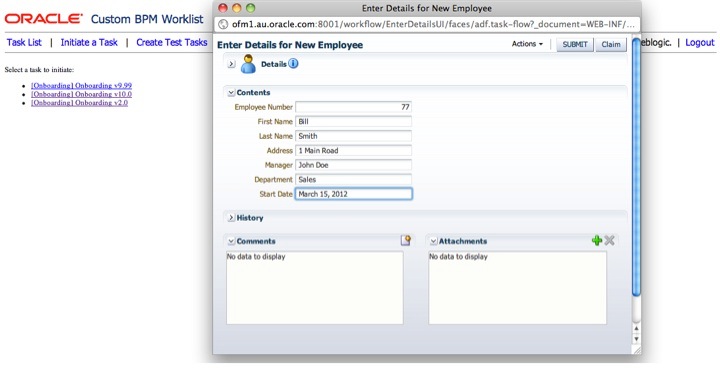
We return the URL to the com.oracle.ateam.InitiateTaskController, which will pass it through to the view, which will in turn open up the task form for the user.

Summary

In this post, we have covered the main business logic of the application, the part that actually deals with the BPM API.  This is probably the most complicated part of the application.  You should take time to make sure you understand how this part of the application works.  The rest of the application is basically using information from these domain classes, or providing information to them.

The code in Subversion has all of the import statements, and many more comments.  See this page for information on how to get the code from Subversion.

In the next post, we will start building our View layer.

Posted in Uncategorized | Tagged , , , , | 5 Comments

Creating the worklist project

This post is part of a series on building a custom worklist for BPM/SOA 11g.

We are using Maven as our project and build management software.  We used Maven 2 on Mac OS X.  Let’s set up our skeleton project and get the POM ready.

We will create the skeleton project using the webapp-javaee6 archetype.  Issue the following command:

# mvn archetype:generate

Select the webapp-javaee6 archetype and enter the coordinates for your project.  We used the following:

groupId:    com.oracle.ateam
artifactId: worklist
version:    1.0-SNAPSHOT
package:    com.oracle.ateam

Maven will create a new project for us in the directory called worklist (the directory will have the same name as we specified for the artifactId).  Inside our new project we will find the following structure:

/                    project root
  - src              source files
    - main           source files for our application
      - java         java source files
      - webapp       web source files (JSPs, CSS, etc.)
    - test           source code for our test cases
  - target           output files from builds
  - pom.xml          The Maven POM

Let’s create a few more directories to organise our artifacts.  Inside src/main/java you will find a set of directories matching the package you specified when you created the project, in our case we have src/main/java/com/oracle/ateam.  We will use this directory to hold our Spring Controllers.  Inside this directory we will create another directory called src/main/java/com/oracle/ateam/domain to hold our ‘business logic’ – the Model, or classes that deal with the BPM API and some wrapper classes to simplify our View design.  Also we will create src/main/java/com/oracle/ateam/util to hold utility classes, such as logging.

Inside the src/main/webapp directory, we will create a new directory to hold our deployment descriptors and configuration files, called src/main/webapp/WEB-INF, and inside that directory another to hold our JSP files, called src/main/webapp/WEB-INF/jsp, and inside that another to hold our common/include files, called src/main/webapp/WEB-INF/jsp/common.  We will also create a directory called src/main/webapp/images to hold images we use in our view (user interface).

So now our project structure looks like this:

/                    project root
  - src                           source files
  | - main                        source files for our application
  | | - java                      java source files
  | | | - com
  | | | | - oracle
  | | | | | - ateam               Spring Controllers
  | | | | | | - domain            'business logic' - the Model
  | | | | | | - util              utility classes
  | | - webapp                    web source files (JSPs, CSS, etc.)
  | | | - WEB-INF                 deployment descriptors and config files
  | | | | - jsp                   Spring Views (JSPs)
  | | | | | - common              common JSP fragments (headers, etc.)
  | | | - images                  images
  | - test                        source code for our test cases
  - target                        output files from builds
  - pom.xml                       The Maven POM

We don’t want to version control the target directory, which contains our builds, so we create a .svnignore file in the project root directory, which contains the following text:

target*

Then we run the following command to tell Subversion to read this file and set up the ignore rules:

# svn propset svn:ignore -F .svnignore .

Now, let’s set up our POM.  We need to add dependencies, configure the WebLogic Maven plugin to allow deployment to WebLogic as part of our build, configure source code management and distribution.  Here is the complete POM:

<project xmlns="http://maven.apache.org/POM/4.0.0"
xmlns:xsi="http://www.w3.org/2001/XMLSchema-instance"
    xsi:schemaLocation="http://maven.apache.org/POM/4.0.0 http://maven.apache.org/xsd/maven-4.0.0.xsd">
    <modelVersion>4.0.0</modelVersion>

    <groupId>com.oracle.ateam</groupId>
    <artifactId>worklist</artifactId>
    <version>1.0-SNAPSHOT</version>
    <packaging>war</packaging>

    <developers>
      <developer>
        <id>markxnelson</id>
        <name>Mark Nelson</name>
        <timezone>+12</timezone>
      </developer>
    </developers>

    <name>Custom BPM Worklist</name>

    <properties>
        <endorsed.dir>${project.build.directory}/endorsed</endorsed.dir>
        <project.build.sourceEncoding>UTF-8</project.build.sourceEncoding>
    </properties>

    <repositories>
      <repository>
        <id>local</id>
        <url>file:///home/mark/.m2/repository</url>
      </repository>
    </repositories>
    <pluginRepositories>
      <pluginRepository>
        <id>localPlugins</id>
        <url>file:///home/mark/.m2/repository</url>
      </pluginRepository>
    </pluginRepositories>

    <dependencies>
        <dependency>
            <groupId>javax</groupId>
            <artifactId>javaee-web-api</artifactId>
            <version>6.0</version>
            <scope>provided</scope>
        </dependency>
        <dependency>
            <groupId>junit</groupId>
            <artifactId>junit</artifactId>
            <version>4.8.1</version>
            <scope>test</scope>
        </dependency>
        <dependency>
            <groupId>com.oracle.soa</groupId>
            <artifactId>bpminfra</artifactId>
            <version>11.1.1.4</version>
            <type>jar</type>
            <scope>compile</scope>
        </dependency>
        <dependency>
            <groupId>com.oracle.soa</groupId>
            <artifactId>bpmservices</artifactId>
            <version>11.1.1.4</version>
            <type>jar</type>
            <scope>compile</scope>
        </dependency>
        <dependency>
            <groupId>com.oracle.soa</groupId>
            <artifactId>wlthinclient</artifactId>
            <version>11.1.1.4</version>
            <type>jar</type>
            <scope>compile</scope>
        </dependency>
        <dependency>
            <groupId>com.oracle.soa</groupId>
            <artifactId>wsclient</artifactId>
            <version>11.1.1.4</version>
            <type>jar</type>
            <scope>compile</scope>
        </dependency>
        <dependency>
            <groupId>com.oracle.soa</groupId>
            <artifactId>xml</artifactId>
            <version>11.1.1.4</version>
            <type>jar</type>
            <scope>compile</scope>
        </dependency>
        <dependency>
            <groupId>com.oracle.soa</groupId>
            <artifactId>xmlparserv2</artifactId>
            <version>11.1.1.4</version>
            <type>jar</type>
            <scope>compile</scope>
        </dependency>
        <dependency>
            <groupId>org.springframework</groupId>
            <artifactId>spring-core</artifactId>
            <version>3.0.5.RELEASE</version>
        </dependency>
        <dependency>
            <groupId>org.springframework</groupId>
            <artifactId>spring-webmvc</artifactId>
            <version>3.0.5.RELEASE</version>
        </dependency>
        <dependency>
          <groupId>commons-logging</groupId>
          <artifactId>commons-logging</artifactId>
          <version>1.1.1</version>
        </dependency>
        <dependency>
          <groupId>commons-fileupload</groupId>
          <artifactId>commons-fileupload</artifactId>
          <version>1.1.1</version>
        </dependency>
        <dependency>
          <groupId>commons-io</groupId>
          <artifactId>commons-io</artifactId>
          <version>1.3.2</version>
        </dependency>
        <dependency>
          <groupId>taglibs</groupId>
          <artifactId>standard</artifactId>
          <version>1.1.2</version>
        </dependency>
        <dependency>
          <groupId>javax.servlet</groupId>
          <artifactId>jstl</artifactId>
          <version>1.1.2</version>
        </dependency>
    </dependencies>

    <build>
        <plugins>
            <plugin>
                <groupId>org.apache.maven.plugins</groupId>
                <artifactId>maven-compiler-plugin</artifactId>
                <version>2.3.2</version>
                <configuration>
                    <source>1.6</source>
                    <target>1.6</target>
                    <compilerArguments>
                        <endorseddirs>${endorsed.dir}</endorseddirs>
                    </compilerArguments>
                </configuration>
            </plugin>
            <plugin>
                <groupId>org.apache.maven.plugins</groupId>
                <artifactId>maven-war-plugin</artifactId>
                <version>2.1</version>
                <configuration>
                    <failOnMissingWebXml>false</failOnMissingWebXml>
                </configuration>
            </plugin>
            <plugin>
                <groupId>org.apache.maven.plugins</groupId>
                <artifactId>maven-dependency-plugin</artifactId>
                <version>2.1</version>
                <executions>
                    <execution>
                        <phase>validate</phase>
                        <goals>
                            <goal>copy</goal>
                        </goals>
                        <configuration>
                            <outputDirectory>${endorsed.dir}</outputDirectory>
                            <silent>true</silent>
                            <artifactItems>
                                <artifactItem>
                                    <groupId>javax</groupId>
                                    <artifactId>javaee-endorsed-api</artifactId>
                                    <version>6.0</version>
                                    <type>jar</type>
                                </artifactItem>
                            </artifactItems>
                        </configuration>
                    </execution>
                </executions>
            </plugin>
            <plugin>
              <groupId>com.oracle.weblogic</groupId>
              <artifactId>weblogic-maven-plugin</artifactId>
              <version>10.3.4</version>
              <configuration>
                 <adminurl>t3://ofm1.au.oracle.com:7001</adminurl>
                 <user>weblogic</user>
                 <password>welcome1</password>
                 <name>worklist</name>
                 <remote>true</remote>
                 <upload>true</upload>
                 <targets>soa_server1</targets>
                 <jvmArgs>
                   <jvmArg>-Xmx1024m</jvmArg>
                 </jvmArgs>
               </configuration>
               <executions>
                 <execution>
                   <id>deploy</id>
                   <phase>pre-integration-test</phase>
                   <goals>
                      <goal>deploy</goal>
                   </goals>
                   <configuration>
                      <source>target/worklist.war</source>
                   </configuration>
                 </execution>
              </executions>
            </plugin>
        </plugins>
        <finalName>worklist</finalName>
    </build>

  <scm>
    <connection>scm:svn:file:///home/mark/svnrepos/worklist/trunk</connection>
    <developerConnection>scn:svn:file:///home/mark/svnrepos/worklist/trunk</developerConnection>
    <url>file:///home/mark/svnrepos/worklist/trunk</url>
  </scm>

  <distributionManagement>
    <!-- use the following if you're not using a snapshot version. -->
    <repository>
      <id>local</id>
      <name>local repository</name>
      <url>file:///home/mark/.m2/repository</url>
    </repository>
    <!-- use the following if you ARE using a snapshot version. -->
    <snapshotRepository>
      <id>localSnapshot</id>
      <name>local snapshot repository</name>
      <url>file:///home/mark/.m2/repository</url>
    </snapshotRepository>
  </distributionManagement>

</project>

Now let’s walk through and look at each of the sections we need to add/modify, starting with the dependencies.  Maven dependencies are expressed as a set of ‘coordinates’ – groupId, artifactId, version, type.  These uniquely identify the dependency and allow Maven to retrieve the necessary libraries for use in compilation and packaging.  We can also specify a ‘scope’ which tells Maven whether the dependency needs to be packaged into the deployment archive, or whether it is already available in the runtime environment.  We can also specify dependencies that are only needed during the testing phase.

Here are the dependencies included in our POM.  These are listed in the format groupId:artifactId:type:version (scope).  You will note in the POM above that the type is omitted if it is jar and the scope is ommited if it is compile.  These are the default values, so they are implied by convention if not specified.

javax:javaee-web-api:jar:6.0 (provided)
  This provides the necessary Java EE libraries for a web application.
junit:junit:jar:4.8.1 (test)
  This is the libraries necessary to run JUnit tests.
com.oracle.soa:bpminfra:jar:11.1.1.4 (compile)
com.oracle.soa:bpmservices:jar:11.1.1.4 (compile)
com.oracle.soa:wlthinclient:jar:11.1.1.4 (compile)
com.oracle.soa:wsclient:jar:11.1.1.4 (compile)
com.oracle.soa:xml:jar:11.1.1.4 (compile)
com.oracle.soa:xmlparserv2:jar:11.1.1.4 (compile)
  These are the BPM API libraries which we installed into our local Maven
  repository in the previous post.
org.springframework:spring-core:jar:3.0.5-RELEASE (compile)
org.springframework:spring-webmvc:jar:3.0.5-RELEASE (compile)
  These are the Spging core and Web MVC libraries.
commons-logging:commons-logging:jar:1.1.1 (compile)
commons-fileupload:commons-fileupload:jar:1.1.1 (compile)
commons-io:commons-io:jar:1.3.2 (compile)
  These are Apache Commons libraries that are use for logging and for
  the upload of files (for the 'attachment' capability).
taglibs:standard:jar:1.1.2 (compile)
javax.servlet:jstl:jar:1.1.2 (compile)
  These are the Java Standard Tag Library (JSTL) libraries that we use
  to create the View.

Next, we want to set up our Maven repositories, source code management and distribution management.  Here are the appropriate parts of the POM:

    <repositories>
      <repository>
        <id>local</id>
        <url>file:///home/mark/.m2/repository</url>
      </repository>
    </repositories>
    <pluginRepositories>
      <pluginRepository>
        <id>localPlugins</id>
        <url>file:///home/mark/.m2/repository</url>
      </pluginRepository>
    </pluginRepositories>

  <scm>
    <connection>scm:svn:file:///home/mark/svnrepos/worklist/trunk</connection>
    <developerConnection>scn:svn:file:///home/mark/svnrepos/worklist/trunk</developerConnection>
    <url>file:///home/mark/svnrepos/worklist/trunk</url>
  </scm>

  <distributionManagement>
    <!-- use the following if you're not using a snapshot version. -->
    <repository>
      <id>local</id>
      <name>local repository</name>
      <url>file:///Users/mark/.m2/repository</url>
    </repository>
    <!-- use the following if you ARE using a snapshot version. -->
    <snapshotRepository>
      <id>localSnapshot</id>
      <name>local snapshot repository</name>
      <url>file:///Users/mark/.m2/repository</url>
    </snapshotRepository>
  </distributionManagement>

You will need to update this section to match your environment.

Finally, we want to configure the project to use the WebLogic Maven Plugin so that we can have Maven deploy the project for us as part of the build.

First, you will need to actually set up and install the plugin.  See this post for instructions on how to do that.  Once you have it installed, you need to add some settings to the POM to tell Maven how to deploy our application.  Here is the relevant section of our POM:

            <plugin>
              <groupId>com.oracle.weblogic</groupId>
              <artifactId>weblogic-maven-plugin</artifactId>
              <version>10.3.4</version>
              <configuration>
                 <adminurl>t3://ofm1.au.oracle.com:7001</adminurl>
                 <user>weblogic</user>
                 <password>welcome1</password>
                 <name>worklist</name>
                 <remote>true</remote>
                 <upload>true</upload>
                 <targets>soa_server1</targets>
                 <jvmArgs>
                   <jvmArg>-Xmx1024m</jvmArg>
                 </jvmArgs>
               </configuration>
               <executions>
                 <execution>
                   <id>deploy</id>
                   <phase>pre-integration-test</phase>
                   <goals>
                      <goal>deploy</goal>
                   </goals>
                   <configuration>
                      <source>target/worklist.war</source>
                   </configuration>
                 </execution>
              </executions>
            </plugin>

You will need to modify this to suit your environment.  The adminurl needs to point to the AdminServer in your WebLogic domain.  The name controls the name of the web application, and targets defines the managed server (or cluster) to deploy the web application to.

At this stage, we will also create some simple deployment descriptors so that we can test the deployment.  Create a file called src/main/webapp/WEB-INF/web.xml with the following contents.  This is the standard Java EE Web Application deployment descriptor.

<?xml version="1.0" encoding="UTF-8"?>
<web-app
  xmlns:web="http://java.sun.com/xml/ns/javaee/web-app_2_5.xsd"
  xmlns:xsi="http://www.w3.org/2001/XMLSchema-instance"
  xsi:schemaLocation="http://java.sun.com/xml/ns/javaee http://java.sun.com/xml/ns/javaee/web-app_2_5.xsd"
  id="worklist" version="2.5">
  <display-name>Custom BPM Worklist</display-name>
</web-app>

Create the WebLogic deployment descriptor src/main/webapp/WEB-INF/weblogic.xml with the following contents:

<!DOCTYPE weblogic-web-app PUBLIC "-//BEA Systems, Inc.//DTD Web Application 9.1//EN"
   "http://www.bea.com/servers/wls810/dtd/weblogic 810-web-jar.dtd">
<weblogic-web-app>
  <context-root>/worklist</context-root>
  <jsp-descriptor>
    <page-check-seconds>1</page-check-seconds>
  </jsp-descriptor>
</weblogic-web-app>

In the WebLogic deployment descriptor, we set the context-root for the application, and also we have set page-check-seconds to 1 to tell WebLogic to reload JSPs every time it gets a request.  This will slow down performance, but makes testing a lot easier.  When you are ready to deploy the application for actual users, you will want to remove this setting.

Having now got our skeleton project configured, you should be able to build and deploy the skeleton application using the command:

# mvn deploy

The first time you do this, Maven will download all of the necessary dependencies, compile the source code (there are a couple of examples included in the standard archetype), run the tests, package it up into a web deployment archive and deploy it to WebLogic Server.

Creating Spring Controllers

Our application will use two ‘utility’ Controller classes, let’s take a look at these now.  First of all, we want to have the ability for a Controller to forward the user to a ‘success’ or ‘failure’ view depending on some logic in the Controller itself.  The AbstractController in Spring only lets us send the user to a single view, so we are going to use the SimpleSuccessFailureController from Professional Oracle WebLogic Server by Robert Patrick et al.  Here is the code:

package com.oracle.ateam;

import javax.servlet.http.HttpServletRequest;
import javax.servlet.http.HttpServletResponse;
import org.springframework.web.servlet.ModelAndView;
import org.springframework.web.servlet.mvc.AbstractController;

public class SimpleSuccessFailureController extends AbstractController {
  private String successView;
  private String failureView;

  @Override
  protected ModelAndView
  handleRequestInternal(HttpServletRequest request, HttpServletResponse response)
  throws Exception {
    return new ModelAndView(getSuccessView());
  }

 public String getSuccessView() {
    return successView;
  }

  public void setSuccessView(String pSuccessView) {
    successView = pSuccessView;
  }

  public String getFailureView() {
    return failureView;
  }

  public void setFailureView(String pFailureView) {
    failureView = pFailureView;
  }
}

We will use this Controller as a superclass, that most of our other Controllers will extend.  We will see how our Controllers are built over several posts.

The other ‘generic’ or ‘utility’ Controller is our ErrorController which we will use to handle errors.  Since the only kind of error that can really get us to this point is a ‘pretty bad one’ we will go ahead and end the user’s session.  All of the ‘not so bad’ errors are handled where they occur.  Here is the code for the ErrorController:

package com.oracle.ateam;

import org.springframework.web.servlet.ModelAndView;
import javax.servlet.http.HttpServletRequest;
import javax.servlet.http.HttpServletResponse;
import com.oracle.ateam.util.MLog;
import com.oracle.ateam.domain.MTaskList;
import com.oracle.ateam.domain.ContextCache;

public class ErrorController extends SimpleSuccessFailureController {
  @Override
  protected ModelAndView handleRequestInternal(HttpServletRequest request, HttpServletResponse response)
      throws Exception {
    MLog.log("ErrorController", "Entering handleInternalRequest()");
    // destroy the context
    ContextCache.getContextCache().remove(request.getRemoteUser());
    // invalidate the session
    request.getSession().invalidate();
    // inform the user
    request.getSession(true).setAttribute("message", "Your session has become invalid and has been reset.");
    return super.handleRequestInternal(request, response);
  }
}

So this Controller will remove the user’s credentials from the cache – we will learn about this soon – and log the user out (by invalidating their session).  It will also pass a message to the view to inform the user what happened.  We will see how this works later on.

In the next post, we will create the business logic layer and some utility classes.

Posted in Uncategorized | Tagged , , , , | 1 Comment

Setting up the development environment for the Worklist

This post is the second in a series on building a custom worklist for BPM/SOA 11g.

In this post, we will set up our development environment so that we can start building the application.

Version Control

First, we are going to want a version control system.  We use and recommend Subversion.  The example was developed using Subversion 1.6.5 (r38866) for Mac OS X.  You will need to install Subversion and create a new repository.  We created our repository as follows:

# svnadmin create /Users/mark/svnrepos

We also set up a second, read-only, copy of the repository on another server, to act as a backup.  If you want to do this too, you need to install Subversion on the remote server and configure the repository for synchronisation by creating a hook.  Here are the steps we used, first create the repository on the remote machine:

remote# svnadmin create /home/marnelso/svnrepos

Then create the hook, create a file called /home/marnelso/svnrepos/hooks/pre-revprop-change containing the following (modify this to suit your environment):

#!/bin/sh
USER=""
if [ "$USER" = "marnelso" ]; then exit 0; fi
echo "Permission denied"
exit 1

Initialise the repository for synchronisation:

local# svnsync init svn+ssh://marnelso@server/home/marnelso/svnrepos

Again, you will need to substitute in the correct server name, username, Subversion protocol, etc., for your environment.

Now we need to set up our repository.  We followed the structure recommended in Version Control with Subversion, so our repository looks like this:

/               Repository root
- worklist      Project root
  - trunk       Main development area
  - tags        Area for storing tags

I also found there were a few Subversion commands I wanted to issue regularly, so I made a couple of shell scripts to save some typing.

First, I made one called svnaddr to add any new source files to Subversion:

#!/bin/sh
svn st | grep ^? | awk '{ print $2 }' | xargs svn add

Second, I created a script called synsyncnow to synchronise my local Subversion repository to the backup:

#!/bin/sh
synsync sync svn+ssh://marnelso@server/home/marnelso/svnrepos

I also used the command svn st regularly to see what files I had changed, and svn diff to see the actual changes.

Build Management

Next, we need a build system.  We decided to use Maven.    In our environment, we used Maven 2.2.1 (r801777) on Mac OS X, with Java 1.6.0_22.

In order to automate deployment, we used the WebLogic Maven Plugin.  You can find details about the plugin and how to set it up in this post.  We will cover the POM for our project in the next post in this series – see the end of this post for a link.

There are a number of libraries that we will want to use.  These libraries are provided as JAR files in the Oracle BPM Suite installation.  You will want to add these to your local Maven repository so that you can add them to your POM as dependencies.  The libraries are located in Oracle Fusion Middleware home, in the following locations:

Oracle_SOA1/soa/modules/oracle.soa.workflow_11.1.1/bpm-services.jar
Oracle_SOA1/soa/modules/oracle.soa.fabric_11.1.1/bpm-infra.jar
Oracle_SOA1/soa/modules/oracle.bpm.client_11.1.1/oracle.bpm.bpm-services.client.jar
Oracle_SOA1/soa/modules/oracle.bpm.client_11.1.1/oracle.bpm.bpm-services.interface.jar
oracle_common/webservices/wsclient_extended.jar
oracle_common/modules/oracle.xdk_11.1.0/xmlparserv2.jar
oracle_common/modules/oracle.xdk_11.1.0/xml.jar
wlserver_10.3/server/lib/wlfullclient.jar  (see note below)

The wlfullclient.jar will not exist unless you have created it before.  To create it, you need to execute the following commands:

# cd <OFM_HOME>/wlserver_10.3/server/lib
# java -jar ../../../modules/com.bea.core.jarbuilder_1.3.0.0.jar

Update: The version number at the end of the jarbuilder may be newer, you will need to check it and enter the correct value for your installation.

You will need to install each of these files into your local Maven repository using the following command:

# mvn install:install-file
  -Dfile=bpm-services.jar
  -DgroupId=com.oracle.soa
  -DartifactId=bpmservices
  -Dversion=11.1.1.4
  -Dpackaging=jar
  -DgeneratePom=true

You need to enter this command on one line (or use continuation characters at the end of each line).  You will need to run this command once for each of the libraries, each time changing the file and artifactId to match.  I used the following values for artifactId:

  • bpminfra
  • bpmservices
  • bpmservices_client
  • bpmservices_interface
  • wsclient
  • xmlparser
  • xml
  • wlfullclient

We will use these in the POM to refer to these libraries.

Test Environment

We also needed a server environment to deploy our project to and to use for testing.  We used BPM Suite 11.1.1.4 running on WebLogic 10.3.4 on Java 1.6.0_22 on Oracle Linux 5.5 (all 64-bit).  We used the full ‘production’ install with a separate AdminServer and managed servers for SOA/BPM and various other components of Oracle Fusion Middleware.  The full install end-to-end for 11.1.1.3 is covered in this post.  The install for 11.1.1.4 is similar.  We have not updated our end-to-end install post yet, but you will probably find that it is similar enough that you can still use the old post.

The full install is not needed for this example.  You do not need any of the WebCenter components.  You can use a ‘developer install’ of BPM if you want to, or if you have less hardware available for testing.  You can find details on how to set up the developer install in this post.

We used Oracle XE as our database.  If you want to do the same, make sure you read over this post to be aware of the extra environment variable you need to set.

You should also review this post to check the recommended settings for the JVM.

If you prefer not to install yourself, you may want to take a look at the pre-built virtual machine images provided by Oracle.

Documentation

You will probably want to bookmark some documentation that you will want to refer to frequently.  You might want to read over Chapter 31 of the Oracle SOA Suite Developer’s Guide to get an overview of the APIs and libraries we will be working with.  You will also want to have the Workflow API documentation available to look up details of the various APIs that we will be using.

Creating the Project

In the next post in this series, we will create the actual project.

Posted in Uncategorized | Tagged , , , , , | 1 Comment

Worklist Overview

This post is the first in a series on building a custom worklist application for BPM/SOA Suite 11g.

In this post, we will introduce the application and outline the basic architecture.

For our ‘version 1.0’ worklist sample, we decided to implement a basic set of functionality including listing and filtering tasks, actioning tasks, adding comments, and integration with WebLogic Server for security.

The purpose of this sample is to give a fully worked example of building a custom worklist application from scratch.

Let’s take a quick tour of the worklist.  Our login screen will look as follows:

Once a user logs in, they will be able to view the task list, as shown below.  Note that they can filter by the assignee and the status.  They can also click on the Task Number link to view details of an individual task.

On the task detail screen, they are able to see the payload and comments, add comments, and action the task.  The example includes both the ‘custom actions’ defined in the Human Task definition, and the ‘system actions’ that are available for all tasks.

Users are also able to view a list of the tasks that they are able to initiate, and can initiate a task, which will display the task form for the user to enter the necessary information.

We wanted to use a common web framework and development environment to create the sample.  We decided on Spring Web MVC, not because we necessarily think it is the best framework, but because we think it is commonly used and well understood.  As it implements the MVC pattern that many common frameworks use, we hope that the example will still be useful even if you prefer to use a different web framework.

Spring Web MVC uses a ‘Dispatcher Servlet’ as its ‘front controller,’ as shown in the diagram below, which is taken from the Spring Framework Reference.  This dispatcher delegates the request to a controller that we provide.  The controller populates the model and then passes it to the view.  The view is responsible for rendering the user interface.

We built the example to run on WebLogic Server.  The build was managed using Maven.

We register each of our controllers in the Spring configuration file, along with the mappings from URLs to the appropriate controller.  This file also contains properties that determine which view to use when the controller was successful or failed.

In our example, all of the URLs are protected, with the exception of the home page.  We have use the WebLogic deployment descriptor to define the security rules.  At no time does our application collect or store credentials.  This is all done by the WebLogic Server security infrastructure on our behalf.  The application is written to support multiple concurrent users and to support deployment into a clustered environment.

Logging has been included in the application so that you can follow through the execution while you are exploring the application.  All logging is done through a central utility class, so that it can be easily removed.  The logging is all printed to the System.out of the WebLogic Server, i.e. on to its console and into its log file.  We found this useful during development because you can essentially watch what is happening in real time.

In the next post in the series, we set up our development environment so that we can start the project.

Posted in Uncategorized | Tagged , , , , , | Leave a comment

Installing Hudson on WebLogic Server

Today I needed to set up a Hudson server and so I decided to put it on WebLogic Server.  Turns out there is a little trick to get it working.  Thanks to Steve Button for sharing the trick with me. 🙂

I installed Hudson 1.396 on WebLogic Server 10.3.4 running on Oracle Linux 5.5 (64-bit).

First you need to download the hudson.war file from the Hudson site.  We need to add a WebLogic deployment descriptor to it so that it wont have any classpath/library  problems.

In the directory where you saved hudson.war create a new directory called WEB-INF and inside that a file called weblogic.xml.  Here is the contents for the file:

<?xml version="1.0" encoding="UTF-8"?>
<weblogic-web-app
  xmlns="http://www.bea.com/ns/weblogic/weblogic-web-app">
  <container-descriptor>
    <prefer-application-packages>
      <package-name>org.apache.*</package-name>
      <package-name>org.dom4j.*</package-name>
    </prefer-application-packages>
  </container-descriptor>
</weblogic-web-app>

Now you need to add this file into the hudson.war using the following command:

# jar uvf hudson.war WEB-INF/weblogic.xml

Now we are ready to install Hudson!

Log in to the WebLogic Server adminstration console at http://yourserver:7001/console and start a new edit session (click on Lock and Edit).  Note that you wont have to do this if you are running your server in development mode.

Now click on Deployments in the navigation tree on the left and then click on the Install button.

Click on the link to upload your file(s) and point it to your updated hudson.war.  After it is uploaded, check it is selected and click on Next.

Click Next on the next screen.

Select a managed server to deploy Hudson on.  I used my soa_server1.  Then click on Next.

Click Next on the next screen.

Click on Finish.  After a few moments your application will be installed.

If you are running your server in production mode, you will need to click on the Activate Changes button.  Then return to the Deployments screen, find your newly installed application (hudson), tick the box next to it and click on the Start button and then Servicing all requests.  This will start Hudson on your WebLogic Server.

Now you can open up a browser and visit the Hudson home page at http://yourserver:8001/hudson.  Note that you will have to change the port to match your environment.

More about Hudson later… but for now, enjoy!

Posted in Uncategorized | Tagged , | 4 Comments

Deploying your canonical data model to MDS

Oracle SOA Suite (and Oracle BPM Suite) includes a component called ‘Metadata Services’ or ‘MDS’ which is a good practice to use as the repository for all of your common components that are used across multiple processes and integration artifacts.  One excellent example of such a component is the XML Schemas (XSDs) that define your canonical data model.  This article shows the process to create and deploy XSDs to MDS.

Our XSD defines and holds information of a Customer.  What is a Customer?  What attributes and information can describe a Customer in a particular organization?  These are types of questions organizations start exploring when defining their canonical layer.  Usually this data is already known and stored somewhere, but not publically available, accepted and distributed. XSD could be built using existing structures, e.g. Database, Applications, etc. We build an XSD file from scratch in this example to demonstrate the concept.

This article was written using JDeveloper 11.1.1.4 running on Windows 2008 Server R2 and Oracle SOA Suite 11.1.1.4 running on Oracle Enterprise Linux 5.  The same steps should work in earlier 11.x.x.x versions, however there may be some slight differences in the appearance of some windows.

To start, we create a new application in JDeveloper by selecting Application from the New menu.  In the New Gallery, select Applications under General in the Categories section on the left, and select SOA Application on the right hand side.  If you do not see this option, you may need to select the All Technologies tab at the top.  Then press OK.

image

Enter a name for your application.  I called mine CanonicalModel.  Then click on Next.

image

Enter a name for the SOA project inside your new application.  I gave mine the same name.  Then click on Next.

image

On the Configure SOA settings page, keep the default, Empty Composite, and then click on Finish.

image

Your new application and project will open.  Now, let’s create our canonical data model.  For the purposes of this example, let’s just create a simple ‘customer’ object.  Of course, in your environment, you will have a much more complete canonical data model!

Select New from the File menu.  In the New Gallery select the All Technologies tab, and then select the XML category and XML Schema as shown below.  Then click on OK.

image

Enter a name for your schema, I called mine customer.xsd.  You should put it in the xsd directory of your project.  Set the Target Namespace to something meaningful and provide a Prefix as shown.  Then click on OK.

image

Now you need to create your XSD.  JDeveloper provides a graphical edit for creating XSDs.  For this example, I just created a simple XSD as shown below.

image

To use this same XSD, just copy the code below and paste it into the Source tab of the XSD editor.  You can switch back and forward between the graphical and source views.  Any updates you make in either view will be reflected in the other.

This example follows the ‘best practice’ approach of defining the data structures as types and then the main element, Customer, refers to that type.

<?xml version=”1.0″ encoding=”windows-1252″ ?>
<xsd:schema xmlns:xsd=”
http://www.w3.org/2001/XMLSchema”
xmlns:cc=”http://www.redstack.com/canonical”
targetNamespace=”http://www.redstack.com/canonical”
elementFormDefault=”qualified”>
<xsd:element name=”Customer” type=”cc:CustomerType”>
<xsd:annotation>
<xsd:documentation>
A sample element
</xsd:documentation>
</xsd:annotation>
</xsd:element>
<xsd:complexType name=”CustomerType”>
<xsd:sequence>
<xsd:element name=”Version” type=”xsd:string”/>
<xsd:element name=”CustomerID” type=”xsd:string”/>
<xsd:element name=”Name” type=”xsd:string”/>
</xsd:sequence>
</xsd:complexType>
</xsd:schema>

That completes our canonical model!  Well, our simple example anyway.

Now we want to deploy that to our server so that everyone can see it and use it.  To do this, we need to set up a deployment profile.  Select Project Properties from the Application menu.  Then select Deployment in the navigation tree on the left.  You will see one already there.  Click on the New… button to add another deployment profile.

In the Create Deployment Profile dialog, select Jar File as the Archive Type and then enter a name for your deployment profile.  I called mine Metadata.  Then click on OK.

image

In the dialog box, select Jar Options on the left.  Deselect (uncheck) the Include Manifest File option.

image

Move to the Contributors section as shown below.  Unselect all of the options and then click on the Add… button.

image

In the Add Contributor dialog, click on the Browse… button.

image

Navigate to your project directory.  The directory that you choose here will determine the path name that appears in MDS.  If you have a large set of canonical data, you may want to use additional folders to provide some structure.  Click on OK and then OK again.

image

Now select Filters on the left hand side.  On the right hand side, deselect everything except for your XSD file(s), as shown below.  Then click on OK.

image

Now we need to make a ‘SOA Bundle’ containing this deployment profile we just created.  The SOA Bundle is the thing we will actually deploy to the server.  It will contain the jar file with our XSDs in it.
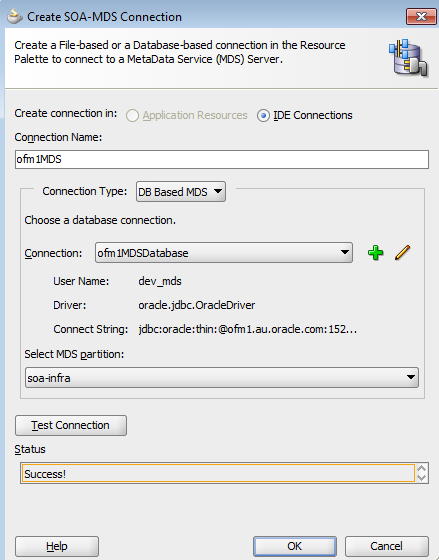
Select Application Properties from the Application menu.  Navigate to the Deployment section on the left, and then click on the New… button.  In the Create Deployment Profile dialog, select SOA Bundle as the Archive Type and enter a name.  I called mine CanonicalModelBundle.  Then click on OK.

image

In the SOA Bundle Deployment Profile Properties dialog, open the Dependencies section and select both of the Java EE Modules as shown below.  Then click on OK.

image

Now we can deploy our canonical data model to MDS.  Select your deployment profile from the Deploy submenu under Application as shown below.

image

The deployment wizard will appear.  On the first page, select Deploy to Application Server and click on Next.

image

You can accept the defaults on the Deploy Configuration page.  Click on Next.

image

Select your server, then click on Next.  If you have not deployed to your server before, you will need to create a connection first.  You can do that by clicking on the green plus icon in the top right corner of this page – you don’t have to leave the deployment wizard.

image

Select the correct managed server and SOA partition to deploy to.  If you don’t know which one to use, you should probably take the default.  Then click on Next.

image

Review the information on the Summary page and then click on Finish to start the deployment.

image

You can review the progress of the deployment by watching the Deployment tab at the bottom of the screen.  If you cannot see it, you can open it from the View menu.  You should see a deployment log something like this:

[02:51:22 PM] —-  Deployment started.  —-
[02:51:22 PM] Target platform is  (Weblogic 10.3).
[02:51:22 PM] Running dependency analysis…
[02:51:22 PM] Building…
[02:51:29 PM] Deploying 3 profiles…
[02:51:29 PM] Wrote Archive Module to C:\JDeveloper\mywork\CanonicalModel\CanonicalModel\deploy\Metadata.jar
[02:51:29 PM] Updating revision id for the SOA Project ‘CanonicalModel.jpr’ to ‘1.0’..
[02:51:29 PM] Wrote Archive Module to C:\JDeveloper\mywork\CanonicalModel\CanonicalModel\deploy\sca_CanonicalModel_rev1.0.jar
[02:51:29 PM] Wrote Archive Module to C:\JDeveloper\mywork\CanonicalModel\deploy\CanonicalModelBundle.zip
[02:51:29 PM] Deploying CanonicalModelBundle.zip to partition “default” on server soa_server1 [
http://ofm1.au.oracle.com:8001]
[02:51:29 PM] Processing sar=/C:/JDeveloper/mywork/CanonicalModel/deploy/CanonicalModelBundle.zip
[02:51:29 PM] Processing zip file – C:\JDeveloper\mywork\CanonicalModel\deploy\CanonicalModelBundle.zip
[02:51:29 PM] Adding shared data file – C:\Users\ADMINI~1\AppData\Local\Temp\deploy_client_1295495489829\Metadata.jar
[02:51:29 PM] Adding sar file – C:\Users\ADMINI~1\AppData\Local\Temp\deploy_client_1295495489829\sca_CanonicalModel_rev1.0.jar
[02:51:29 PM] Preparing to send HTTP request for deployment
[02:51:29 PM] Creating HTTP connection to host:ofm1.au.oracle.com, port:8001
[02:51:29 PM] Sending internal deployment descriptor
[02:51:29 PM] Sending archive – sca_CanonicalModel_rev1.0.jar
[02:51:29 PM] Sending archive – Metadata.jar
[02:51:30 PM] Received HTTP response from the server, response code=200
[02:51:30 PM] Successfully deployed archive CanonicalModelBundle.zip to partition “default” on server soa_server1 [
http://ofm1.au.oracle.com:8001]
[02:51:30 PM] Elapsed time for deployment:  8 seconds
[02:51:30 PM] —-  Deployment finished.  —-

That completes our deployment.  Our canonical data model is now available on the server and everyone will be able to use it.

Let’s take a look at how a developer can view the data model.  To do this, you need to create a connection to the MDS from JDeveloper.  Select New from the File menu.  Select Connections on the left and SOA-MDS-Connection on the right, as shown below.  Then press OK.

image

In the Create SOA-MDS Connection dialog, enter a name for your connection, I called mine ofm1MDS.  Select DB Based MDS as the Connection Type.  You will always use a database based MDS in your server environment.  Then select which database connection to use.  You probably wont have one set up yet, so click on the green plus icon to create one.

image

You need to enter the database connection details and give your connection a name, as shown below.  Once you have entered all the details, press the Test Connection button to check you have everything correct.  When you see the Success! message, click on OK to continue.

image

Select the connection you just created and then select the correct MDS partition to use.  If you don’t know which one to use, choose soa-infra.  Click on the Test Connection button to check you have everything correct.  When you see the Success! message, click on OK to continue.

image

Now you will be able to browse the MDS and view the artifacts in there.  You do this in the Resource Pallette.  If you don’t see it, you can open it from the View menu.  The diagram below shows our customer object in MDS.

image

Developers could now easily access and use the canonical data model from MDS.  Doing so will ensure that everyone is using the same versions of you data definitions and dramatically reduce testing and maintenance effort.  Enjoy!

Posted in Uncategorized | Tagged , , , , | 1 Comment

Finding which JAR contains a class – again!

I posted a few days ago about finding which JAR file contains a class file – something I often want to do.  My friend Chris Johnson promptly posted a better version here with caching – thanks Chris!

Chris said I inspired him to finish his script 🙂 and in return he has inspired me to improve it further.  As I often work with JAR files in a development environment, and often a lot of them, the search can take a while, so the caching is great.  But – those files can change over time, so I need the cache to be kept up to date.

Here is an updated version of Chris’ version that will update the cache if a JAR file is newer than the cache:

#!/bin/sh
TARGET="$1"

CACHEDIR=~/.jarfindcache

# prevent people from hitting Ctrl-C and breaking our cache
trap 'echo "Control-C disabled."' 2

if [ ! -d $CACHEDIR ]; then
    mkdir  $CACHEDIR
fi

for JARFILE in `find $PWD -name "*jar"`
do
  CACHEFILE=$CACHEDIR$JARFILE

  if [ ! -s $CACHEFILE ]; then
      mkdir -p `dirname $CACHEFILE`
      nohup jar tvf $JARFILE > $CACHEFILE
  # if the jar file has been updated, cache it again
  elif [ $JARFILE -nt $CACHEFILE ]; then
      nohup jar tvf $JARFILE > $CACHEFILE
  fi

  grep $TARGET $CACHEFILE > /dev/null
  if [ $? == 0 ]
  then
    echo "$TARGET is in $JARFILE"
  fi
done

P.S.  If you are running this on Ubuntu (or Debian), like me, you better make that first line a bit more explicit:

#!/bin/bash

Enjoy!

Posted in Uncategorized | Tagged | 1 Comment