Simple JMS client in Scala

In a small departure from our normal Java oriented examples, this post shows how to send a JMS message from Scala.  It is basically a port of the simple JMS client found in this post.

This example is written to run against WebLogic Server 10.3.2.  Details of the necessary WebLogic Server configuration necessary to run this code can be found in that same post referred to above.  You can also find a C# JMS client here.

Update: You can grab this code from our Subversion repository:
svn checkout https://www.samplecode.oracle.com/svn/jmsclients/trunk

Here is the code:

  1 import java.util.{Hashtable => JHashtable}
  2 import javax.naming._
  3 import javax.jms._
  4
  5 object SimpleJMSClient {
  6
  7   val DEFAULT_QCF_NAME = "jms/MarksConnectionFactory"
  8   val DEFAULT_QUEUE_NAME = "jms/MarksQueue"
  9   val DEFAULT_URL = "t3://localhost:7101"
 10   val DEFAULT_USER = "weblogic"
 11   val DEFAULT_PASSWORD =  "weblogic"
 12
 13   def sendMessage(theMessage: String) {
 14     sendMessage(
 15       url = DEFAULT_URL,
 16       user = DEFAULT_USER,
 17       password = DEFAULT_PASSWORD,
 18       cf = DEFAULT_QCF_NAME,
 19       queue = DEFAULT_QUEUE_NAME,
 20       messageText = theMessage)
 21   }
 22
 23   def sendMessage(url : String, user : String, password : String,
 24                   cf : String, queue : String, messageText : String) {
 25     // create InitialContext
 26     val properties = new JHashtable[String, String]
 27     properties.put(Context.INITIAL_CONTEXT_FACTORY,
 28                    "weblogic.jndi.WLInitialContextFactory")
 29     properties.put(Context.PROVIDER_URL, url)
 30     properties.put(Context.SECURITY_PRINCIPAL, user)
 31     properties.put(Context.SECURITY_CREDENTIALS, password)
 32
 33     try {
 34       val ctx = new InitialContext(properties)
 35       println("Got InitialContext " + ctx.toString())
 36
 37       // create QueueConnectionFactory
 38       val qcf = (ctx.lookup(cf)).asInstanceOf[QueueConnectionFactory]
 39       println("Got QueueConnectionFactory " + qcf.toString())
 40
 41       // create QueueConnection
 42       val qc = qcf.createQueueConnection()
 43       println("Got QueueConnection " + qc.toString())
 44
 45       // create QueueSession
 46       val qsess = qc.createQueueSession(false, 0)
 47       println("Got QueueSession " + qsess.toString())
 48
 49       // lookup Queue
 50       val q = (ctx.lookup(queue)).asInstanceOf[Queue]
 51       println("Got Queue " + q.toString())
 52
 53       // create QueueSender
 54       val qsndr = qsess.createSender(q)
 55       println("Got QueueSender " + qsndr.toString())
 56
 57       // create TextMessage
 58       val message = qsess.createTextMessage()
 59       println("Got TextMessage " + message.toString())
 60
 61       // set message text in TextMessage
 62       message.setText(messageText)
 63       println("Set text in TextMessage " + message.toString())
 64
 65       // send message
 66       qsndr.send(message)
 67       println("Sent message ")
 68
 69     } catch {
 70       case ne : NamingException =>
 71         ne.printStackTrace(System.err)
 72         System.exit(0)
 73       case jmse : JMSException =>
 74         jmse.printStackTrace(System.err)
 75         System.exit(0)
 76       case _ =>
 77         println("Got other/unexpected exception")
 78         System.exit(0)
 79     }
 80   }
 81
 82   def main(args: Array[String]) = {
 83     sendMessage(
 84       theMessage = "hello from Scala sendMessage() with 1 arg"
 85     )
 86     sendMessage(
 87       url =        "t3://localhost:7101",
 88       user =       "weblogic",
 89       password =   "weblogic",
 90       cf =         "jms/MarksConnectionFactory",
 91       queue =      "jms/MarksQueue",
 92       messageText = "hello from Scala sendMessage() with 6 args"
 93     )
 94   }
 95
 96 }

Note that on line 26, we need to say JHashtable[String, String] to make this (old) Java API work in Scala.

To compile and run this code, you will need to put the wlthint3client.jar on your classpath, as shown below:

scala -classpath ~/Oracle/Middleware/wlserver_10.3/server/lib/wlthint3client.jar:. SimpleJMSClient

The output should look a little like this (if everything works!):

Got InitialContext javax.naming.InitialContext@435db13f
Got QueueConnectionFactory weblogic.jms.client.JMSConnectionFactory@21ed5459
Got QueueConnection weblogic.jms.client.WLConnectionImpl@41759d12
Got QueueSession weblogic.jms.client.WLSessionImpl@491cc367
Got Queue Module1!MarksQueue
Got QueueSender weblogic.jms.client.WLProducerImpl@72813bc1
Got TextMessage TextMessage[null, null]
Set text in TextMessage TextMessage[null, hello from sendMessage() with 1 arg]
Sent message
Got InitialContext javax.naming.InitialContext@5c2bfdff
Got QueueConnectionFactory weblogic.jms.client.JMSConnectionFactory@465ff916
Got QueueConnection weblogic.jms.client.WLConnectionImpl@5374a6e2
Got QueueSession weblogic.jms.client.WLSessionImpl@f786a3c
Got Queue Module1!MarksQueue
Got QueueSender weblogic.jms.client.WLProducerImpl@689e8c34
Got TextMessage TextMessage[null, null]
Set text in TextMessage TextMessage[null, hello from sendMessage() with 6 args]
Sent message

And, as shown in the referenced post, you can go into the WebLogic Server console and read the messages!

This code shows how we can create a nice, simple API to send a JMS message.  Combined with the native XML support in Scala, this could provide particularly clean and compact code for sending XML messages with changing fields, as we might want to do when writing load simulators.

This would be useful for Business Activity Monitoring or Oracle Service Bus, where we may want to send simliar messages repeatedly, with only small changes to some fields, e.g. incrementing order numbers or updating status fields.

Note: This content is also posted here in a slightly different treatment, for a different audience.

Posted in Uncategorized | Tagged , , | Leave a comment

Configuring Maven to run your Java application

Recently I was working on a project using Maven, and I really wanted to be able to run the project easily without needing to worry about all the classpath entries.

Turns out it is relatively easy to set up Maven to run your project for you and to automatically handle providing the right classpath for your code and all the dependencies.  Here’s how:

I created a simple Maven JAR project using an archetype as shown below:

$mvn archetype:create 
  -DarchetypeGroupId=org.apache.maven.archetypes 
  -DgroupId=com.redstack 
  -DartifactId=myproject

Then I edited the pom.xml file in the myproject directory.  I added the entries shown in red.  These tell Maven to compile the project using Java 1.6, and the name of the main class for the project.

<project xmlns="http://maven.apache.org/POM/4.0.0" 
    xmlns:xsi="http://www.w3.org/2001/XMLSchema-instance"
    xsi:schemaLocation="http://maven.apache.org/POM/4.0.0 http://maven.apache.org/xsd/maven-4.0.0.xsd">
  <modelVersion>4.0.0</modelVersion>
 <groupId>com.redstack</groupId>
  <artifactId>myproject</artifactId>
  <version>1.0-SNAPSHOT</version>
  <packaging>jar</packaging>
 <name>myproject</name>
  <url>http://maven.apache.org</url>
 <properties>
    <project.build.sourceEncoding>UTF-8</project.build.sourceEncoding>
  </properties>
 <build>
  <plugins>
   <plugin>
    <artifactId>maven-compiler-plugin</artifactId>
    <version>2.0.2</version>
    <configuration>
      <source>1.6</source>
      <target>1.6</target>
    </configuration>
   </plugin>
   <plugin>
    <groupId>org.codehaus.mojo</groupId>
    <artifactId>exec-maven-plugin</artifactId>
    <configuration>
      <mainClass>com.redstack.App</mainClass>
    </configuration>
   </plugin>
  </plugins>
 </build>
 <dependencies>
    <dependency>
      <groupId>junit</groupId>
      <artifactId>junit</artifactId>
      <version>3.8.1</version>
      <scope>test</scope>
    </dependency>
  </dependencies>
</project>

Having done this, I can then build and then run the project by simply typing these two commands:

$ mvn package
$ mvn exec:java
...
Hello World!
...

There will be a bunch of Maven messages too, but in the middle there you can see the output from the project – “Hello World!” in this case.  This example is just running the App.java that was generated by Maven.  In your project, this class might start up a User Interface, or run any number of tasks.  It probably does a little more than printing “Hello World!”

[Updated Jan 7, 2011] This approach will run your application in the same process that Maven is running in, which may or may not be acceptable.  If you want to run it in a different process, you can modify the plugin configuration section to something more like this:

     <plugin>
        <groupId>org.codehaus.mojo</groupId>
        <artifactId>exec-maven-plugin</artifactId>
        <configuration>
          <executable>java</executable>
          <arguments>
            <argument>-Xms512m</argument>
            <argument>-Xmx512m</argument>
            <argument>-XX:NewRatio=3</argument>
            <argument>-XX:+PrintGCTimeStamps</argument>
            <argument>-XX:+PrintGCDetails</argument>
            <argument>-Xloggc:gc.log</argument>
            <argument>-classpath</argument>
            <classpath/>
            <argument>com.redstack.App</argument>
          </arguments>
        </configuration>
      </plugin>

Then use the goal:

mvn exec:exec

This will execute the JVM in a new process and allow you to pass in whatever arguments you like.  Notice the empty classpath tag.  This will insert the correct runtime classpath for you based on the dependencies in the pom.xml.

Posted in Uncategorized | Tagged | 2 Comments

Changing the port that WebLogic listens on (using WLST)

Occasionally I need to change the port that my WebLogic AdminServer is listening on, without actually starting up the server.  Usually this is because I have just created a new domain, and I forgot to change the port in the Domain Configuration Wizard (oops!), and now I can’t start the server up because there is already another one using that port.

One way to get around this is to use the WebLogic Scripting Tool (WLST) to change the listening port.

Start WLST by running:

/home/mark/Oracle/Middleware/wlserver_10.3/common/bin/wlst.sh

When you start up WLST, it scans all of the JAR files on its classpath, so it can take a few moments to start up.

The commands below are used to navigate to and change the listening port setting, in this case to 7777.

wls:/offline> readDomain ('/home/mark/Oracle/Middleware/user_projects/domains/base_domain')
wls:/offline/base_domain> cd ('Server')
wls:/offline/base_domain/Server> ls ()
drw- AdminServer
wls:/offline/base_domain/Server> cd ('AdminServer')
wls:/offline/base_domain/Server/AdminServer> ls ()
...
-rw- ListenPort 7001
...
wls:/offline/base_domain/Server/AdminServer> set ('ListenPort',7777)
wls:/offline/base_domain/Server/AdminServer> updateDomain ()
wls:/offline/base_domain/Server/AdminServer> exit ()

You can now start up your AdminServer and it will be listening on port 7777.

This process actually just updates the config.xml in the domain’s config directory.  It adds a <listenPort>7777</listenPort> entry in the AdminServer configuration.  Take a look at the file before and after to see what it does.

You can, of course, just go ahead edit the file too.  That is certainly faster, but not quite as instructive!  In WLST using the ls (list) command, you can see all of the other available settings.  Many of these are not in the config.xml file (as they are defaults).  Looking around in WLST can help you discover a lot of the options that are available for configuration.

Posted in Uncategorized | Tagged , | Leave a comment

Using WebLogic as a Load Balancer

Recently, I was working with a customer who was developing an application on Windows (developer) machines and was planning to deploy to a (production) cluster of WebLogic Servers running on Solaris, with a hardware load balancer.  In order to do some functional, load and availability testing of the application before deploying it into production, they needed to set up a cluster in their test environment, but they did not have access to a hardware load balancer in the test environment.

This is a common scenario for many development projects.  There are a number of good options available to set up a software load balancer in the test environment.  In this post, we will explore one such option – using the HTTP Cluster Servlet that is included with WebLogic Server.

In this post, we are using 64-bit WebLogic Server 10.3.3 running on 64-bit JRockit 1.6.0 on 64-bit Ubuntu 10.10.  We also use Maven 2.2.1 in this post.  The use of Maven is incidental to the purpose of the post, but since we use it often, we have included it here.  If you don’t use Maven, you can just create the necessary files in the correct directory structure and manually create your WAR files.

Thanks to Sushil Shukla and Robert Patrick for assistance in preparing this post.

We start with a freshly installed WebLogic Server 10.3.3.  Our first step is to create a WebLogic domain.  Our domain is going to contain four servers.

  • Firstly, the AdminServer which is used to run the administration console and to manage deployments and so on.
  • Secondly, we will run two managed servers that will run our web application.  These two servers will be clustered.
  • Thirdly, we will run another managed server which will be our load balancer.  This managed server will not be part of the cluster.
  • Finally, we will use the Node Manager to start and stop all of our servers.

Let’s use the WebLogic Domain Configuration tool to create our domain:

$ cd ~/Oracle/Middleware/wlserver_10.3/common/bin
$ ./config.sh

After a few moments, the Configuration Wizard will appear.  Select the option to Create a new WebLogic domain and click on Next.

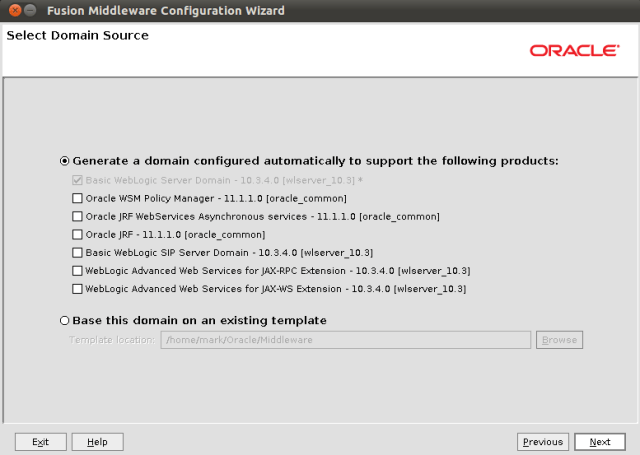
For this example, we don’t need to select any of the options on the Select Domain Source page, we can just click on Next to continue.
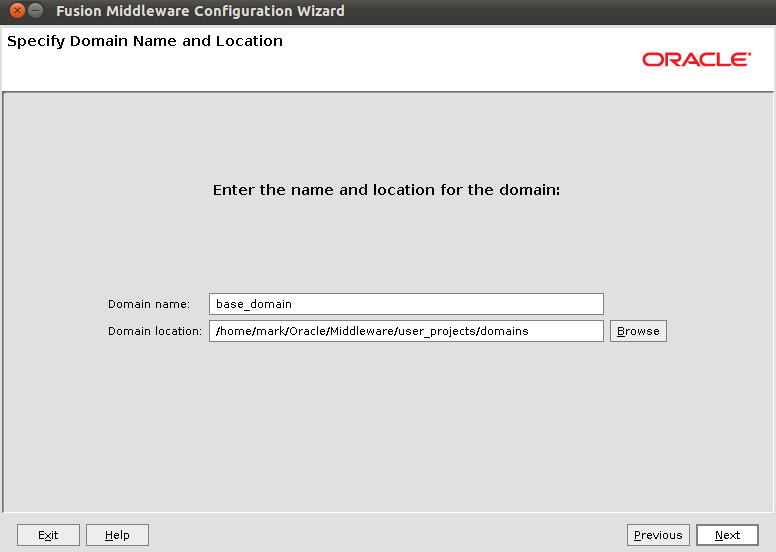
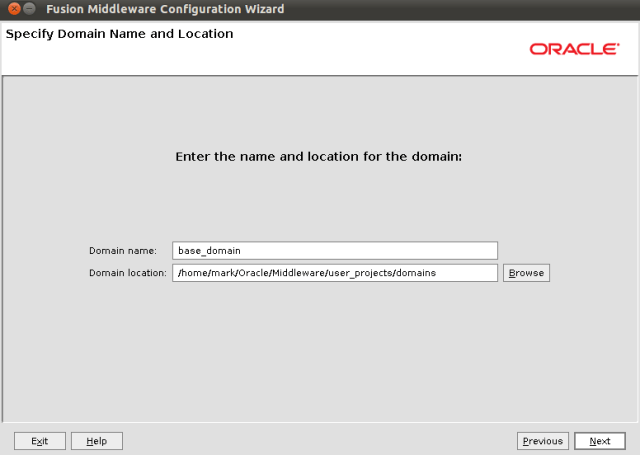
On the Specify Domain Name and Location screen, we provide a name for our domain.  I took the default, base_domain, and clicked on Next.
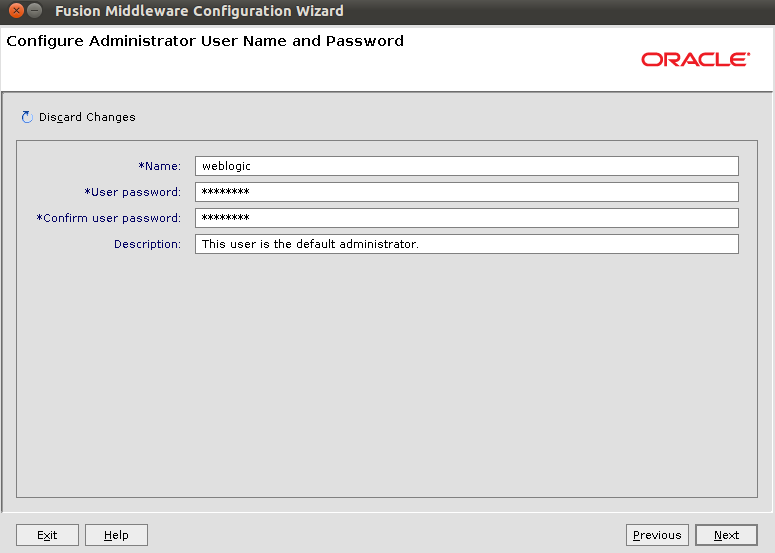
Now, we provide the password for the weblogic administrative user.  Then click on Next.  You will need to remember this password.

For our example, we can leave the servers on Development Mode.  Choose your JDK, we use and recommend JRockit for 64-bit Linux environments, and click on Next.

On the Select Optional Configuration page, we need to tick the checkbox for Managed Servers, Clusters and Machines.  This will cause the configuration wizard to display some extra screens so we can set up our servers and clusters.  Click on Next to continue.

On the Configure Managed Servers page, click on the Add button three times to create three managed servers.  Enter names for the servers, as shown below.  I called mine server1, server2 and loadBalancer.  Note the listen ports that are assigned to each server.  We will need to know these later on.  Click on Next when you are ready to continue.

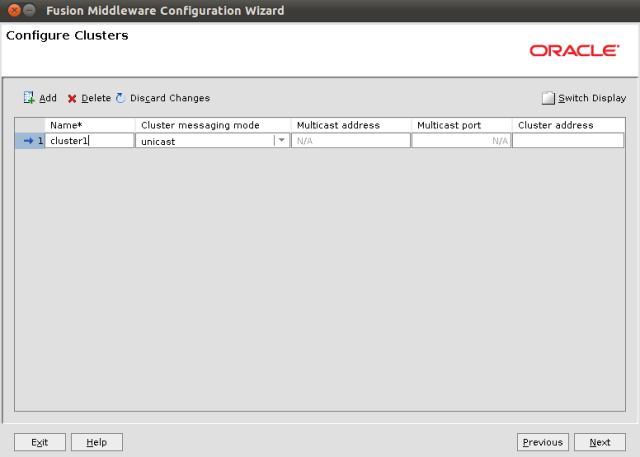
On the Configure Clusters page, click on the Add button to add a cluster, and give it a name.  I called mine cluster1.  Then click on Next to continue.
On the Assign Servers to Clusters page, highlight server1 and server2 and add each of them to cluster1 using the right arrow button.  When you are done, your screen should like like the image below.  Note that the loadBalancer server has not beed added to the cluster.  Click Next when your are ready.

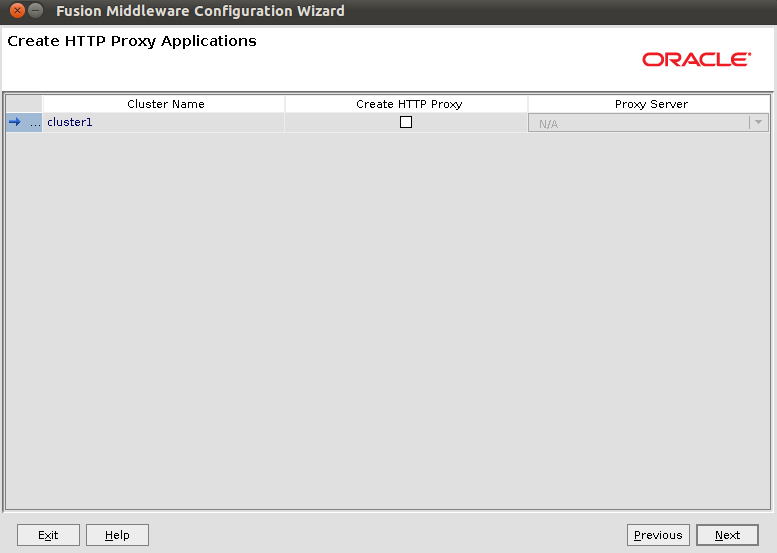
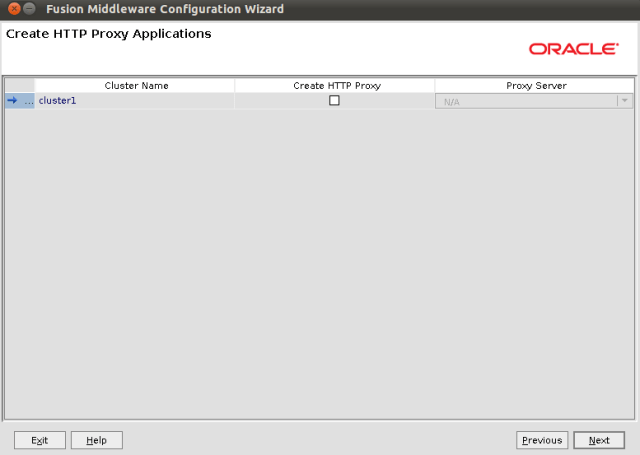
In this example, we are going to just click Next on the Crate HTTP Proxy Applications screen.
On the Configure Machines page, click on the Add button to add a new machine and give it a name.  I called mine machine1.  The “machine” in WebLogic terms represents a single physical (or virtual) machine where one or more managed servers will run.  There is a special process, called the Node Manager, that runs on each machine and allows us to start and stop managed servers from the administration console without needing to log on the actual machine.  Click on Next to continue.

On the Assign Servers to Machines page, add all four servers to machine1.  In our example, we have everything running on the same machine.  It is also possible to use multiple machines if you have them available.  In that case, just define however many machines you have, run the Node Manager on each one (we will come to this later), and assign your managed servers to whichever machine you want them to run on.  Click on Next to continue.

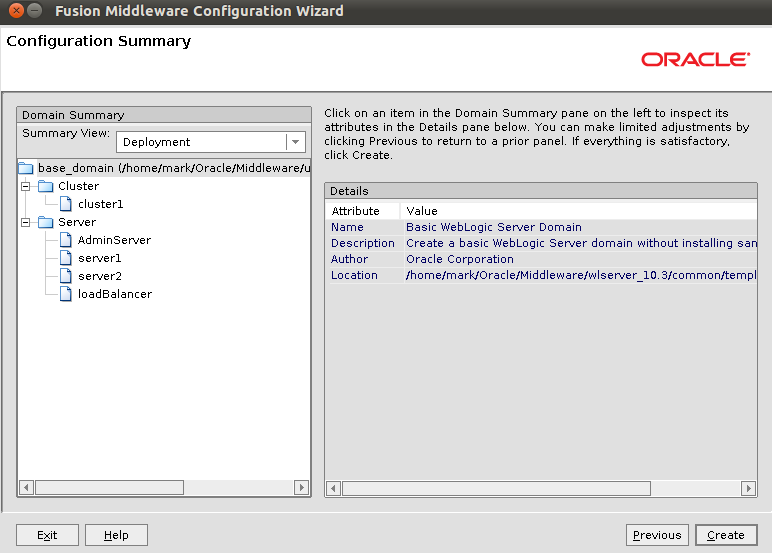
The Configuration Summary is displayed.  Click on Create to create your domain.

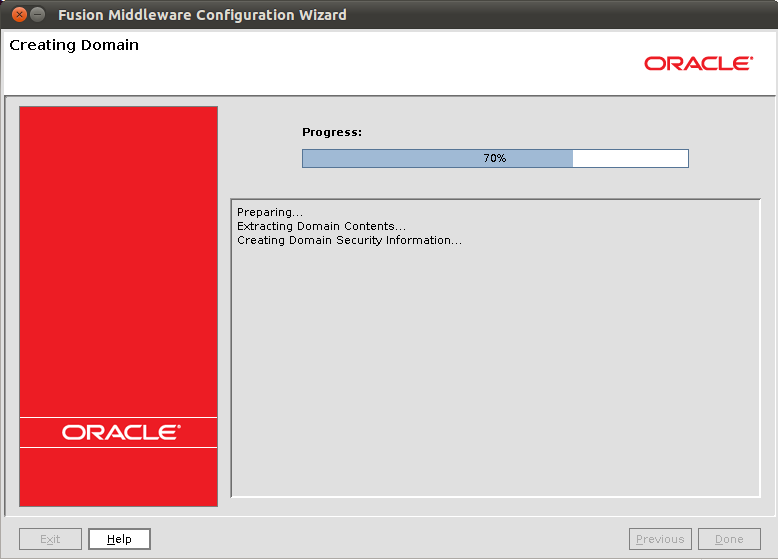
While the domain is being created, you can watch the progress.

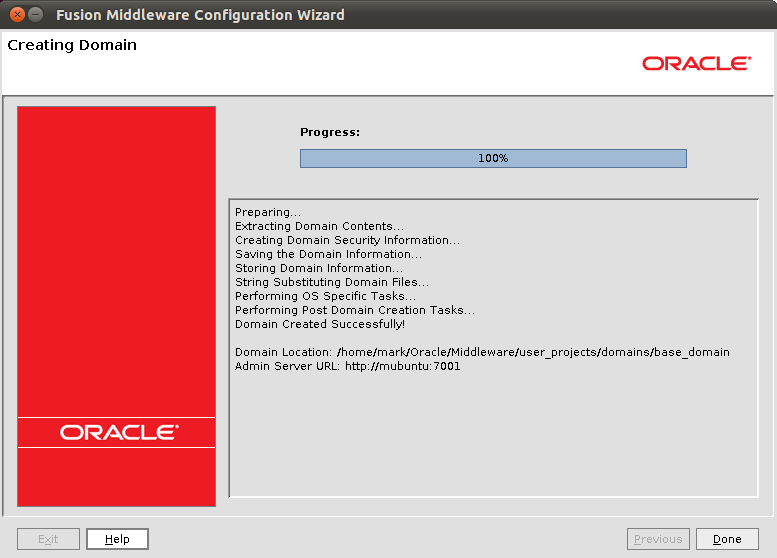
After a few moments (or minutes, depending on your machine) the domain creation will be completed.  Click on Done to close the wizard.
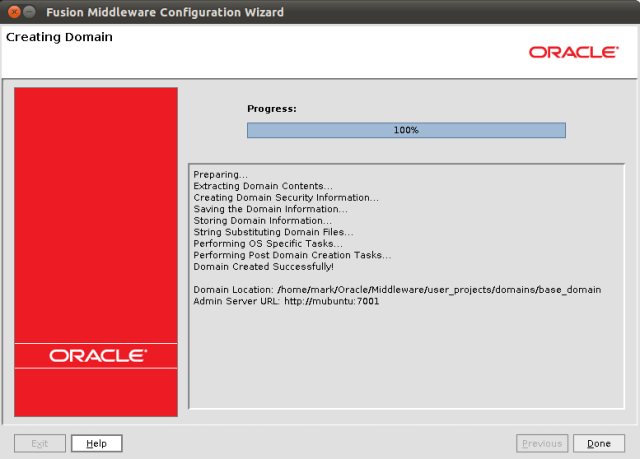
Now we can start up the Node Manager, which we will use to start and stop our managed servers.

$ cd ~/Oracle/Middleware/wlserver_10.3/server/bin
$ ./startNodeManager.sh

After a few moments, the log will show some messages to let us know that the Node Manager is running:

<20/12/2010 8:26:15 AM> <INFO> <Secure socket listener started on port 5556>
20/12/2010 8:26:15 AM weblogic.nodemanager.server.SSLListener run
INFO: Secure socket listener started on port 5556

Now we can start the AdminServer.  In another terminal window, execute these commands:

$ cd ~/Oracle/Middleware/user_projects/domains/base_domain
$ ./startWebLogic.sh

After a minute or two, the log will show us some messages to let us know that the AdminServer has started:

<20/12/2010 8:28:23 AM EST> <Notice> <WebLogicServer> <BEA-000331> <Started WebLogic Admin Server "AdminServer" for domain "base_domain" running in Development Mode>
<20/12/2010 8:28:23 AM EST> <Warning> <Server> <BEA-002611> <Hostname "mubuntu", maps to multiple IP addresses: 127.0.1.1, 172.16.95.131, 0:0:0:0:0:0:0:1>
<20/12/2010 8:28:23 AM EST> <Notice> <WebLogicServer> <BEA-000365> <Server state changed to RUNNING>
<20/12/2010 8:28:23 AM EST> <Notice> <WebLogicServer> <BEA-000360> <Server started in RUNNING mode>

We can now log on to the WebLogic Administration Console to start the other servers.  Point your browser to http://yourserver:7001/console and login using the weblogic user and the password you specified during the domain creation wizard a few minutes ago.

Here we see the WebLogic Console.  Click on the Servers link in the Environment section, or alternatively, you can expand the Environment tree in the Domain Structure on the left and click on Servers in the tree.

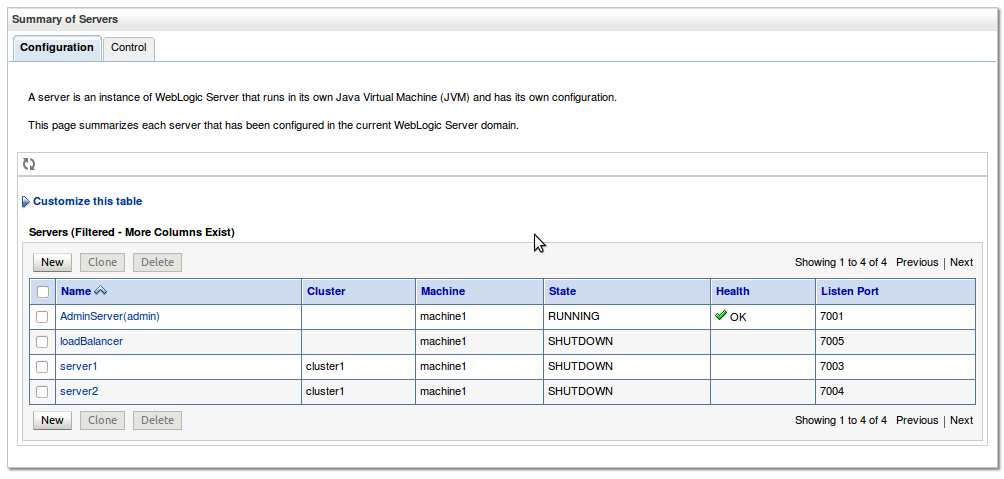
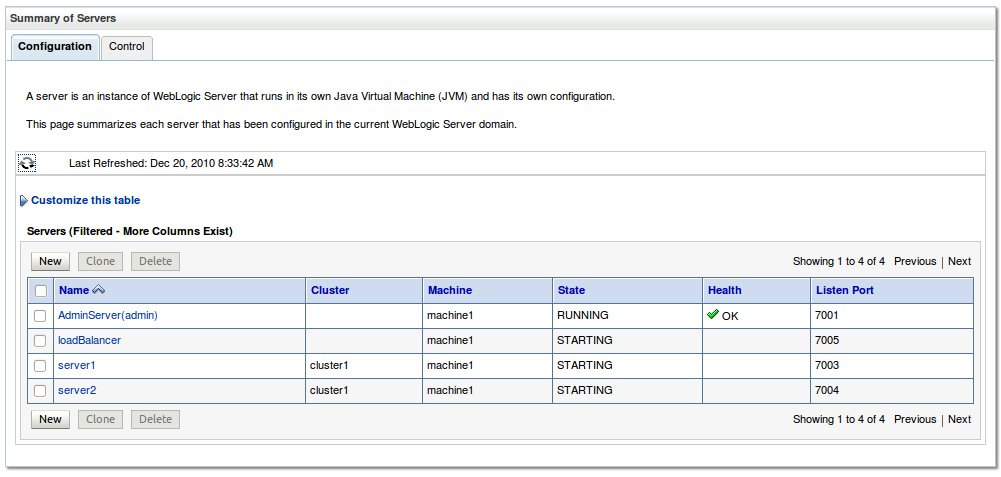
You will see a list of the managed servers we just created.  Note that they are all on machine1 and that server1 and server2 are in cluster1.  Click on the Control tab (at the top) to switch to control (not configuration) mode.

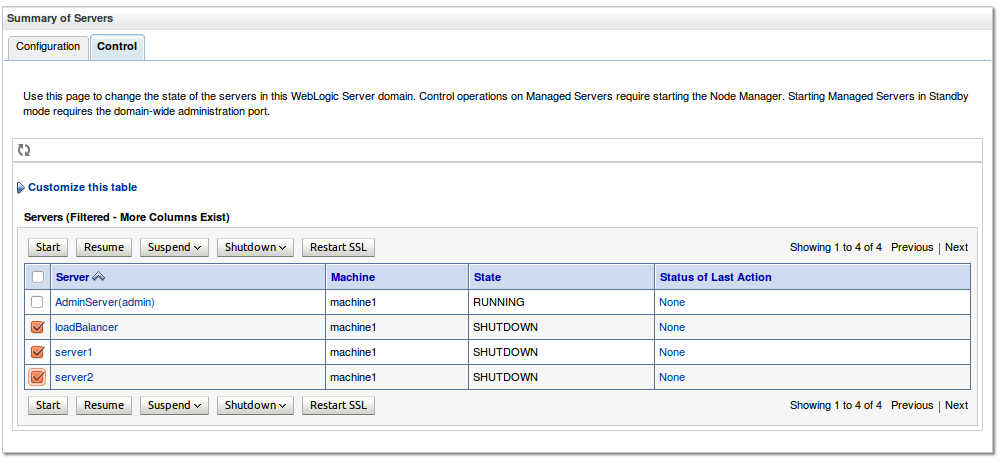
Select the three managed servers by ticking their checkboxes (as shown below) and then click on the Start button to start them up.

You can click on the little circular arrows icon just above the table of servers so that the table will be refreshed automatically.  The first time you start up the managed servers it does take a little longer.  So depending on how fast a machine you have, this may take a couple of minutes, or maybe up towards 5-10 minutes.

When you see that all of the servers are running (as below) we are ready to move on.
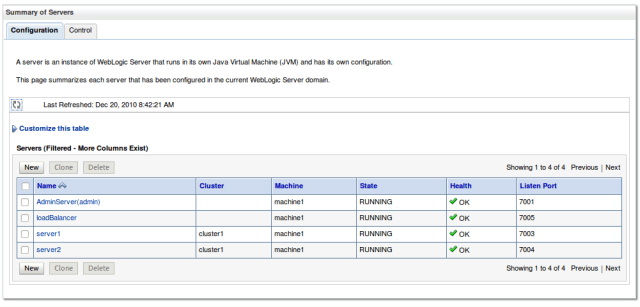
We are going to need an application to test our solution with, so let’s develop a very simple web application that will simply display the name of the server it is running on.  This will help us know that our load balancer is actually sending some requests to each of the managed servers.

I used Maven 2.2.1 to create and package my web application.  If you don’t use Maven in your environment (you might want to check it out) then you can just create the necessary files and put them in the right directories and then manually build the war file.

First, we create a project for our web application.  Here we are telling Maven to use the webapp “archetype” which is essentially a template to create the application and a bunch of rules about how to compile it and build and package it and so on.  There is plenty of good material on the web about Maven.  If you are not familiar with it, you might want to read some of the introductory material.  Sonatype have some free online books here that are a good start.

Enter this command all on the one line.

$ mvn archetype:create -DgroupId=com.wordpress.redstack 
-DartifactId=mywebapp -DarchetypeArtifactId=maven-archetype-webapp

Let’s take a look inside the project directory to see what was created:

$ cd mywebapp
$ find .
.
./src
./src/main
./src/main/resources
./src/main/webapp
./src/main/webapp/WEB-INF
./src/main/webapp/WEB-INF/web.xml
./src/main/webapp/index.jsp
./pom.xml

So we see that we have a src/main directory which contains a webapp directory for our web application’s source files and a resources directory for resources (we won’t be using this).  We have a standard Java web.xml deployment descriptor, and an index.jsp for our home page.  There is also a pom.xml which is used by Maven to describe the project.

Again, we wont drill in to the details of Maven here, there is plenty of information about that topic available already.

To create our simple web application, we are just going to edit the src/main/webapp/index.jsp to contain the following code:

<html>
<body>
<h2>Hello World!</h2>
<p>I am running on <%= System.getProperty("weblogic.Name") %>.</p>
</body>
</html>

It will simply print a “Hello World!” message and then tell us which managed server it is running on.  You can obtain the name of the managed server that your code is running on by getting the weblogic.Name property as shown above.  Thanks to Robert Patrick for this tip.

Next, let’s create a WebLogic deployment descriptor, src/main/webapp/WEB-INF/weblogic.xml to set the context root (URL) for our web application.  Put the following code in your weblogic.xml:

<!DOCTYPE weblogic-web-app PUBLIC "-//BEA Systems, Inc.//DTD Web Application 9.1//EN" "http://www.bea.com/servers/wls810/dtd/weblogic
810-web-jar.dtd">
<weblogic-web-app>
  <context-root>/mywebapp</context-root>
</weblogic-web-app>

Now we are ready to build and deploy our application.  To compile and package our application, issue the following command:

$ mvn package

If you are not using Maven, you will need to manually compile your code and build a WAR file at this point.  If you are using Maven, you should find a WAR file was created for you:

$ find . -name \*.war
./target/mywebapp.war

Now we can deploy our application.  We will do this using the WebLogic console.  In the Domain Structure on the left, click on the Deployments option.  The click on the Install button to install a new application.

Navigate to the folder where your WAR file is located.  Click on the radio box next to your WAR file, as shown below, and then click on the Next button.

Choose the option to Install this deployment as an application and click on Next.

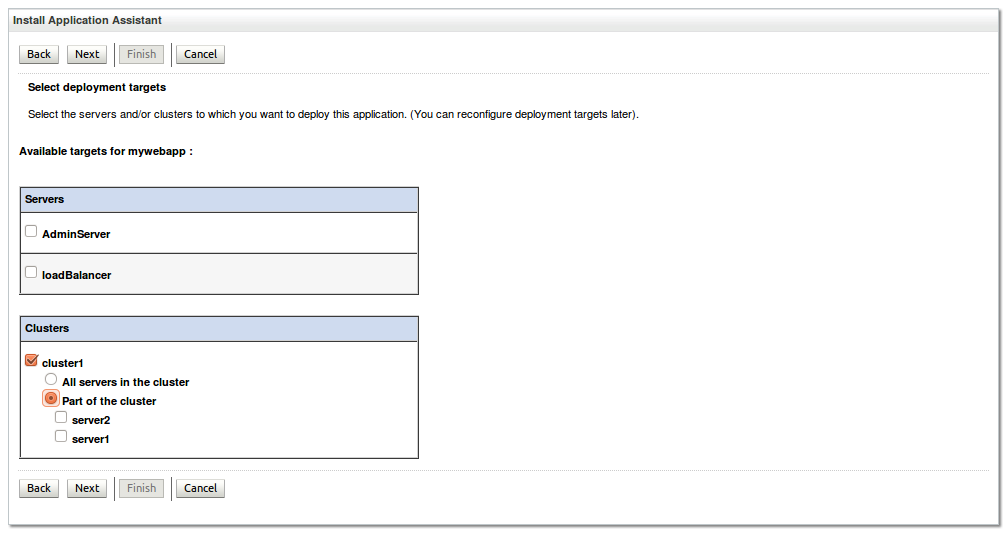
Now comes the important bit!  We need to install this application on the cluster, as opposed to on an individual server.  Tick the checkbox for cluster1.  Note that this will automatically select the Part of this cluster option too.  You can change it to All servers in the cluster.  Click on Next to continue.

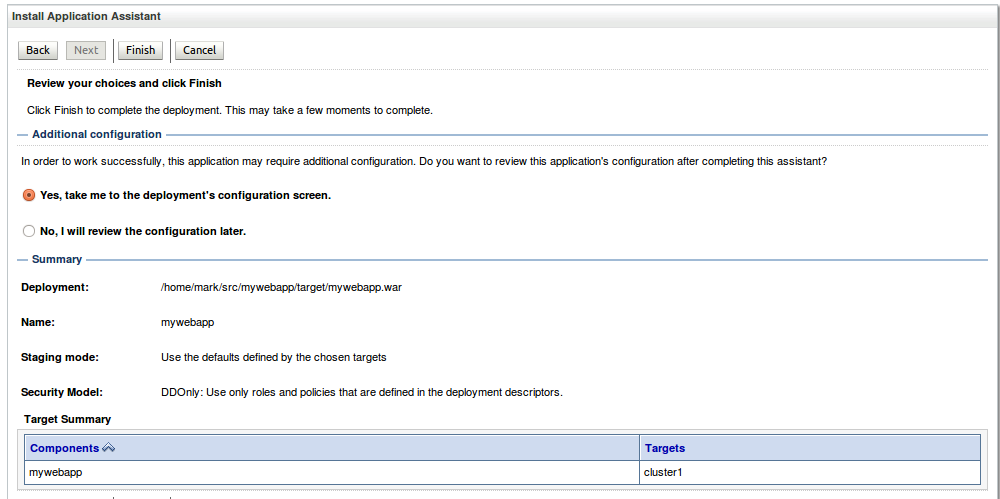
On the next page, we can just click on Next.
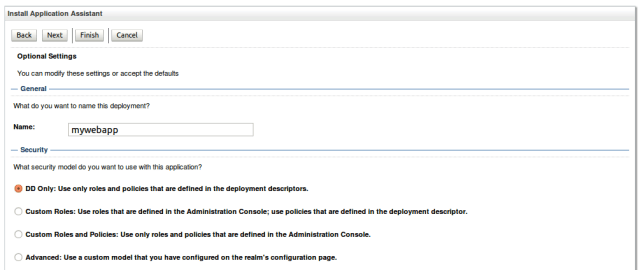
And then Finish.
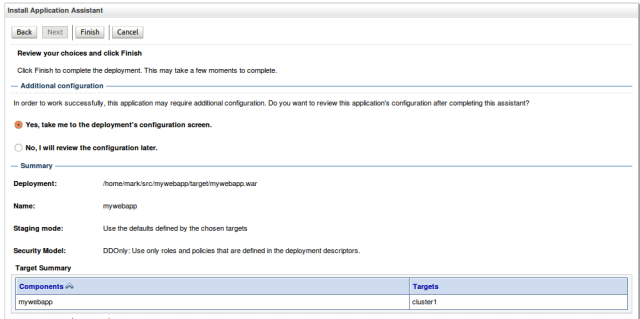
After a few moment, the deployment will be complete, and you will see the settings screen for your web application, as shown below:
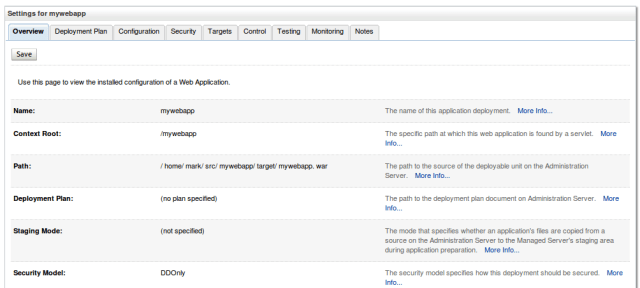
Click on the Deployments option on the left again, and then tick the checkbox beside your web application and the click on the Start button and Servicing all requests to start the web application.  This will make it run on both of the servers in the cluster.

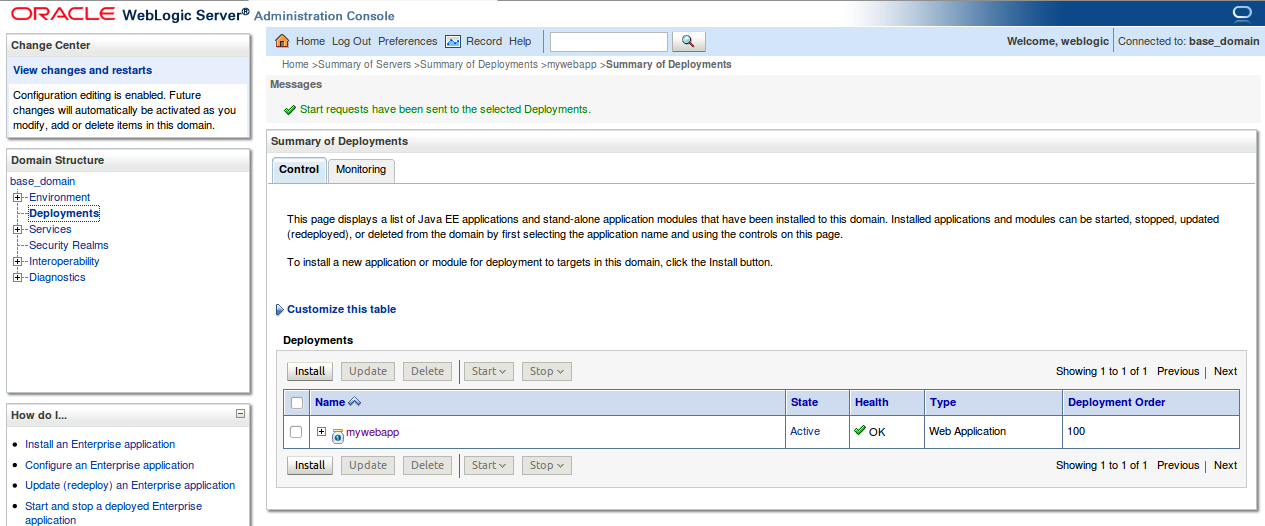
You will get a message (in green at the top) to let you know the application has been started, and the State will change to Active.

Now, let’s test our application to make sure it is working the way we expect.  First, point your browser directly at your server1 managed server.  You will need to know the port number to do this.  If you followed the example, it is probably 7003.  If you don’t remember, you can get it from the Environment -> Servers page in the WebLogic console.

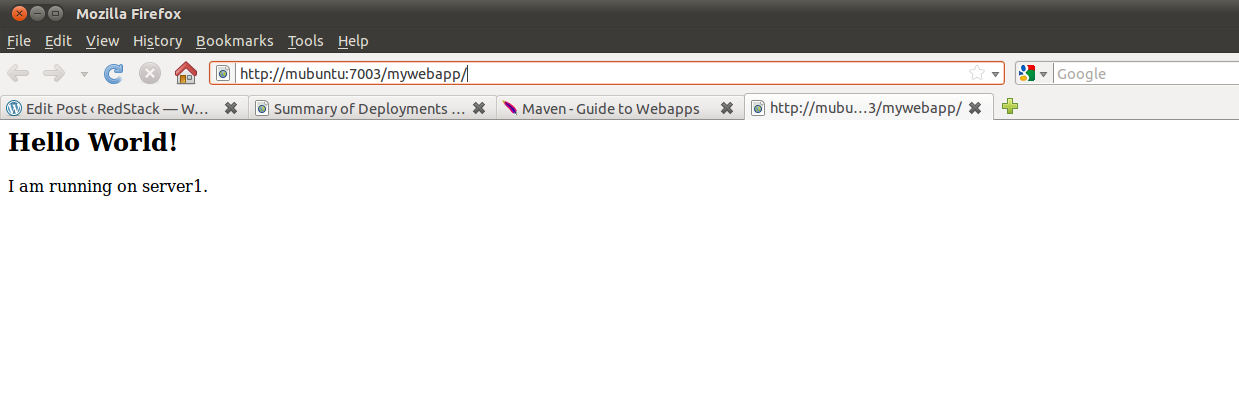
So the URL will be http://yourserver:7003/mywebapp/.  Substitute in the correct port number if yours is different.  You should see your index.jsp page display as shown below.  Note that it says it is running on server1.

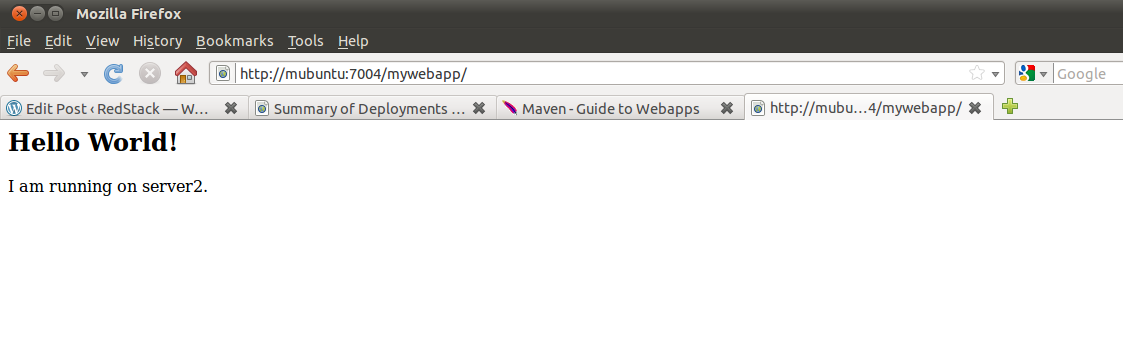
Now try the other managed server.  The URL will be http://yourserver:7004/mywebapp/ and the output should indicate it is running on server2.  Again, substitute in the correct port number if yours is different.

So we can see that our web application is in fact working and that it tells us which managed server it is running on.

Now, let’s set up the load balancer.

We will use Maven again to configure the load balancer.  We do this with a simple web application.  Make sure you change directories outside of your previous web application, and then use the command below (type it all on one line) to create a new web application:

$ mvn archetype:create -DgroupId=com.wordpress.redstack 
-DartifactId=myloadbal -DarchetypeArtifactId=maven-archetype-webapp

Move into your new web application’s directory:

$cd myloadbal

If you care to check, you will note that the files and structure created by Maven are just as before.  Our first step is to edit the web.xml that Maven created.  You need to place the following code in it:

<!DOCTYPE web-app PUBLIC
"-//Sun Microsystems, Inc.//DTD Web Application 2.3//EN"
"http://java.sun.com/dtd/web-app_2_3.dtd" >
<web-app>
  <display-name>Archetype Created Web Application</display-name>
  <servlet>
    <servlet-name>HttpClusterServlet</servlet-name>
    <servlet-class>
      weblogic.servlet.proxy.HttpClusterServlet
    </servlet-class>
    <init-param>
      <param-name>WebLogicCluster</param-name>
      <param-value>localhost:7003|localhost:7004</param-value>
    </init-param>
  </servlet>
  <servlet-mapping>
    <servlet-name>HttpClusterServlet</servlet-name>
    <url-pattern>/</url-pattern>
  </servlet-mapping>
  <servlet-mapping>
    <servlet-name>HttpClusterServlet</servlet-name>
    <url-pattern>*.jsp</url-pattern>
  </servlet-mapping>
  <servlet-mapping>
    <servlet-name>HttpClusterServlet</servlet-name>
    <url-pattern>*.htm</url-pattern>
  </servlet-mapping>
  <servlet-mapping>
    <servlet-name>HttpClusterServlet</servlet-name>
    <url-pattern>*.html</url-pattern>
  </servlet-mapping>
</web-app>

You can just copy this as is, with the exception of the part highlighted in red.  This is a (pipe separated) list of the managed servers that make up the cluster in the format hostname:port.  You need to make sure this list matches your environment.  You can use localhost as in the example, or if you have a proper DNS name, you can use that instead.  This web.xml just contains standard Servlet definitions that point to the HttpClusterServlet that is part of WebLogic Server and will act as our load balancer.  You can find a lot more details here, including additional settings that you can use for security and other options provided by the Servlet.

Note: The example configuration given above will load balance requests to URLs ending with *.htm, *.html and *.jsp only.  You might want to add some more patterns, or make these ones more generic, to suit your own applications.  Thanks to James Bayer from pointing this out to me!

The next step is to create the WebLogic deployment descriptor, weblogic.xml, in the same directory as the web.xml, as we did before.  The weblogic.xml needs to contain the following code:

<!DOCTYPE weblogic-web-app PUBLIC "-//BEA Systems, Inc.//DTD Web Application 9.1//EN" "http://www.bea.com/servers/wls810/dtd/weblogic
810-web-jar.dtd">
<weblogic-web-app>
  <context-root>/</context-root>
</weblogic-web-app>

Now we are ready to package and deploy our web application, as we did before.  We will use Maven to compile and package the WAR file:

$ mvn package
$ find . -name \*.war
./target/myloadbal.war

We will use the WebLogic console to deploy the web application, as we did earlier.  Again, select Deployments on the left, then Install, then navigate to and select your WAR file, as shown below, and click on Next.

Next again.

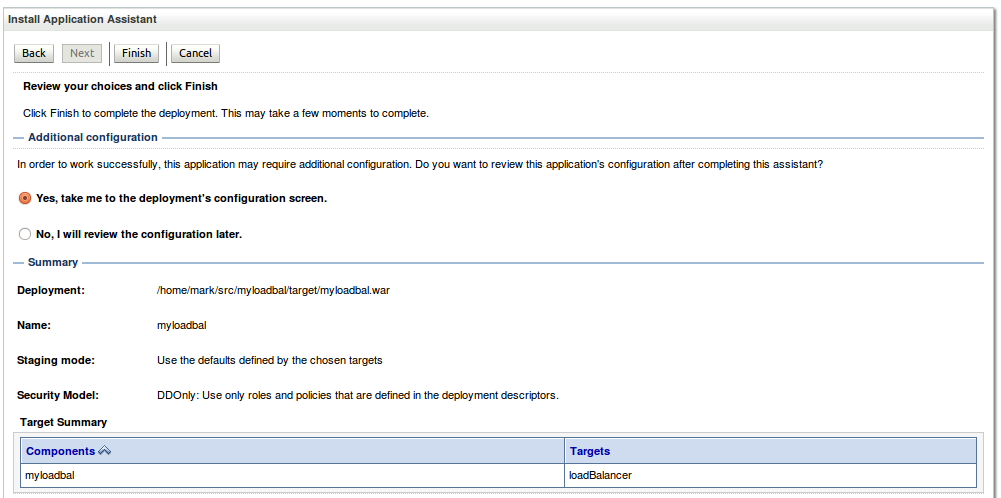
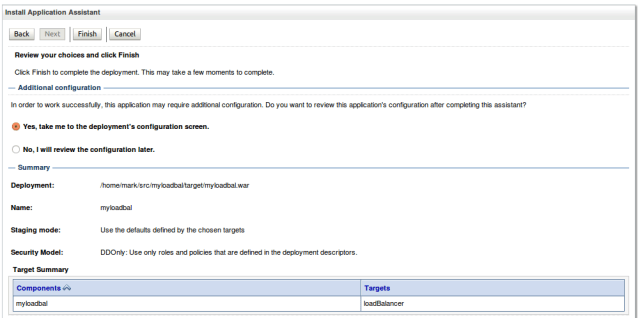
This time, be sure to target this application to the loadBalancer managed server only.  This tells WebLogic that the application will only run on that one managed server.  Then click on Next.

Next again.
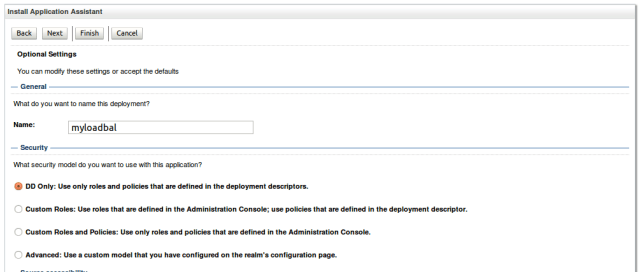
And Finish.
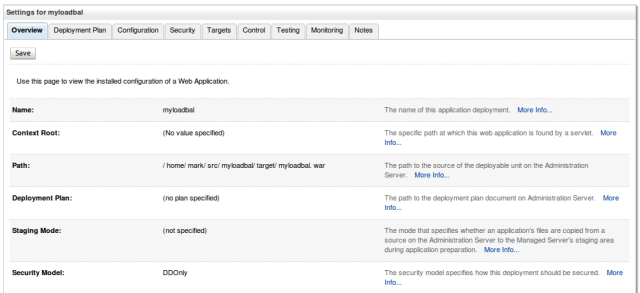
You will see the settings screen after the deployment has completed.
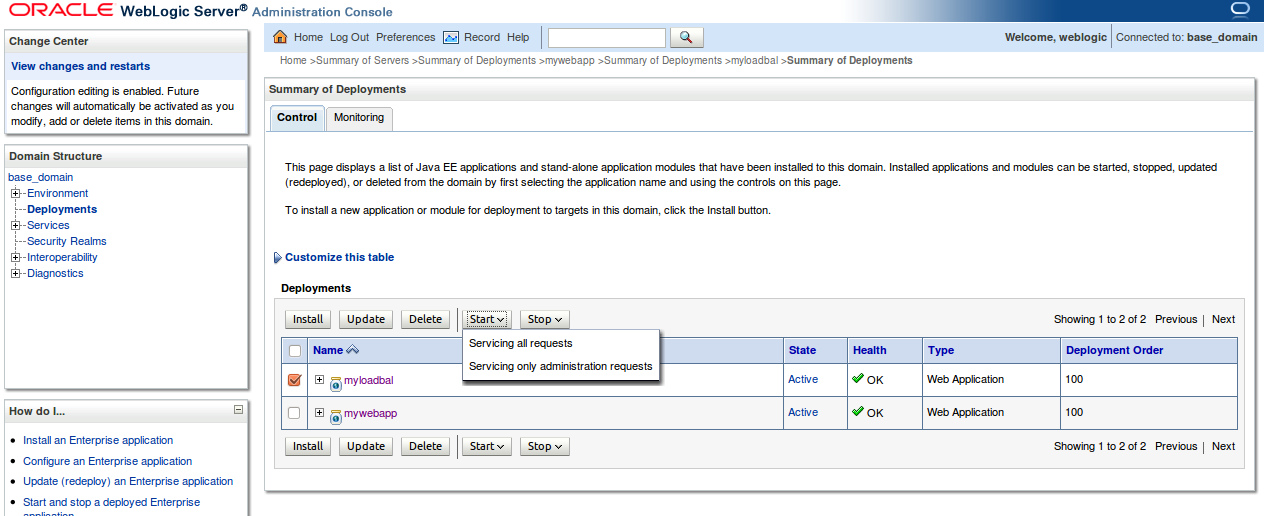
Click on Deployments on the left, select the new web application (myloadbal) and then Start -> Service all requests.

Now we can test our load balancer!

Point your browser at the web application path, but use the load balancer’s port.  If you followed the example, this will be 7005.  You can check it in the WebLogic console as mentioned earlier.  So for us, the URL is http://mubuntu:7005/mywebapp.  Note that the last part of the URL is the context root for the actual web application (mywebapp) that we want to run, not for the load balancer web application (myloadbal).  In the example below we can see that the load balancer has sent this request to server2.

Now, close your browser (or delete the cookies) to make sure that the session is destroyed, then open a new browser and go to that same URL again.  You will need to do this a few times.  You should find that you get some responses from server1 as shown below, and some from server2 as shown above.
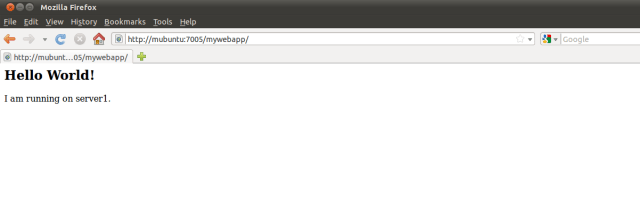
So we can see that our load balancer is indeed distributing our requests across the two managed servers.

This now gives us a nice easy software load balancer to use when testing our applications in a cluster.  The load balancer web application we created here will work for any application that is deployed on the cluster, because we set the context root to “/” in the weblogic.xml and in the servlet mappings in our web.xml.

Enjoy!

Posted in Uncategorized | Tagged , , , | 2 Comments

Purging old instance data from SOA/BPEL 10g

My colleague Deepak Arora (see his blog here) has written an excellent white paper on purging old instance data from SOA Suite/BPEL 10g and also a great blog post on automating the deletion of old partitions.  If you are interested in this topic, I encourage you to check them out!
Posted in Uncategorized | Tagged , , , | Leave a comment

Extracting Garbage Collection messages from a WebLogic Server log file

Recently, I was doing some work on tuning Garbage Collection in a HotSpot JVM (i.e. “the Sun JVM”) underneath WebLogic Server 10.3.3.  In order to do this, I wanted to look at the Garbage Collection logs.  The JVM will produce these logs for you if you pass in the following parameters:

  • -XX:+PrintGCTimeStamps
  • -XX:+PrintGCDetails
  • -Xloggc:gc.log

In this particular case though, only the first two had been specified.  The third one produces a nice clean Garbage Collection log file that can be used with various tools to help with tuning, but unfortunately I did not get that file.  All I had was the WebLogic Server log file, with GC messages spread all through it.  This log file was several hundreds of thousands of lines in size, so manually editing it was not an option.  Re-running this application with the extra setting to capture a nice, clean log file was not a viable option either.

Solution: I wrote a small Java program to go through the WebLogic Server logs and strip out just the information I needed.  Will I ever need to use this again?  Maybe not, but I thought I would post it here for prosperity anyway.  You never know when you are going to need something like this.

Here is the Java code for my CleanGCLog class:

import java.io.FileNotFoundException;
import java.io.FileReader;

public class CleanGCLog {

    public static void main(String[] args) throws Exception {
        char currentChar = 0;
        boolean print = false;
	FileReader inputStream = null;

	// Check if the right number of arguments passed in
	if (args.length != 1) {
  	    System.out.println("\nCleanGCLog\n----------\n" +
	    	"This program will  read through the input  file and print out\n" +
    		"any GC messages found to the stdout.  You need to provide the\n" +
		"filename as an argument.\n" +
  	    	"   e.g. java CleanGCLog mylogfile.log\n\n");
	    System.exit(1);
	}

        // Try to open the file
	try {
            inputStream = new FileReader(args[0]);
	} catch (Exception e) {
 	    System.out.println("Could not open the input file.");
	    e.printStackTrace();
	    System.exit(1);
	}

	// Read through the file a character at a time
        while (currentChar != (char) -1)
        {
            currentChar = (char) inputStream.read(); 

	    // Look for the start of a GC message
            if (currentChar == '{') {
                print = true;
            }
            if (print == true) {
                System.out.print(currentChar);
            }
	    // Look for the end of a GC message
            if (currentChar == '}') {
                System.out.println("}");
                print = false;
            }
        }

        inputStream.close();
    }
}

This is compiled with javac CleanGCLog.java and will produce a single class file, CleanGCLog.class which can be run as shown below.  If you run it without any arguments, it will print its usage information.

In the sample below, I have just kept the first two GC messages to show you what they look like.  This file actually had several thousand of them.  The output is just written to the stdout, so you can easily redirect it to a file or pipe it to another command if desired.

mark$ java CleanGCLog ../gc.log.112710091630.log 
{Heap before GC invocations=0 (full 0):
 par new generation   total 3909824K, used 3723648K [0x00002aaaae1f0000, 0x00002aaba81f0000, 0x00002aaba81f0000)
  eden space 3723648K, 100% used [0x00002aaaae1f0000, 0x00002aab91650000, 0x00002aab91650000)
  from space 186176K,   0% used [0x00002aab91650000, 0x00002aab91650000, 0x00002aab9cc20000)
  to   space 186176K,   0% used [0x00002aab9cc20000, 0x00002aab9cc20000, 0x00002aaba81f0000)
 concurrent mark-sweep generation total 14385152K, used 0K [0x00002aaba81f0000, 0x00002aaf161f0000, 0x00002aaf161f0000)
 concurrent-mark-sweep perm gen total 524288K, used 158566K [0x00002aaf161f0000, 0x00002aaf361f0000, 0x00002aaf361f0000)
2010-11-27T09:17:17.951+1100: 47.077: [GC 47.077: [ParNew
Desired survivor size 95322112 bytes, new threshold 1 (max 15)
- age   1:  109823768 bytes,  109823768 total
: 3723648K->108098K(3909824K), 0.3358110 secs] 3723648K->108098K(18294976K), 0.3360230 secs] [Times: user=0.71 sys=0.54, real=0.33 secs] 
Heap after GC invocations=1 (full 0):
 par new generation   total 3909824K, used 108098K [0x00002aaaae1f0000, 0x00002aaba81f0000, 0x00002aaba81f0000)
  eden space 3723648K,   0% used [0x00002aaaae1f0000, 0x00002aaaae1f0000, 0x00002aab91650000)
  from space 186176K,  58% used [0x00002aab9cc20000, 0x00002aaba35b08e8, 0x00002aaba81f0000)
  to   space 186176K,   0% used [0x00002aab91650000, 0x00002aab91650000, 0x00002aab9cc20000)
 concurrent mark-sweep generation total 14385152K, used 0K [0x00002aaba81f0000, 0x00002aaf161f0000, 0x00002aaf161f0000)
 concurrent-mark-sweep perm gen total 524288K, used 158566K [0x00002aaf161f0000, 0x00002aaf361f0000, 0x00002aaf361f0000)
}
{Heap before GC invocations=1 (full 0):
 par new generation   total 3909824K, used 3831746K [0x00002aaaae1f0000, 0x00002aaba81f0000, 0x00002aaba81f0000)
  eden space 3723648K, 100% used [0x00002aaaae1f0000, 0x00002aab91650000, 0x00002aab91650000)
  from space 186176K,  58% used [0x00002aab9cc20000, 0x00002aaba35b08e8, 0x00002aaba81f0000)
  to   space 186176K,   0% used [0x00002aab91650000, 0x00002aab91650000, 0x00002aab9cc20000)
 concurrent mark-sweep generation total 14385152K, used 0K [0x00002aaba81f0000, 0x00002aaf161f0000, 0x00002aaf161f0000)
 concurrent-mark-sweep perm gen total 524288K, used 229038K [0x00002aaf161f0000, 0x00002aaf361f0000, 0x00002aaf361f0000)
2010-11-27T09:50:55.024+1100: 2064.149: [GC 2064.149: [ParNew
Desired survivor size 95322112 bytes, new threshold 1 (max 15)
- age   1:  145857248 bytes,  145857248 total
: 3831746K->186176K(3909824K), 2.3871680 secs] 3831746K->310053K(18294976K), 2.3873730 secs] [Times: user=3.95 sys=3.11, real=2.39 secs] 
Heap after GC invocations=2 (full 0):
 par new generation   total 3909824K, used 186176K [0x00002aaaae1f0000, 0x00002aaba81f0000, 0x00002aaba81f0000)
  eden space 3723648K,   0% used [0x00002aaaae1f0000, 0x00002aaaae1f0000, 0x00002aab91650000)
  from space 186176K, 100% used [0x00002aab91650000, 0x00002aab9cc20000, 0x00002aab9cc20000)
  to   space 186176K,   0% used [0x00002aab9cc20000, 0x00002aab9cc20000, 0x00002aaba81f0000)
 concurrent mark-sweep generation total 14385152K, used 123877K [0x00002aaba81f0000, 0x00002aaf161f0000, 0x00002aaf161f0000)
 concurrent-mark-sweep perm gen total 524288K, used 229038K [0x00002aaf161f0000, 0x00002aaf361f0000, 0x00002aaf361f0000)
}
Posted in Uncategorized | Tagged , , , | Leave a comment

Increasing swap size on Solaris (using ZFS)

Today, I was installing the Oracle Database 11g R2 on a Solaris system, but it failed a prerequisite check during the installation – it did not have enough swap space available.  This particular system I had installed with ZFS.  Turns out that adding extra swap space on a ZFS system is slightly different than what you might be used to.  I am sure I am going to want to do this again some time, and I guess other folks will too, so here are the details.

Firstly, check where your swap file is (it will be a ZFS volume created during the Solaris installation):

bash-3.00# swap -l
swapfile             dev  swaplo blocks   free
/dev/zvol/dsk/rpool/swap 256,1      16 4194288 4194288

Then you will need to unmount it:

bash-3.00# swap -d /dev/zvol/dsk/rpool/swap

You should validate it is unmounted:

bash-3.00# swap -l
No swap devices configured

Then you can resize the ZFS volume (just give it the pool name and the volume name):

bash-3.00# zfs set volsize=16G rpool/swap

And then add it back into your swap space:

bash-3.00# swap -a /dev/zvol/dsk/rpool/swap

And now we see the swap space is back online and larger than before:

bash-3.00# swap -l
swapfile             dev  swaplo blocks   free
/dev/zvol/dsk/rpool/swap 256,1      16 33554416 33554416

Pretty easy once you know how!

Posted in Uncategorized | Tagged , , , | 1 Comment

Recommended JVM parameters for 11g products

I often get asked to recommend some JVM parameters for people running one (or more) of the Oracle Fusion Middleware 11g products – like BPM, SOA, UCM, WebCenter, etc. on top of WebLogic Server.

Here are my current list of recommended settings and why I like them.  I will update this post if I add more.

  • -XX:+PrintGCTimeStamps
  • -XX:+PrintGCDetails
  • -Xloggc:gc.log
    These three settings will cause the JVM to print out more detailed information about garbage collection and to produce a log (called gc.log in this example) that contains garbage collection statistics and information that is very useful when trying to do some JVM tuning.
  • -Xms2048m
  • -Xmx2048m
    These two settings control the size of the Heap.  I like to always make them the same value (2048m in this example – you need to put in the right value for your system, not just copy this one).  Making them the same size means the JVM will not spend time trying to work out if it needs to increase the size of the heap.  Changing the heap size is a very expensive operation, and if there were a large difference between these two settings, it could happen quite a few times before the heap reaches its maximum size.
  • -XX:+HeapDumpOnOutOfMemoryError
    This one will cause the JVM to take a heap dump if (in a development environment I might say “when”) you get an OutOfMemoryException.  This is really useful to work out what caused the problem.  If you don’t have this turned on when your JVM crashes, you will need to wait for it to happen again before you can capture some dumps.  Having in turned on just in case is a good idea.

For HotSpot only:

  • -XX:PermSize=512m
  • -XX:MaxPermSize=512m
    These two control the size of the Permanent Generation (one of the memory areas used by the HotSpot JVM).  Like the heap size, I like to make them the same, for the much the same reason.  If you get an OutOfMemory: PermGen error in your log, it is telling you you don’t have enough memory in this space.  Again, you need to put in the right value for your system, not just copy this one.
  • -XX:+UseCompressedOops
    Use this setting if you have a 64-bit JVM.  This will help to reduce the memory footprint of the JVM.
Posted in Uncategorized | Tagged , , , , , | 4 Comments

Memory problems with BPM or SOA 11g, especially after multiple composite deployments

Update: There is now a bundle patch available that contains all the recommended patches on top of BPM 11.1.1.3 – the patch number is 9958661 and this patch should be installed in preference to the individual patches listed below.

A number of customers have reported some issues with memory usage on SOA or BPM 11g (11.1.1.2 and 11.1.1.3) after a number of composite deployments or redeployments.  This tends to only occur in development environments where you are frequently deploying changed composites.

The observed symptom is that memory use grows after each deployment, until eventually you run out of memory and you will get an error on the managed server (OutOfMemoryException or a PermGen error) and the managed server will shutdown.  After restarting the managed server, the memory usage returns to a lower level.

The workaround for this (of course) is to restart the managed server more frequently to free up the used memory.  But this can be a bit inconvenient!

Three patches have been released that address these issues.  These can be applied on top of 11.1.1.3 (on any platform, 32-bit or 64-bit).  If you want a specific platform version or a patch for 11.1.1.2, you can search for these patches on Oracle Support and follow the links to other versions.

The patch numbers are as follows:

  • 9822892
  • 9811515
  • 10065890

You can find all of these on Oracle Support, by searching by number on the Patches tab.

Posted in Uncategorized | Tagged , , , , , | 2 Comments

Opening a BPMN process from Oracle BPA Suite

Some organisations use Oracle BPA Suite (which is based on ARIS) to model their organisation’s business processes from the highest level (strategy) down to the operational process level.  Such organisations will often follow the ARIS methodology, or some customised version of it, and typically have 4-6 levels of process models, starting with a structuring model at the top (Level 0), moving through a number of layers of Value Added Chain Diagrams, to Event Process Chains, and then sometimes to BPMN for the lowest layer – which is the operational process layer.

There are a lot of benefits to organisations in using this structured modeling approach in terms of visibility into their processes, optimisation/improvement of processes, especially through approaches like LEAN or Six Sigma, and documentation and compliance, just to name a few.

Organisations who adopt this approach may wish to take their operational processes and make them available to their integration developers so that they can be automated and have their execution managed by Oracle BPM Suite.  This is the focus on this post.

JDeveloper can open a process from BPA so that it can have the ‘implementation’ tasks completed and can be deployed into an execution environment.  This capability is enabled by installing an add-on from the BPA installation media.

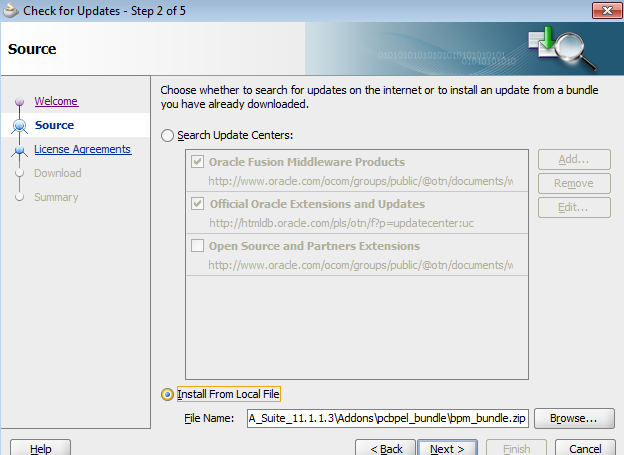
In JDeveloper, you need to select Check for Updates from the Help menu, then select the option to Install from a Local File.

image

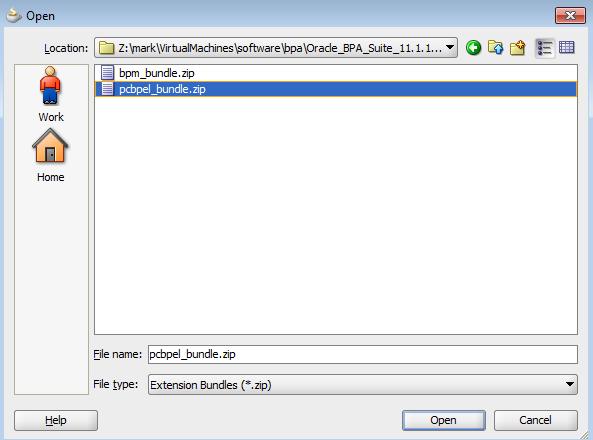
Click on the Browse button and navigate to the pcbpel directory inside the addons directory in the root of the BPA 11.1.1.3 install media.  Select the pcbpel_bundle.zip file and click on Open.

image

Then click on Next, Finish to install the add-on.  JDeveloper will then prompt you to restart itself.  After it restarts, repeat this same process and choose the bpm_bundle.zip and install it.  After the second restart, JDeveloper is properly configured to be able to read BPMN models from BPA.

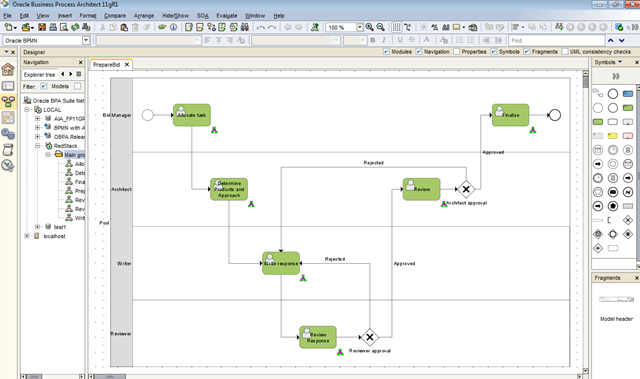
Here is an example of a simple BPMN process in BPA:

image

This process is part of a bid preparation process.  It has four roles: Bid Manager, Architect, Writer and Reviewer.  And it has some decisions points and looping.

Once a process model in BPA is in a state where we are ready to implement it, i.e. after we have done all of the necessary analysis, used the simulation capability to optimise the performance of the process, got the necessary approvals, etc., we share it by right clicking on the process background to open the popup context menu, and then selecting Share Blueprint from the SOA sub-menu.

image

After a few moments, BPA will ask if you want to validate the model.  You must validate the model before you share it, click on Yes to continue.

image

The validation will run, and a report will be displayed (like the one below) to tell you if there are any issues.  If your BPMN model was not correct, for example, if you had a decision point with no out paths, you would get an error here and would not be able to proceed until you fixed that error.

image

After you have reviewed the validation report, you can close it.  A message will be displayed to let you know the process is ready to access from JDeveloper:

image

In JDeveloper, create a new Application to hold our process by selecting New from the Application menu.  In the wizard, give your application a name, I called mine RedStackBPAExample, and choose BPM Application as the application template.  Then click on Finish.

image

This will create a new application, containing an empty project.  Now we want to open the process from BPA.  To do this, we select New from the File menu.  The New Gallery will be displayed, as shown below.  Select BPM Tier in the Categories on the left hand side, and then select BPM Project from BPA on the right hand side.  Then click on OK.

image


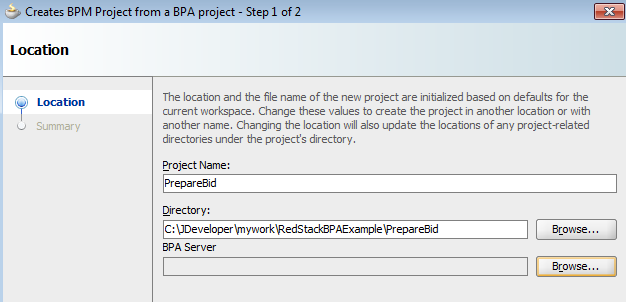
The Create BPM Project from a BPA project wizard will open.  Give your project a a name.  I called mine PrepareBid.  Then click on the Browse button next to the BPA Server field to browse the BPA database and find a process.

image

Since this is a new BPA database that we have not used before, we will need to tell JDeveloper how to connect to it.  Click on the green plus icon to add a new connection.

image


In the BPA Server Connection dialog, you will need to provide the connection details for the BPA server and database you are using.  In my case, I have BPA installed on the same machine, so I can choose the Local Server option.  If you have a central BPA server, you would need to choose Remote Server and provide the connection details.

You will also need to give your connect a name, I called mine RedStack, and choose the correct database from the dropdown list called Database.  You will also need to provide the Username and Password to connect to BPA.  If you have not set these up specifically, the defaults are system and manager respectively.

image

When you have completed the necessary details, press OK to continue.  If you wish, you can use the Test tab to make sure you have everything correct.  To do this, switch to the Test tab and press the Test Connection button.  If you have set the parameters correctly you will see a message like the one below.

image

Now you can navigate through your database to find the process model you just shared a few moments ago.  Select the model you want (as shown below) and press OK and then Finish to open it.

image

After a few moments, JDeveloper will open and display the process as shown below.

image

Now the integration developer can carry out any necessary tasks needed and deploy the process to an execution environment.  In this example, he/she would just need to create the human task definition and user interfaces, update the conditions to use the outcomes of the tasks and then deploy the process.  It would also be necessary to assign the roles (Bid Manager, Architect, Writer, Reviewer) to some actual users so that they could run the process.

Posted in Uncategorized | Tagged , , , | Leave a comment